SaaS discovery
Finds the software in use from Google Workspace and Microsoft 365 sign-ins, the Obseria Guard browser extension, outgoing service calls, spend imports and requests.
We use essential functions to operate this website. With your consent, we would also use services for statistics and marketing. You decide which categories you allow and can change your choice at any time via “Cookie settings” in the footer. More in our privacy notice.
Obseria Consent Management · Your choice is stored for 12 months
Obseria Shadow IT finds the apps your company really uses from sign-ins in Google Workspace and Microsoft 365, the Obseria Guard browser extension, outgoing service calls and card or bank exports, and puts them in one inventory.
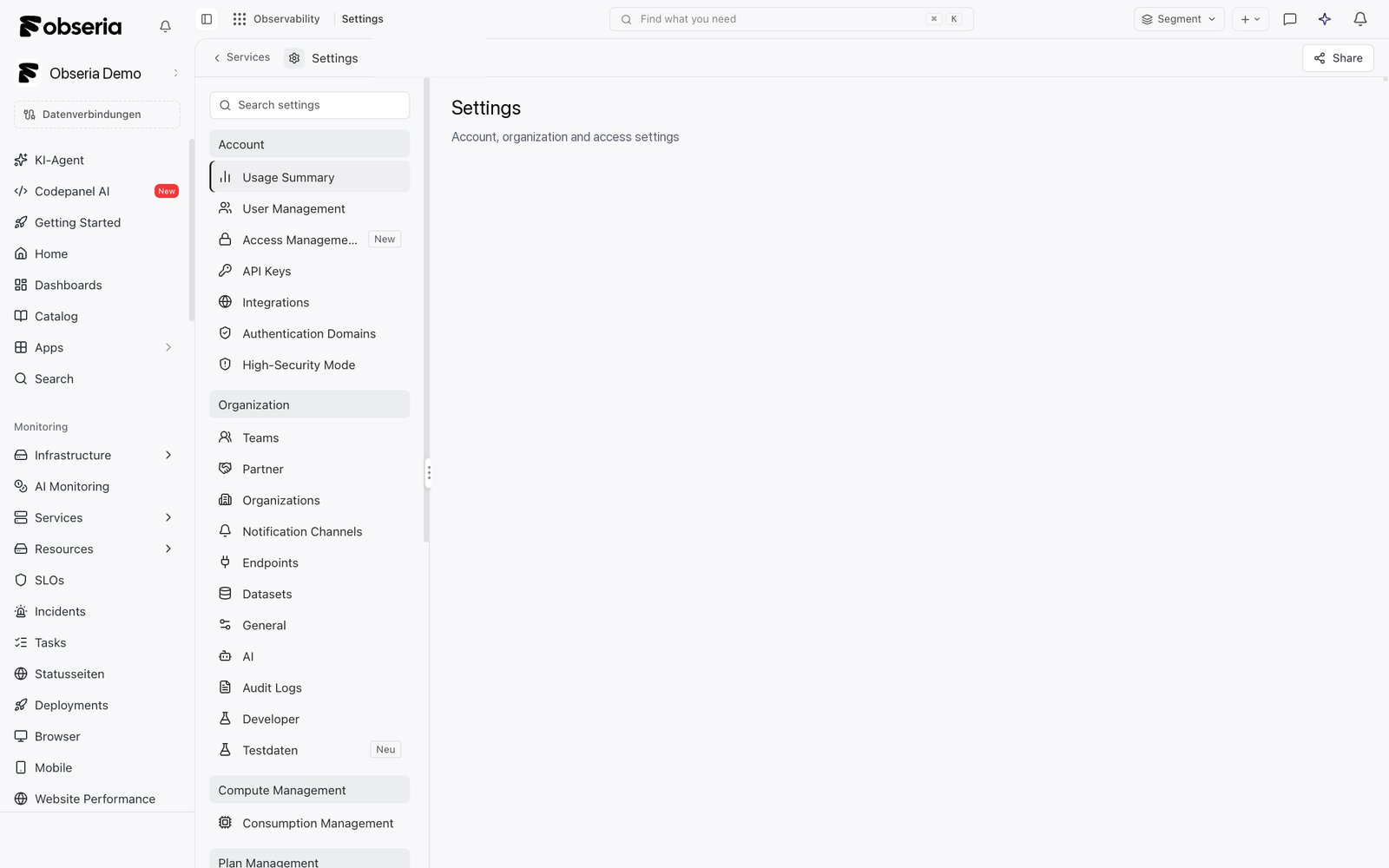
This view sets up Obseria Guard. Besides phishing protection, the Chrome extension is the browser source for SaaS discovery: visits to known SaaS apps become sightings with the user's work email, never general browsing.
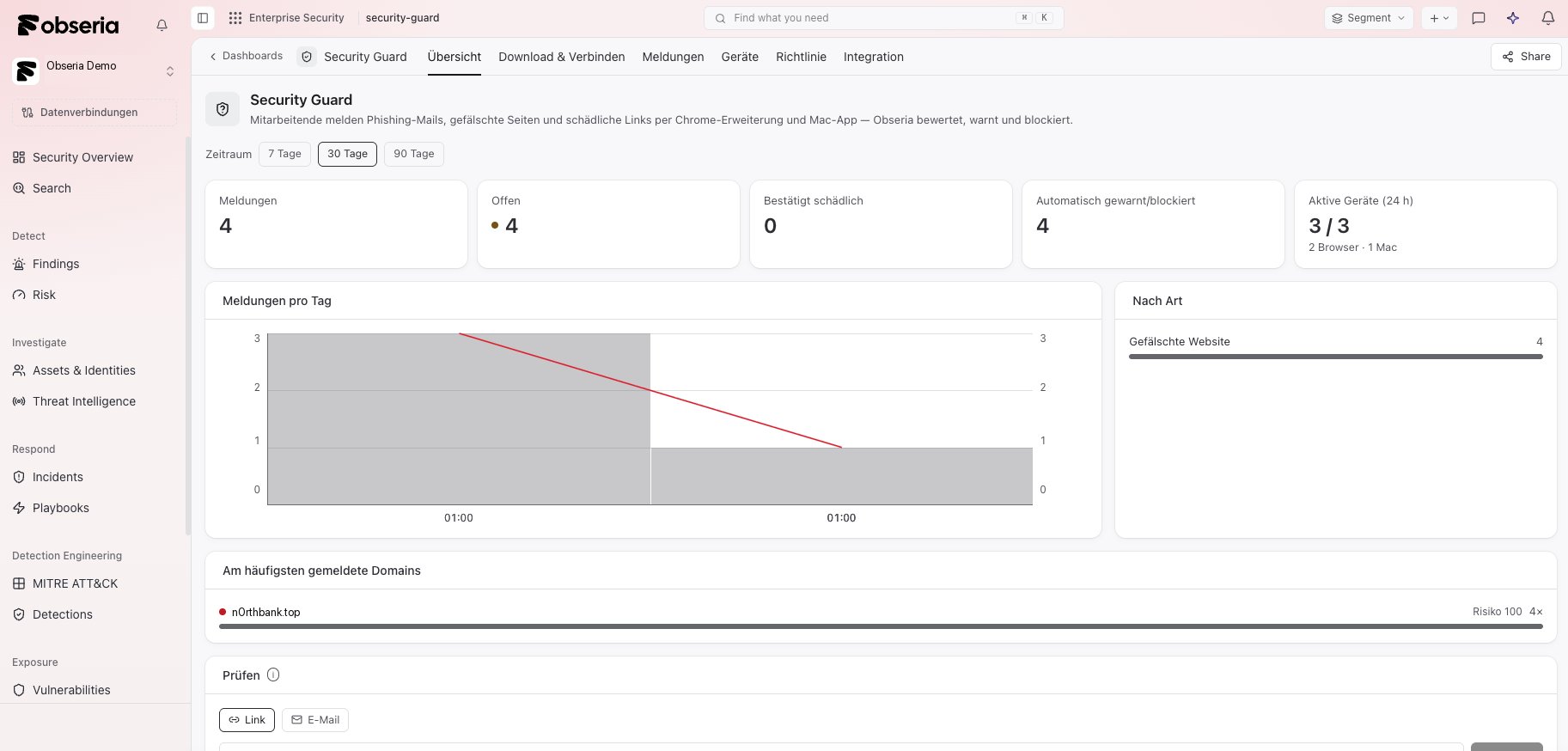
The Guard overview counts reports, confirmed threats and active devices. For discovery, the number of monitored devices decides how complete the active-user figures per app are.
Account and organisation settings in Obseria: user management, access management, integrations, notification channels and audit logs. Shadow IT runs in the same organisation and uses the same users and channels.
Obseria sends its messages through your notification channels. Shadow IT uses the same channels, for example for reminders and an optional weekly report.
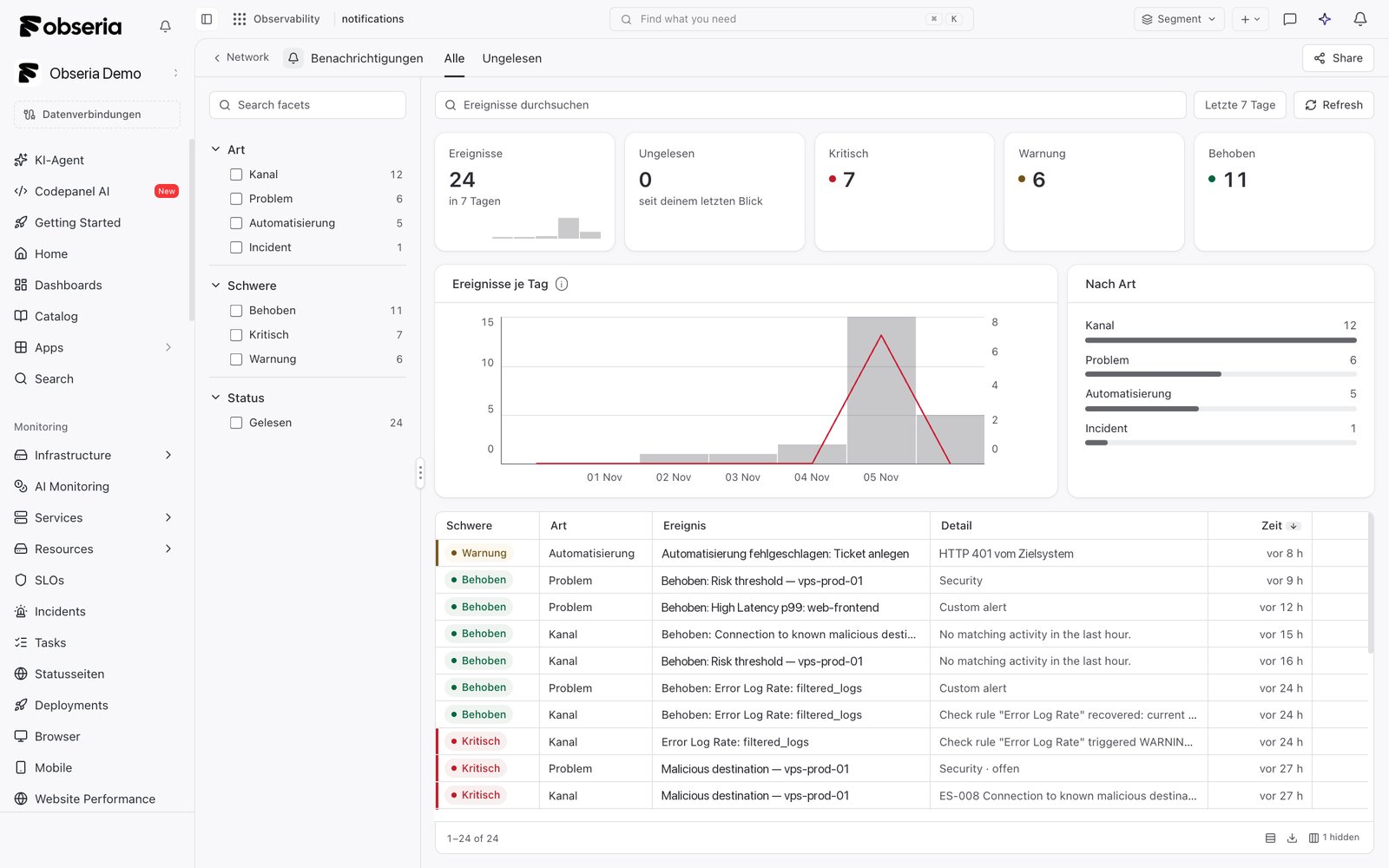
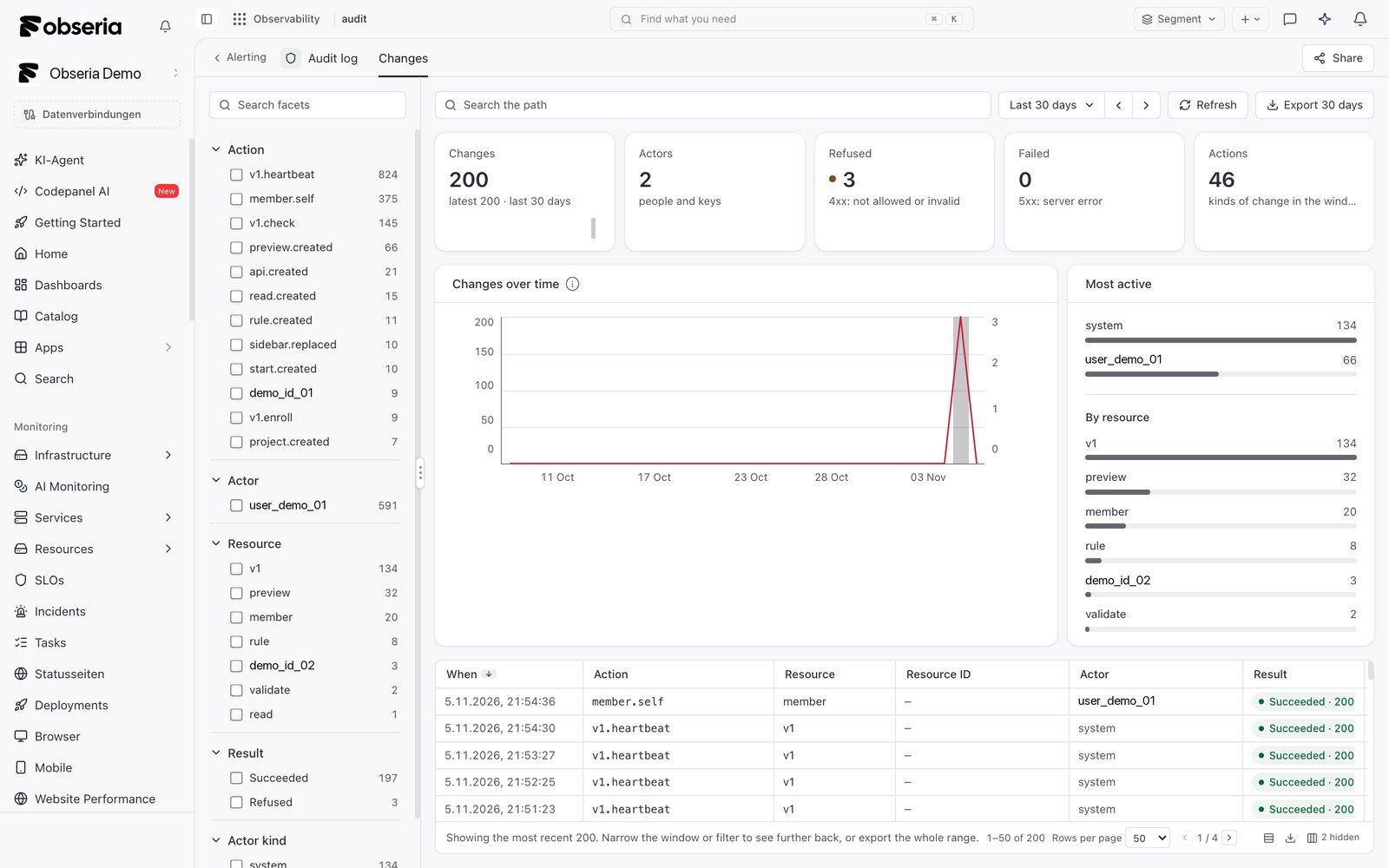
The platform audit log records changes with actor, resource and result and can be exported, so it stays traceable who connected a source or changed a setting.
Finds the software in use from Google Workspace and Microsoft 365 sign-ins, the Obseria Guard browser extension, outgoing service calls, spend imports and requests.
Every discovered app with a decision (in review, approved, restricted, rejected, retired), owner, department, users, contracts and cost.
Learn more →A score from 0 to 100 per app, built only from known facts: OAuth permissions granted, review status, former employees with access, phishing reports and app category.
Learn more →Import bank, card or accounting exports as CSV, match bookings to software vendors and get savings findings such as duplicate tools, unused seats and paid but unused apps.
Learn more →An admin connects Google Workspace or Microsoft 365 once. Obseria reads users, OAuth grants and, for Microsoft, licence counts, read-only.
Obseria Guard records visits to known SaaS apps with the work email of the device. This is the source for active use.
Upload a bank, card or accounting CSV. Bookings that match a software vendor reveal paid tools and their cost.


Outgoing calls of your own services are matched to SaaS hosts, so dependencies of your software show up too.
Every app lands in the inventory as discovered. Approve, restrict or reject it and assign an owner.
Most shadow IT starts with a click on “Sign in with Google” or “Sign in with Microsoft”. Connected to Google Workspace, Obseria reads the users of your Workspace with suspended state, admin role and last sign-in, and per person the third-party apps they signed into with Google, including the permissions each person granted.
Connected to Microsoft 365, Obseria reads the users of your Entra ID tenant with their enabled state, the enterprise applications of other vendors with the delegated permissions users or admins granted them, and the purchased and assigned seats per Microsoft subscription.
A Google Workspace super admin or a Microsoft administrator connects once. The scopes Obseria requests are shown before you connect, and they only read. Apps that are not in the Obseria catalog are kept as well, because an unknown OAuth app is exactly what you want to find.
The Obseria Guard browser extension checks visited URLs for phishing anyway. When a domain belongs to an app in the Obseria SaaS catalog, the visit is recorded as a sighting with the work email of the device. Only visits to catalog apps are stored: the app, the person, first and last time seen and a counter. No full URLs, page titles or content, so discovery does not turn into a browsing history.
This is the only source that knows who actively uses an app. Active users in the last 30 days, licence use and licence recycling depend on it, so the share of monitored devices matters.
Telemetry covers the other direction: outgoing calls of your own services from the last 30 days are matched to known SaaS hosts. You see, for example, that a checkout service calls a payment API, and the app appears in the inventory with the calling services.
A spend import reads a bank, card or accounting export as CSV and matches the booking texts to software vendors. Paid tools that no other source sees, for example a design tool on one person's card, appear in the inventory with their cost.
Some software leaves no digital trace: desktop tools, on-premise licences, apps used only on phones. Add them by hand, from the catalog or with your own name. Approved software requests land in the inventory automatically, so new tools arrive through the front door.
Whatever the source, every app shows where it was seen. A source badge per app tells you whether it comes from sign-ins, the browser, telemetry, spend, a manual entry or a request.
Slack Microsoft Teams
 SalesforceGitHub
 GitLabChatGPT / OpenAI
 ClaudeStripe
 PayPal
 Shopify
 Vercel
 Cloudflare
 Datadog
SaaS discovery is the process of finding every cloud application that people in a company use for work, whether IT bought it or not. It is the first step of any shadow IT programme: you cannot review, secure or cancel software you do not know exists. Most unknown software today is not installed anywhere. It runs in the browser, is signed up for with a work email and is often paid on a company card.
That is why classic asset inventories, which scan laptops for installed programs, miss most of it. Shadow IT discovery has to look where SaaS leaves traces: sign-ins, browsers, payments and the calls your own systems make.
Each discovery method sees a different slice of your software. None sees everything, so good tools combine several:
Discovery touches personal data, so it needs clear limits. A tool that records full browsing history turns asset management into employee surveillance, which is hard to justify under the GDPR and with a works council. A proportionate approach stores only what IT needs: that a known business app was used, by which work account and when. No full URLs, no page titles, no content. Explain to staff what is collected and why, and document it in your records of processing.
Generative AI has made shadow IT more urgent. Chat assistants, transcription tools and coding helpers are easy to try, and people paste company text or upload files into them. SaaS discovery should flag AI tools as their own group, show how many people use each one and whether anyone granted it access to mailboxes or files, so security and privacy can decide which tools to approve.
Three tool categories are often confused. IT asset management tracks devices and installed software, which says little about browser-based SaaS. A CASB (cloud access security broker) sits in the network path or the proxy and can inspect and block traffic, which is powerful but invasive and expensive to run. SaaS discovery works from sign-ins, browser sightings, payments and telemetry. It does not stop anything, but it gives IT, security, privacy and procurement a shared list of what is in use, which is what most companies are missing.
Obseria Shadow IT combines six sources into one software inventory:
Every app shows which sources saw it, first and last seen, users, active users in the last 30 days and cost. What Obseria does not do: it does not block apps, inspect network traffic or write anything to your identity provider. It shows you what is in use, and you decide.
SaaS discovery finds the cloud applications people in your company use for work, including those IT never approved. Obseria combines sign-ins from Google Workspace and Microsoft 365, the Obseria Guard browser extension, telemetry, spend imports, manual entries and software requests.
No. A super admin or administrator connects once, and Obseria only reads users, third-party apps, granted permissions and, for Microsoft, licence counts. The requested scopes are shown before you connect.
No. Obseria Guard only stores visits to apps in the Obseria SaaS catalog: which app, which work account, first and last time seen and a counter. Other websites, full URLs, page titles and content are not stored for discovery.
Yes, from the identity provider: an OAuth app someone signed into with a work account is added even if Obseria does not know it, and the risk score marks it as an unknown vendor. You can also add any app by hand.
No. Obseria shows what is in use and helps you decide and follow up. It does not block apps, inspect network traffic or change anything at your vendors or in your identity provider.
Shadow IT is billed by managed applications per month, with no seat fees. The current prices and included amounts are on the pricing page.
Inventory, risk, compliance, contracts, licences and access reviews.
→Decide on every discovered app and give it an owner.
→A score per app from OAuth permissions, status and former employees.
→Match card and bank bookings to software vendors.
→The browser extension that also feeds SaaS discovery.
→How to discover and manage shadow IT, step by step.
→In 30 minutes we show you how Obseria works in your environment and answer your questions on setup, privacy and pricing.