AI step and AI assistant
An AI step summarizes, classifies, extracts or drafts, optionally as JSON for later steps. In the builder, an AI assistant drafts or changes a workflow from a description.
We use essential functions to operate this website. With your consent, we would also use services for statistics and marketing. You decide which categories you allow and can change your choice at any time via “Cookie settings” in the footer. More in our privacy notice.
Obseria Consent Management · Your choice is stored for 12 months
An AI step summarises, classifies, extracts or drafts, optionally as JSON for the next steps. In the builder, an AI assistant turns a plain description into a workflow draft and tells you what still needs to be set up.
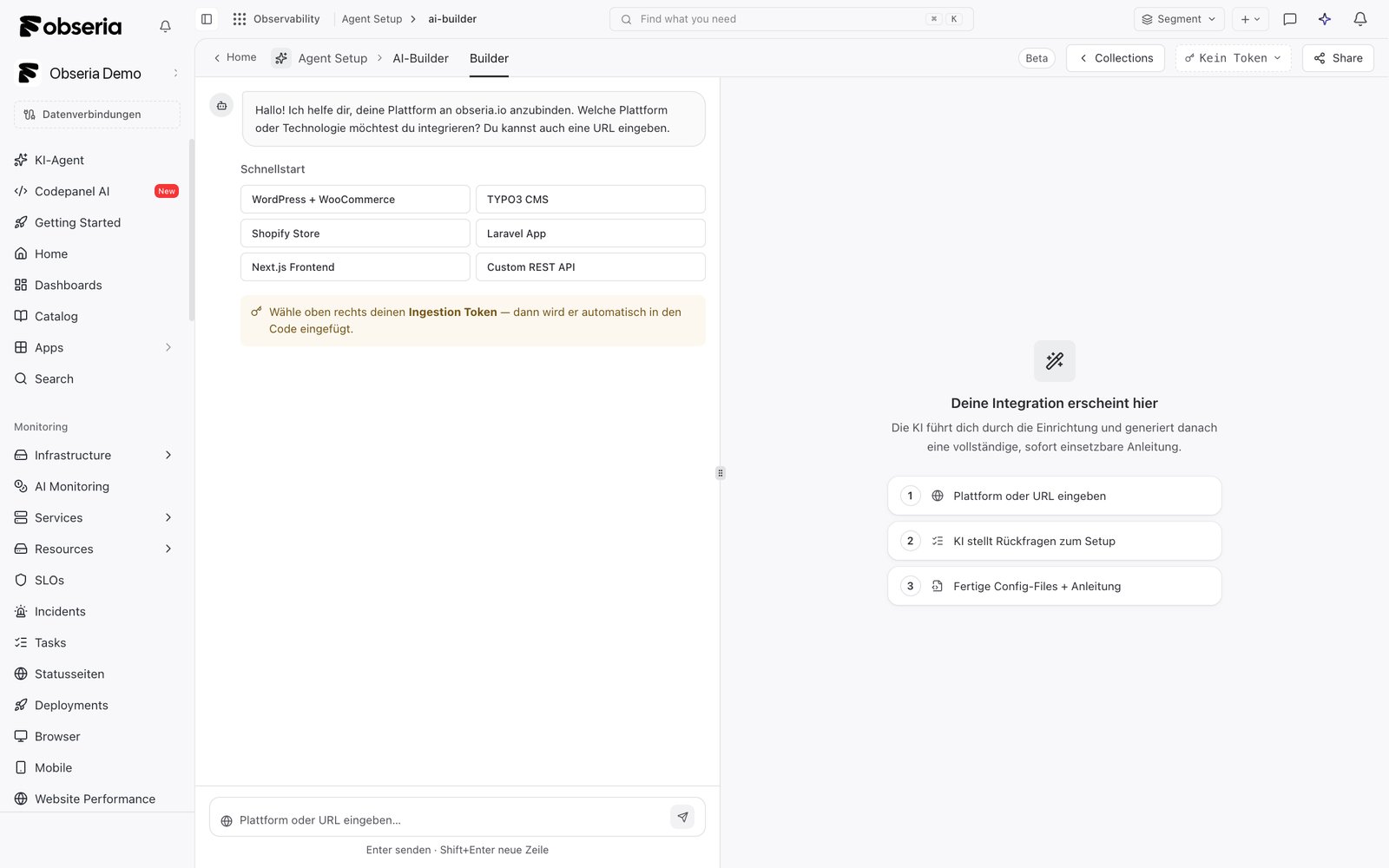
The screenshot shows the AI builder of Obseria's agent setup, which asks follow-up questions and then produces a setup guide. The Workflow assistant follows the same idea in step-by-step mode: one question per turn, and the workflow grows on the canvas.
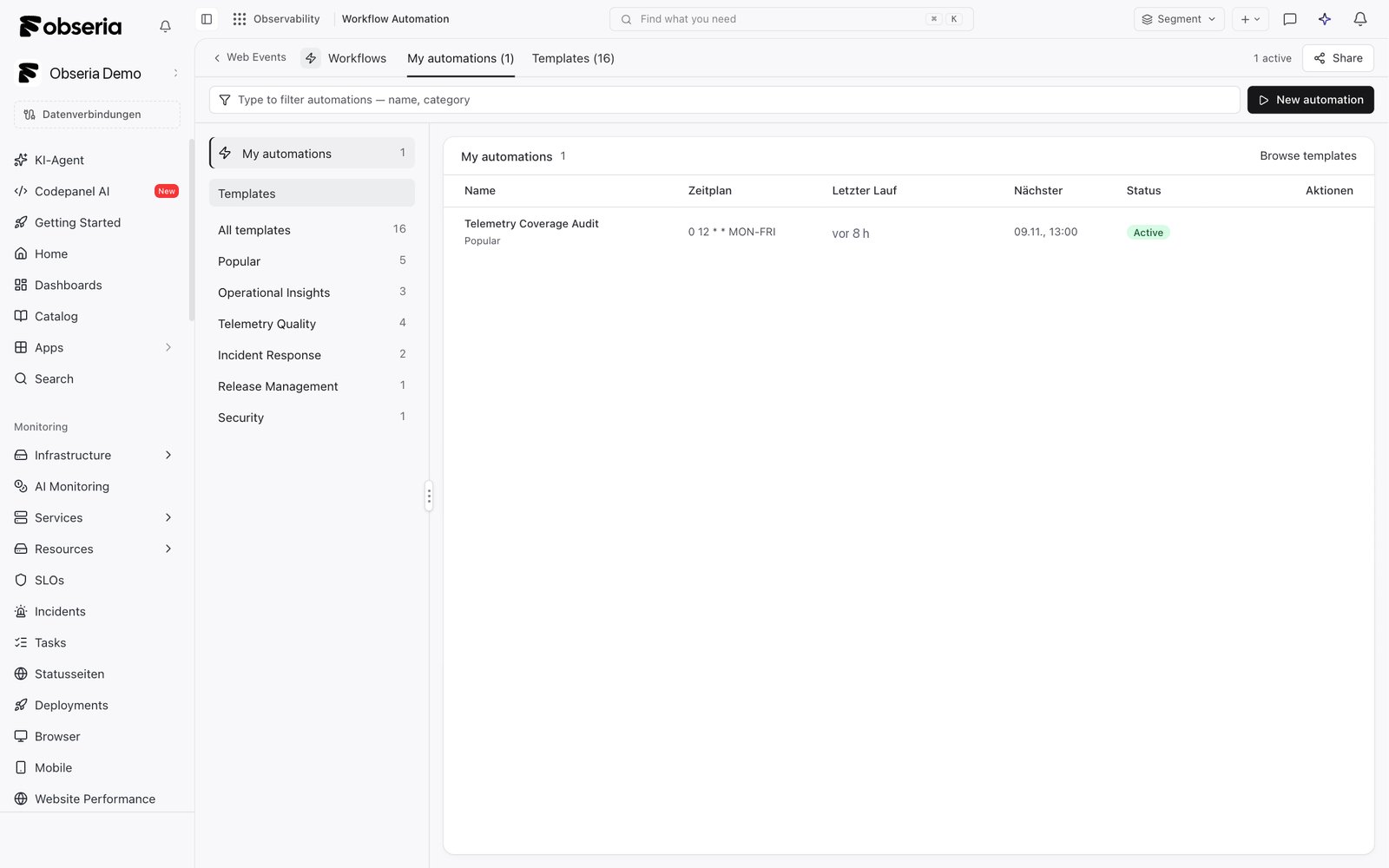
This view lists automations with their cron schedule, last and next run and status, next to template categories. In Obseria Workflow, several process templates already contain an AI step.
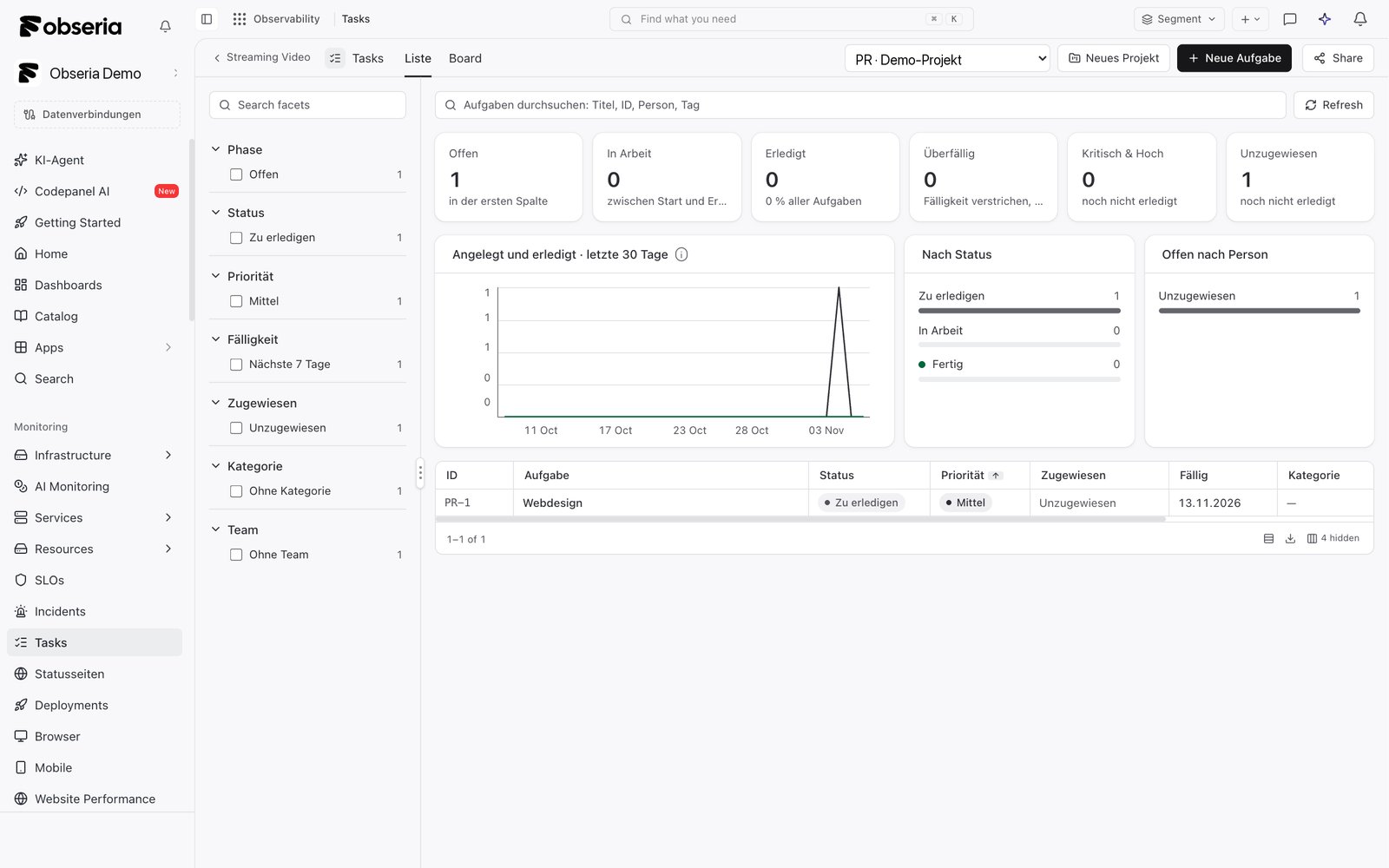
Obseria tracks follow-up work as tasks with status, priority, due date and assignee. In a workflow, decisions on what the AI prepared are made in an approval step and the Workflow inbox.
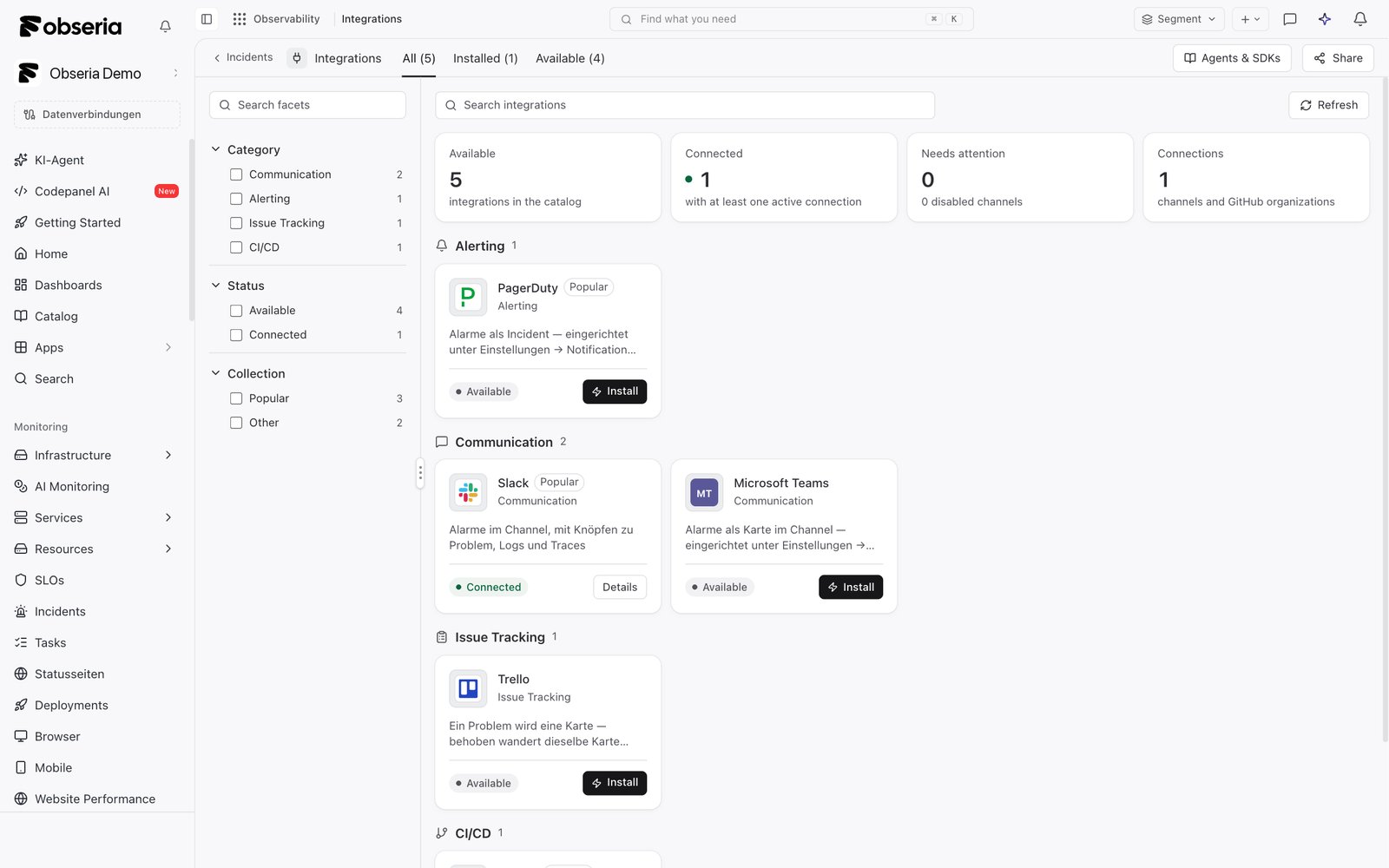
The integrations page shows Slack, Microsoft Teams, PagerDuty and Trello with their connection status. Workflow steps post AI summaries and triage results to such notification channels.
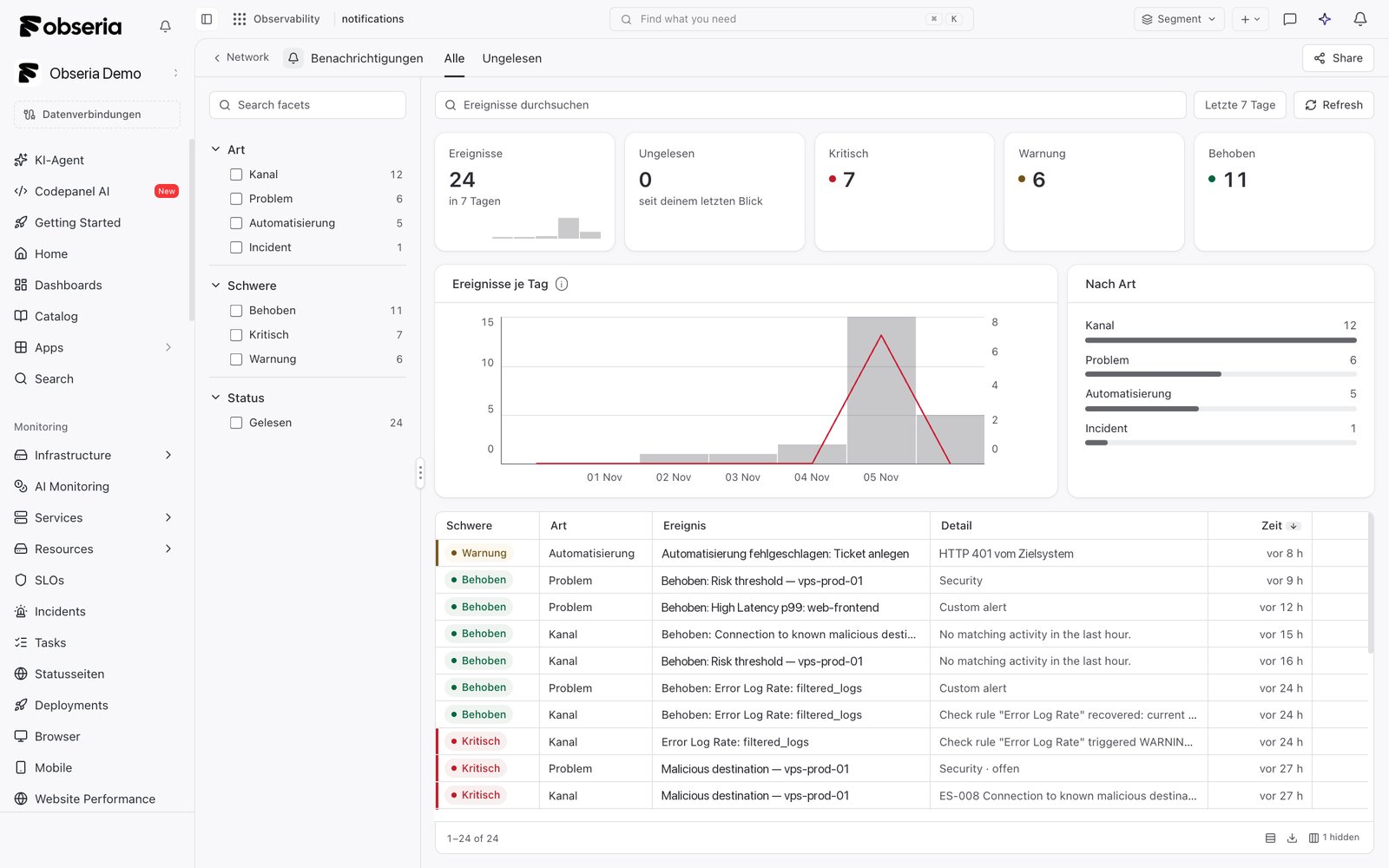
The notification centre lists events by type and severity, including a failed automation step with the error of the target system. A workflow can also send its own failures to an error channel.
An AI step summarizes, classifies, extracts or drafts, optionally as JSON for later steps. In the builder, an AI assistant drafts or changes a workflow from a description.
An approval step pauses the run, e-mails the approvers a link and can also post to a channel. They approve or reject with a note in the Workflow inbox; an optional timeout rejects automatically.
Learn more →Ready-made workflows for business processes, HR, finance, payments, sales and e-commerce, data processing and app events. A template becomes a draft you complete in the builder.
Learn more →Parse CSV and Excel, read text from PDFs, group and sum rows, remove duplicates, detect changes since the last run, create CSV, Excel or PDF files and keep rows in Data tables.
Learn more →A mail, a form submission or a webhook brings free text; Read document adds the text of a PDF attachment.
The AI step gets a prompt with placeholders such as subject and body and returns a category, priority and summary as JSON.
A condition or switch checks the JSON: missing fields go to a person, known categories go to their team.
Where it matters, an approval step lets a person confirm or reject what the AI prepared.
The ticket is created, the reply sent or the row written, and the run keeps the AI's answer for later review.
The AI step sends a prompt to a language model and returns its answer. The prompt can contain placeholders from the trigger and earlier steps, for example the subject and a truncated body of an e-mail or the extracted text of a PDF. Separate instructions hold fixed rules such as tone, language or allowed categories.
You choose between two model sizes per step: the larger one for difficult extraction and drafting, the smaller one for simple classification. Like every step, the AI step can retry on error up to five times or continue with an empty output, so a short outage of the model does not have to stop the whole run.
With JSON output switched on, the step asks the model for a single JSON object and parses it. The following steps then address fields directly, such as the category for a switch, the total for a condition or the extracted invoice fields for a table or an API call. The raw text stays available as well.
A good pattern is to follow the AI step with a condition that checks the required keys. Cases where the model could not find an invoice number or a total go to a person through a message or an approval instead of being written to another system.
The AI assistant sits in a chat next to the canvas. In step-by-step mode it asks one question per turn: how the workflow should start, which system sends the event, who approves and what should happen next, and each answer appears as a step on the canvas. In at-once mode it builds the whole draft from your description.
The assistant knows the step types the engine can run and your existing connections, notification channels, variables and Data tables, so it can use real IDs. Every draft is cleaned up, laid out and validated before it reaches the canvas. A list shows what still needs to be set up, and missing connections can be created right in the chat.
You can attach up to five example files, such as an invoice PDF or a CSV export, so the assistant sees what the data looks like. Ask it to explain the current workflow, change a step, or undo its last change with one click.
Several process templates already contain an AI step: invoices from a mailbox with AI extraction, support mails to tickets with AI priority, customer complaint triage, website lead qualification, a software request triage for IT, an onboarding checklist drafted by AI, a daily KPI digest with an AI summary and a post-mortem draft when a problem is resolved.
Each template becomes a draft with empty channels and addresses. Adapt the prompt to your categories and language, run a test with a real example and look at the AI's answer in the run before you activate it.
 Slack
 Microsoft Teams
 Google Chat
 Discord
 Jira
 GitHub
 PostgreSQL
 MySQL / MariaDB
AI workflow automation adds a language model to a rule-based process. Classic automation is good at fixed rules: if the amount is above 1,000, ask for approval. It struggles with unstructured input: a customer e-mail written in free text, an invoice in a PDF, a support request that could belong to three teams. A language model can read such text and turn it into something a workflow can act on: a category, a priority, a set of fields, a short summary or a draft reply.
The important word is step. In a well-designed process, AI does one clearly defined task, and the rest of the workflow stays deterministic: conditions check the result, people approve where it matters, and every run is recorded.
Free text is fine for a message to a person, but later steps in a workflow need fields they can rely on. Asking the model for a JSON object with named keys such as category, priority and total makes its answer usable by conditions, switches and API calls. Describe each key, its type and the allowed values in the prompt, and keep the list short. A condition right after the AI step should check that the required keys are present before anything is written to another system.
Language models can be wrong, and they can be confidently wrong. For anything with consequences, such as paying an invoice, rejecting a request or e-mailing a customer, combine the AI step with an approval: the model prepares the decision, a person confirms it. For low-risk tasks such as tagging or summarising, a check of the result and a fallback path for unclear cases are usually enough.
A second use of AI is not inside the process but in building it. Instead of placing every step by hand, you describe the process in plain language, for example "when an invoice arrives by e-mail, extract the total and ask finance to approve anything above 5,000 euros", and an AI workflow builder drafts the steps. This is useful for a first version and for people who know the process but not the tool. The draft still needs a human review: recipients, thresholds and credentials are decisions only the team can make.
Every model call costs money and time, and the text you send leaves the workflow for the model provider. Keep prompts lean, truncate long documents, call the model only when a cheaper rule cannot decide and avoid sending personal data that the task does not need. Record what the model returned, so that wrong answers can be traced and prompts improved.
Obseria Workflow uses AI in two places.
Several process templates already contain an AI step, for example invoice extraction from a mailbox, support mail triage, complaint triage, lead qualification and a daily KPI digest.
It sends a prompt with placeholders from earlier steps to a language model and returns the answer as text or, with JSON output on, as a parsed object. Typical tasks are summarising, classifying, extracting fields and drafting text.
The AI assistant in the builder drafts a workflow from a plain description, either step by step with one question per turn or all at once. The draft uses only step types the engine can run and is validated before it appears. You still review recipients, thresholds and credentials and run a test before activating.
The Read document step extracts the text of digitally created PDFs, which the AI step can then read. Scanned PDFs have no text layer, and OCR is not included yet, so they return little text.
Keep each AI step to one task, ask for JSON, check the result with a condition and send unclear or important cases to an approval step. Every run keeps the AI's answer, so you can review it and improve the prompt.
Only what you put into the prompt and the instructions, for example selected fields of a mail or the text of a document. That text is sent to the AI model. Leave out personal data the task does not need.
In a run, the AI step counts as an executed workflow step: 10,000 steps per month are included, then $0.50 per thousand. The AI assistant in the builder uses AI agent credits. See pricing.
Visual builder, triggers, approvals, connections and run history for business processes.
→Let a person confirm what the AI prepared before anything is written or sent.
→Read the text of PDFs and attachments before the AI step and store its results in tables.
→Ready-made processes with an AI step, from invoice extraction to complaint triage.
→AI across Obseria for investigations, root cause analysis and recommendations.
→In 30 minutes we show you how Obseria works in your environment and answer your questions on setup, privacy and pricing.