Data and document steps
Parse CSV and Excel, read text from PDFs, group and sum rows, remove duplicates, detect changes since the last run, create CSV, Excel or PDF files and keep rows in Data tables.
We use essential functions to operate this website. With your consent, we would also use services for statistics and marketing. You decide which categories you allow and can change your choice at any time via “Cookie settings” in the footer. More in our privacy notice.
Obseria Consent Management · Your choice is stored for 12 months
Read CSV and Excel files and the text of PDFs, group and sum rows, remove duplicates, detect what changed since the last run and send the result as an Excel, CSV or PDF file, all on the same canvas as triggers and approvals.
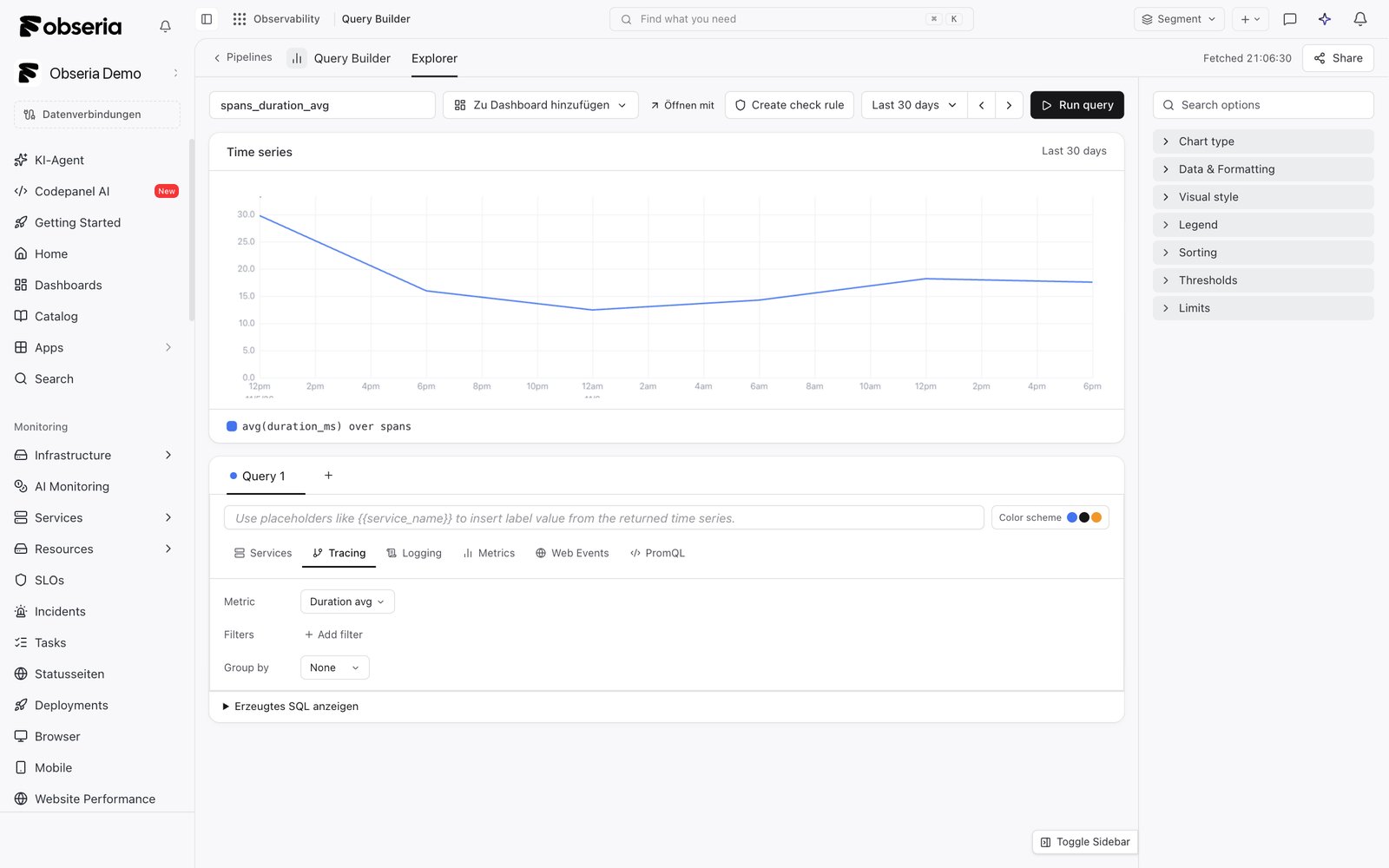
The screenshot shows the query builder in Obseria. In a workflow, the SQL on Data step runs read-only SQL over your Data tables and hands the rows to the next step, for example to aggregate them or attach them as a file.
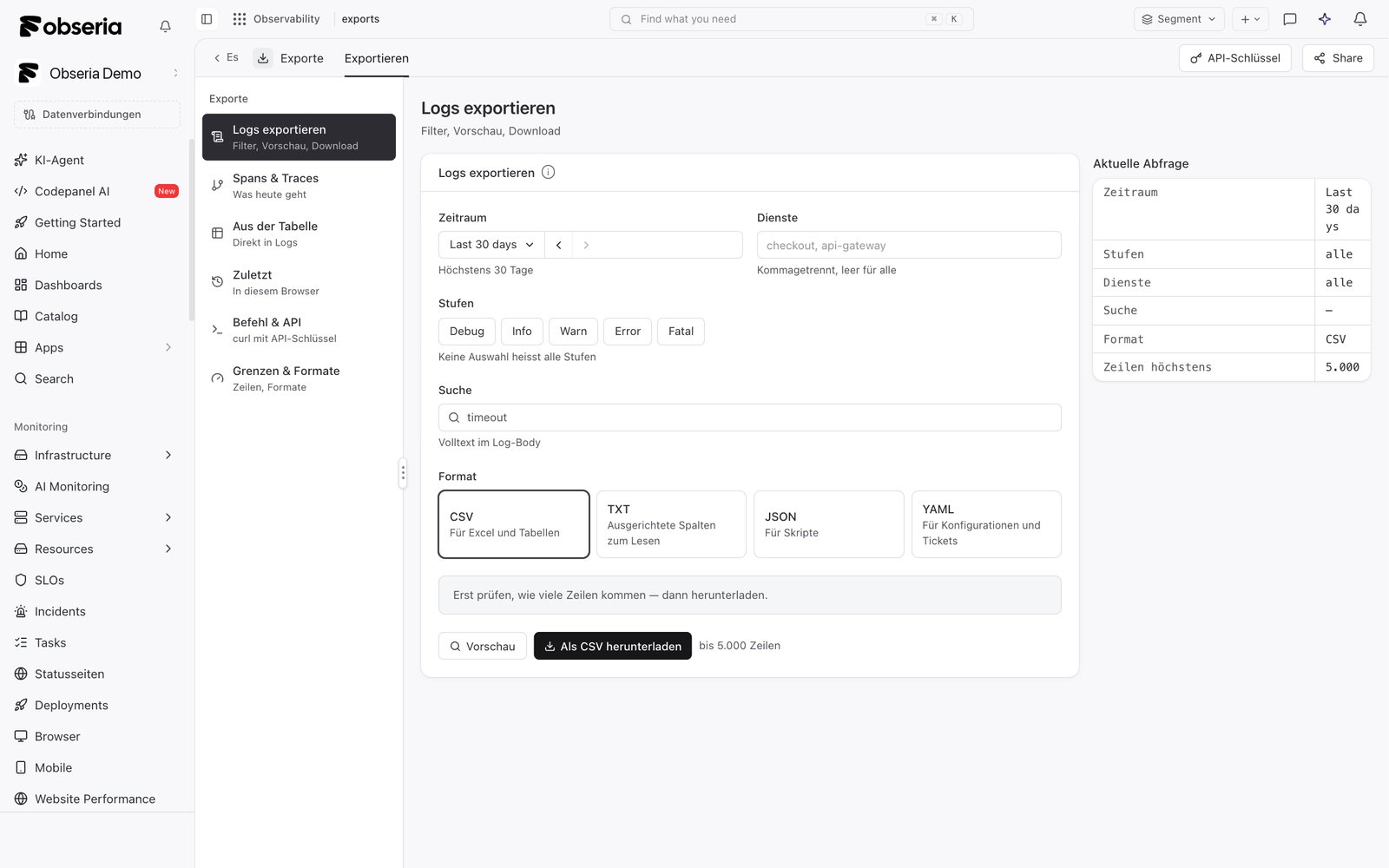
This export view for logs offers CSV, TXT, JSON and YAML with a preview. The Create file step in a workflow works on any rows and produces CSV, Excel, PDF, JSON or text for e-mails and uploads.
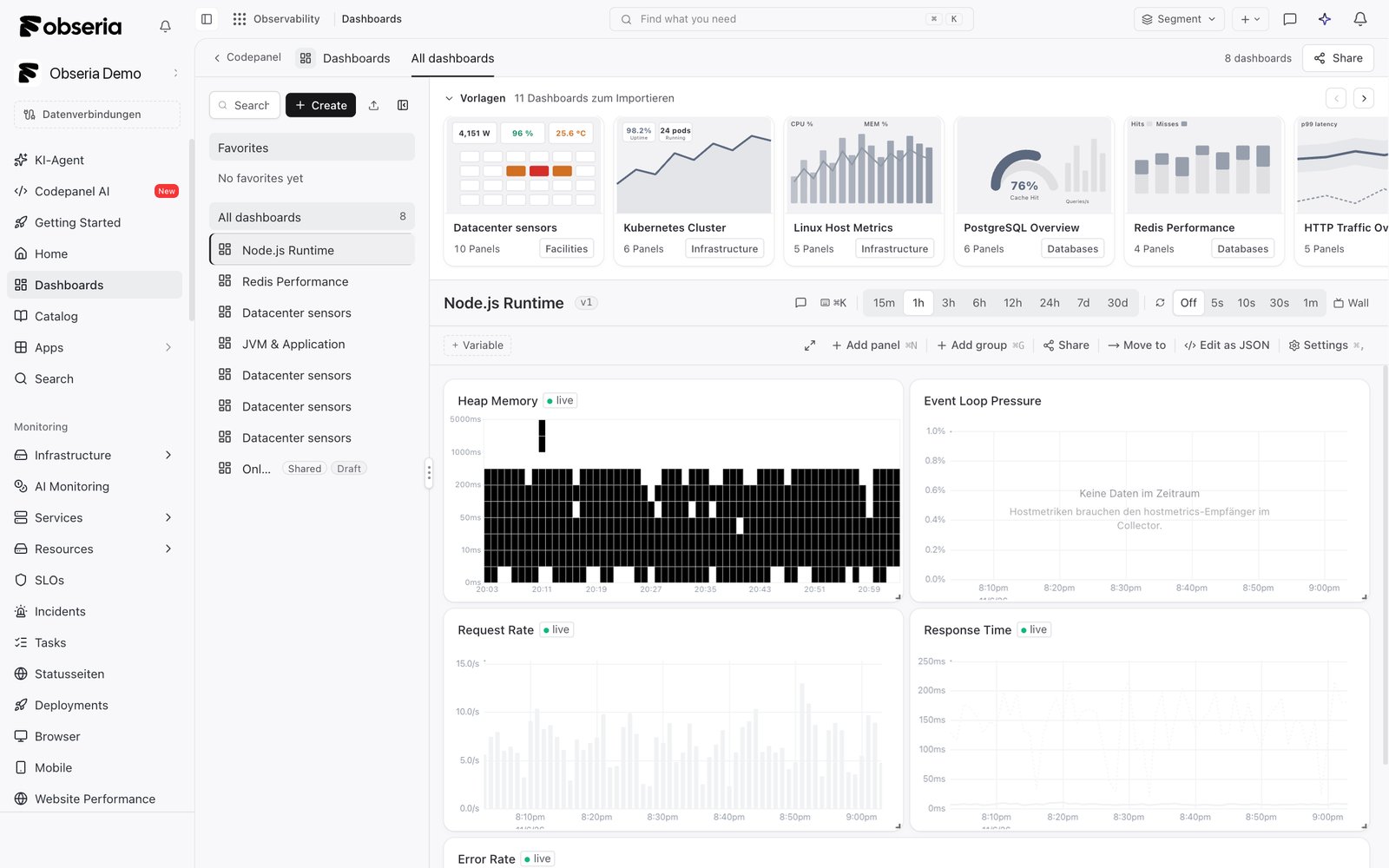
The screenshot shows dashboards in Obseria with templates and live panels. Rows that workflows write into Data tables can be charted in Obseria Data dashboards next to synced and imported data.
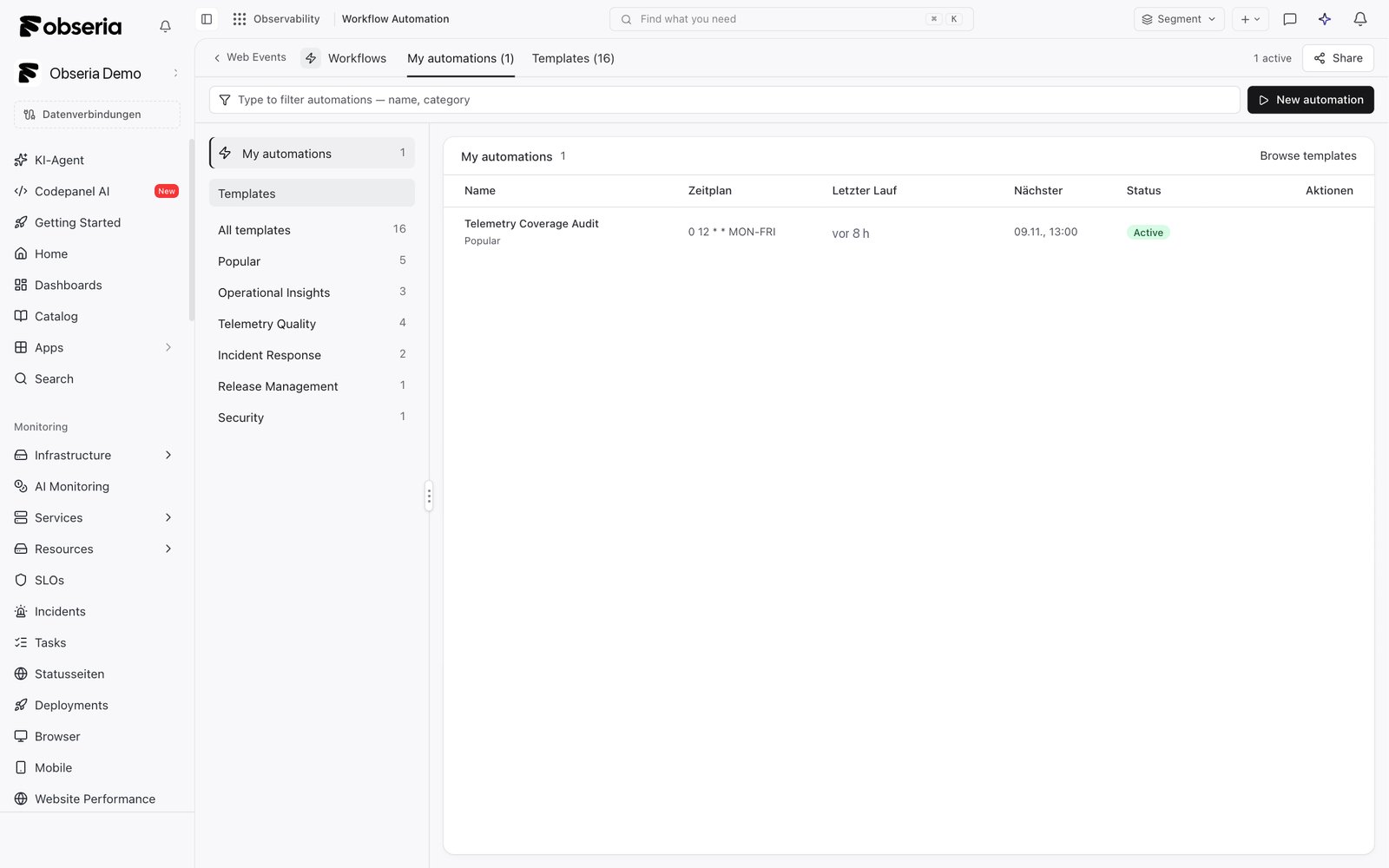
This view lists automations with their cron schedule, last and next run and status. A workflow on a schedule trigger runs a weekly report or a nightly import the same way.
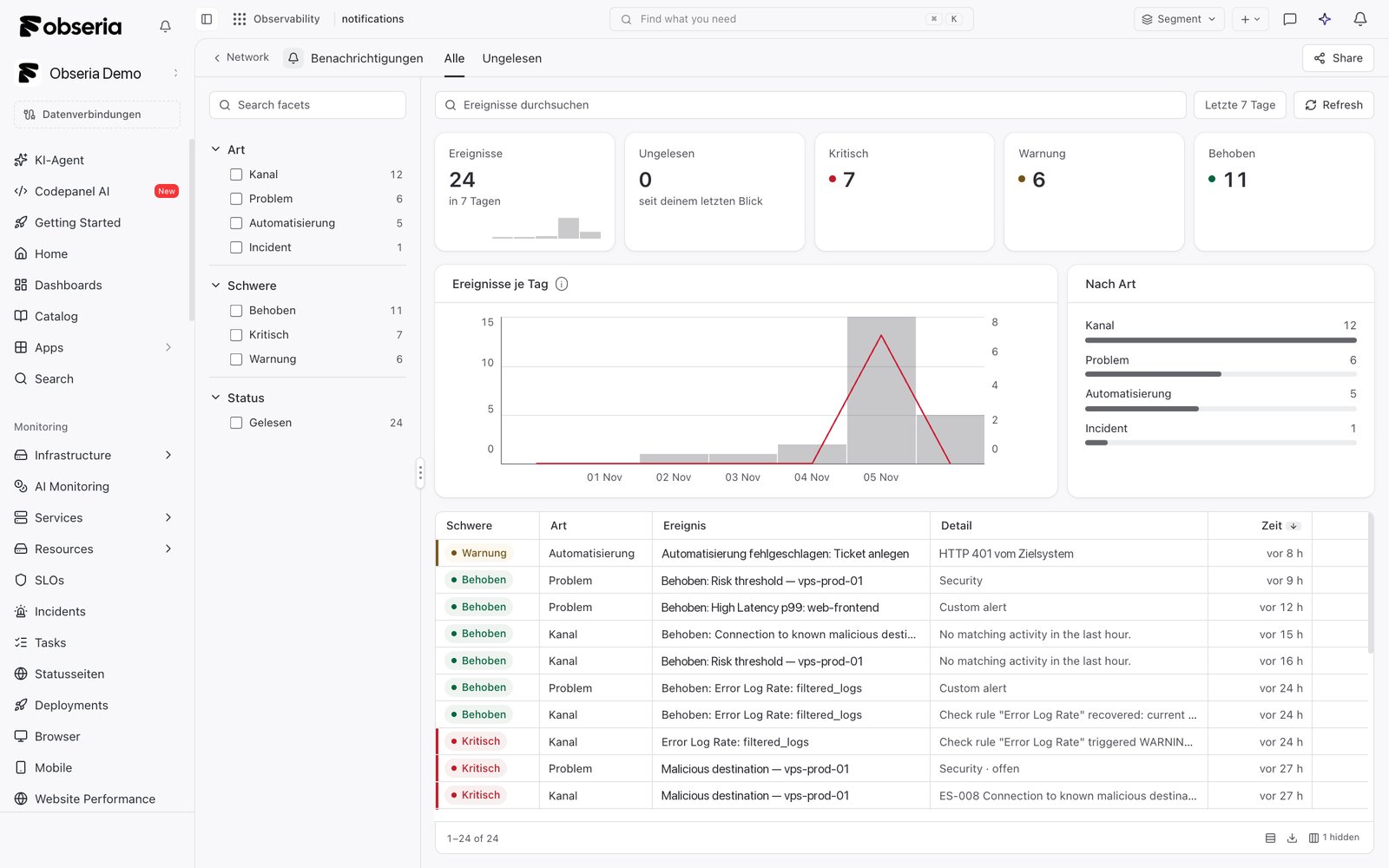
The notification centre lists events by type and severity, including a failed automation step with the error of the target system. A workflow can send its own failures to an error channel.
Parse CSV and Excel, read text from PDFs, group and sum rows, remove duplicates, detect changes since the last run, create CSV, Excel or PDF files and keep rows in Data tables.
A connector catalog for CRM, ERP, accounting, shop, HR, support and productivity tools, plus any REST API, PostgreSQL, MySQL and IMAP. Credentials are stored encrypted and can be tested.
Learn more →Every run with trigger payload, step timeline, inputs and outputs. Retry with the same payload, cancel waiting runs, set retries per step and send failures to an error channel.
Learn more →A workflow starts by hand, from a webhook, on a cron schedule, on an Obseria event, from a public form or with every new e-mail in an IMAP mailbox.
Learn more →A mailbox trigger, a webhook or a form delivers the file; scheduled workflows fetch data from a database or a connected system instead.
Parse CSV detects the delimiter and converts German numbers, Parse Excel reads a sheet, Read document extracts the text of a PDF.
Remove duplicates, aggregate per customer or article and compare with the last run to see what is new, changed or removed.
Write the rows to a Data table, with upsert by key so re-runs update instead of duplicating.




Create an Excel, CSV or PDF file and attach it to an e-mail, or post a short summary to a channel.
The Parse CSV step takes CSV text or a file, for example the first attachment of an e-mail. It detects the delimiter (comma, semicolon, tab or pipe) or uses the one you set, treats the first row as header if you want, and converts numbers in German format such as 1.234,56 into 1234.56.
Parse Excel reads an .xlsx file into rows, with the first row as header and numbers and dates kept as typed values. If a workbook has several sheets, pick one by name. Read document extracts the text from PDF, text, CSV or JSON files, for one file or a whole list of attachments.
Read document works on PDFs that contain a text layer. Scanned PDFs are images, and OCR is not included yet, so they return little text.
Aggregate groups a list by one or more fields and computes metrics per group: count, sum, average, minimum, maximum, first, last, a list of values or the distinct values. Sort by any result field and keep only the top N, for example the ten customers with the highest revenue.
Remove duplicates keeps one item per key and lets you choose whether the first or the last occurrence wins. Split into batches cuts a long list into chunks, 100 items by default, so a For each loop can send them to an API that accepts only a limited number of records per call.
For small calculations in between, the Set data step builds new fields from expressions, such as a net amount or a normalised e-mail address.
Detect changes compares a list with the snapshot of the previous run and returns four lists: added, changed, removed and unchanged, plus their counts. The snapshot is kept in a Data table and replaced on every run. You choose the key field and, if needed, the fields that count as a change, so a new timestamp alone does not mark a row as changed.
Combined with a schedule and Fetch all pages, this turns a system without webhooks into events: new orders since the last hour, price changes in a supplier list, users removed from a directory. The first run reports everything as new.
Write to table stores rows in a Data table with typed columns. Append adds rows, upsert updates by a key field, replace swaps all rows. The table is created on the first write and then appears in Obseria Data, where it can be queried, shown in dashboards and checked with quality rules. Read table and SQL on Data bring rows back into a workflow, the latter with read-only SQL.
For outside data, Database query runs SQL with parameters on a connected PostgreSQL or MySQL/MariaDB database, and Fetch all pages follows the pagination of a list endpoint until all records are loaded, with automatic settings for common connectors.
Create file turns rows or text into a CSV, Excel, PDF, JSON or text file with a title and file name from placeholders. The Send e-mail step attaches it directly.
PostgreSQLMySQL / MariaDBSlackMicrosoft Teams Google Chat
 Jira
 GitHub
A large part of everyday office work is moving data between files and systems: a supplier sends a price list as an Excel file, the bank exports a CSV, invoices arrive as PDF attachments, and every month someone builds the same report by hand. Data automation takes these steps out of the spreadsheet and into a workflow. The file is read, its rows are checked and calculated, and the result ends up in a table, a report or another system, the same way every time.
Unlike a classic ETL tool, a workflow combines these data steps with everything else a business process needs: a trigger such as a mailbox or a schedule, conditions, an approval by a person and a message to a team. That is why CSV automation and Excel automation often work best inside a workflow tool rather than in a separate data pipeline.
CSV looks simple, but exports differ in the details. A reliable automated CSV import handles four things:
After parsing, validate before you write: keep only rows with the fields you need, and send the rest to a person or a log.
Many companies still exchange data as Excel files: budgets, HR exports, price lists. Reading an .xlsx file in a workflow, with the first row as header and numbers and dates kept as typed values, replaces copy and paste between workbooks. The opposite direction matters just as much: an automatically created Excel file attached to an e-mail is often the most accepted report format for finance and management, because people can keep working with it.
Invoices, order confirmations and delivery notes usually arrive as PDFs. For PDF data extraction, the first step is to get the text out of the document. Digitally created PDFs have a text layer that can be read directly. Scanned documents are images and need OCR, which is a separate technology. Once the text is available, a rule or an AI step can pick out the fields you need, such as invoice number, supplier, total and due date, and a condition can check whether they were found.
Between reading and writing, data usually needs some shaping:
Many systems cannot notify you when something changes. The usual workaround is polling: fetch the full list every hour. On its own, that tells you nothing new. Change detection compares the current list with the snapshot of the last run and returns what was added, changed or removed. That turns a simple scheduled export into events such as "new order", "price changed" or "user removed", which the rest of the workflow can act on.
A recurring report follows the same pattern: query the data, aggregate it, create a file and send it. A weekly sales report from the ERP database, a month-end pack for finance or a daily list of failed payments can all be built this way. Choose the format by audience: CSV for other systems, Excel for people who keep calculating, PDF for a fixed summary that should not be edited.
Workflows that only pass data through forget everything after the run. Writing rows into a table builds a history: collected form submissions, processed invoices, synced orders. With upsert by key, a re-run updates existing rows instead of creating duplicates. Those tables can then be queried with SQL, used in dashboards or read by the next workflow.
In Obseria Workflow, data steps are building blocks on the same canvas as triggers, conditions and approvals:
Limits today: there is no OCR, so scanned PDFs without a text layer return little text. PDFs are simple reports with a title, text and a table, not designed layouts. External databases must be reachable from the internet.
Parse CSV reads CSV text or files, Parse Excel reads .xlsx files, and Read document extracts text from PDF, text, CSV and JSON files. Parse Excel is built for the .xlsx format; Word documents are not read.
Not yet. Read document needs a text layer, which digitally created PDFs have. Scanned documents are images and would need OCR, which is not included. A scanned PDF therefore returns little or no text.
Create file produces CSV, Excel (.xlsx), PDF, JSON or plain text. Excel keeps numbers and dates typed. PDFs are simple reports with a title, text and a table, not designed layouts.
Detect changes keeps a snapshot of the last run in a Data table and compares the current list with it by a key field you choose. You can limit the comparison to selected fields. The first run reports every item as new.
Yes. Database query runs SQL on a connected PostgreSQL or MySQL/MariaDB database, reading or writing, with parameters instead of values pasted into the SQL. The database must be reachable from the internet.
Every executed step counts as a workflow step: the first 10,000 per month are included, then $0.50 per thousand. Rows written to Data tables count as rows written in Obseria Data, with 1 million rows per month included. See pricing.
Visual builder, triggers, approvals, connections and run history for business processes.
→The typed tables where workflow rows are kept, queried with SQL and shown in dashboards.
→Extract fields from the text of a PDF or classify rows before they are written.
→Connections to CRM, ERP, shop and accounting software that data steps read from.
→Every run with the input and output of each data step.
→In 30 minutes we show you how Obseria works in your environment and answer your questions on setup, privacy and pricing.