Run history and error handling
Every run with trigger payload, step timeline, inputs and outputs. Retry with the same payload, cancel waiting runs, set retries per step and send failures to an error channel.
We use essential functions to operate this website. With your consent, we would also use services for statistics and marketing. You decide which categories you allow and can change your choice at any time via “Cookie settings” in the footer. More in our privacy notice.
Obseria Consent Management · Your choice is stored for 12 months
Every run with its trigger payload, step timeline, inputs and outputs. Retry with the same payload, cancel waiting runs, set retries per step and send failures to an error channel, so no automated process fails quietly.
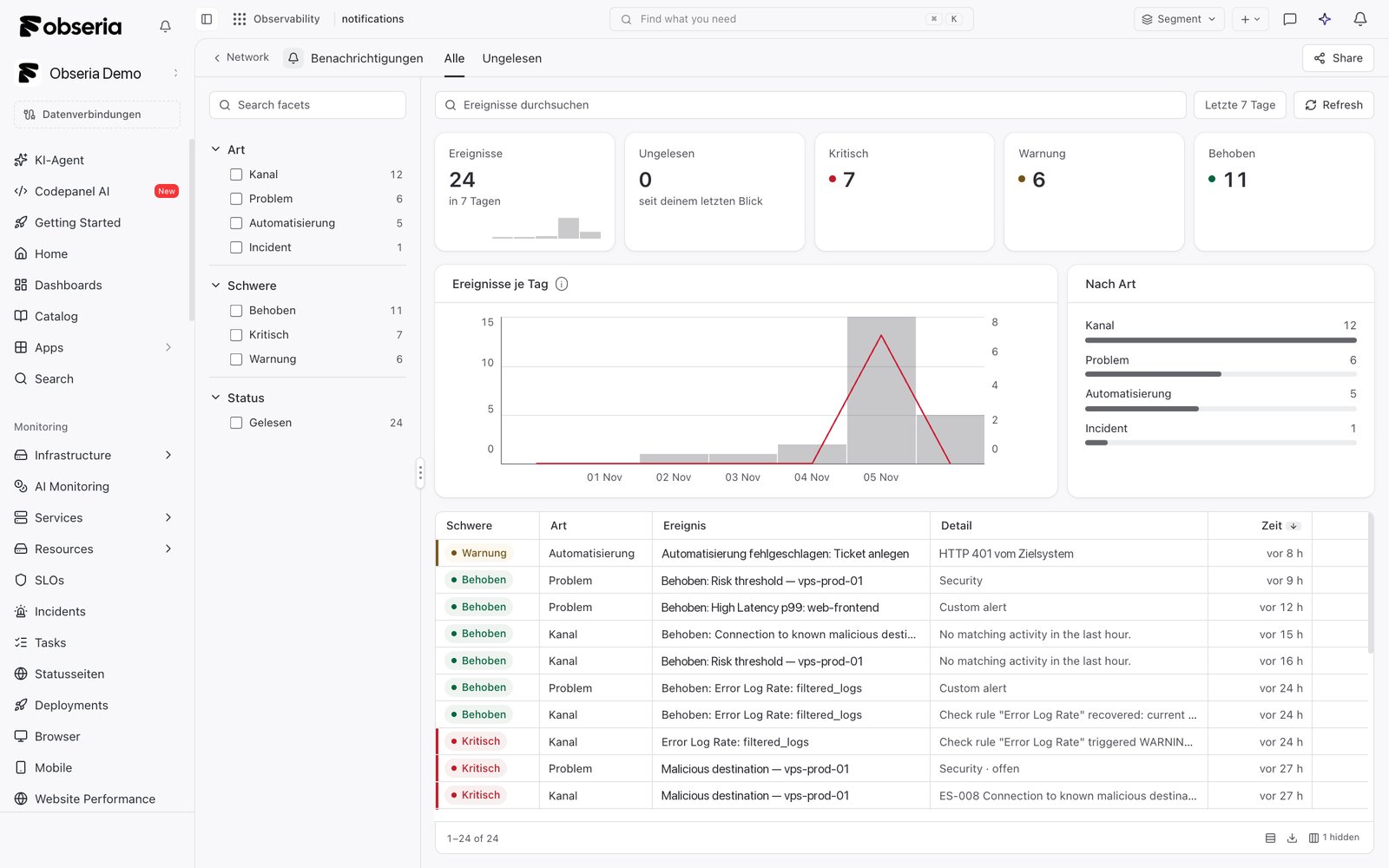
The notification centre lists events by type and severity, including a failed automation step with the error returned by the target system. Workflow failures go to the error channel you set per workflow.
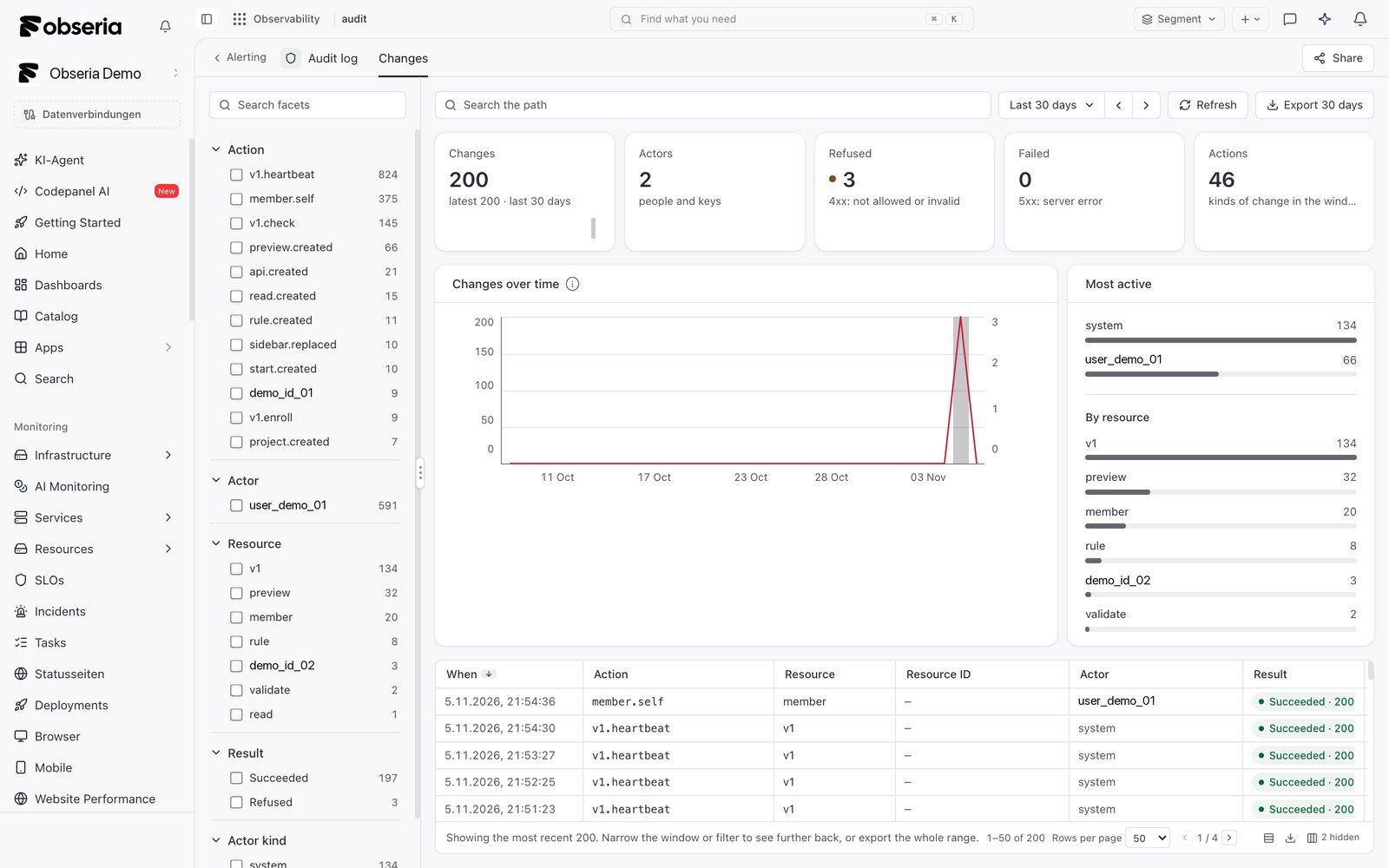
The audit log records every change with actor, resource and result, including refused and failed requests. Next to it, the run history records what each workflow run did, step by step.
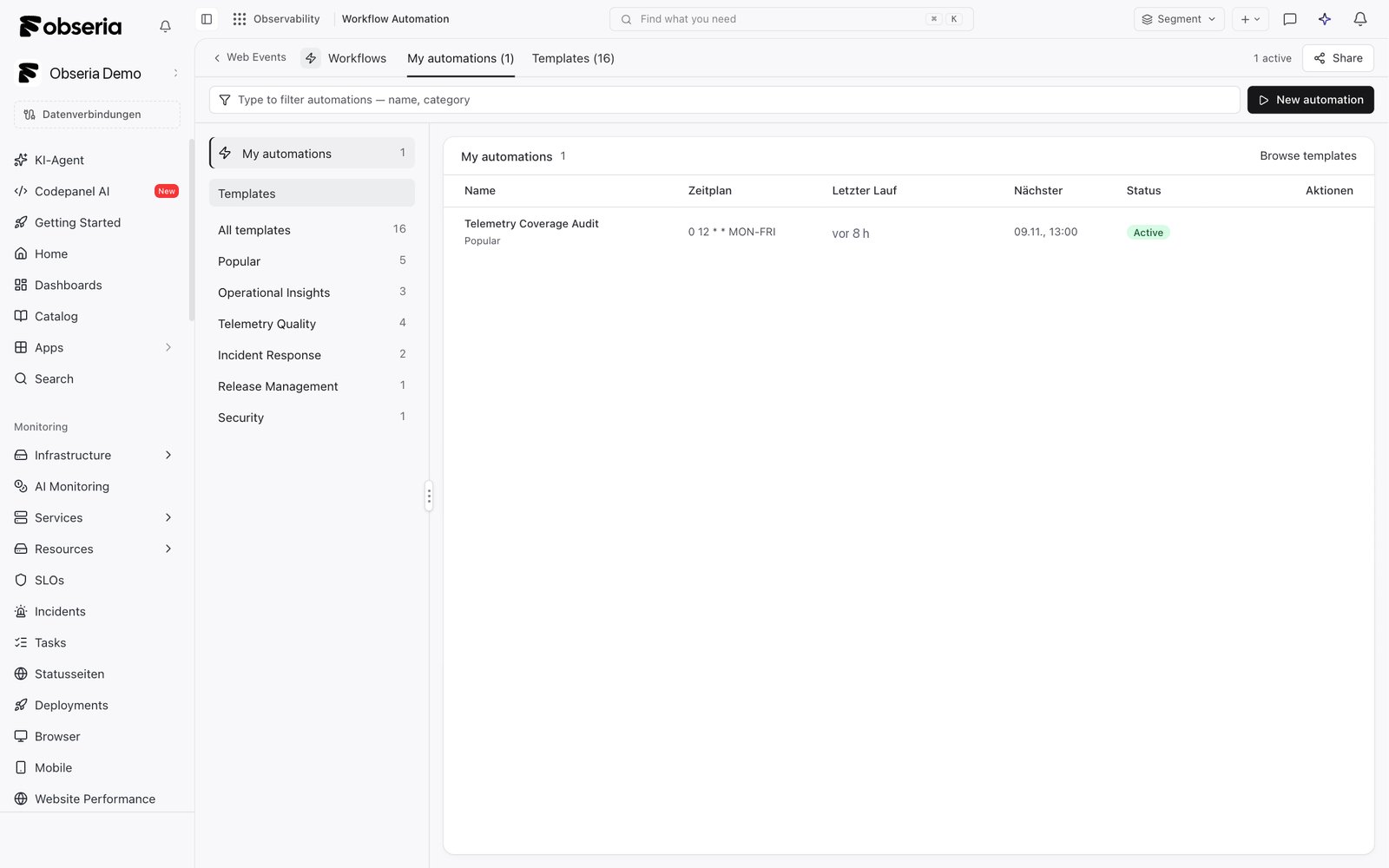
This view lists automations with their cron schedule, last and next run and status. The Workflow overview adds runs per day over 30 days and the success rate over seven days.
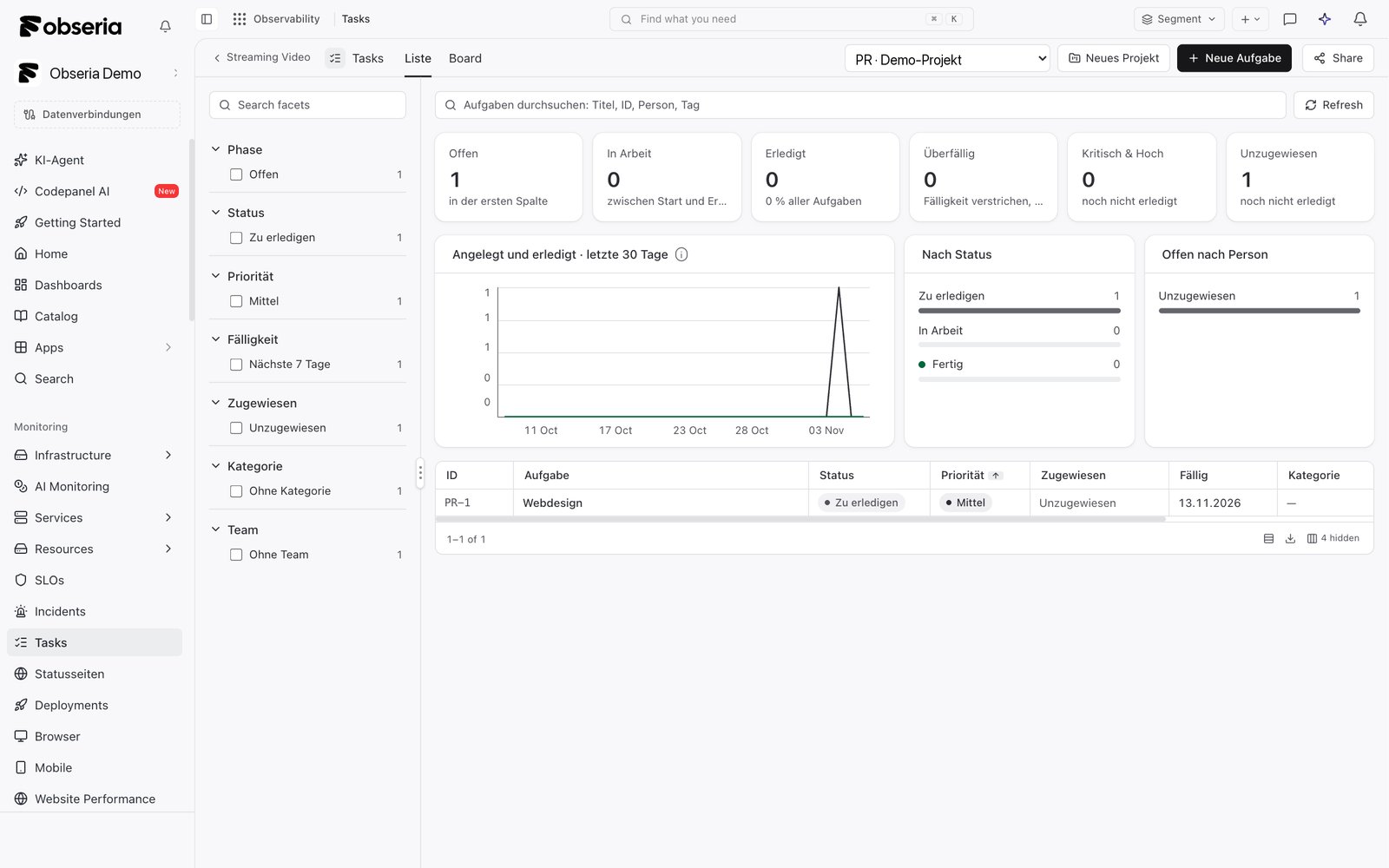
When a failure needs more than a retry, Obseria tracks follow-up work as tasks with status, priority, due date and assignee, as a list or a board.
The integrations page shows Slack, Microsoft Teams, PagerDuty and Trello with their connection status. Any notification channel can serve as a workflow's error channel.
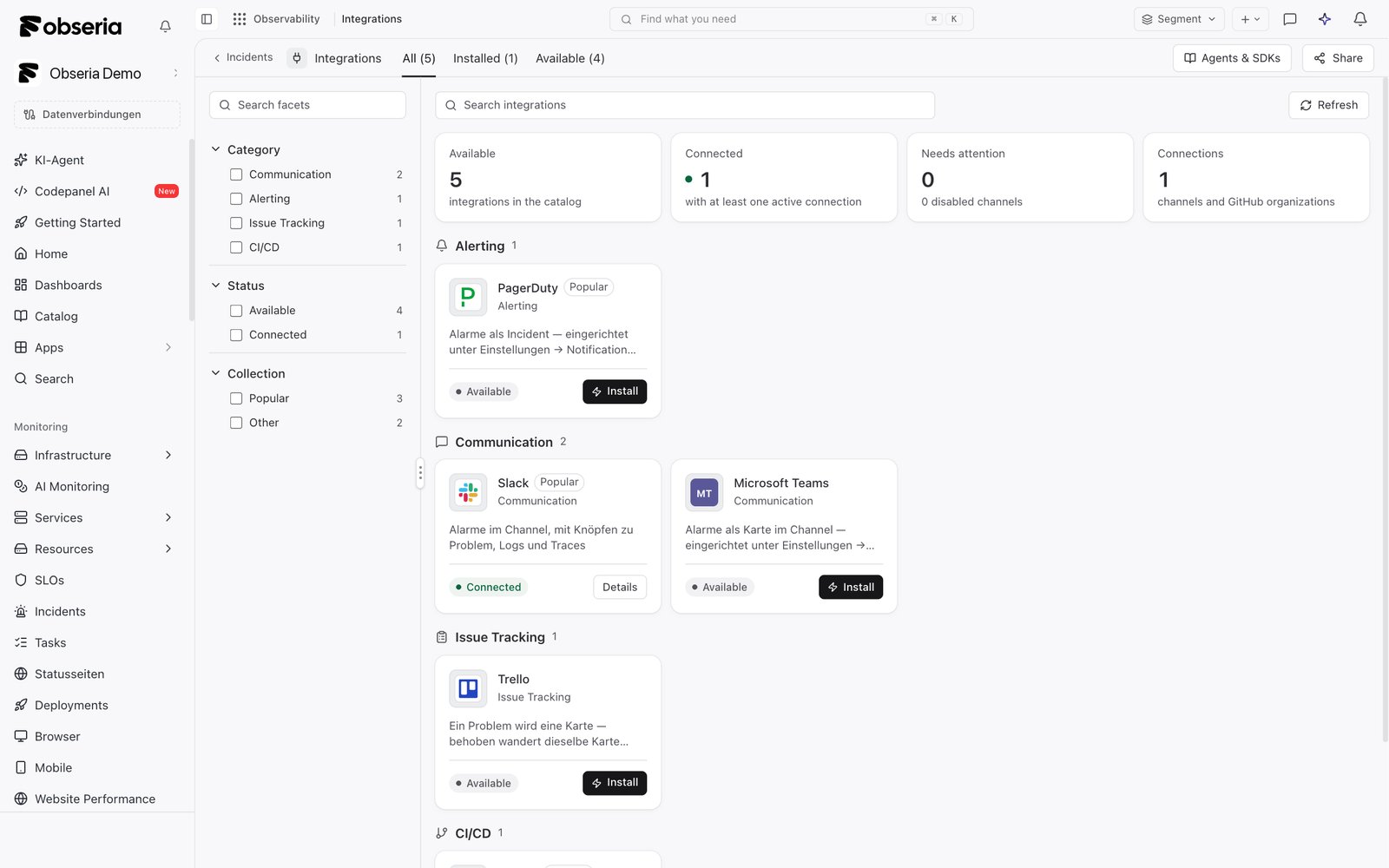
Every run with trigger payload, step timeline, inputs and outputs. Retry with the same payload, cancel waiting runs, set retries per step and send failures to an error channel.
A connector catalog for CRM, ERP, accounting, shop, HR, support and productivity tools, plus any REST API, PostgreSQL, MySQL and IMAP. Credentials are stored encrypted and can be tested.
Learn more →Drag steps onto a canvas, connect their outputs and configure each step in a form. Test runs show every step's result, and each save keeps a version you can restore.
Learn more →An approval step pauses the run, e-mails the approvers a link and can also post to a channel. They approve or reject with a note in the Workflow inbox; an optional timeout rejects automatically.
Learn more →The ERP API answers with an error. The step retries as configured, with a short, growing pause between attempts.
After the last attempt, the run is marked as failed with the step name and the error message.




The workflow's error channel gets the name, the error and a link to the run; a follow-up workflow can open a ticket.
The run detail shows each step's input and output, so the wrong value or the expired credential is visible.
Correct the workflow or the connection and retry the run with the same trigger payload.
The runs list shows each execution with workflow, status, trigger, start time, duration, number of steps and error. Statuses are queued, running, waiting, succeeded, failed and cancelled, each with a counter that works as a filter.
Filter by workflow and time range, or search by workflow name, error text or run ID. Waiting runs show what they wait for: a decision, or a point in time until which they pause. Select several runs to cancel the running ones, retry the finished ones or delete them from the history in one go.
A run's detail view shows trigger, start, end, duration and the workflow version that ran. The step timeline lists each step with status, duration and attempt number; opening a step shows its input and output, and failed steps open automatically with their error.
Separate tabs hold the trigger payload and the run output, including the outputs of all steps by name. If the run contained approvals, they appear with approvers, decision, the person who decided and the note. Runs started by another workflow link back to the run that started them. While a run is active, the view refreshes every five seconds.
Every step that talks to the outside world has two settings. Retries repeat the step up to five times on error, with a short pause that grows between attempts, which is enough for most brief outages. On error decides what happens after the last attempt: stop the run as failed, or continue with an empty output so a later condition can handle the gap.
Steps that continue are still recorded as failed in the timeline, marked as continued, so the gap stays visible. A Continue only if step that stops a branch counts as a successful run, not a failed one.
Each workflow can have an error channel, any notification channel such as Slack, Microsoft Teams or an e-mail list. When a run fails, the channel receives the workflow name, the error and a direct link to the run. In addition, every failure emits the event workflow run failed, which can start another workflow, for example to open a ticket or page the on-call person.
The Workflow overview shows runs per day over the last 30 days by final status, runs, failures and success rate over seven days, the most active workflows, waiting runs and approvals waiting for you.
SlackMicrosoft Teams Google Chat
 DiscordPagerDutyJira
 GitHub
An automated process that nobody watches will eventually fail quietly: an API key expires, a supplier changes the CSV format, a database is briefly unreachable. Workflow monitoring means being able to answer three questions at any time: what ran, what failed and why, and what is still waiting. The basis for all three is a complete run history, a record of every execution with its input, each step and its result.
Not every error deserves the same reaction. Good workflow error handling distinguishes:
Retrying everything hides real problems, and stopping on everything makes a process fragile. Decide per step.
Once the cause is fixed, a failed run often has to be repeated with the same input, for example an order that could not be written to the ERP. Retrying with the same trigger payload saves you from asking the sender to send it again. Before you retry, check which steps already had side effects: an e-mail that was sent will be sent again. Steps that write with an upsert by key, rather than appending, make retries much safer.
A failed run that nobody sees is no better than no automation. Route failures to a place where someone looks: a team channel or an e-mail list. The message should name the workflow, the failing step and the error, and link directly to the run. For important processes, a failure can itself start a follow-up workflow, for example to open a ticket.
Business processes wait: for an approval, for a payment, for a date. A run history should show waiting runs separately, with what they are waiting for and until when. Runs that are no longer needed, for example a purchase request that was withdrawn, should be cancellable, so they do not continue days later.
A few numbers are enough to see whether automations are healthy: runs per day, the share of failed runs, the success rate over the last week, the number of waiting runs and approvals that are still open. A rising failure rate after a change points to the change; a growing number of waiting runs often points to approvals that nobody answers.
When a run behaves unexpectedly, open its timeline and work forward from the trigger. Compare the input of the first unexpected step with what you assumed. Most problems are a field with a different name, an empty value or a number stored as text. Fix the workflow, then retry the run with the same payload and compare the result.
Many failed runs start with a change. Saving every change as a version makes it possible to connect a new error to the edit that caused it and to go back if needed. Test runs with realistic sample input catch most mistakes before a workflow handles real cases: a renamed field, a missing channel, a condition that is always false. Treat test runs like any other run and read their step outputs, not only the final status.
Limits: a run can execute up to 1,000 steps and up to 10 minutes of processing time; waiting for approvals or events does not count towards that time.
Every run with workflow, status, trigger, start, duration, number of steps and error. The detail shows each step's input and output, attempts, approvals, the trigger payload and the run output.
Yes. Retry starts the workflow again with the same trigger payload, using the currently saved workflow, so you can fix the cause first. Steps that already sent mails or created records will do so again, so prefer upserts by key for writes.
Set an error channel in the workflow settings. When a run fails, that channel gets the workflow name, the error and a link to the run. The event workflow run failed can also start another workflow.
Set retries on the step: it repeats up to five times with a short, growing pause. If all attempts fail, the run stops as failed or continues with an empty output, depending on the step's on-error setting.
A run can execute up to 1,000 steps and up to 10 minutes of processing time. Waiting for an approval, an event or a point in time does not count towards that time.
Billing counts executed steps, including those of retried runs; triggers, notes and waiting are free. The first 10,000 steps per month are included, then $0.50 per thousand. See pricing.
Visual builder, triggers, approvals, connections and run history for business processes.
→Test runs with sample input and versions you can restore before a change goes live.
→Runs that wait for a decision, with every approval recorded in the run.
→Slack, Microsoft Teams, e-mail and webhooks for failure alerts.
→Who changed what in Obseria, next to what each run did.
→In 30 minutes we show you how Obseria works in your environment and answer your questions on setup, privacy and pricing.