Approvals and inbox
An approval step pauses the run, e-mails the approvers a link and can also post to a channel. They approve or reject with a note in the Workflow inbox; an optional timeout rejects automatically.
We use essential functions to operate this website. With your consent, we would also use services for statistics and marketing. You decide which categories you allow and can change your choice at any time via “Cookie settings” in the footer. More in our privacy notice.
Obseria Consent Management · Your choice is stored for 12 months
An approval step pauses the run, e-mails the approvers a link and can also post to a channel. They approve or reject with a note in the Workflow inbox; an optional deadline rejects automatically.
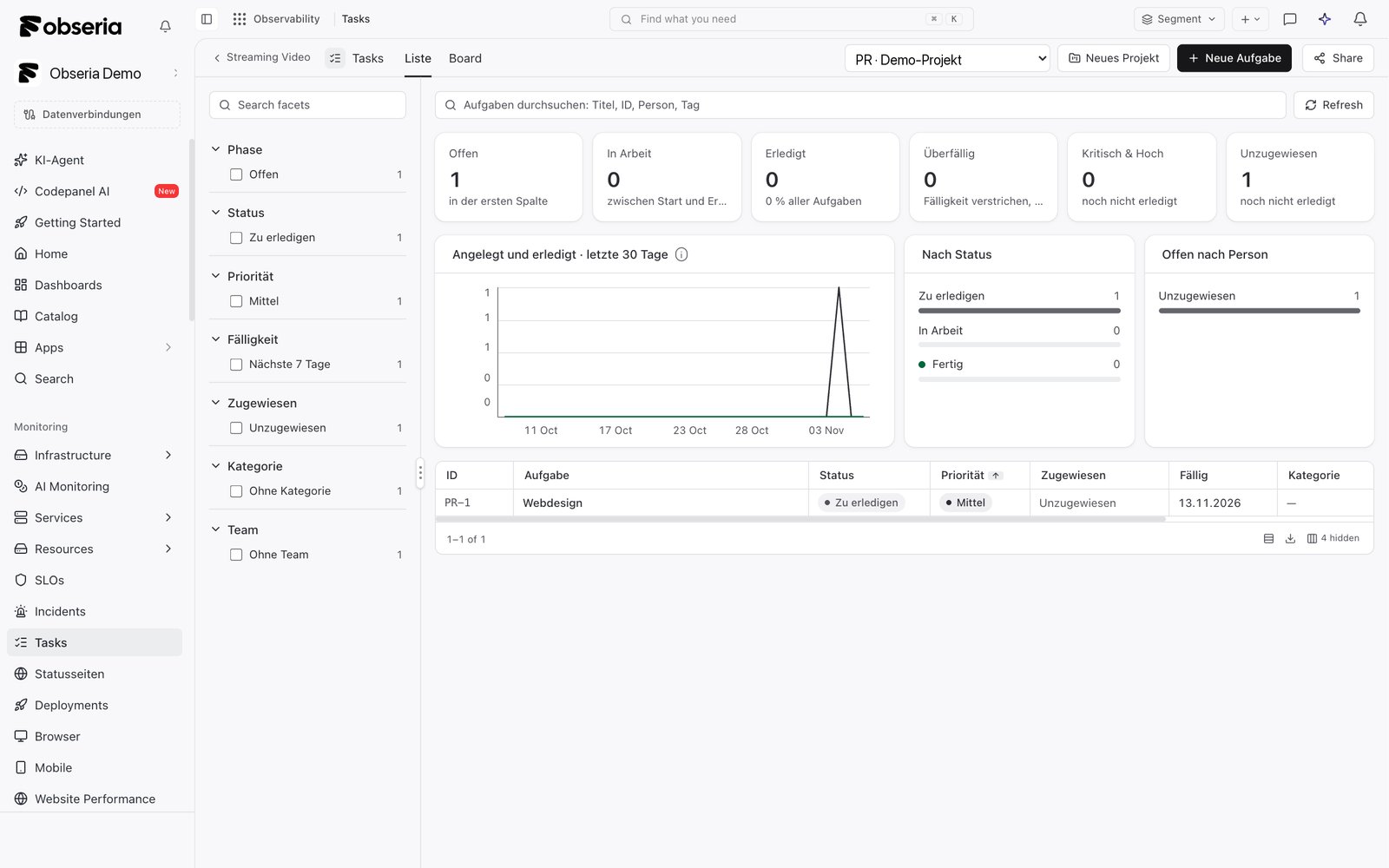
Obseria tracks follow-up work as tasks with status, priority, due date and assignee, as a list or board. Approvals themselves are decided in the Workflow inbox, which follows the same idea: what is waiting, for whom, since when.
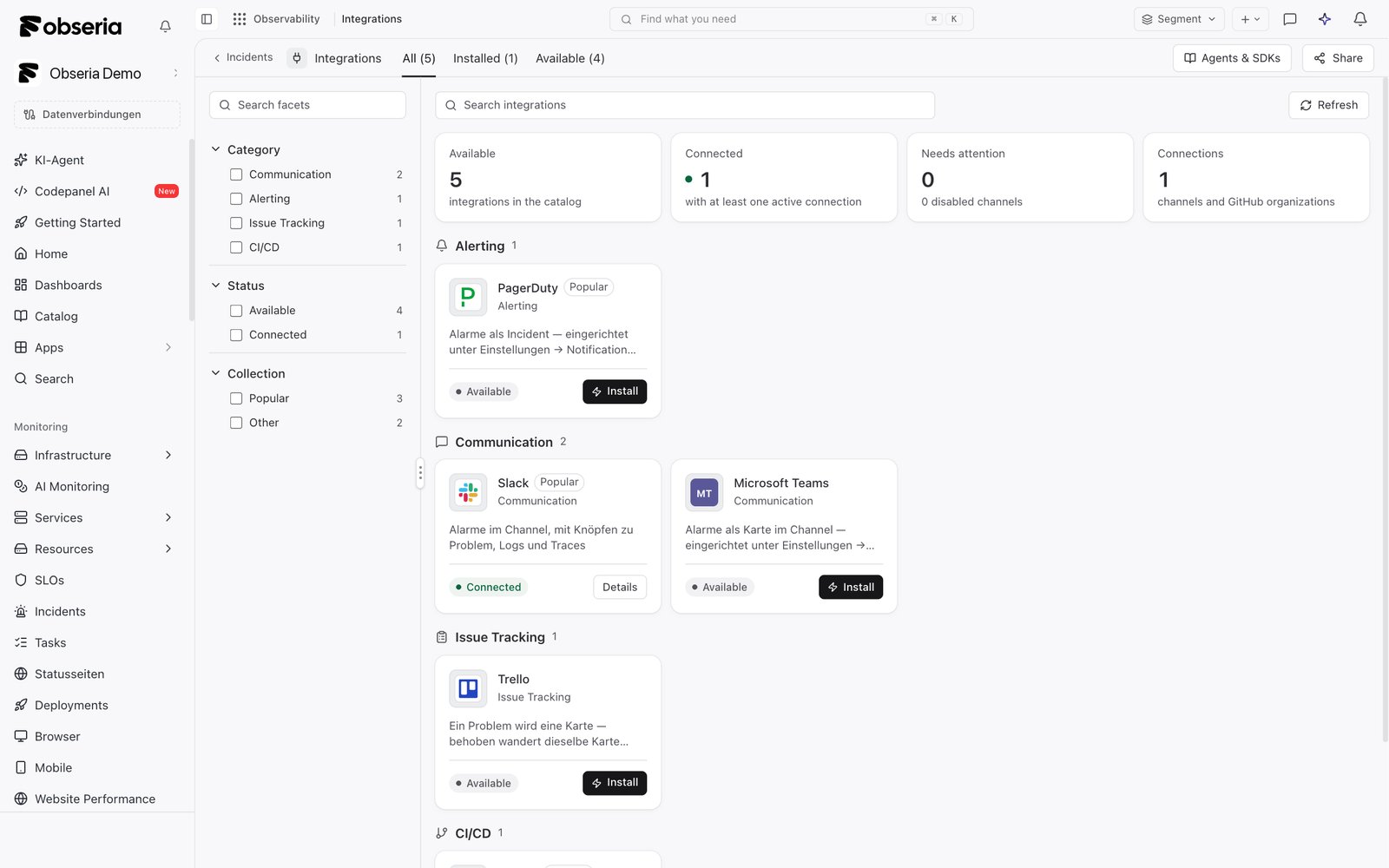
The integrations page shows Slack, Microsoft Teams, PagerDuty and Trello with their status. An approval step can post its request to such a notification channel in addition to the e-mail.
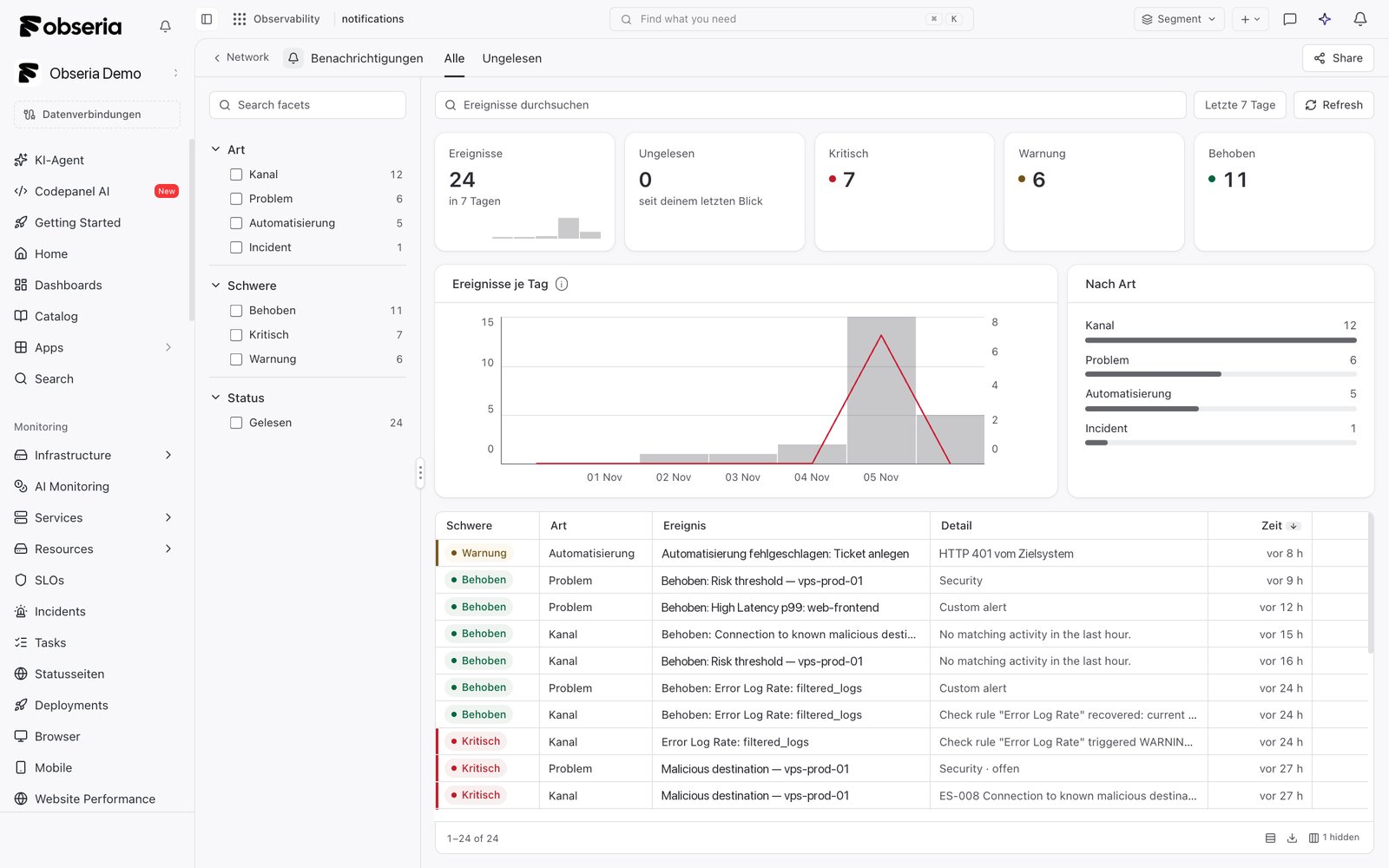
The notification centre lists channel, problem, automation and incident events with severity and status, including a failed automation step with the error of the target system.
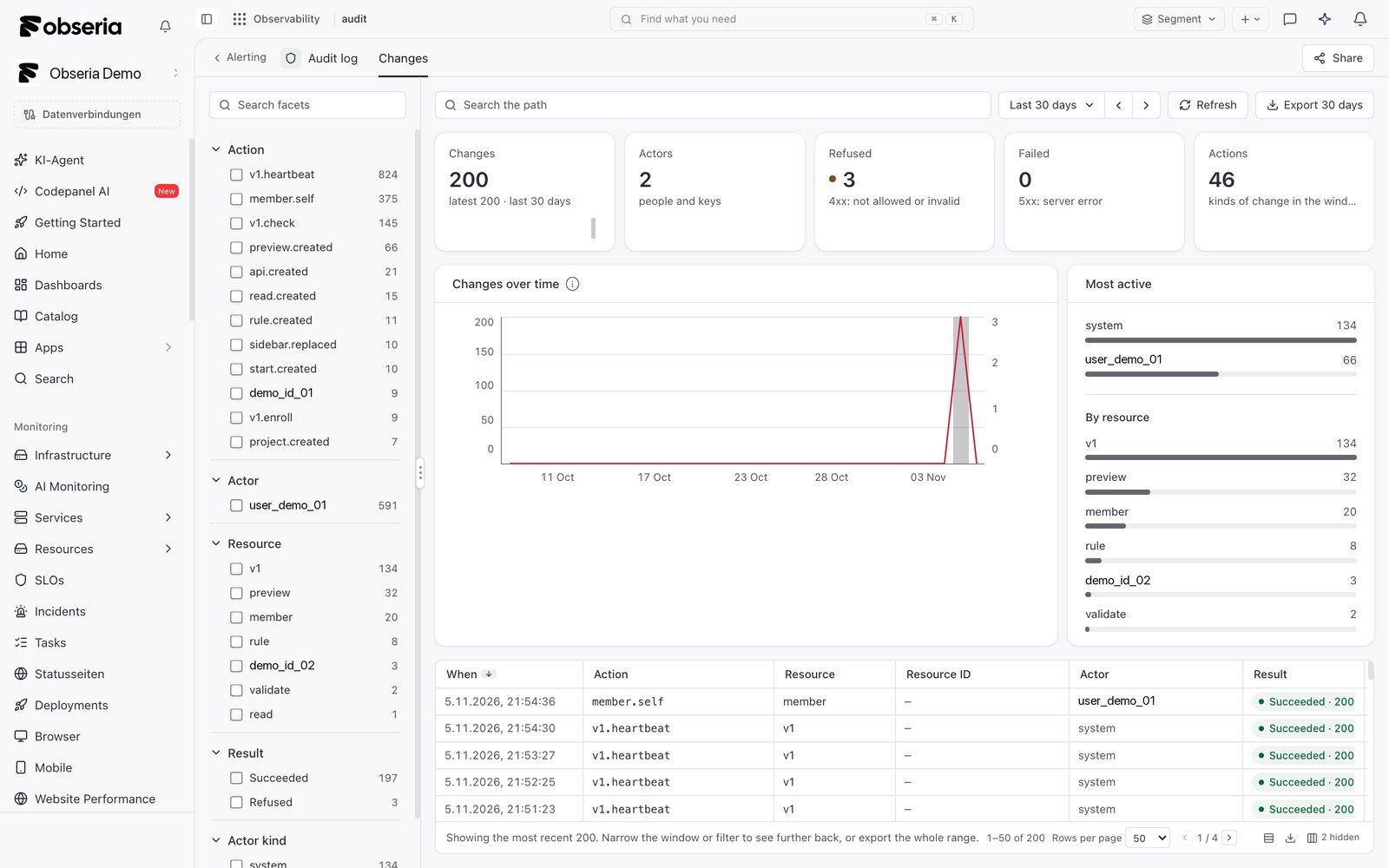
The audit log records changes with actor, action, resource and result over a chosen period. For approvals, the decision, the approver and the note are stored with the workflow run.
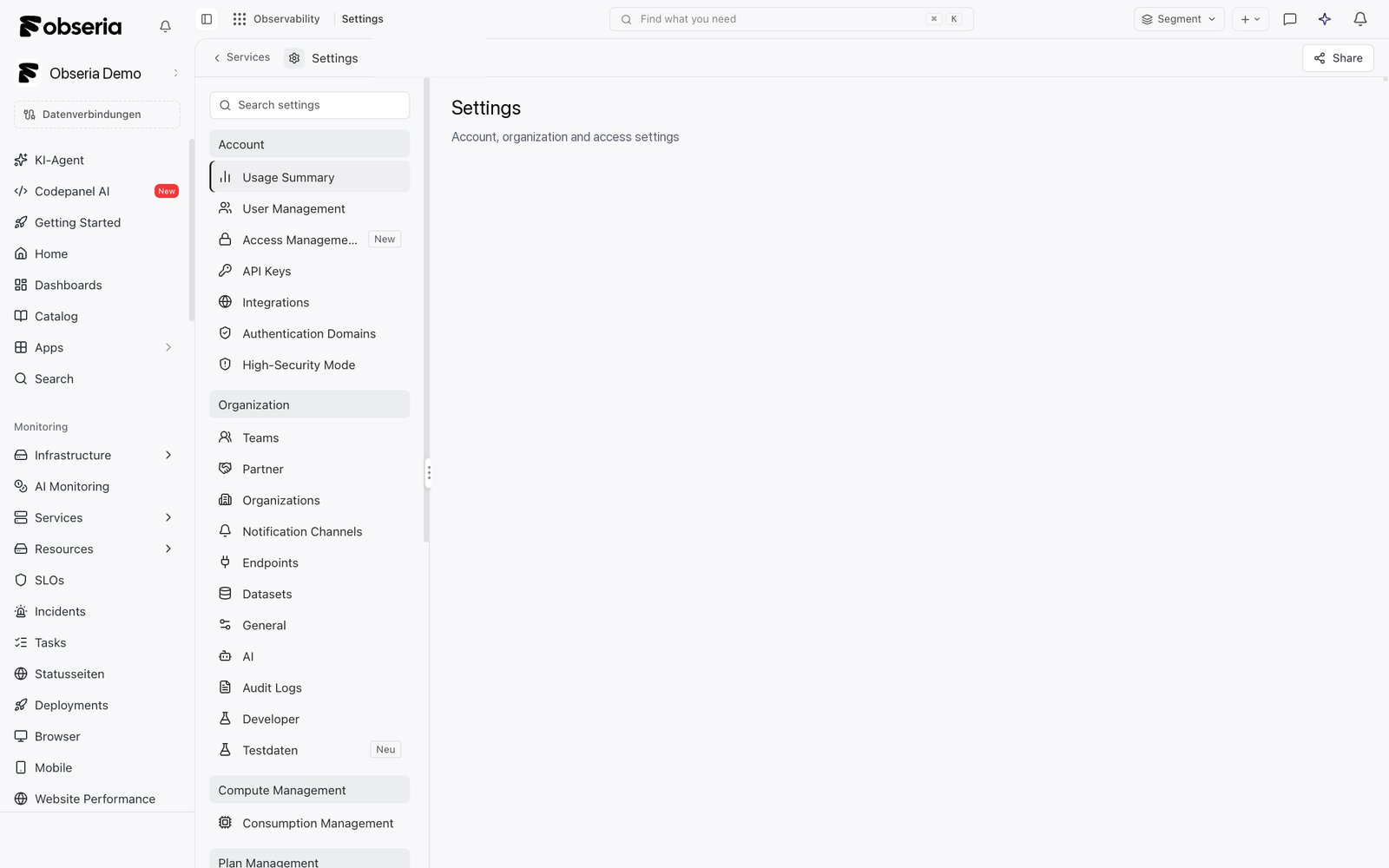
Organisation settings hold the notification channels that approval requests use, including e-mail, plus users, teams, API keys and integrations.
An approval step pauses the run, e-mails the approvers a link and can also post to a channel. They approve or reject with a note in the Workflow inbox; an optional timeout rejects automatically.
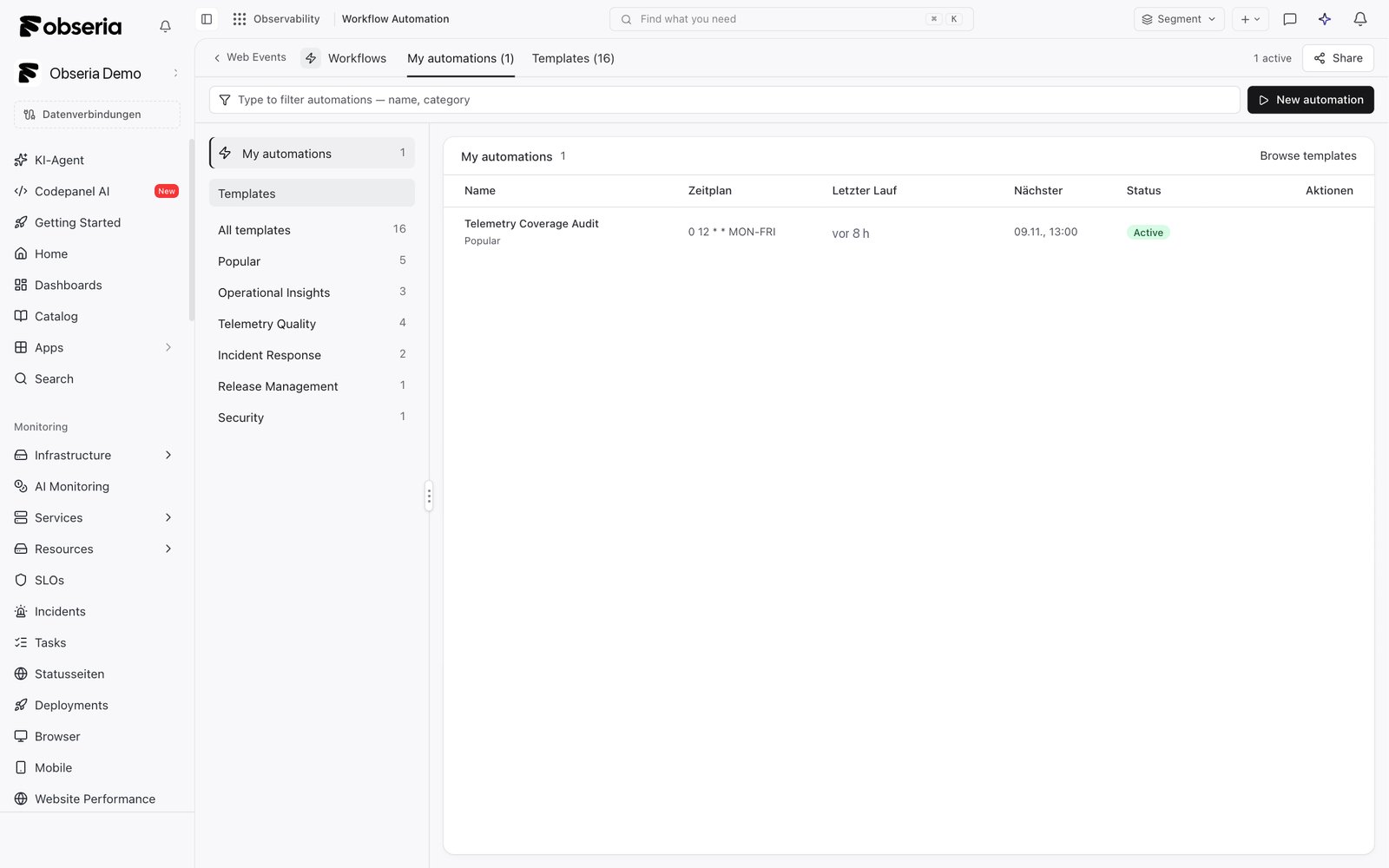
A workflow starts by hand, from a webhook, on a cron schedule, on an Obseria event, from a public form or with every new e-mail in an IMAP mailbox.
Learn more →Conditions, switch by value, filters, loops over lists, waits for a time or an event, sub-workflows and variables shape the path a run takes.
Learn more →Every run with trigger payload, step timeline, inputs and outputs. Retry with the same payload, cancel waiting runs, set retries per step and send failures to an error channel.
Learn more →An employee fills in the purchase form: item, amount, reason. The submission starts a run.
A condition compares the amount with the approval limit. Small amounts skip the approval.
The approval step e-mails the budget owner a link and posts to the finance channel.
The approver opens the inbox, reads the details and approves with a short note.
On approved, the order is created and the requester informed; on rejected or expired, the requester gets the note.
The approval step stops a run until someone decides and then continues on one of two outputs: approved or rejected. Title and details accept placeholders, so the request carries the data that matters, for example Approve purchase: {{ trigger.form.item }} ({{ trigger.form.amount }} EUR).
Approvers are entered as e-mail addresses, comma separated. Placeholders are allowed here too, so the approver can be taken from the form or from an earlier lookup, for example the manager of the requester.
Several approval steps in a row build a multi-level process, and a condition in front decides whether an approval is needed at all.
Approvers decide in the Workflow inbox. It shows what is waiting for them, other pending requests as read-only information, and a history of past decisions with their notes.
Each request shows its title, its details and the workflow it belongs to. Approve or reject, optionally with a note; the workflow can use the note in later steps, for example in the e-mail to the requester.
Only people listed as approvers can decide, and the first decision counts. Others see who the request is waiting for.
When an approval starts, every approver receives an e-mail titled with the request, with the details, the workflow name, the deadline if one is set, and a link to the inbox.
Optionally, the same request is posted to a notification channel, such as a Slack or Microsoft Teams channel of the finance team. The decision itself is always made in the inbox, signed in to Obseria, not by a button in the e-mail or chat.
Approval e-mails are sent through an e-mail channel with SMTP that is set up in Obseria.
An optional deadline in hours limits how long a request may wait. When it passes, the request is marked as expired and the run continues on the rejected output, so the requester can be told and nothing is ordered without a decision.
Each decision is stored with the approver, the time and the note, next to the run that requested it. The run history shows the trigger data, every step and the approval in one place.
Waiting runs show up in the run history and can be cancelled there; waiting for an approval does not count as a billed step.
 Slack
 Microsoft Teams
 Jira
 PostgreSQL
 MySQL / MariaDB
 Shopware
An approval workflow is a process that stops at a defined point until a responsible person says yes or no, and then continues differently depending on the answer. Purchase requests, expense reports, vacation requests, price changes, contract releases and software requests all follow this pattern. Without automation, they live in e-mail threads, spreadsheets and hallway conversations, which makes them slow and hard to trace.
A digital approval process replaces that with three things: a clear request, a defined approver and a recorded decision.
A classic purchase approval workflow starts with a form: item, amount, reason. A condition checks the amount. Below the limit, the order goes straight to purchasing. Above it, an approval step asks the budget owner. On approval, the order is created in the ERP or shop system and the requester gets a confirmation; on rejection, the requester gets the approver's note. Every request now has a status, a decision and a reason, instead of a lost e-mail.
Some decisions need more than one person. The four-eyes principle requires a second person to confirm before something critical happens, for example before a price change is written back to the shop or a payment is released. Multi-level approvals chain several steps: first the team lead, then finance above a certain amount. Each level should only be asked once the previous one has approved, so nobody decides on a request that has already been rejected.
The most common weakness of approval processes is the request nobody answers. A deadline turns that into a defined outcome. Automatic rejection after the deadline is the safe default: nothing happens without a decision, and the requester learns that the request expired. Where a request must not simply expire, the expiry path can notify a deputy or a team channel instead. Whatever you choose, make the deadline visible to the approver in the request itself.
For finance, compliance and audits, the decision matters as much as the result. A good approval system records who decided, when, and with which note, and keeps the original request next to it. That record answers the typical questions later on: who approved this purchase, was the limit respected, why was this request rejected?
Approvers respond faster when the request reaches them where they work. E-mail is the common denominator; a message in a team channel helps where approvals are a team task. Keep the request short, put the deciding numbers in the title and give one clear link to the decision.
The structure is always the same: a request with clear data, a decision by the right person, and a result that is written to the system where the work happens.
Most teams do not need to invent these processes. Ready-made approval workflow templates give a proven shape for purchase requests, expense reports, vacation requests and document approvals. Treat a template as a draft: replace the example addresses, choose your channels and connections, adjust the thresholds and run a test before you activate it.
Approve purchase: {{ trigger.form.item }}.Only people listed as approvers can decide, and they do so signed in to Obseria; the e-mail contains a link, not a one-click decision. The first decision counts. For several levels, place approval steps one after another. Waiting for an approval is not billed.
A process that pauses until a responsible person approves or rejects, then continues on the matching path. In Obseria Workflow, the approval step does this, with the outputs approved and rejected.
They receive an e-mail with a link to the Workflow inbox, optionally also a channel message. In the inbox they approve or reject, with an optional note. They need to be signed in to Obseria; there is no one-click decision in the e-mail.
If you set a deadline in hours, the request expires when it passes and the run continues on rejected. Without a deadline, the run keeps waiting and can be cancelled from the run history.
Yes. Place several approval steps one after another, for example team lead first and finance second, and use a condition to add a level only above a certain amount. Within one step, the first decision of any listed approver counts.
Yes. The approvers field accepts placeholders, so the address can come from a form field or an earlier step, for example the manager of the requester.
No. Waiting for approvals, triggers and notes are not billed; executed steps cost $0.50 per thousand with 10,000 per month included. See the pricing page.
Business process automation with approvals, connections and templates.
→Forms, mailboxes and webhooks that start an approval process.
→Thresholds that decide whether an approval is needed at all.
→Purchase, expense, vacation and document approvals as drafts.
→Software requests with their own approval chain.
→In 30 minutes we show you how Obseria works in your environment and answer your questions on setup, privacy and pricing.