Data syncs
Scheduled loads from connected systems into tables: ready-made packages for systems such as Stripe, Shopify, HubSpot, lexoffice or Jira, any GET endpoint, or SQL on PostgreSQL and MySQL.
Learn more →We use essential functions to operate this website. With your consent, we would also use services for statistics and marketing. You decide which categories you allow and can change your choice at any time via “Cookie settings” in the footer. More in our privacy notice.
Obseria Consent Management · Your choice is stored for 12 months
Drop a CSV, TSV, JSON or Excel file, check the detected column types in a preview, then create a new table or update an existing one without duplicates.
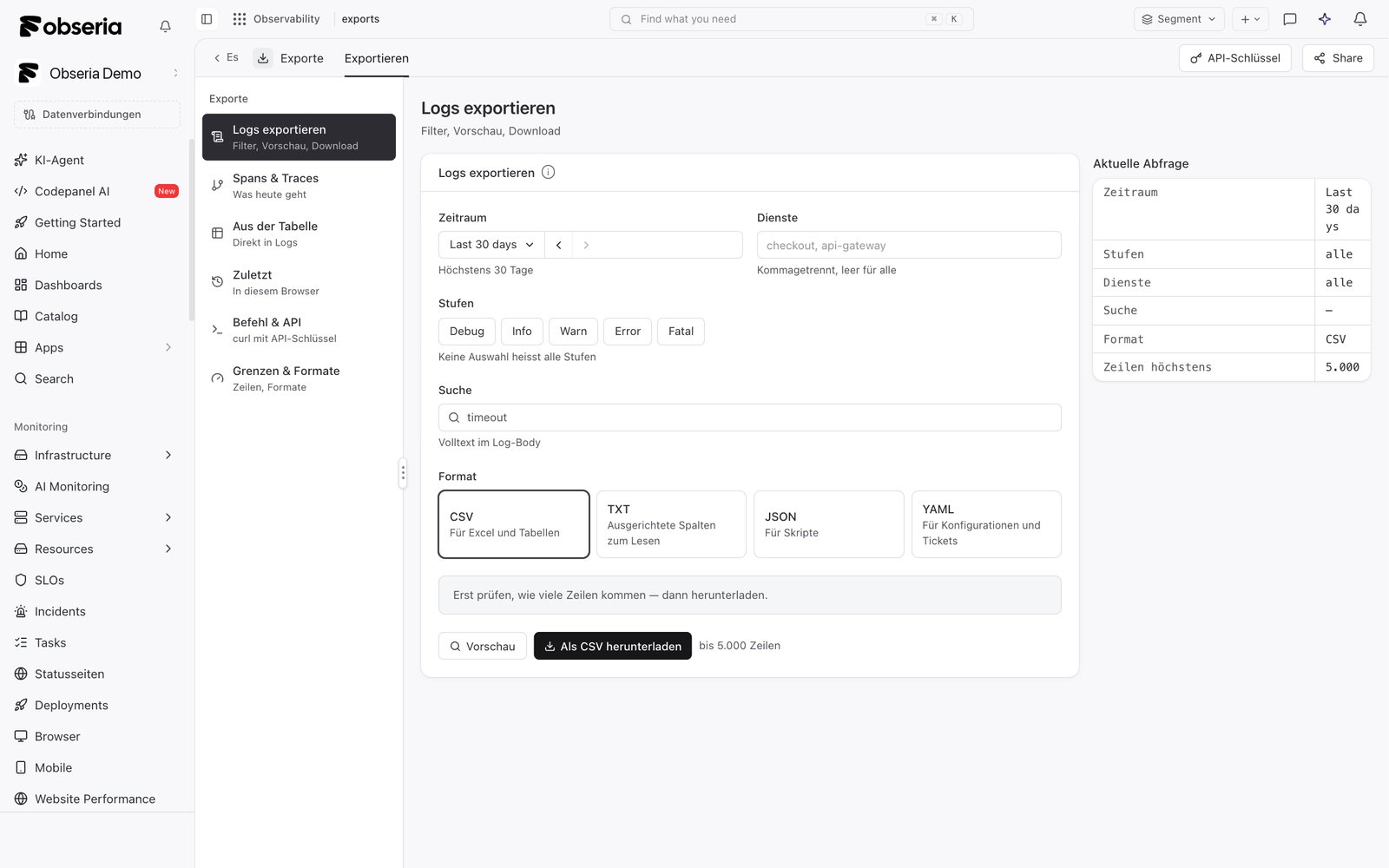
The screenshot shows the export view in Obseria, which works in the other direction. The import in Obseria Data reads CSV, TSV, JSON and Excel files and shows a preview before anything is written.
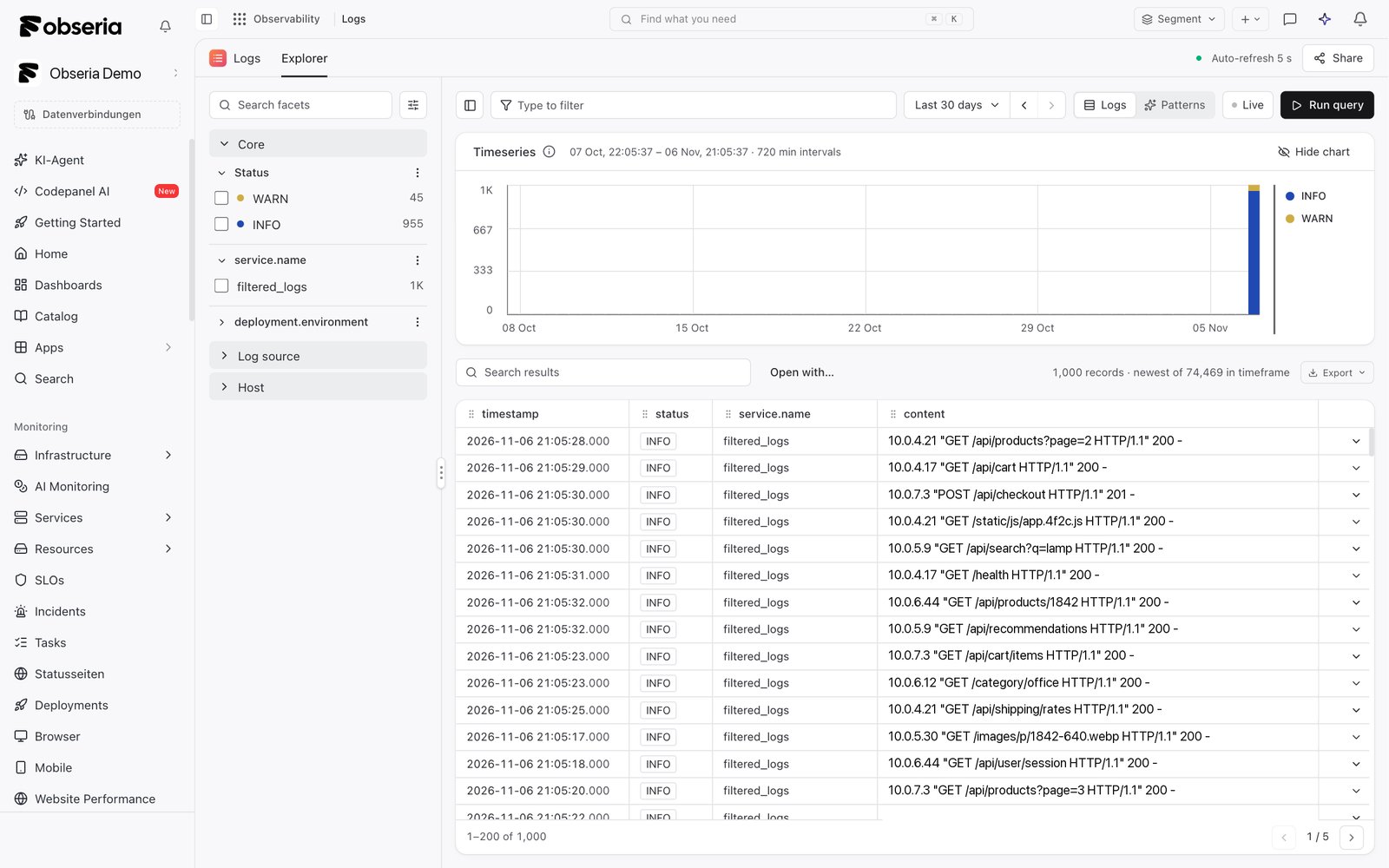
The screenshot shows the log explorer in Obseria. Imported rows are explored in the same style: typed filters per column, facets with counts and column statistics.
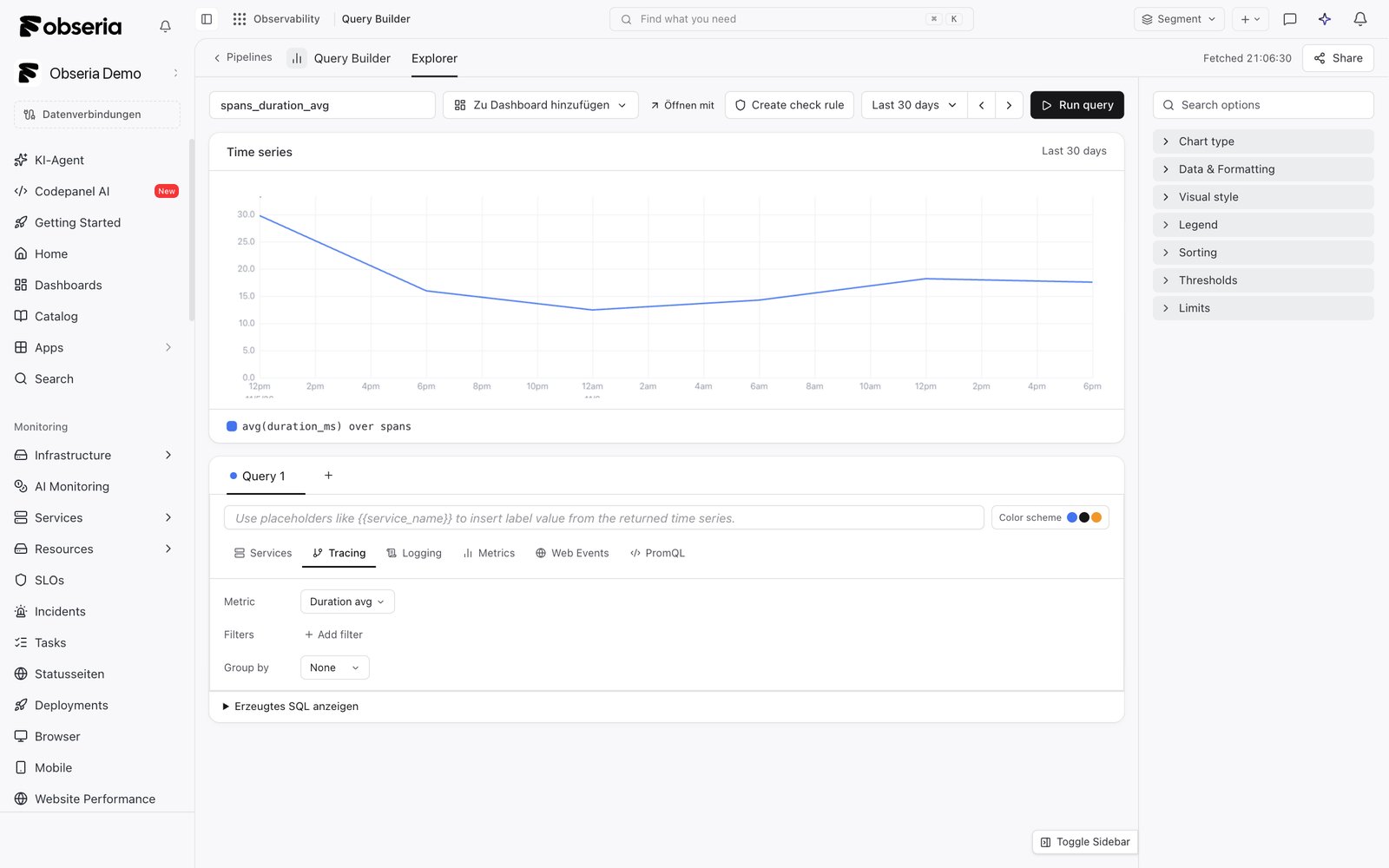
The screenshot shows the query builder in Obseria. In Obseria Data, the SQL editor joins an imported file with your other tables, for example invoices with customers.
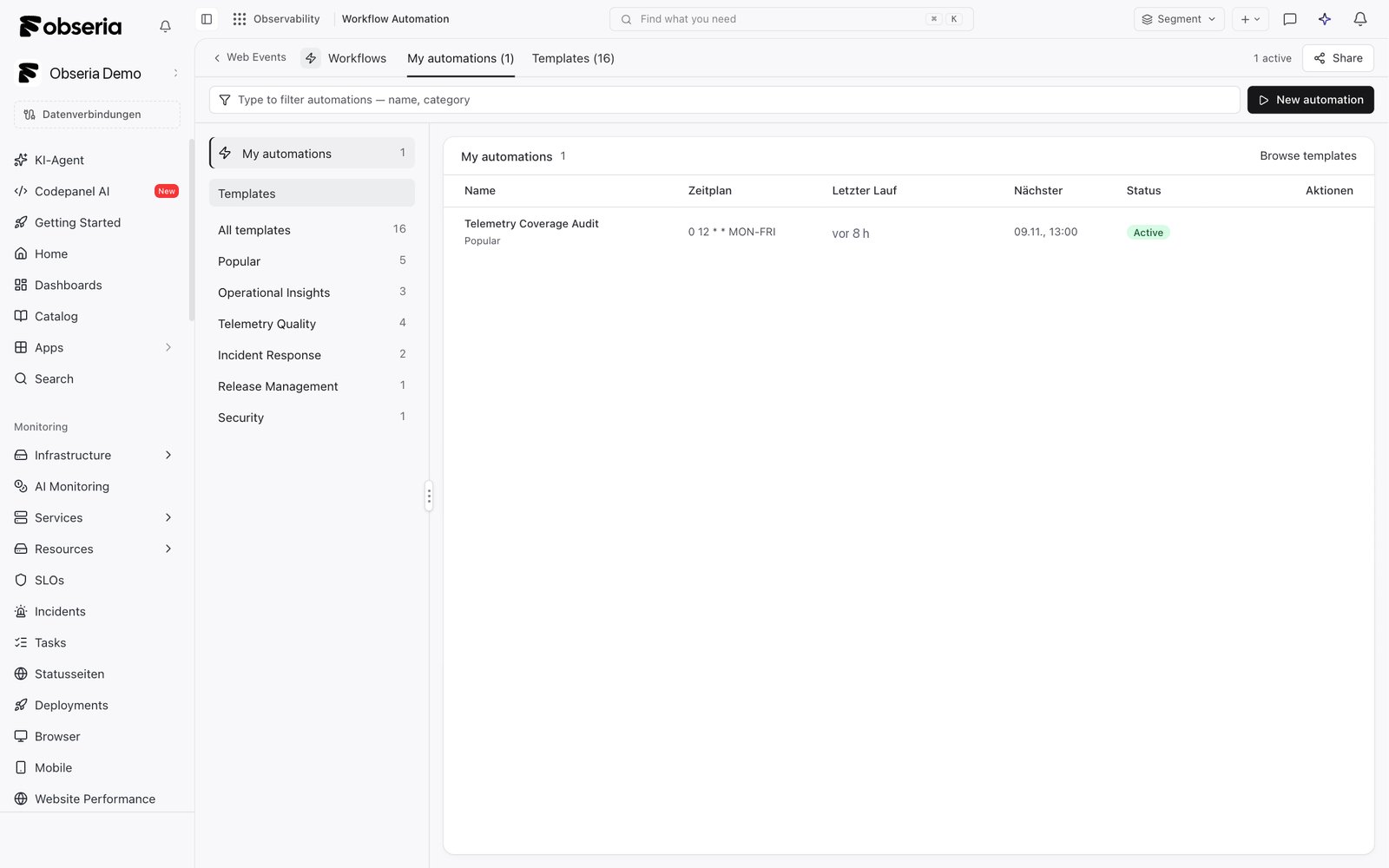
The screenshot shows a workflow list in Obseria. When the same file arrives again and again, a scheduled sync or a workflow takes over and writes into the same table.
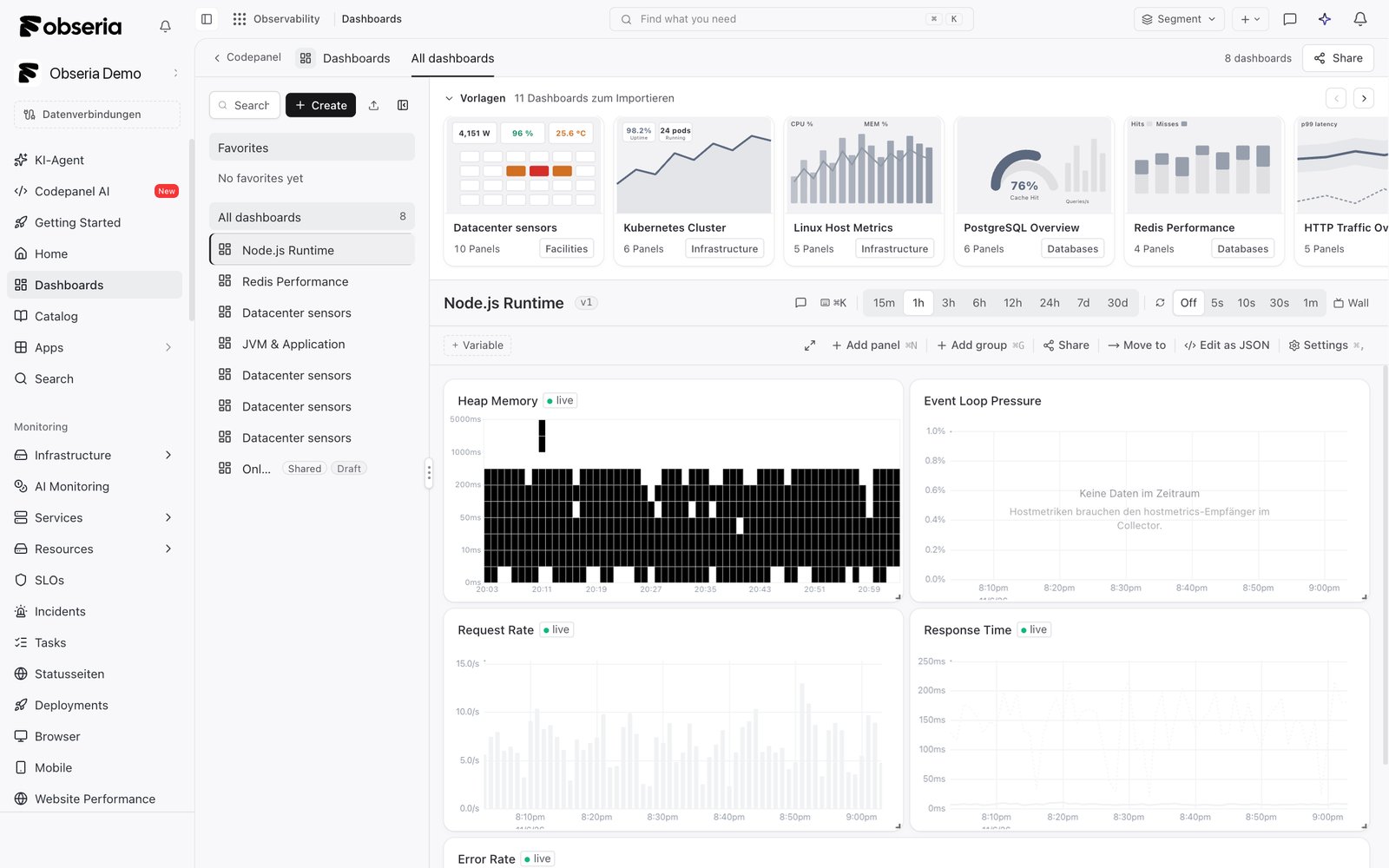
The screenshot shows dashboards in Obseria. In Obseria Data, dashboard tiles read imported tables and show a number, a bar or line chart or a table.
Scheduled loads from connected systems into tables: ready-made packages for systems such as Stripe, Shopify, HubSpot, lexoffice or Jira, any GET endpoint, or SQL on PostgreSQL and MySQL.
Learn more →Drag a CSV, TSV, JSON or Excel file into the dialog or click to choose it, up to 25 MB.
See the detected columns with their types, the first rows and the row count. Pick the sheet of an Excel workbook.
Create a new table with a suggested name, or write into an existing table.
Append all rows, upsert by a key column or replace the table's content.
Open the table, mark personal data, filter the rows, ask questions or build a dashboard.
The import reads CSV, TSV and text files, JSON and Excel workbooks in .xlsx and .xlsm format, up to 25 MB and up to 200,000 rows per file. Old binary .xls files are not read; save them as .xlsx or CSV first.
For CSV files, the separator is detected from the first lines: comma, semicolon, tab or pipe. That matters for German exports, which usually use the semicolon. JSON files can be a list of objects or an object that contains a list, as many API exports do. In Excel workbooks, the first row of a sheet is the header; formulas are read as their results.
Nested objects in JSON become separate columns, for example address.city becomes address_city. Lists and deeper levels are kept as JSON text.
Each column's type is detected from all of its values. Numbers in German notation such as 1.234,56 and in English notation such as 1,234.56 are both recognised, and currency and percent signs are removed. ja, nein, yes, no, true and false become yes/no values. ISO dates and date-times become dates.
If a column mixes whole numbers and decimals, it becomes a number column. If it mixes incompatible values, it stays text, so no information is lost. The preview shows each column with its detected type before anything is written.
Once a column exists in a table, its type is fixed. Later imports convert their values to that type, so a table stays consistent across many files.
Dropping a file does not write anything yet. The dialog first shows the file name and size, the number of rows and columns, the detected columns with their types and the first rows of data. For a workbook with several sheets, you choose the sheet and the preview updates.
For a new table, Obseria suggests a name from the file name, which you can change. If the file has a column called id, number, key, sku or email, it is suggested as key column.
The button at the bottom says exactly what will happen, for example “Create table with 1,240 rows” or “Write 1,240 rows” into an existing table.
A file can create a new table or go into an existing one. For an existing table there are three modes: append adds all rows, upsert updates rows with the same key and adds new ones, and replace deletes the existing rows first. Tables with a key column default to upsert.
If the file brings columns the table does not have yet, they are added. Existing columns keep their type. The import is also available directly on a table's page, where the target is already set.
Every import is a write to the table, just like a sync or a workflow step. A workflow can react to it with the trigger for an updated table, for example to send a notification or start a follow-up process.
 PostgreSQL
 MySQL
 GitHub
 Jira
Almost every business system can export a file: the accounting tool exports invoices as CSV, the shop exports orders, the CRM exports contacts and the bank exports transactions. A CSV import or Excel import turns such a file into a table that you can filter, query and combine with other data. Done well, it is the fastest way to bring data from a system without an interface into one place.
The hard part is not reading the file. It is understanding what is in it: which column holds a number, which one a date, which one a yes/no value, and which column identifies a record so that the next import updates rows instead of duplicating them.
If you can choose, CSV or Excel exports are usually the safest choice for business data. Old binary Excel files (.xls) are best saved as .xlsx or CSV before importing.
1.234,56 in German notation and 1,234.56 in English notation mean the same amount. An importer that only knows one of them turns half your amounts into text or wrong numbers.99,90 € or 15 % should become numbers, not text.ja, nein, true, false: the same idea in different spellings.2026-11-15 are unambiguous. Local formats such as 15.11.2026 or 11/15/2026 are not, so export ISO dates where the source allows it.When a file goes into an existing table, the write mode decides what happens to the rows that are already there:
Exports from a CRM, a shop or an HR system almost always contain personal data: names, email addresses, phone numbers, sometimes bank details. Under GDPR, importing such a file is a processing step like any other. Before you import, ask whether every column is really needed; removing columns from the export is the simplest form of data minimisation. After the import, mark the columns that hold personal data, assign an owner who answers for the table and set a retention period, so old rows do not stay forever. If the file was only needed for a one-off analysis, delete the table when you are done instead of keeping a forgotten copy.
Files are perfect for one-off loads, for systems without an API and for data that changes once a month. If you import the same export every day, or the files grow beyond a manageable size, a scheduled sync from the source system is the better path: it runs on its own, loads only what changed where the system supports it, and writes into the same table with the same key.
In Obseria Data, the import is a two-step dialog. First you drop a file and see a preview; then you choose where it goes and how it is written.
Fields that the table does not have yet become new columns. Imported rows count as rows written, which are billed by usage with a free allowance every month; see the pricing page.
CSV, TSV and text files, JSON and Excel workbooks in .xlsx and .xlsm format. Legacy .xls files are not supported; save them as .xlsx or CSV first.
Up to 25 MB and up to 200,000 rows per file. For larger or recurring data, split the file or set up a scheduled sync from the source system.
Yes. Numbers such as 1.234,56 and 1,234.56 are both recognised, and currency and percent signs are removed. Semicolon-separated CSV files are detected automatically.
Dates and date-times in ISO format, such as 2026-11-15 or 2026-11-15T09:30:00Z, become date columns. Other date formats, such as 15.11.2026, are kept as text, so export ISO dates where you can.
Choose upsert and a key column, such as an invoice number or customer ID. Rows with the same key replace each other, and new rows are added.
Yes. If a workbook has several sheets, the preview lets you pick one. The first row of the sheet is used as the header.
Tables, syncs, SQL, plain-language questions and dashboards for business data.
→Typed tables with key, owner, personal-data flags and retention.
→When the same export comes every day: load it from the source system on a schedule.
→Filter, summarize, edit and export the imported rows.
→Parse CSV and Excel files inside a workflow and write them to a table.
→In 30 minutes we show you how Obseria works in your environment and answer your questions on setup, privacy and pricing.