Ask in plain language
A question in plain language becomes SQL, a result and a chart, written by an AI language model. The SQL is always shown and can be opened in the editor or saved.
We use essential functions to operate this website. With your consent, we would also use services for statistics and marketing. You decide which categories you allow and can change your choice at any time via “Cookie settings” in the footer. More in our privacy notice.
Obseria Consent Management · Your choice is stored for 12 months
Type a question such as “revenue per customer, descending”. An AI language model writes the SQL, Obseria runs it read-only and shows the result, a chart and the SQL behind it.
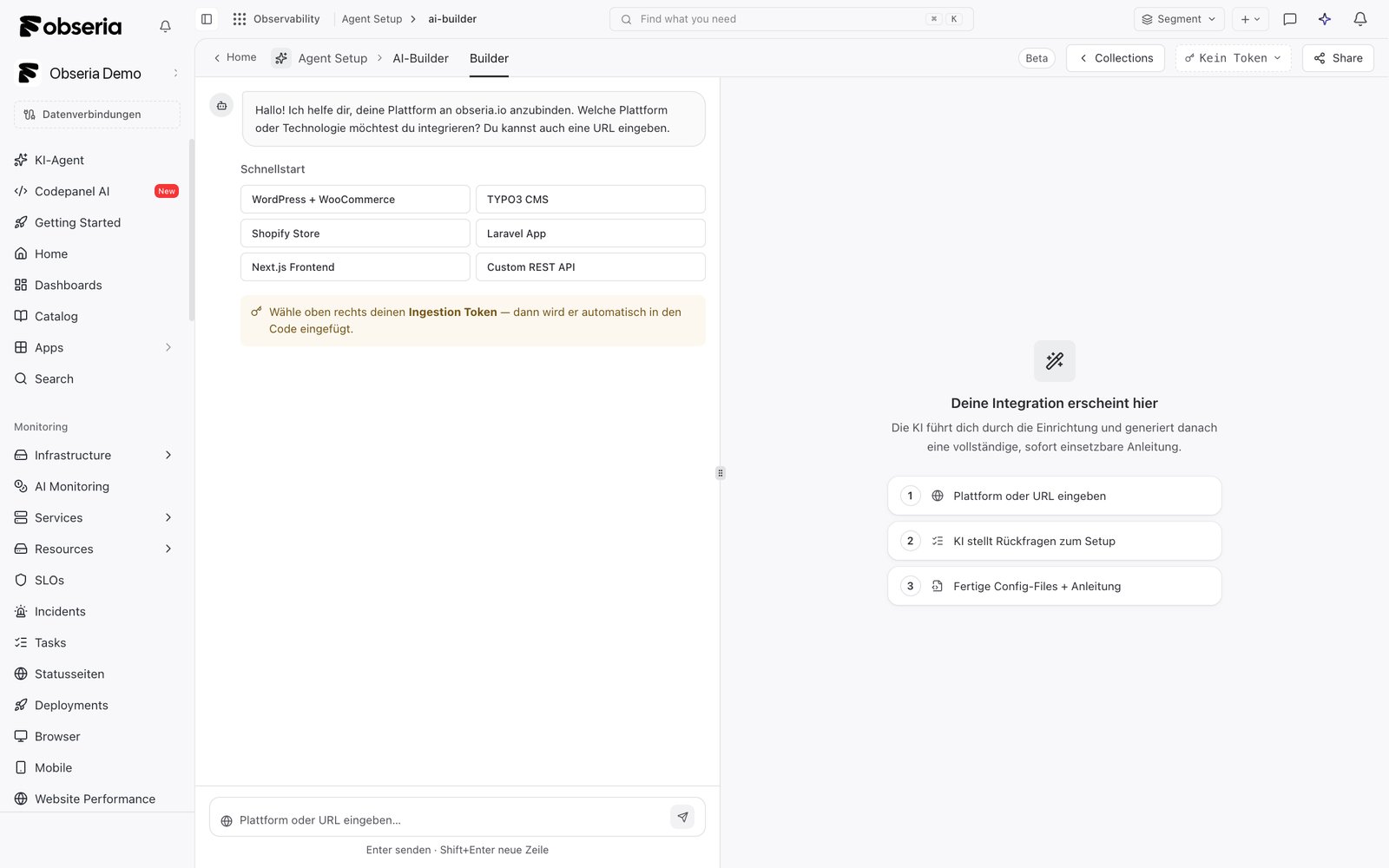
The screenshot shows an AI chat in Obseria that guides an integration setup. Ask in Obseria Data uses the same conversation style for questions about your tables.
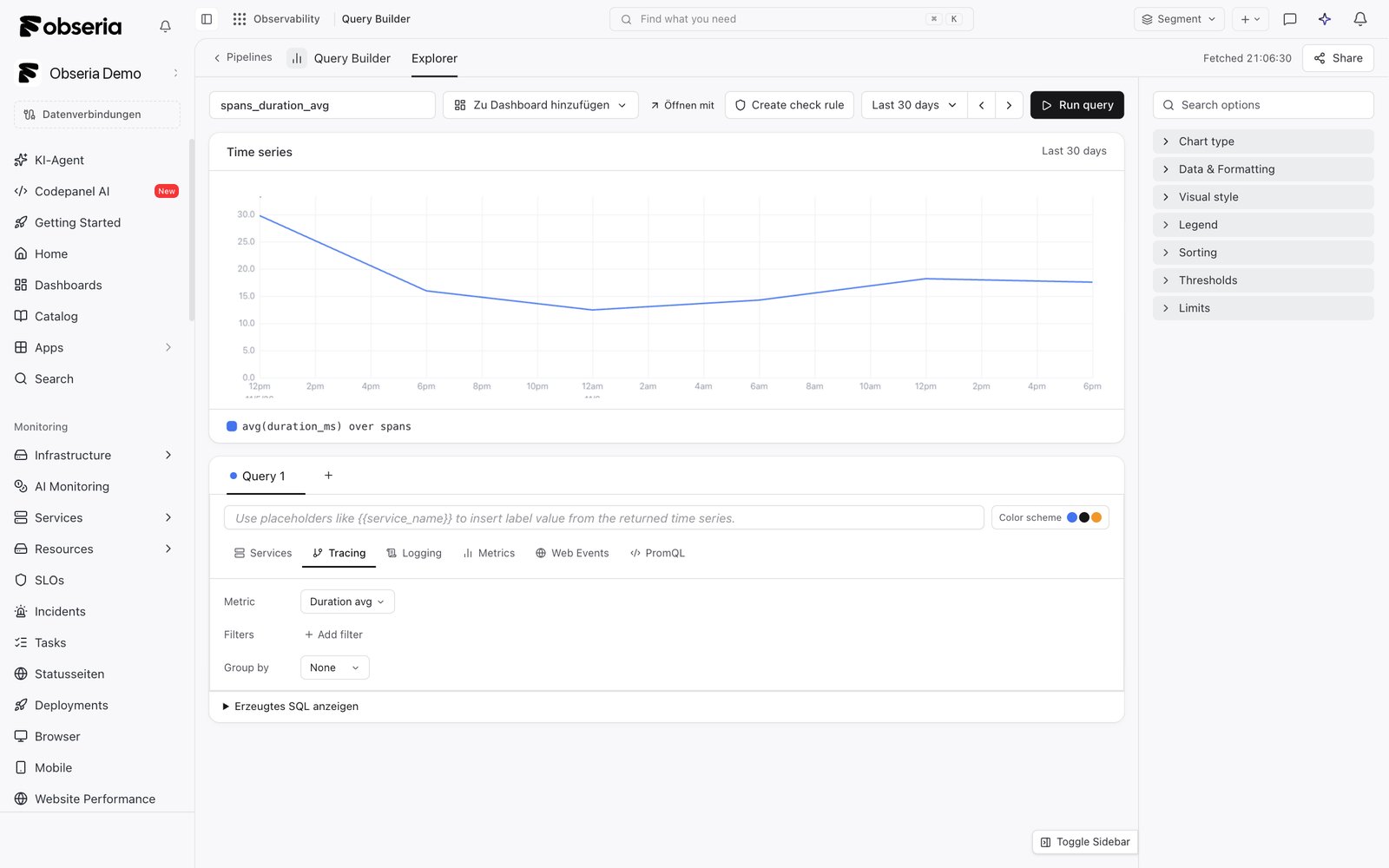
The screenshot shows the query builder in Obseria with its generated SQL. In Ask, every answer shows the SQL the model wrote, next to the result and the chart.
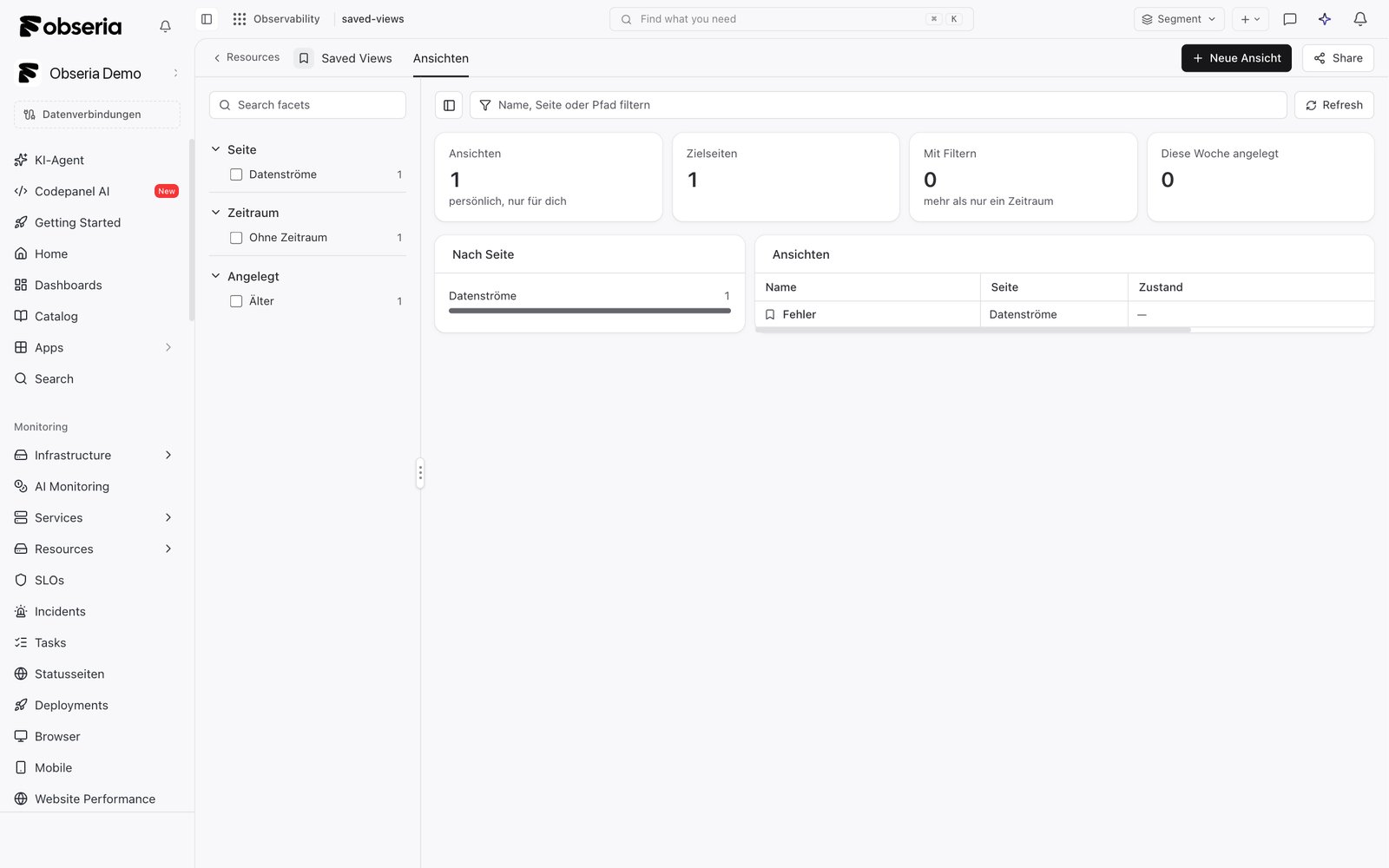
The screenshot shows saved views in Obseria. An answer from Ask is saved the same way as a query, with the question as its name and the explanation as its description.
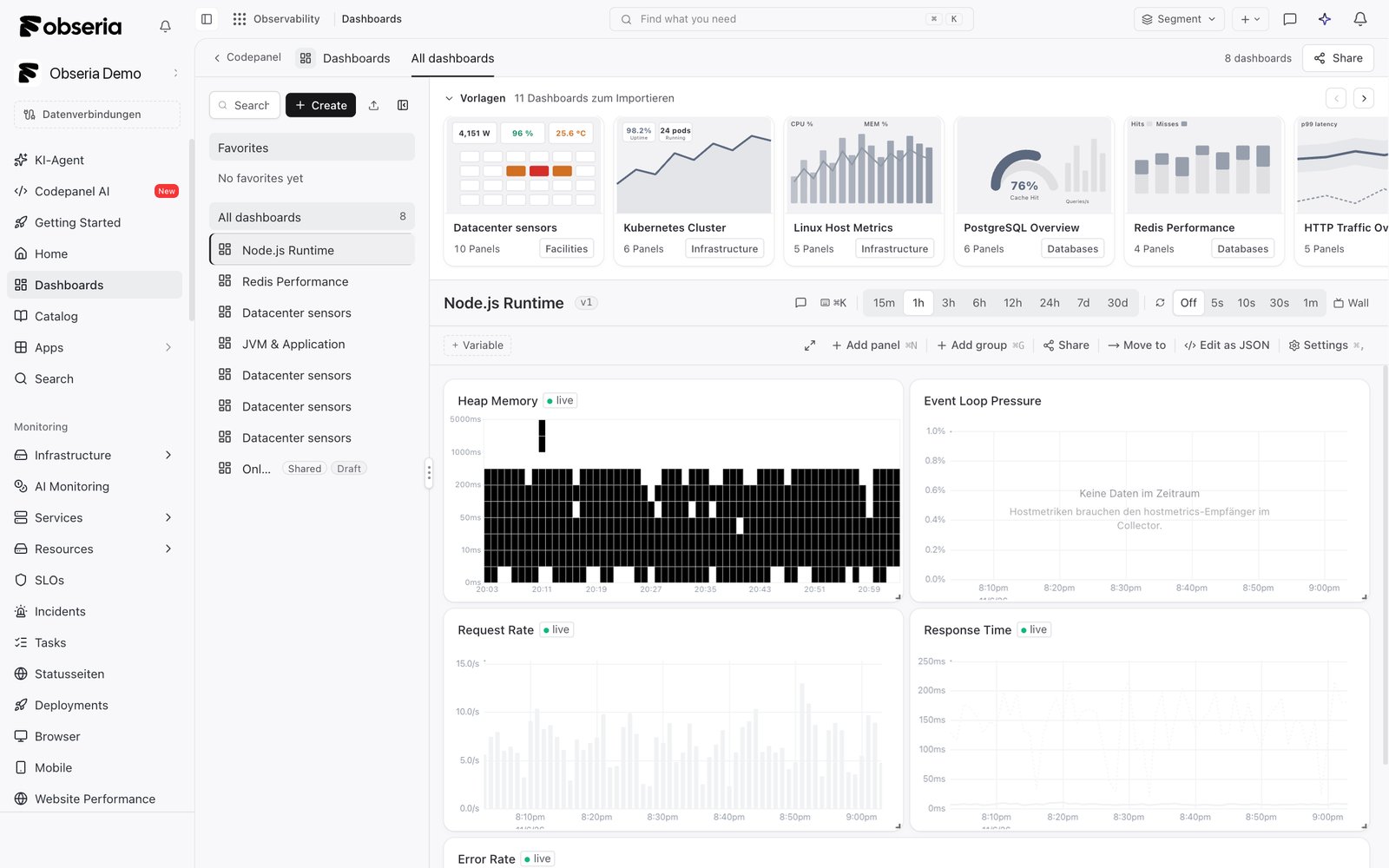
The screenshot shows observability dashboards in Obseria. Business dashboards in Obseria Data can start a tile from a saved answer, so Ask, save and add to dashboard take three clicks.
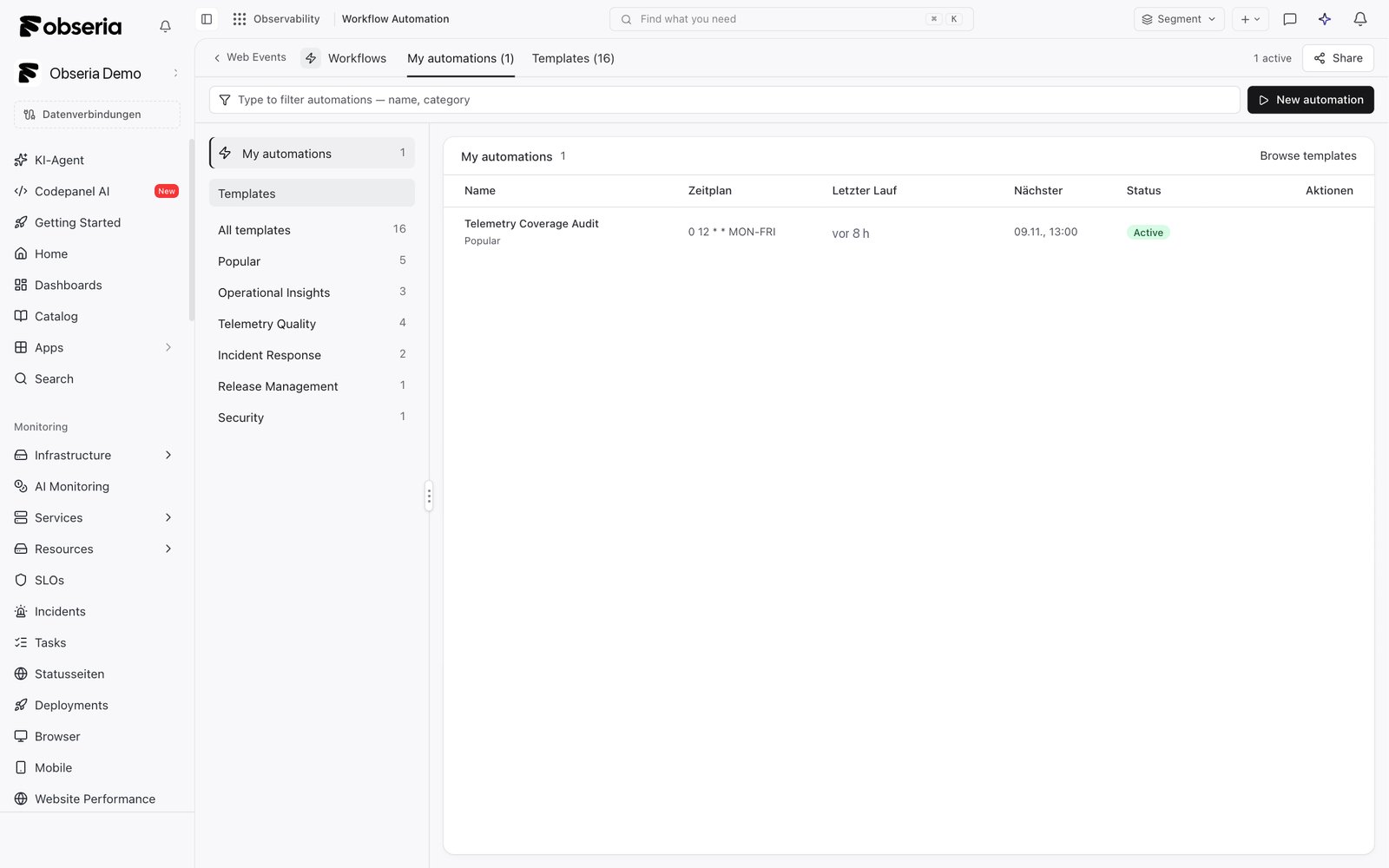
The screenshot shows a workflow list in Obseria. From an answer, Ask builds a workflow that runs the query every weekday at 07:00 UTC and emails the result as CSV when there are rows.
A question in plain language becomes SQL, a result and a chart, written by an AI language model. The SQL is always shown and can be opened in the editor or saved.
Dashboards from tiles: pick table, value, grouping and filters, or write SQL; show it as number, bar chart, line chart or table, with width, height and auto-refresh.
Learn more →Type a question in English or German, or start from a suggestion such as “revenue per customer, descending”.
See a short explanation, the result as a table and a chart, and the SQL the model wrote.
Ask a follow-up such as “only this year” or “per month”. The conversation keeps the context.
Open the query in the SQL editor, adjust it if needed, and save it under a name.
Save the result as a table, add it to a dashboard or build a workflow that emails it every weekday.
Ask is a conversation. You type a question, the answer appears below it, and the next question can build on the last one: “now per month”, “only open invoices”, “top 10 only”. The model answers in the language of the question, English or German.
When you start, Ask shows which tables are available and offers suggestions, for example how many rows each table has, revenue per customer or the latest orders. Without tables, it points you to importing a file or setting up a sync first.
If a question cannot be answered from your tables, the model returns no query and says what is missing instead of guessing.
Each answer has three parts: a short explanation of what the query does and any assumption it makes, the generated SQL with a copy button, and the result as a table and, where it fits, a bar chart, a line chart or a single number.
Because the SQL is always shown, anyone who reads SQL can confirm what was calculated. With one click the query opens in the SQL editor, where it can be changed, run again and saved.
The result table in the conversation shows up to 200 rows, with the total row count and the time the query took.
To write the SQL, the language model receives your question, the previous messages of the conversation and a description of your tables: table names, row counts, column names and types, and one shortened sample row per table. It does not receive your full tables.
The model only writes the query. The query runs inside Obseria Data under the same rules as the SQL editor: read statements only, only the tables of your organization. If the query fails, the model gets the error message and one attempt to correct it.
Answers are generated by an AI language model and can be wrong. Check the SQL before a figure is used for decisions or reports.
Below each answer with SQL are four actions. Open in editor takes the query to the SQL editor. Save as query stores it with the question as its name and the explanation as its description, ready for dashboard tiles. Save as table opens the editor with the query, ready to store the result as a table of its own.
Build a workflow from it creates a scheduled workflow in Obseria Workflow: every weekday at 07:00 UTC it runs the query, and if there are rows it creates a CSV file and sends it by email. You then add the email channel and the recipients and switch it on.
 PostgreSQL
 MySQL
 GitHub
 Jira
Natural language to SQL, often called text to SQL, lets people ask a database a question in their own words: “Revenue per customer this quarter” or “Which invoices are open and older than 30 days?”. A language model reads the question together with a description of the tables and writes the SQL query that answers it. The query runs, and the person gets a table and, where it fits, a chart.
For business data this closes a long-standing gap. The data is often already in one place, but only a few people can write SQL. Everyone else waits for a report or builds one by hand in a spreadsheet. With questions in plain language, a sales lead, a controller or an office manager can get a first answer in seconds.
invoices.amount and the customer name in invoices.customer.Language models are good at writing SQL, but they are not infallible. A model can pick the wrong column, forget a filter or misread “last quarter”. An answer you cannot check is an opinion, not a number. That is why a trustworthy AI data analysis tool always shows the generated SQL next to the result, explains in one to three sentences what the query does and which assumptions it made, and lets anyone who reads SQL open the query in an editor and adjust it.
A practical rule: use plain-language answers freely for exploration. Before a figure goes into a board report or an invoice, have someone check the SQL once and save it as a named query. From then on, the saved query is the definition, not the model's next guess.
Before using any text-to-SQL feature, ask what leaves your platform. There are three common designs. In the weakest, the whole dataset is sent to the model. In a better one, only the schema is sent. A practical middle ground sends the schema plus a very small sample, because column names alone are often ambiguous: a sample shows whether status contains “open” or “offen”.
Equally important is where the query runs. In a good setup, the model only writes the SQL; the query itself runs inside your data platform under a read-only user, and only your own tables are reachable. The model never gets direct access to the database.
invoices, “invoices” works better than “bills”.Many questions are asked more than once. Once an answer is right, it should not have to be asked again every Monday. Save it as a query so it appears in the SQL editor and can feed a dashboard tile. Save the result as a table when other reports or workflows should build on it. Or turn the question into a scheduled report that runs on its own and sends the result by email.
Over time this builds a small library of checked queries that the whole team relies on. New questions start in plain language; what proves useful is saved, named and described. The language model stays a fast way in, and the saved query becomes the reliable basis for reports and key figures.
Questions are processed by an AI language model and billed as AI agent credits; see the pricing.
An AI language model receives your question and a description of your tables and writes a SQL query. Obseria runs the query read-only on your tables and shows a short explanation, the SQL, the result and a chart.
The question, the earlier messages of the conversation, and a description of your tables: names, row counts, column names and types, and one shortened sample row per table. Your full tables are not sent. The query itself runs inside Obseria Data.
The SQL is always shown, so you can check exactly what was calculated. Language models can make mistakes, for example pick the wrong column. Before a figure goes into a report, check the SQL once and save it as a named query.
You can ask in English or German, and the explanation comes back in the language of the question. Table and column names stay as they are in your tables.
No. Generated queries run under the same rules as the SQL editor: read statements only, only your organization's tables.
Questions are processed by an AI language model and billed as AI agent credits. Tables, queries and dashboards in Obseria Data are priced separately by rows written and data stored. See pricing.
Business data in tables: import, syncs, SQL, questions and dashboards.
→Read-only SQL with table browser, saved queries, charts and CSV export.
→Turn saved answers into tiles that refresh on their own.
→A question becomes a scheduled email report with CSV.
→Typed tables with owner, personal-data flags and retention.
→In 30 minutes we show you how Obseria works in your environment and answer your questions on setup, privacy and pricing.