Access control and SSO
Roles, permissions and sign-in via your company login.
We use essential functions to operate this website. With your consent, we would also use services for statistics and marketing. You decide which categories you allow and can change your choice at any time via “Cookie settings” in the footer. More in our privacy notice.
Obseria Consent Management · Your choice is stored for 12 months
Roles and permissions decide who can see and change what, people sign in with their company login, and API keys and an audit log keep machine access traceable.
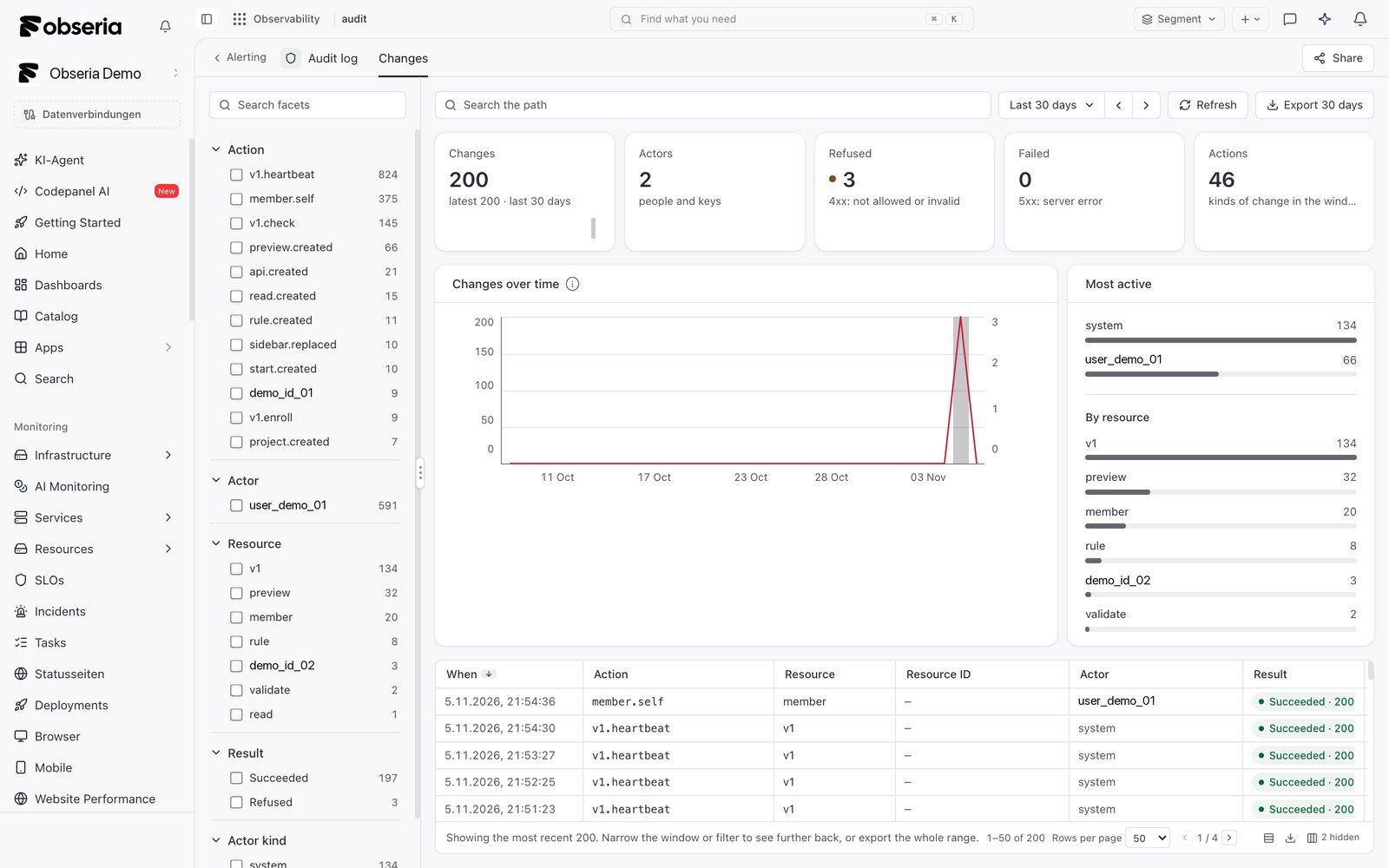
The settings group everything about access: user management, access management, API keys and authentication domains, plus teams, organizations and audit logs.
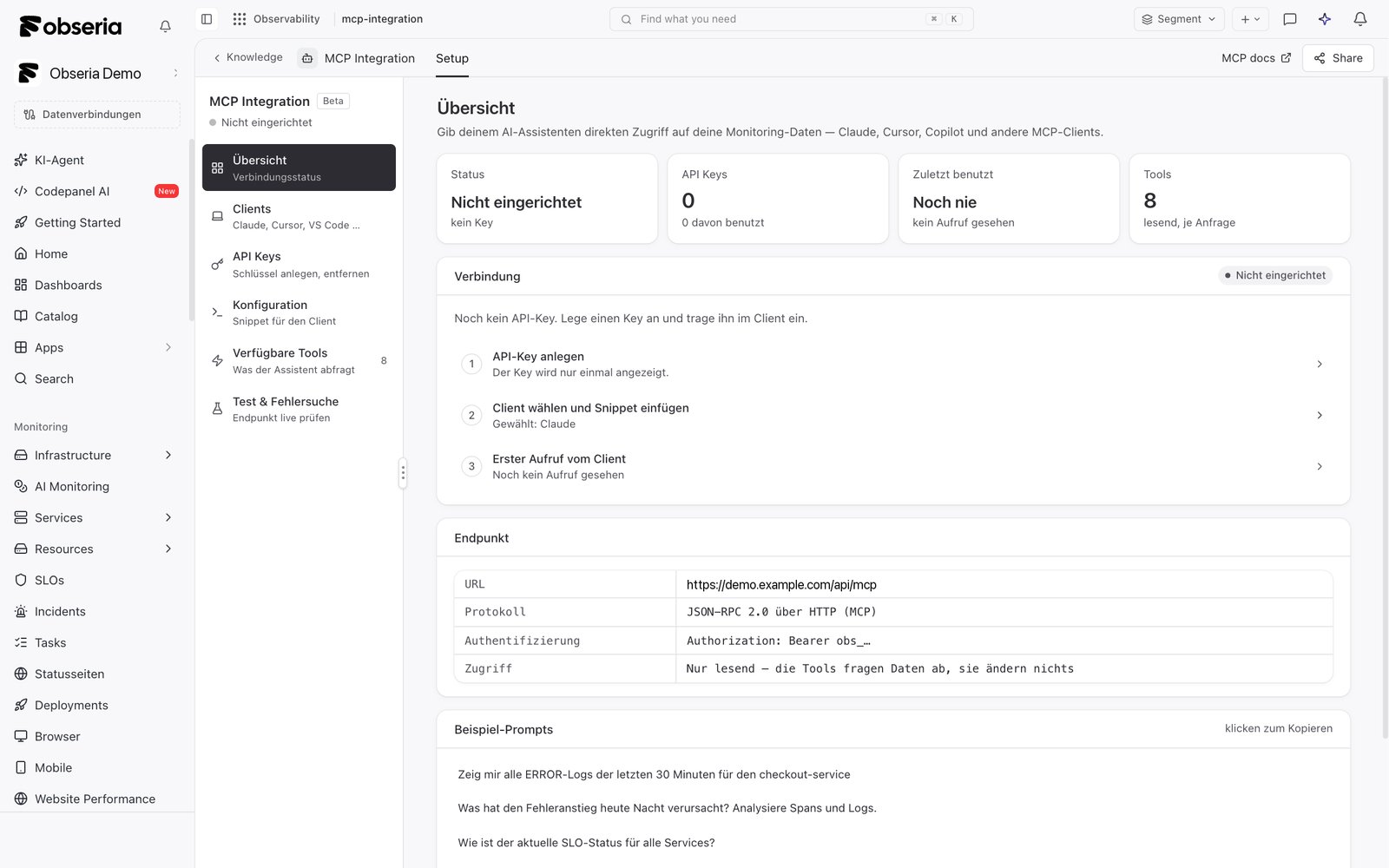
The audit log lists actions by people and keys with time, resource and result, including refused and failed requests, with a chart of changes over time.
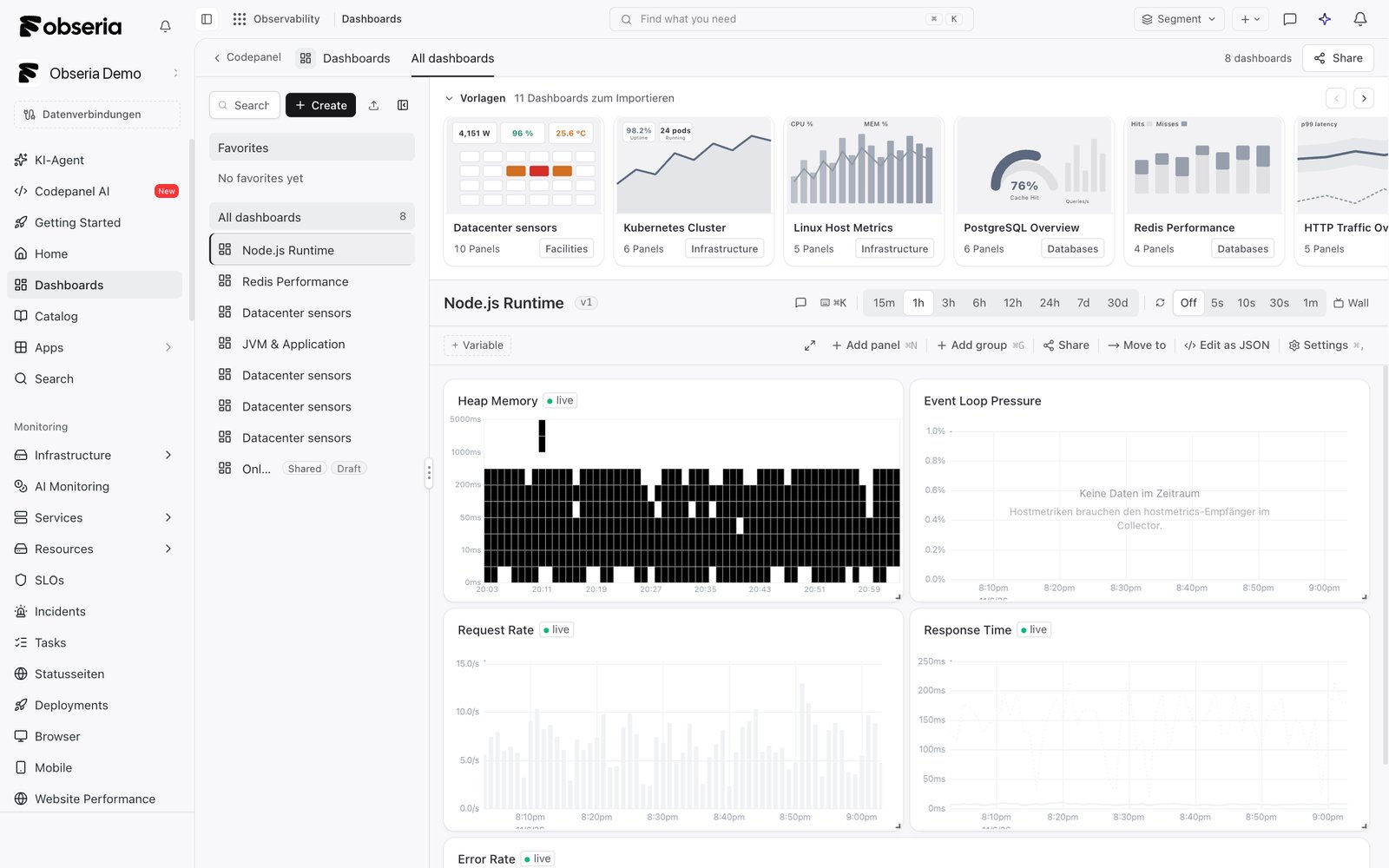
AI clients such as Claude or Cursor connect with an API key. The key is shown only once, and the app shows whether it has been used.
Dashboards can be kept as drafts, marked as favorites or shared with the team, so the shared list stays clean and trustworthy.
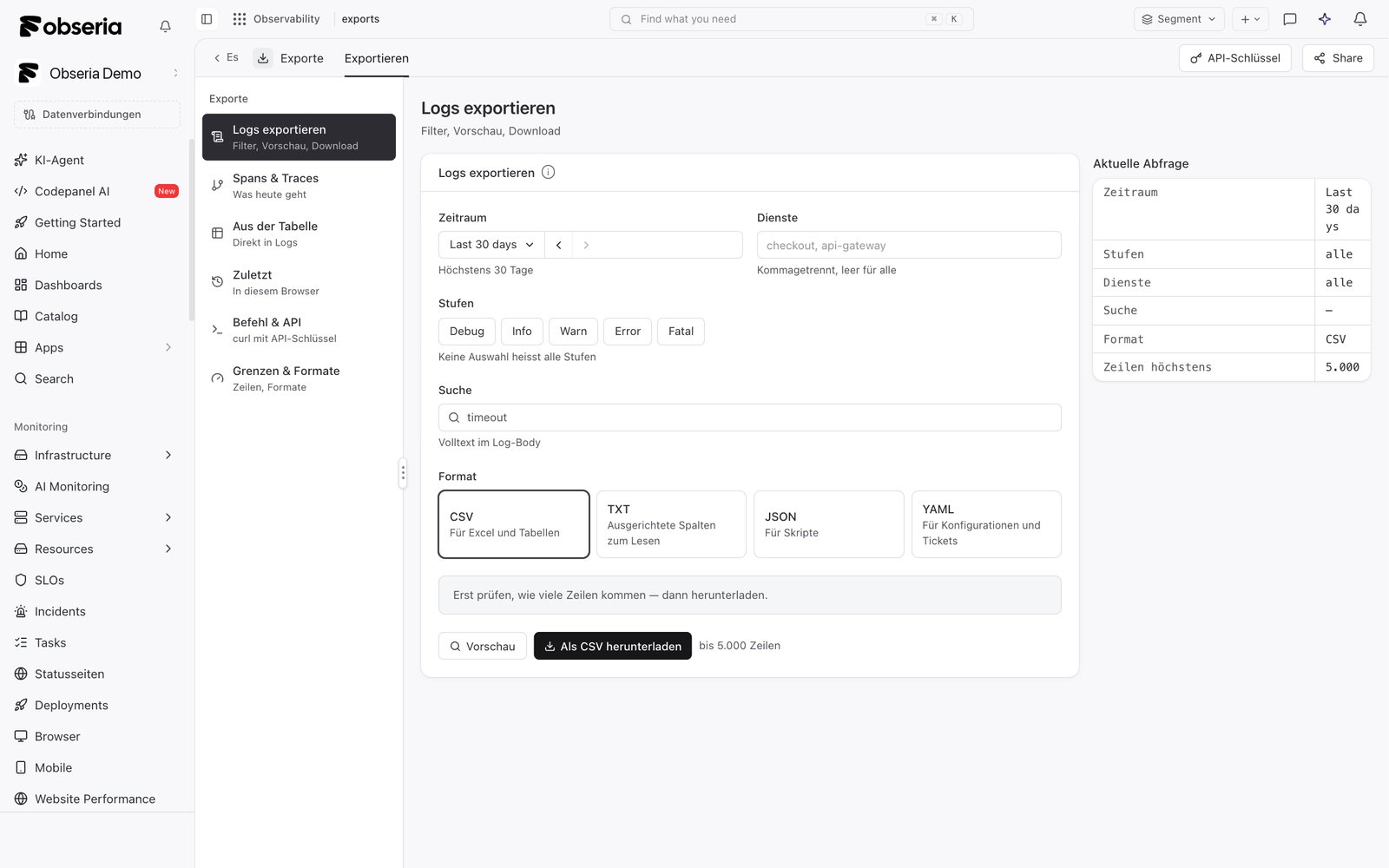
Logs are exported with a time range, services, levels and a search, previewed first and limited in rows. Scripted exports use an API key.
Roles, permissions and sign-in via your company login.
Set up sign-in with your company login so people use their existing account instead of a separate password.
Add members in user management and group them into teams that reflect who owns which services.
Give each person the role they need: read access for most, edit rights for owners, admin rights for a few.
Create one API key per script or AI assistant. The key is shown once; store it in your secret manager.
Check the audit log and the member list regularly, remove unused keys and adjust roles that grew too wide.
Observability data is shared by many people, but configuration should not be. Roles and permissions in Obseria let you separate the two: most people can investigate, look at dashboards and follow incidents, while changes to alert rules, intake rules or organization settings stay with the people responsible for them.
Access is managed in the settings of your organization, in the areas for user management and access management. Because roles apply across the platform, you do not maintain separate permission models for logs, metrics, traces and dashboards.
Start with the principle of least privilege: give new members read access and extend it when there is a reason. That keeps the group of people who can change shared configuration small and known.
With single sign-on, people sign in to Obseria with their company account. Your identity provider confirms who they are, so there is no extra password to create, store or reset.
The biggest benefit is offboarding. When someone leaves and their company account is disabled, sign-in through the company login no longer works for them. Sign-in policies you already enforce for your company login apply to that path as well.
The settings include an area for authentication domains for this setup. Which identity provider you use and how sign-in is connected is clarified during onboarding; ask us before you plan a rollout around a specific provider.
User management keeps all members of your organization in one list. Teams group them by responsibility, which is the basis for clear ownership: a team owns services, maintains their dashboards and receives their alerts.
Ownership also shows up elsewhere in the platform. The service catalog names the team responsible for each service, and scorecards check whether a service has an owner at all. Access control and ownership together answer the two questions that matter during an incident: who can look, and who is in charge.
Dashboards can be kept as drafts or shared with the team, so work in progress does not end up in everyone's list before it is ready.
Scripts, exports and AI assistants connect to Obseria with API keys. Keys are created and removed in the settings; a new key is shown only once, so store it in a secret manager right away. One key per integration makes it easy to revoke exactly the access you no longer want.
The audit log records actions with time, action, resource, actor and result, including refused or failed requests. It lists people and keys as actors, so you can see whether a change came from a colleague or from an integration.
Facets for action, actor, resource and result and an export of the selected period make the log useful for regular access reviews and for your own security documentation.
 Obseria MCP
 Claude
 Cursor
 GitHub Copilot
 Python scripts
 Node.js scripts
Access control decides who can sign in to a system and what each person may see and change once they are in. In an observability platform this matters more than it first seems. Logs, traces and metrics describe how your production systems behave, and they often contain details that should not be visible to everyone: internal hostnames, request paths, error messages with customer IDs, or IP addresses. At the same time, configuration such as alert rules, dashboards, notification channels and data intake rules shapes how the whole company sees production.
Good access control therefore has two goals. Everyone who needs data during an incident should get to it without waiting for a ticket. And only the people responsible for a setting should be able to change it, with a record of what changed.
Most tools use role-based access control, or RBAC. Instead of granting rights to each person individually, you define roles with a set of permissions and assign people to roles. Typical patterns are:
Grouping people into teams adds a second dimension: ownership. A team owns services, receives their alerts and maintains their dashboards. Roles answer "what may this person do", teams answer "what is this person responsible for".
Single sign-on means that people sign in with their existing company account instead of a separate password for every tool. The company's identity provider confirms who someone is, and the tool trusts that confirmation. For security and IT teams this has clear advantages:
SSO does not replace roles. It proves who someone is; the roles and permissions inside the tool still decide what they can do.
Not every access comes from a person in a browser. Scripts, integrations and AI assistants use API keys. Treat them like passwords with a specific purpose: create one key per use case, give it a recognisable name, store it in a secret manager rather than in code, and remove it when the integration is retired. Because a key is shown only once when it is created, a lost key is replaced rather than recovered.
Many organisations review access once or twice a year as part of their information security programme. The questions are always similar: who has access, who has elevated rights, which keys exist and are still in use, and what was changed in the review period. A tool that keeps users, roles, keys and an audit log in one place turns this from a spreadsheet exercise into a short check. Record the result of each review; it is useful evidence for your own security documentation.
In Obseria, access is managed in the settings of your organization. The settings include areas for user management, access management, API keys and authentication domains, and on the organization level for teams, organizations and audit logs. What that gives you:
Access control works together with the rest of the platform: masking rules at ingest reduce the personal data that reaches storage, the data region is chosen per organization with an EU region available, and a data processing agreement under Art. 28 GDPR is published online.
Roles and permissions that decide who can see and change what, managed together with users and teams in the settings of your organization. It applies across the platform, so you do not need separate permissions for logs, metrics, traces and dashboards.
Yes. Obseria supports sign-in with your company login (single sign-on). How it is connected to your identity provider is set up together with you during onboarding; the settings contain an area for authentication domains.
We do not publish a list of supported providers on this page. Tell us which identity provider you use and we will confirm whether and how sign-in can be connected before you commit.
Roles decide what a person may do. Teams describe what a person is responsible for, for example which services they own. Both are managed in the settings, and team ownership also appears in the service catalog.
API keys are created and removed in the settings. A key is shown only once when it is created, so store it in a secret manager. Use one key per script or AI assistant so you can revoke access precisely.
Yes. The audit log records actions with time, resource, actor and result. People and API keys both appear as actors, and refused or failed actions are visible as well.
No tool makes you compliant on its own. Roles, single sign-on, API keys and an audit log support your own information security and data protection documentation. Obseria does not claim certifications on this page.
This page describes what the app confirms today: roles, permissions, teams, sign-in with your company login, API keys and an audit log. Automatic user provisioning from your directory (for example via SCIM), a published list of supported identity providers and permissions on individual data fields are not described as features here. If you need one of them, ask us about your case before planning around it.
The foundation for all products: data intake, dashboards, alerts, governance and AI access.
→Programmatic access for scripts and integrations, secured with API keys.
→The data region is chosen per organization, with an EU region available.
→A data processing agreement under Art. 28 GDPR, published online.
→How Obseria supports your own compliance documentation.
→In 30 minutes we show you how Obseria works in your environment and answer your questions on setup, privacy and pricing.