
Triggers for every start
A workflow starts by hand, from a webhook, on a cron schedule, on an Obseria event, from a public form or with every new e-mail in an IMAP mailbox.
We use essential functions to operate this website. With your consent, we would also use services for statistics and marketing. You decide which categories you allow and can change your choice at any time via “Cookie settings” in the footer. More in our privacy notice.
Obseria Consent Management · Your choice is stored for 12 months
A workflow starts by hand, from a webhook, on a cron schedule, on an Obseria event, from a public form or with every new e-mail in an IMAP mailbox. Each trigger hands its data to the steps that follow.
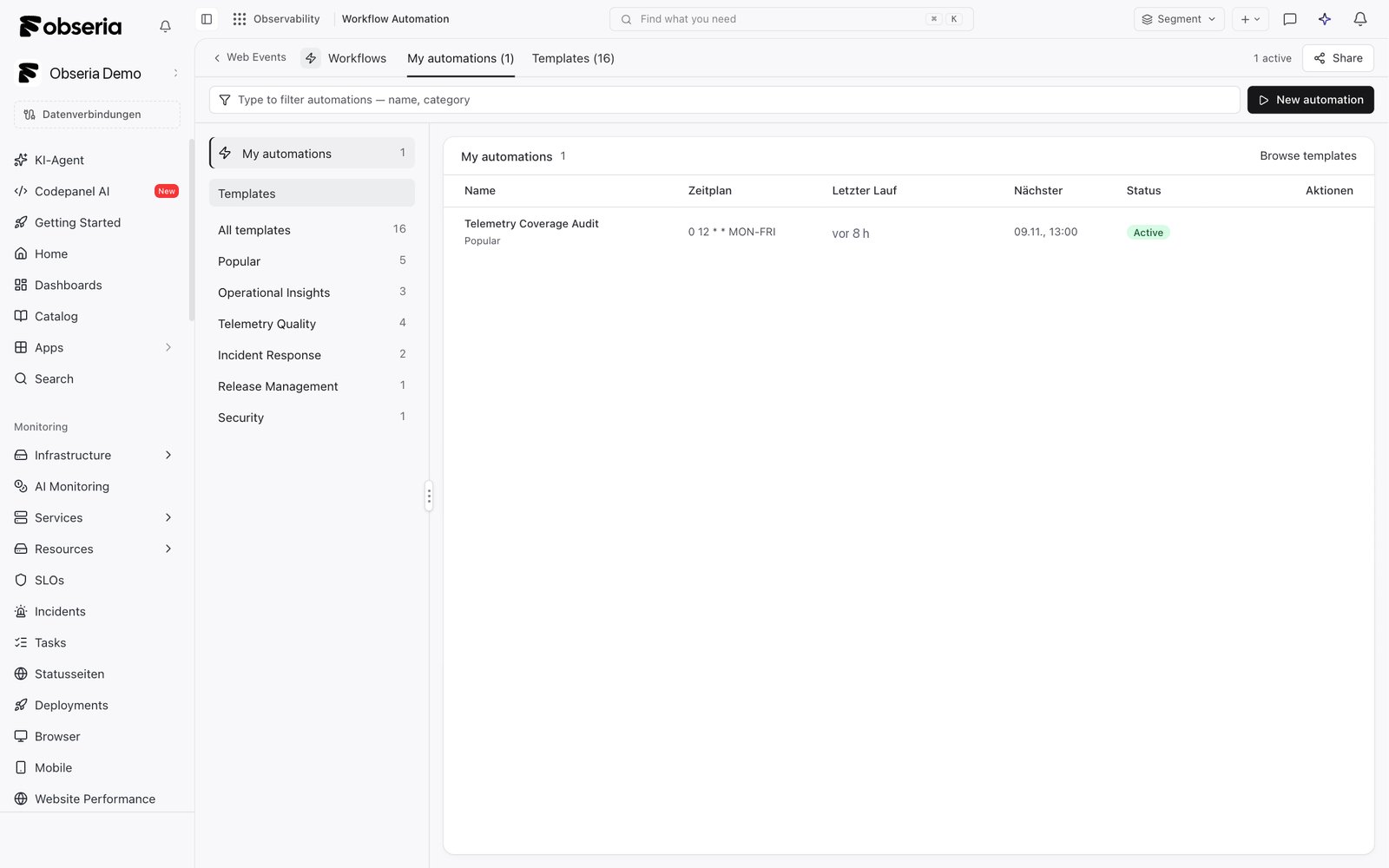
This automation list shows a cron schedule such as weekdays at 12:00, the last and the next run and the status. Workflow schedules use the same cron notation, in UTC.
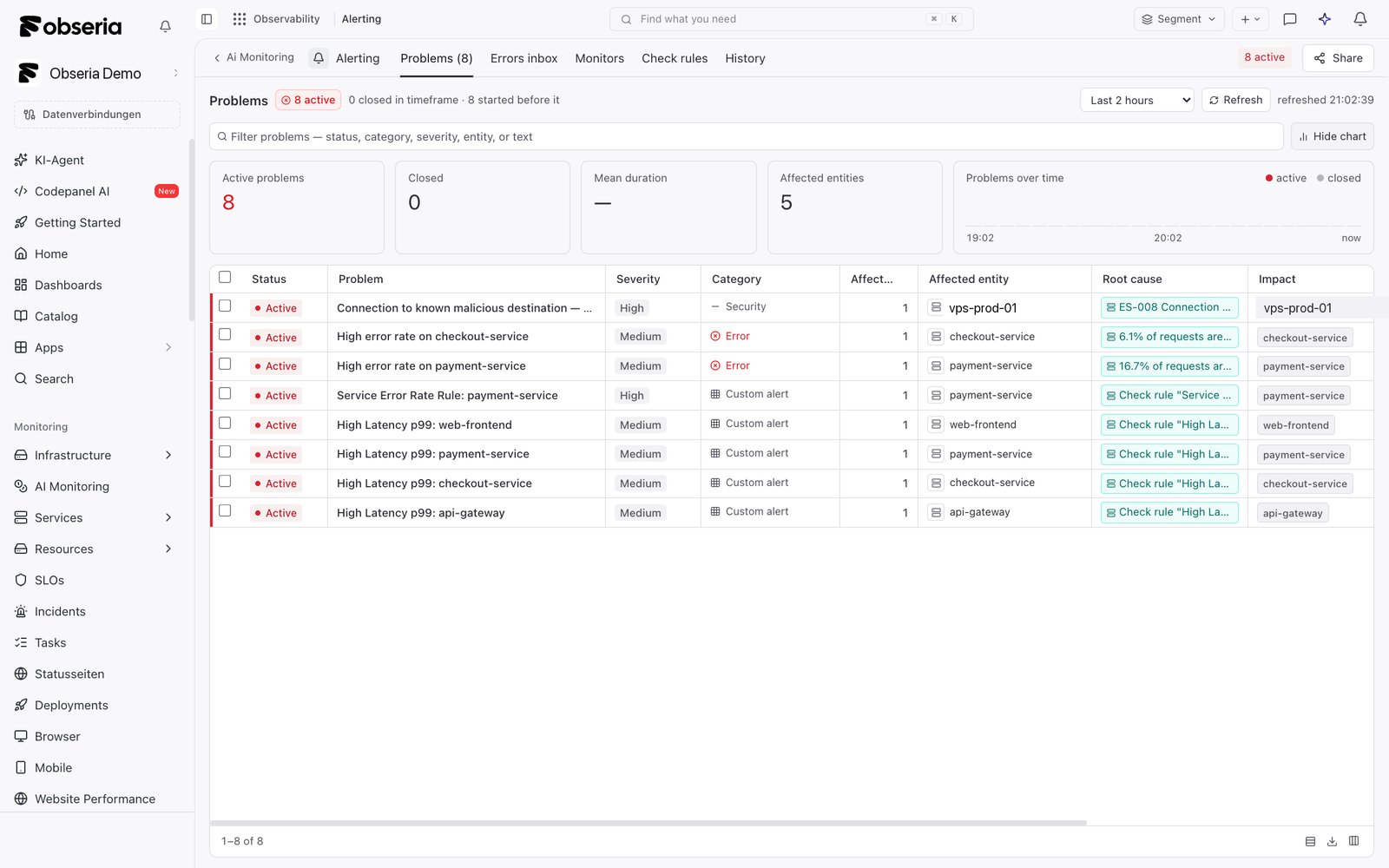
Problems show severity, the affected entity, impact and the likely root cause. When a problem opens or is resolved, an event trigger can start a workflow, filtered for example by severity.
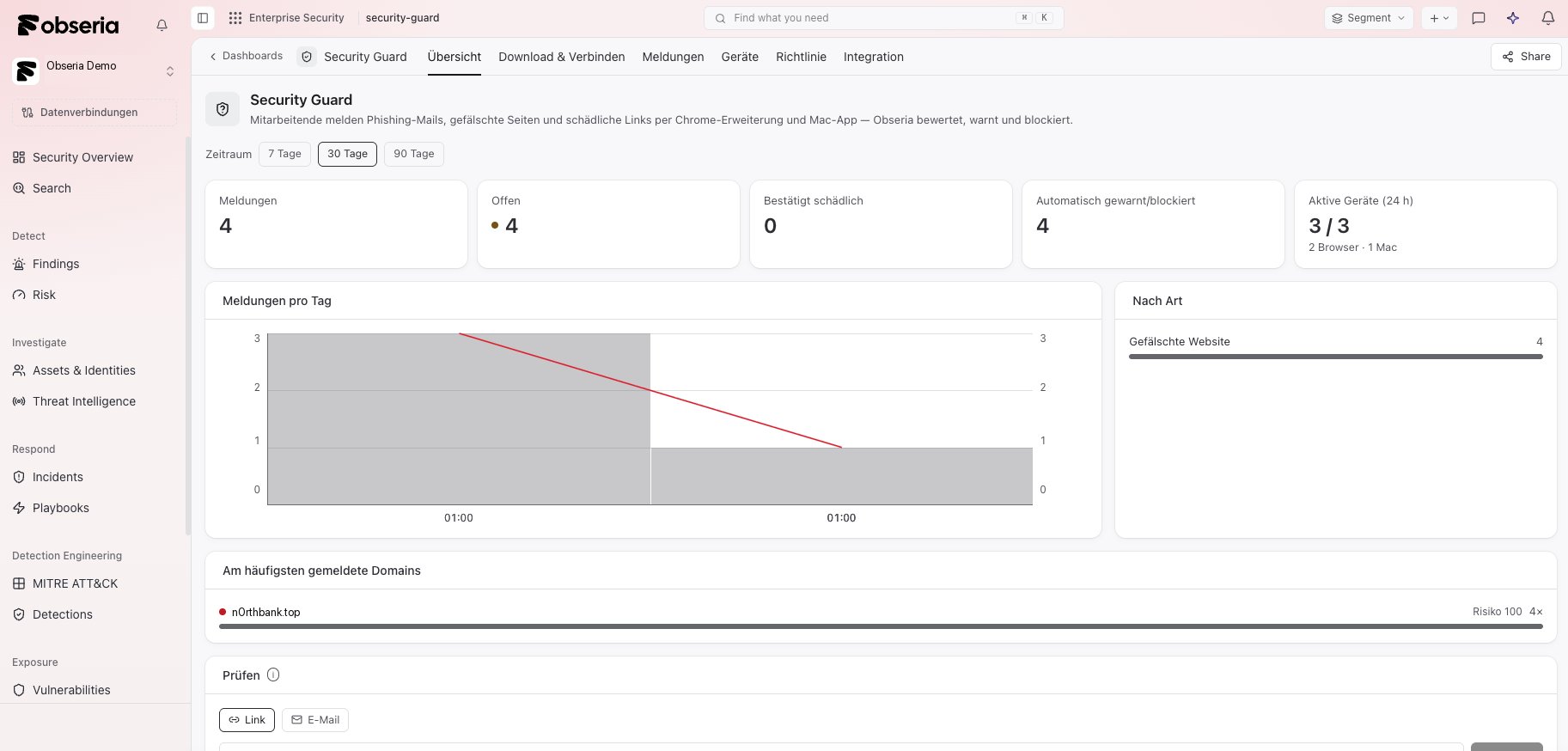
The Guard overview counts reports, findings and active browser and Mac devices. Applications seen for the first time in Shadow IT raise an event that a workflow can react to.
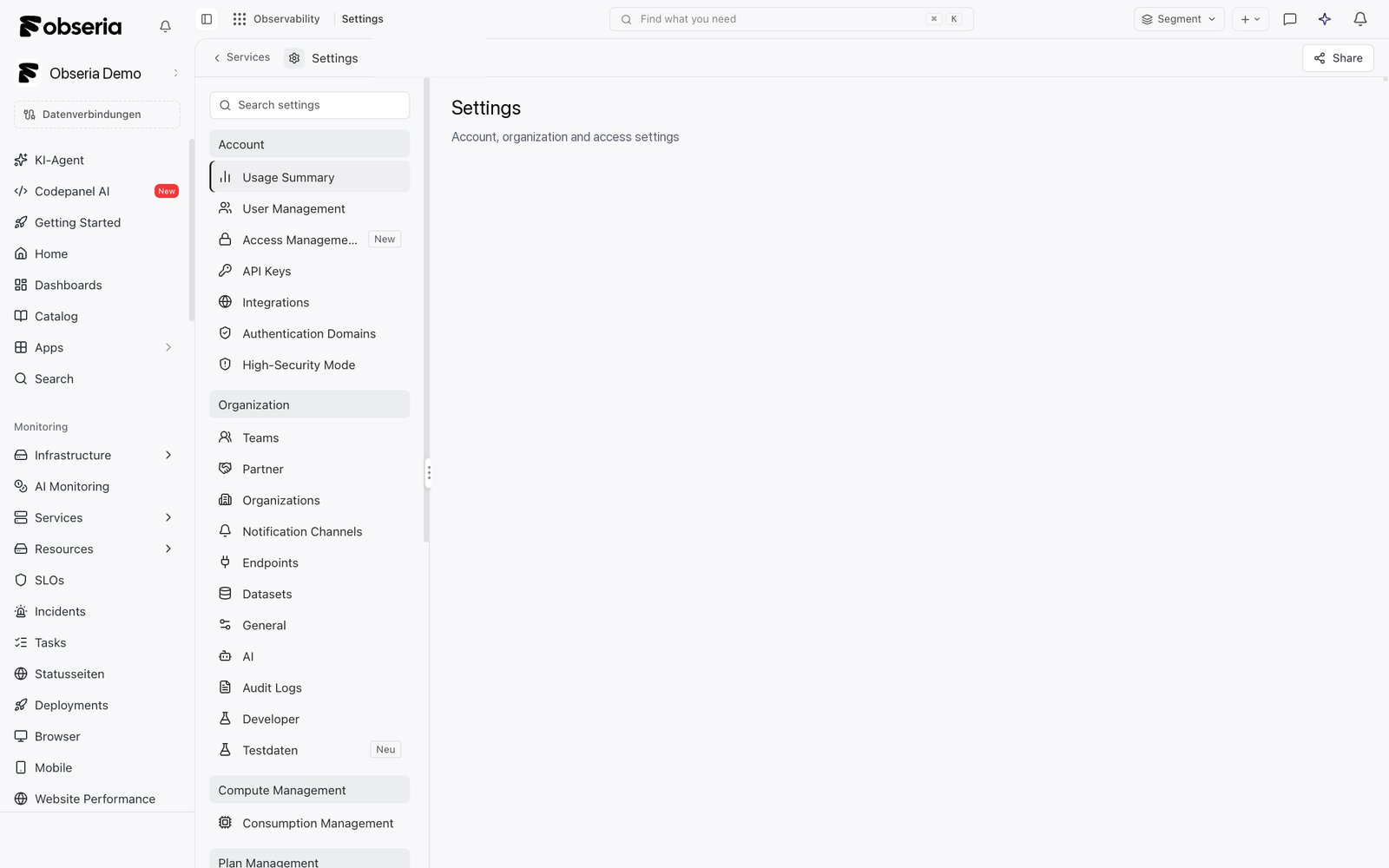
Organisation settings hold users, teams, API keys, integrations and the notification channels that workflow messages use.
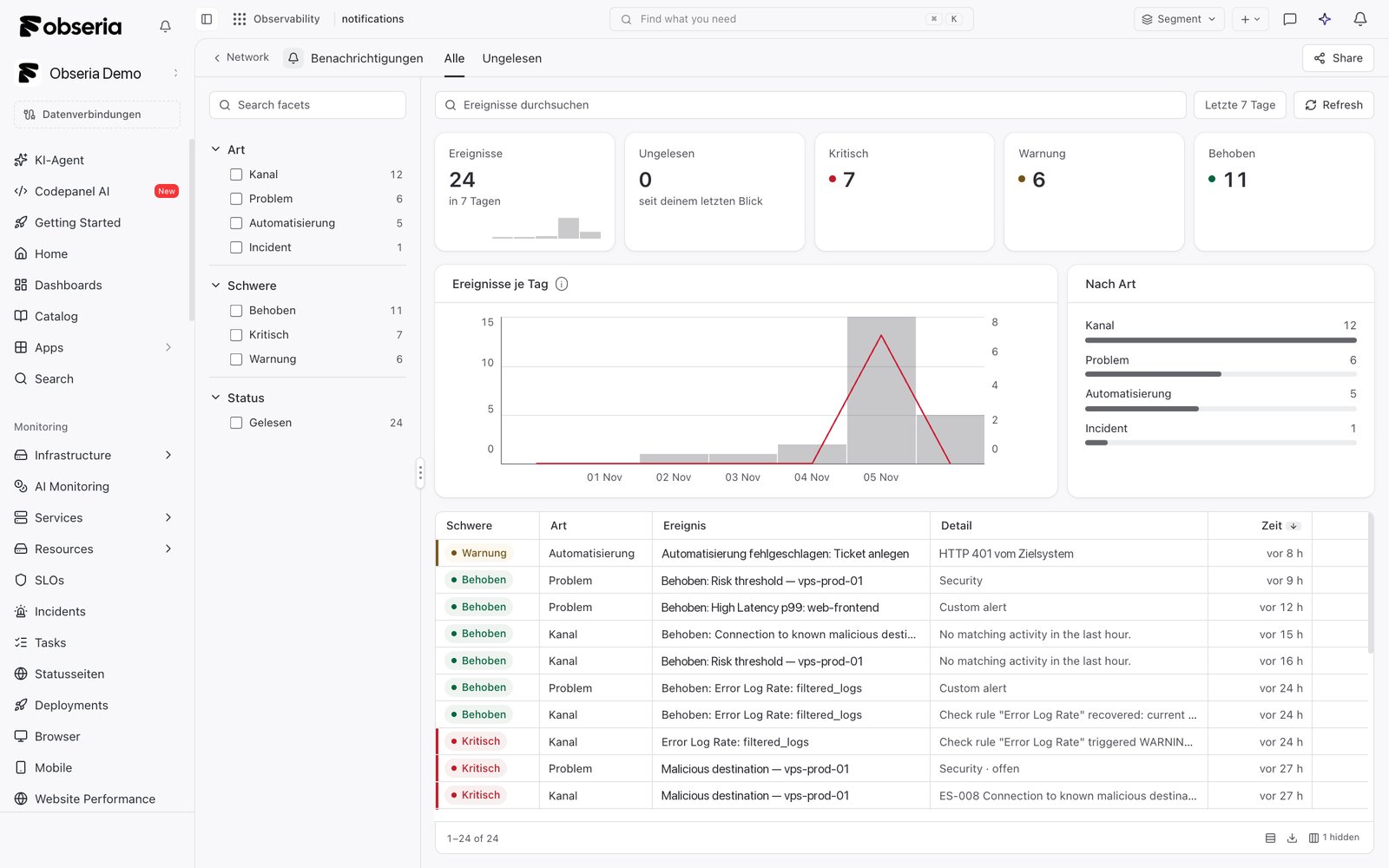
The notification centre lists events by type and severity, including a failed automation step. In Workflow, a failed run is itself an event that can start an on-call or ticket workflow.
A workflow starts by hand, from a webhook, on a cron schedule, on an Obseria event, from a public form or with every new e-mail in an IMAP mailbox.
A connector catalog for CRM, ERP, accounting, shop, HR, support and productivity tools, plus any REST API, PostgreSQL, MySQL and IMAP. Credentials are stored encrypted and can be tested.
Learn more →Conditions, switch by value, filters, loops over lists, waits for a time or an event, sub-workflows and variables shape the path a run takes.
Learn more →An approval step pauses the run, e-mails the approvers a link and can also post to a channel. They approve or reject with a note in the Workflow inbox; an optional timeout rejects automatically.
Learn more →Add a mailbox trigger and choose the IMAP connection of the invoices mailbox.
Only mails from the supplier's address, only with attachments, only unread ones.
A test run without input uses a sample mail, so you see the data the next steps receive.
Once active, the mailbox is checked about once a minute and every new mail starts a run.
Sender, subject, text and attachments, including text from PDFs, are available to every following step.
The webhook trigger gives a workflow its own URL. Any system that can send an HTTP POST starts a run with the request body, headers and query parameters as input. Authorization and cookie headers are not passed on.
An optional shared secret must then be sent in the X-Obseria-Secret header; requests without it are rejected. You choose how the caller is answered: immediately with the run ID, or synchronously with the output of a Respond step, for up to 25 seconds.
Requests are rate-limited per webhook, only active workflows accept them, and the URL can be renewed if it was shared too widely.
The schedule trigger runs a workflow on a cron expression with five fields, in UTC. 0 7 * * MON-FRI runs on weekdays at 07:00 UTC. Invalid expressions are flagged in the builder before the workflow can be activated.
The event trigger starts a workflow when something happens inside Obseria: a problem opens or is resolved, a software request is created or decided, a new application is discovered, a Data quality rule fails, a Data table is updated, or another workflow run fails.
An optional filter expression narrows it down, for example trigger.severity == 'critical'. Test runs use a sample payload of the chosen event.
The form trigger publishes a form at a public link with a title, an intro text and fields of the types text, long text, number, e-mail, selection, checkbox and date. Each submission starts a run with the answers as input.
Required fields are enforced and e-mail addresses are checked before a run starts. A configurable message thanks the person after submitting. While the workflow is not active, the form shows that it is not accepting submissions.
Typical uses are purchase, vacation and expense requests that go on to an approval step. File uploads are not part of the form today.
The mailbox trigger watches an IMAP mailbox, for example Outlook or Exchange, Gmail or any other provider. About once a minute it picks up new mails and starts a run per mail with sender, subject, date, text, HTML and attachments.
Filters limit it to a sender, a subject, mails with attachments or unread mails; mails can be marked as read after pickup, and text is extracted from PDF attachments. Where two-factor authentication is on, use an app password.
The manual trigger starts a workflow from the builder or through the API. Optional input fields are asked for at the start, which makes it a good choice for internal routines and for testing.
 GitHub
 Jira
 Shopware
 monday.com
 PagerDuty
A workflow trigger is the event that starts an automated process. Everything else in a workflow, the conditions, approvals and actions, only runs because something started it. Choosing the right trigger is therefore the first design decision: it determines how quickly the process reacts, which data it receives and how reliable it is.
Triggers fall into two groups. Push triggers are called by another system the moment something happens, for example a webhook from a shop when an order is paid. Pull triggers check for new work at regular intervals, for example a schedule that runs every morning or a mailbox that is checked for new mail.
A webhook is an HTTP request that one system sends to another when an event occurs. Payment providers, shop systems, CRMs, ticketing tools and code platforms can all send webhooks. The receiving workflow gets the request body, headers and query parameters as its input.
Three things matter for a webhook automation:
Many business processes run on a timetable: a sales report every Monday, reminders for overdue invoices every morning, a nightly sync from the ERP. A cron expression describes such a schedule in five fields: minute, hour, day of month, month and day of week. 0 7 * * MON-FRI means weekdays at 07:00.
Always check which time zone a scheduler uses. If it runs in UTC, 07:00 UTC is 09:00 in Berlin during summer time and 08:00 in winter. For processes where the local hour matters, pick a time that works in both seasons or adjust it twice a year.
Requests from people are the classic start of an approval process: a purchase request, a vacation request, an expense report, a software request. A form trigger publishes a simple online form at a public link. Each submission starts a run with the answers as input. Required fields and e-mail validation catch incomplete submissions before the process starts, and a thank-you message confirms receipt.
Because the link is public, think about who should use it. Share it internally, and add an approval or a check in the workflow before anything is written to another system.
Invoices, orders and support requests still arrive by e-mail in many companies. An e-mail trigger watches a mailbox via IMAP and starts a run for every new message, with sender, subject, text and attachments. Filters on sender, subject or attachments keep newsletters and replies out. Text from PDF attachments can be extracted right away, so the next step can read an invoice.
Use a dedicated mailbox such as invoices@ for each process rather than a personal inbox, and an app password where two-factor authentication is on.
When a workflow tool is part of a larger platform, internal events become triggers too: a monitoring problem opens, a software request is created, a data table is updated, another workflow fails. These event-driven workflows connect technical and business processes without any extra integration, because the event never leaves the platform.
Every trigger can fire more often than expected. Senders retry webhooks when they do not get a quick answer, a mailbox can contain the same invoice twice, and a person can submit a form two times. A robust workflow therefore checks early whether it has already handled a case, for example by an order number or invoice number, and stops quietly if so. The opposite problem also exists: an event that never arrives. For important processes, add a scheduled safety net that looks for open cases once a day, so nothing depends on a single message getting through.
Each workflow has exactly one trigger. Obseria Workflow offers six:
X-Obseria-Secret header and a choice between an immediate reply with the run ID and a synchronous reply from a Respond step within 25 seconds. The URL can be renewed, and requests are rate-limited.Webhooks and forms only accept input while the workflow is active. Triggers themselves are not billed; only executed steps count.
The event that starts an automated process. In Obseria Workflow, each workflow has exactly one trigger: manual start, webhook, schedule, Obseria event, form or mailbox.
Set a shared secret on the webhook trigger. The caller must then send it in the X-Obseria-Secret header, otherwise the request is rejected. Requests are also rate-limited, and you can renew the URL.
UTC. 0 7 * * MON-FRI runs on weekdays at 07:00 UTC, which is 09:00 in Berlin during summer time and 08:00 in winter.
Not today. Forms support text, long text, number, e-mail, selection, checkbox and date fields. Files usually arrive through the mailbox trigger or a webhook.
Problem opened or resolved, software request created or decided, new application discovered, Data quality rule failed, Data table updated and another workflow run failed. An optional filter expression narrows the event down.
No. Obseria Workflow is billed by executed steps, and triggers, waiting for approvals and notes do not count. See the pricing page.
Business process automation with approvals, connections and templates.
→Steps on a canvas, forms per step, test runs and versions.
→Pause a run until a person approves or rejects.
→Connections to CRM, ERP, shop, accounting, databases and mailboxes.
→Problems that open and resolve can start a workflow.
→Software requests and newly discovered apps as workflow events.
→In 30 minutes we show you how Obseria works in your environment and answer your questions on setup, privacy and pricing.

 Slack
 Microsoft Teams