Process templates
Ready-made workflows for business processes, HR, finance, payments, sales and e-commerce, data processing and app events. A template becomes a draft you complete in the builder.
Learn more →We use essential functions to operate this website. With your consent, we would also use services for statistics and marketing. You decide which categories you allow and can change your choice at any time via “Cookie settings” in the footer. More in our privacy notice.
Obseria Consent Management · Your choice is stored for 12 months
Build processes on a visual canvas: start them from forms, mailboxes, webhooks or schedules, let people approve where it matters and connect the CRM, ERP, shop and accounting software you already use.
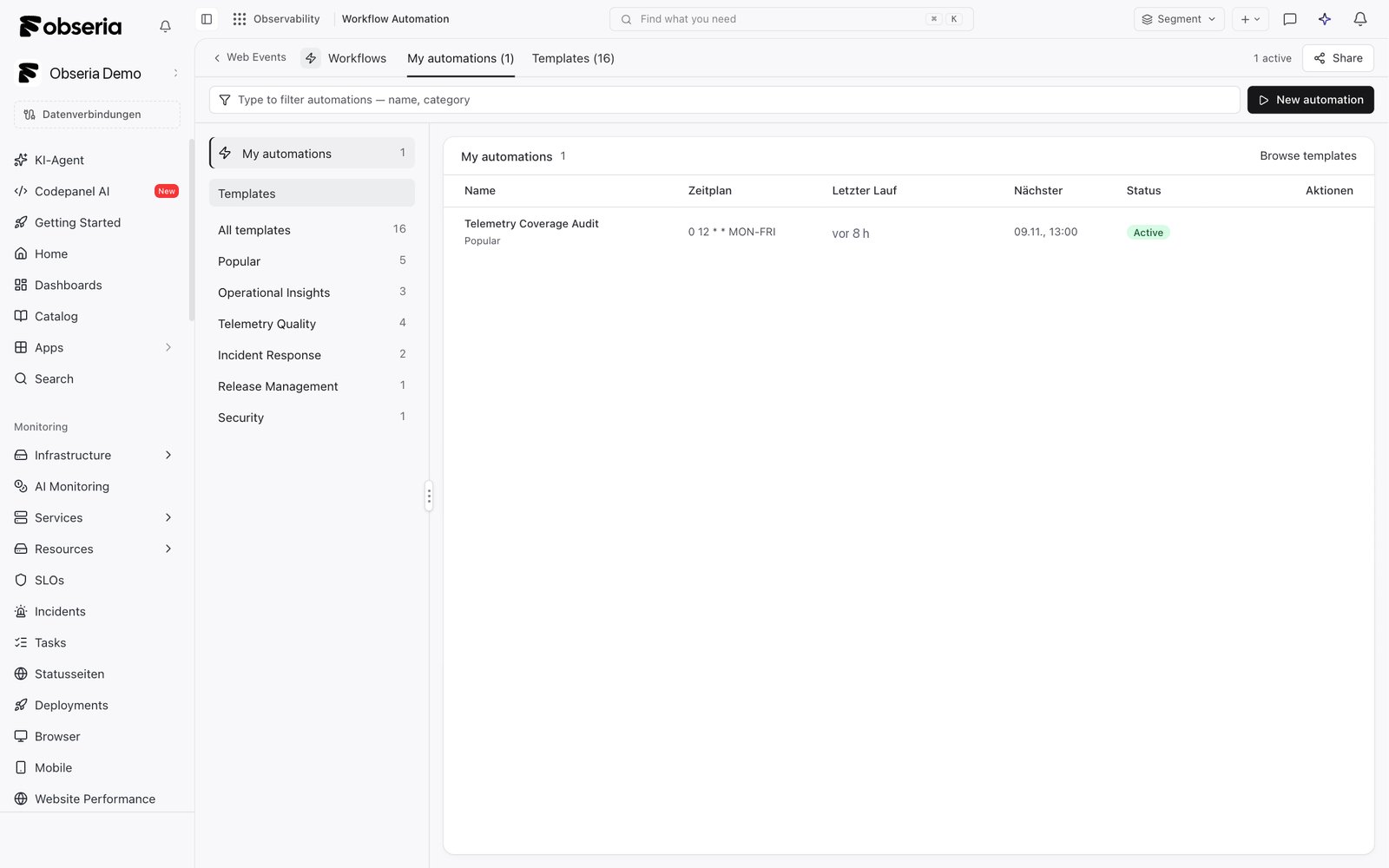
This view from the Obseria app lists automations with their cron schedule, last and next run and status, next to template categories. Obseria Workflow adds a visual builder, approvals and business templates on top.
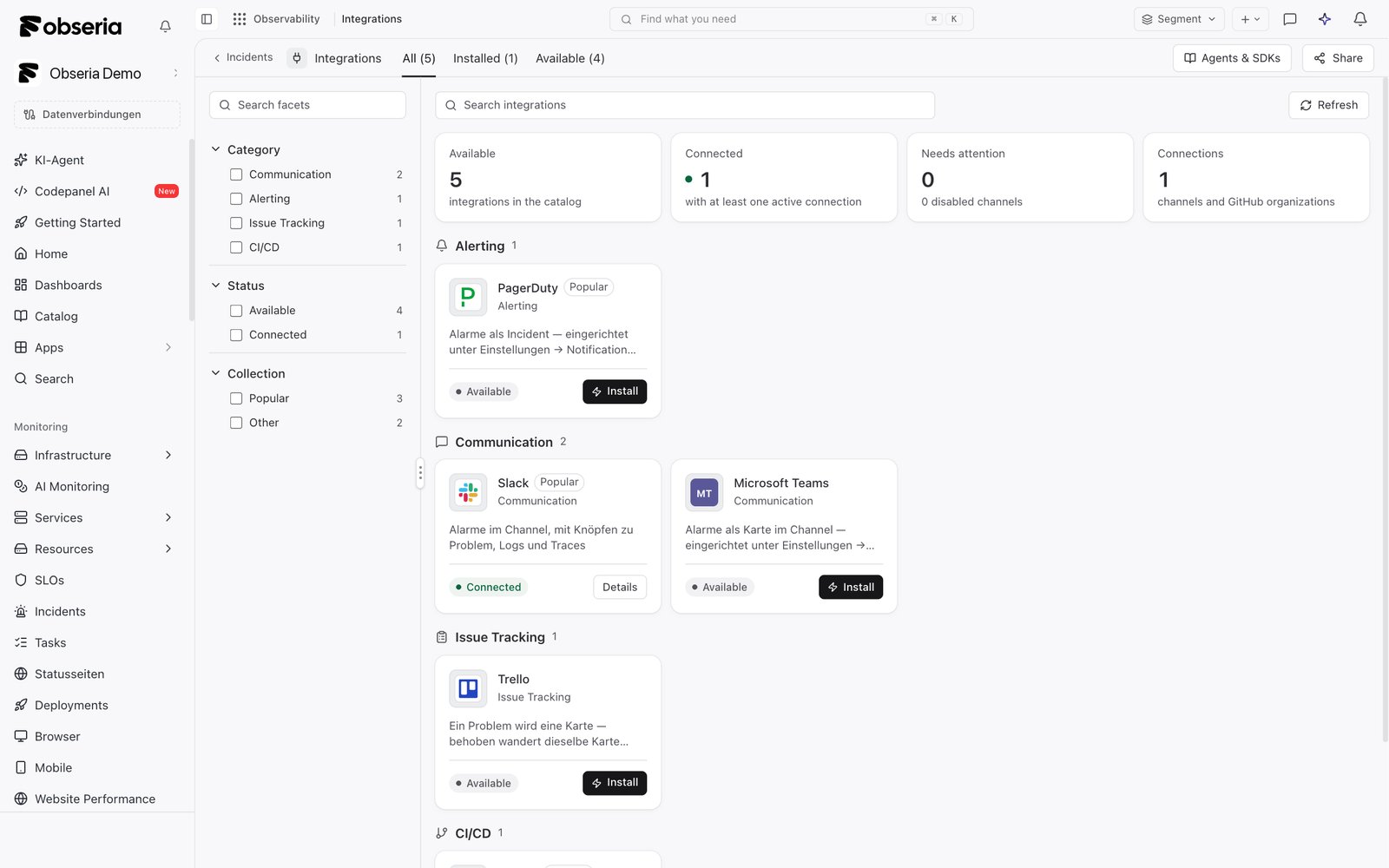
The integrations page shows Slack, Microsoft Teams, PagerDuty and Trello with their status. Workflow steps post messages and approval requests to such notification channels.
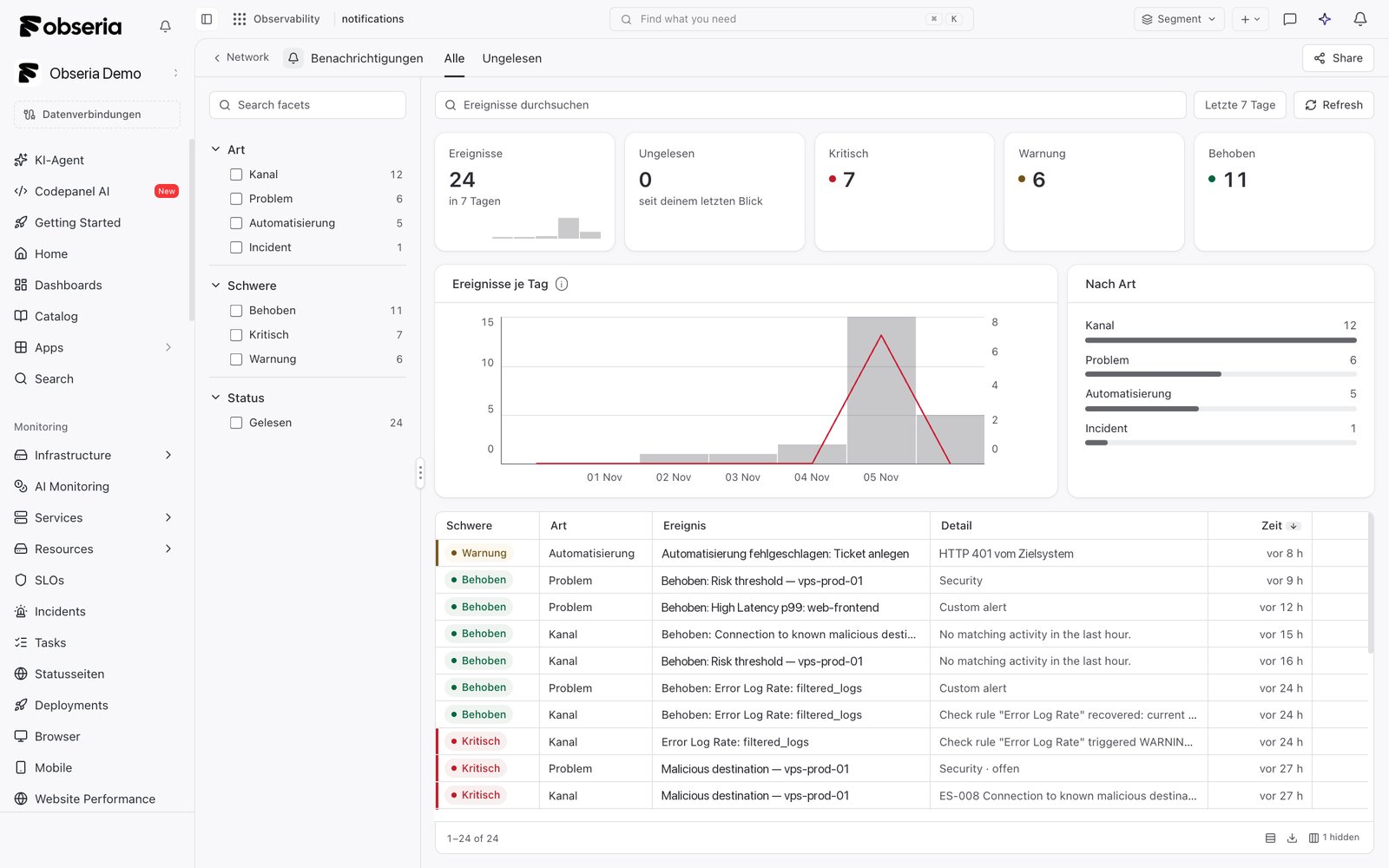
The notification centre lists events by type and severity, including a failed automation step with the error returned by the target system.
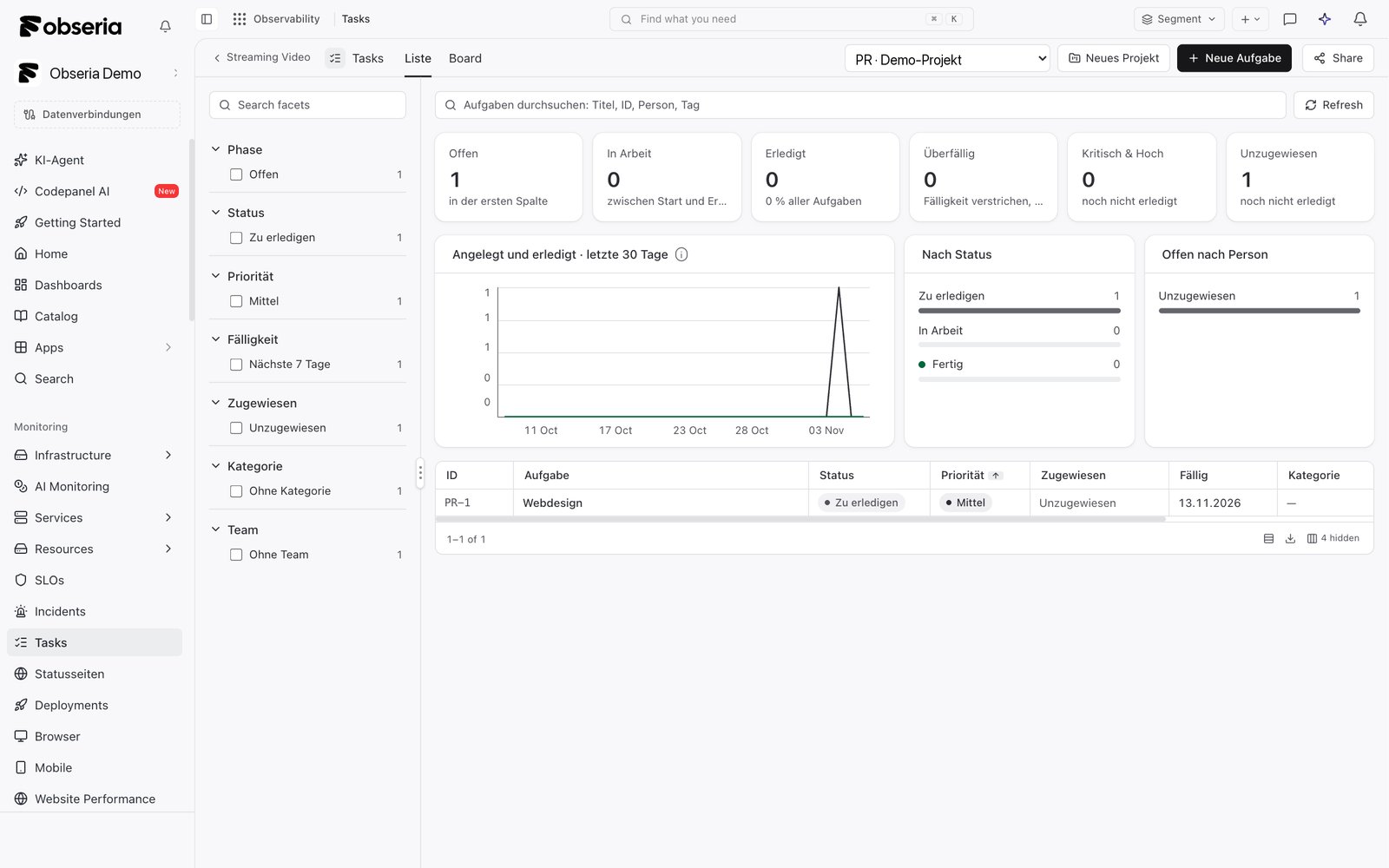
Not every step should run unattended. Obseria tracks follow-up work as tasks with status, priority, due date and assignee, as a list or a board; approvals themselves are decided in the Workflow inbox.
Organisation settings hold the notification channels that workflow messages and approval requests use, plus users, teams, API keys and integrations.
Ready-made workflows for business processes, HR, finance, payments, sales and e-commerce, data processing and app events. A template becomes a draft you complete in the builder.
Learn more →A connector catalog for CRM, ERP, accounting, shop, HR, support and productivity tools, plus any REST API, PostgreSQL, MySQL and IMAP. Credentials are stored encrypted and can be tested.
Learn more →Every run with trigger payload, step timeline, inputs and outputs. Retry with the same payload, cancel waiting runs, set retries per step and send failures to an error channel.
Learn more →An approval step pauses the run, e-mails the approvers a link and can also post to a channel. They approve or reject with a note in the Workflow inbox; an optional timeout rejects automatically.
Learn more →A form submission, a new e-mail, a webhook from your shop or payment provider, a schedule or an Obseria event starts the run with its data.
Conditions, switches and filters send each case down the right path, and loops handle lists such as order lines or customers.
An approval step pauses the run and e-mails the approvers a link. They approve or reject with a note in the Workflow inbox.





Steps call your CRM, ERP, shop or accounting API, write to a database, send e-mails with attachments or post to a channel.
Every run is kept with its input, steps and output. Failed runs can be retried, and failures go to an error channel.
Workflows are built on a canvas. Steps come from a palette grouped into triggers, logic, human, actions and data, and are connected output to input. Branching steps have named outputs such as true and false, approved and rejected, or one output per case, so the path of every case is visible at a glance.
Each step is configured in a form. Where a value depends on earlier steps, placeholders and short expressions insert it, with a helper that lists what is available. Before a workflow can be activated, the builder checks it: exactly one trigger, required fields filled, valid schedules and expressions, no unreachable steps and no cycles.
A test run executes the workflow as it is on screen, with your own sample input, and colours each step with its result. Every save creates a version, and earlier versions can be restored. If you prefer to start from a description, an AI assistant in the builder drafts the workflow step by step or in one go and can change an existing one.
An approval step pauses the run until someone decides. You set a title, the details the approver needs and the approvers' e-mail addresses, which can also come from the request itself. Approvers get an e-mail with a link, and the request can additionally be posted to a notification channel.
Decisions are made in the Workflow inbox. Requests waiting for you can be approved or rejected there with an optional note, which later steps can use. Other people's pending approvals are visible read-only, and decided ones form the history with the person and time of each decision.
If an approval should not wait forever, a timeout in hours rejects it automatically. The run then continues on the approved or the rejected path, so both outcomes lead somewhere: the order is placed, or the requester is told why not.
Connections start with the software a company actually uses. The connector catalog covers productivity, project management, CRM and sales, support, marketing, e-commerce, payments and accounting, ERP and HR tools, for example HubSpot, Salesforce, Shopify, Shopware, Stripe, lexoffice, DATEV, Personio, Jira and Zendesk. Each connector knows the base URL and the sign-in method and offers ready-made endpoints, so a step only needs the operation and its parameters. Any other REST API, PostgreSQL, MySQL and IMAP mailboxes can be added as custom connections.
Credentials are stored encrypted and only shown as a masked hint; a test button checks that they work. Per connection you can limit which endpoints workflows may call. Organisation variables hold values that many workflows share, and secret variables are encrypted as well.
Data steps handle what processes typically deal with: CSV and Excel files, text from PDF documents, grouping and totals, removing duplicates, splitting lists into batches and detecting what is new, changed or removed since the last run. Results can be written as CSV, Excel, PDF or JSON files, attached to e-mails or kept as rows in tables in Obseria Data.
Every execution is kept as a run: what started it, the trigger payload, each step with its input, output, duration and status, and the final result. Runs can be filtered by workflow, status and time, and a run can be started again with the same payload or cancelled while it waits.
Each step can stop the run on error or continue with an empty output, and can be retried automatically a few times with a short pause in between. Per workflow, an error channel receives a message when a run fails, and a separate trigger lets another workflow react to failed runs, for example to open a ticket.
The overview shows how many workflows are active, paused or in draft, runs per day over the last 30 days split by outcome, the most active workflows and the approvals waiting for you.
SlackMicrosoft TeamsJira GitHub
 PagerDutyPostgreSQLMySQL / MariaDB
Business process automation means letting software carry out the recurring steps of a business process: a purchase request is checked and sent for approval, an invoice that arrives by e-mail is read and booked, a new customer gets a welcome mail and a record in the CRM. Workflow automation is the practical form of it. A workflow describes the process as a chain of steps: something starts it, data is collected and checked, people decide where a decision is needed, and the result ends up in the systems the company already uses.
The goal is not to remove people from the process, but to remove the copying, chasing and re-typing between them. A good automated process is faster, leaves a trace of every step and treats every case the same way.
Automation in companies usually comes in two flavours. IT operations automation reacts to technical signals: a check fails, a service sends no telemetry, an agent needs an update. Obseria covers this with Obseria Automation, which runs operational routines and manages the host agent fleet. Business process automation starts from business events instead: a form is submitted, an order is paid, a contract is due for renewal, an invoice is overdue. It involves departments such as finance, HR, sales or purchasing, and very often a person who has to approve something. Obseria Workflow is built for this second kind, while still being able to react to technical events from Observability, Security and Shadow IT when a business process depends on them.
Writing the process down in these terms before building anything is the most useful single step. If the team cannot agree on the manual steps, the automation will not fix that.
Approval workflows are the most common entry point into process automation: purchase requests, expense reports, vacation requests, price changes, document releases. They work well when four things are clear:
Every decision should be recorded with the person, the time and an optional note. That is the difference between an approval workflow and an e-mail thread.
No-code automation tools let people build processes in a visual editor instead of writing programs. That lowers the entry barrier for business teams considerably. In practice, most real processes need a little logic anyway: a threshold, a renamed field, a date calculation. A good tool therefore combines a visual canvas with forms for each step and short expressions where they are needed, and it checks the workflow before it goes live. Test runs with sample data are just as important as the editor itself.
A process is only automated when it reaches the systems where the work happens. Three kinds of connections cover most needs:
Credentials belong in a central, encrypted store, not inside each workflow, and it should be possible to restrict which operations a workflow may perform with them.
Good candidates happen often, follow clear rules and are annoying to do by hand. Typical starting points:
Automated processes need the same care as any other production system. Every run should be visible with its input, each step and its output. Failed steps need retries where a short outage is likely and a notification where a person must look. Changes to a workflow should be versioned so you can go back. And workflows that never run or always fail should be fixed or switched off.
A blank canvas is the hardest place to start. Workflow templates give a team a proven shape for a common process, such as a purchase request with approval, an expense report that goes to accounting after approval, a support mailbox that becomes tickets or reminders for overdue invoices. A template should never be activated as it is: it is a draft whose channels, addresses and connections still have to be filled in for your organisation. Reviewing a template together is also a good way to agree on the manual process before it is automated.
Useful indicators are simple: how long a request takes from submission to decision, how many runs succeed without manual correction, how many approvals expire unanswered and how many steps fail per week and why. Compare a few weeks before and after an automation goes live rather than single days. If approvals regularly time out, the problem is usually the routing or the information shown to the approver, not the people.
Limits today: connections to services such as Microsoft 365, Google or HubSpot use an access token you create with the provider, because a guided sign-in is not available yet. Databases must be reachable from the internet. Schedules run in UTC.
The part of Obseria for automating business processes: a visual builder for workflows with triggers, logic, approvals, actions and data steps, plus templates, an approval inbox, connections to business software, variables and a full run history.
Obseria Automation is for technical operations: routines around telemetry and incidents and the management of host agents. Obseria Workflow is for business processes such as purchase requests, invoices, onboarding or payment follow-up, usually involving several systems and people who approve.
Workflows are built visually on a canvas and each step is configured in a form, so many processes need no code. Where a value or a condition depends on earlier steps, short expressions and placeholders are used. An AI assistant in the builder can also draft a workflow from a description.
An approval step pauses the run and e-mails the approvers a link; optionally it also posts to a notification channel. Approvers decide in the Workflow inbox with an optional note. The run continues on the approved or rejected path, and an optional timeout rejects automatically.
A manual start, a webhook, a cron schedule (UTC), an Obseria event such as a new software request, a problem or a written Data table, a public form, or a new e-mail in an IMAP mailbox such as Outlook, Exchange or Gmail.
The connector catalog covers common CRM, ERP, shop, payment, accounting, HR, support and productivity tools with ready-made endpoints. Any REST API can be added with a token, basic auth, header or query key, as well as PostgreSQL and MySQL databases and IMAP mailboxes. Credentials are stored encrypted.
Yes, in two places: an AI step in a workflow summarizes, classifies, extracts or drafts text, optionally as JSON, and an AI assistant in the builder drafts or changes workflows from a description. Both only run when you use them.
Services such as Microsoft 365, Google or HubSpot are connected with an access token you create with the provider; a guided sign-in is not available yet. Databases must be reachable from the internet. Schedules use UTC. A workflow has exactly one trigger.
Technical operations automation and host agent fleet management for IT and SRE teams.
→Typed tables, imports and SQL: where workflow tables are kept and queried.
→Software requests, discovered apps and renewals that workflows can route and remind about.
→Problems and incidents that can start a workflow, for example to open a ticket.
→Data intake, dashboards, alerts, notification channels and the rest of Obseria.
→In 30 minutes we show you how Obseria works in your environment and answer your questions on setup, privacy and pricing.