Data syncs
Scheduled loads from connected systems into tables: ready-made packages for systems such as Stripe, Shopify, HubSpot, lexoffice or Jira, any GET endpoint, or SQL on PostgreSQL and MySQL.
Learn more →We use essential functions to operate this website. With your consent, we would also use services for statistics and marketing. You decide which categories you allow and can change your choice at any time via “Cookie settings” in the footer. More in our privacy notice.
Obseria Consent Management · Your choice is stored for 12 months
Keep invoices, orders and customer lists in typed tables with a key, an owner and a retention period, filled from files, scheduled syncs, workflows or your own software.
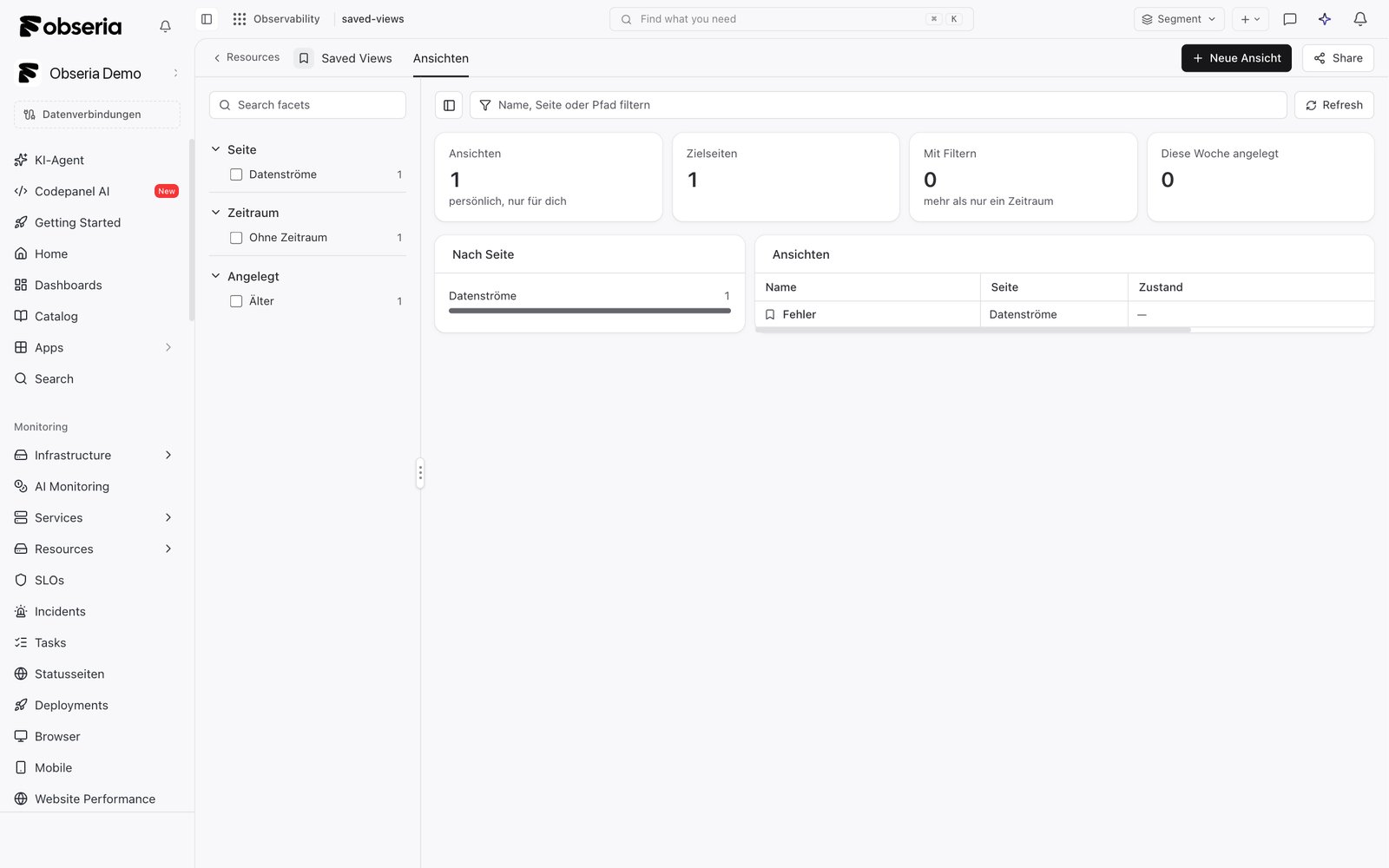
The screenshot shows a list view in Obseria. The table catalog in Obseria Data works the same way: every table with source, rows, columns and last update, searchable by table and column name.
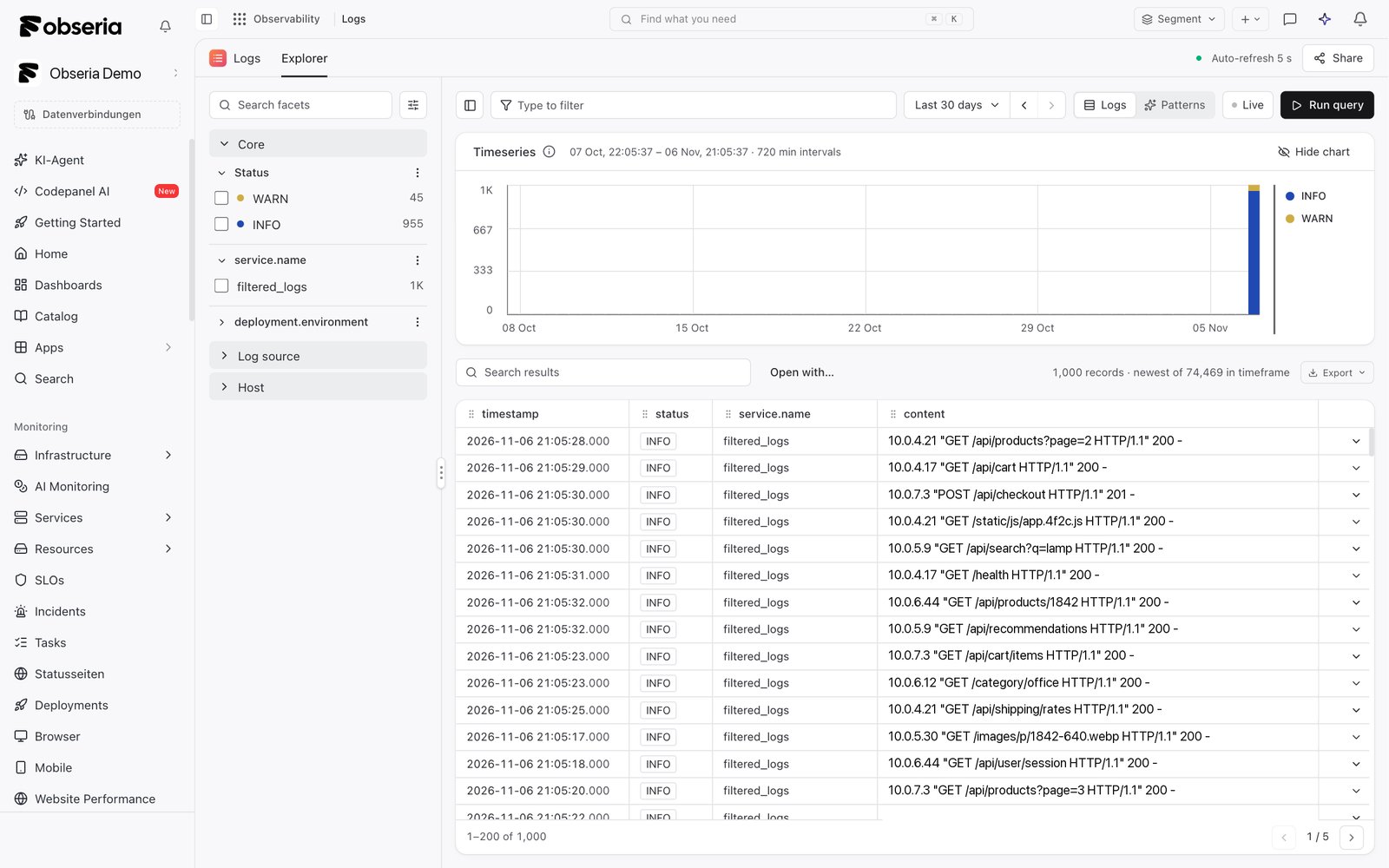
The screenshot shows the log explorer in Obseria. The rows of a data table are explored in the same style: typed filters per column, facets with counts and column statistics.
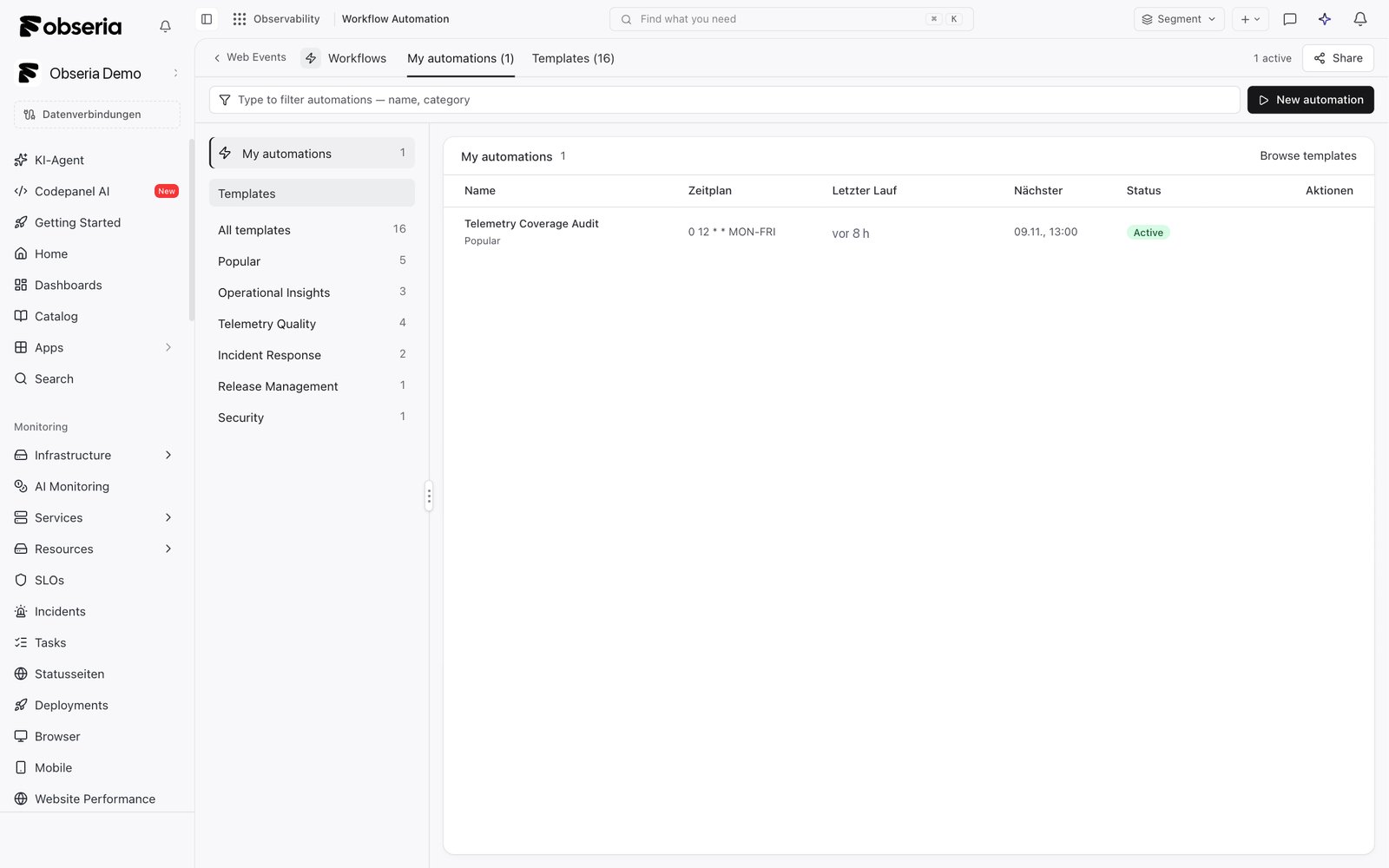
The screenshot shows a workflow list in Obseria. Scheduled syncs and workflows write into data tables, so a table stays current without manual exports.
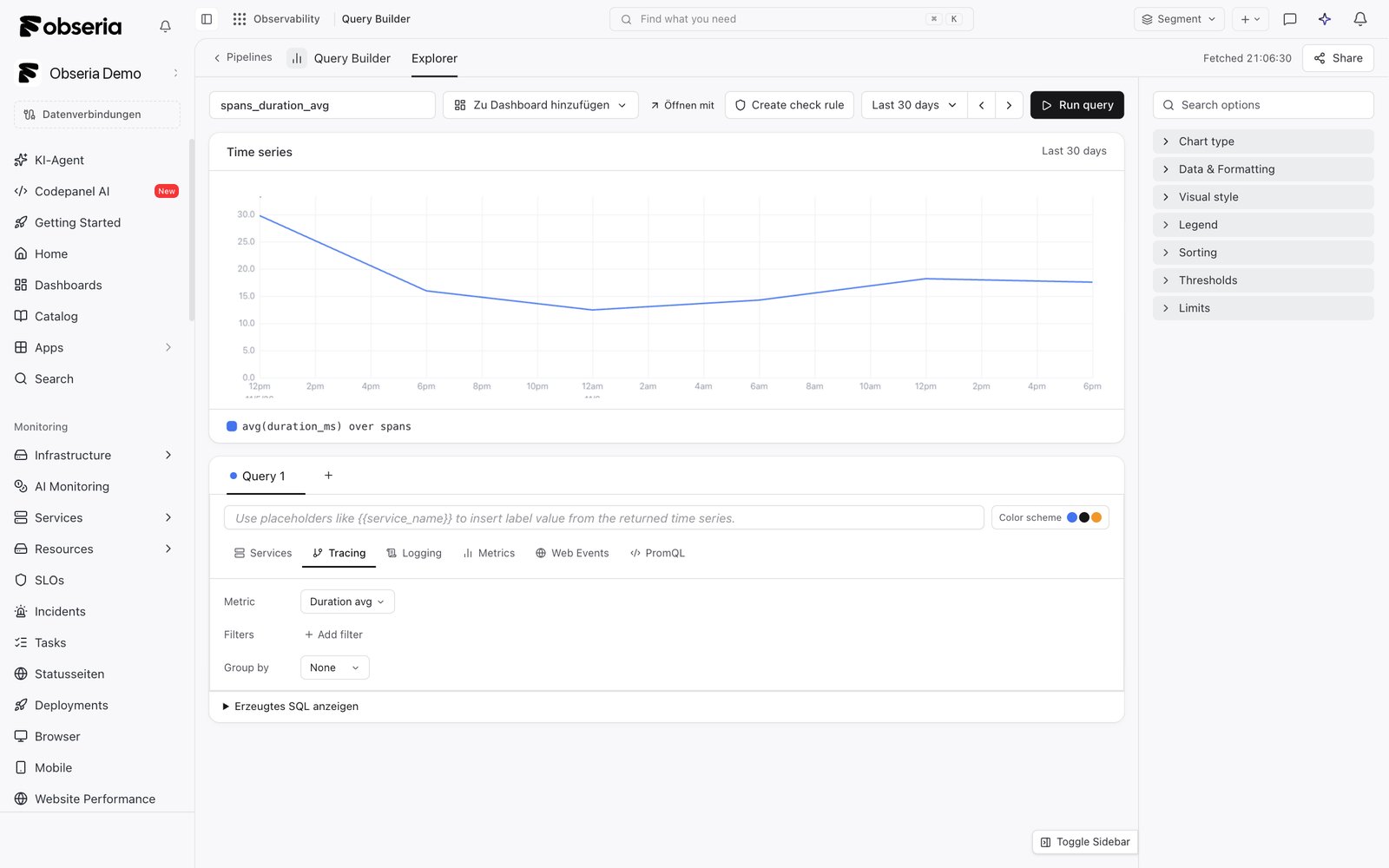
The screenshot shows the query builder in Obseria. In Obseria Data, the SQL editor reads your tables, joins them and charts the result, isolated per organization.
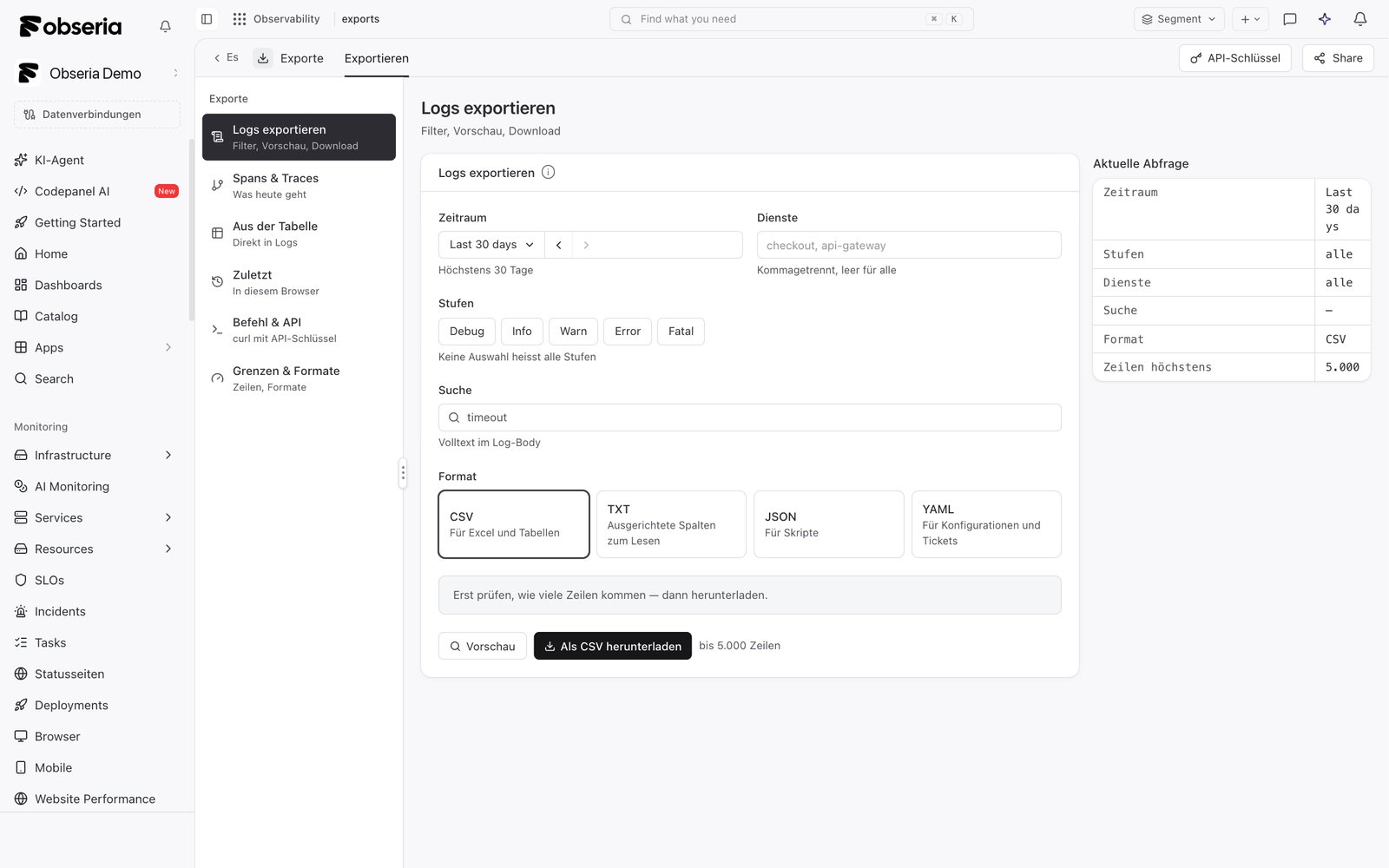
The screenshot shows the export view in Obseria. A data table is downloaded as CSV from its page, either in full or with the filters of the rows view.
Scheduled loads from connected systems into tables: ready-made packages for systems such as Stripe, Shopify, HubSpot, lexoffice or Jira, any GET endpoint, or SQL on PostgreSQL and MySQL.
Learn more →Start with a file, a sync, a workflow or an empty table with typed columns that you define yourself.
Column types are detected from the values. Add readable labels and mark columns that hold personal data.
Pick the column that identifies a record, so repeated loads update rows instead of duplicating them.
Add an owner and a description, and set a retention period if old rows should be deleted automatically.
Explore the rows, ask questions, write SQL, build dashboards or read the table from a workflow.
The catalog lists every table of your organization with its source, the number of rows and columns and the time of the last update. A search field covers table names and column names, so you find the table that holds iban or order_id without opening each one.
Chips above the list filter by where a table came from: upload, sync, workflow, manual, saved query or API, each with its count. From the catalog you can import a file, create a new empty table or jump straight to a plain-language question about your tables.
Each table has its own page with the tabs Rows, Summarize, Quality, Schema and Settings, plus buttons to query it in SQL, ask about it, download it as CSV, add a row or import more data.
Tables in Obseria Data have real column types: text, number, integer, yes/no, date and date & time. When data arrives, the type of a new column is detected from its values, including numbers in German or English notation and yes/no in both languages. Once a column exists, its type stays fixed and new values are converted to it.
Sources change over time. When a file, sync or workflow brings a field the table does not have yet, Obseria adds the column instead of rejecting the data. Nested objects from APIs become columns of their own, for example properties.email becomes properties_email.
In the Schema tab, every column gets a readable label and a flag for personal data. Tables with flagged columns show a clear marker on the table page and next to the column itself.
A key column identifies a record: an invoice number, a customer ID or an email address. With a key, rows with the same key replace each other on the next import, sync or API call. Loading the same export twice therefore updates the table instead of doubling it.
Every write can choose its mode: append adds all rows, upsert updates by key and adds new rows, replace clears the table first. Syncs default to upsert, which is what you want for data that a source system sends again and again.
The key also makes rows editable: in the rows explorer you can change a single value directly in the cell when the table has a key column.
Each table has settings for its display name, a description, an owner who answers questions about the data and a key column. An optional retention period in days deletes rows older than that period every night, measured by the time each row was last written.
The settings page also shows every way to write into the table: import a file, load it from a connected system with a sync, use the workflow steps that write to and read from a table, or send rows from your own software over the API.
Deleting a table removes it with all rows. Workflows and syncs that write to it recreate it empty on their next run, so nothing breaks silently.
 PostgreSQL
 MySQL
 GitHub
 Jira
Most companies keep their business data in many places at once: invoices in the accounting tool, orders in the shop, contacts in the CRM, and a growing number of Excel files that someone exports every Monday. A business data table brings one of these data sets into a shared, structured place. Every row is a record, every column has a fixed type, and everybody who works with the data sees the same version.
The difference to a spreadsheet is discipline. A spreadsheet accepts anything in any cell. A typed table knows that amount is a number, paid_at is a date and is_customer is yes or no. That is what makes filtering, sums and reports reliable, and it is the basis for a single source of truth that other tools and people can build on.
A good table schema answers two questions: what kind of value sits in each column, and what identifies a record. Common column types are text, number, integer, yes/no, date and date with time. The type decides which filters make sense: "greater than" for an amount, "between" for a date, "contains" for a name.
The key column identifies a record, for example an invoice number, an order ID or an email address. With a key, loading the same data twice does not create duplicates. Instead, an upsert updates the rows whose key already exists and adds the new ones. This is the most important building block for data that is refreshed regularly, because the source system usually sends a full or partial list again and again.
Data governance sounds like a big-company topic, but the basics fit on one page and work for a team of five as well:
cust_no become readable with a label such as "Customer number".Data reaches a table on different paths, and a good table store treats them all the same way. Files cover one-off loads and exports from systems without an interface. Scheduled syncs keep data from connected systems current. Workflows write the results of a process, for example approved purchase requests. An API lets your own software send rows directly. And sometimes the fastest way is simply to type in a row by hand.
Whatever the path, the same rules should apply: the same column types, the same key, the same retention. That keeps the table consistent no matter where a row came from.
Check whether the tool detects column types instead of storing everything as text; whether it supports a key and upserts, so repeated loads stay free of duplicates; whether new columns are added automatically when a source sends a new field; whether owner, description, personal-data flags and retention can be set per table; and whether you can query the tables with SQL or plain-language questions without copying data into yet another tool. Tenant isolation matters as well: your tables should never be readable by another organization's queries.
In Obseria Data, every data set is a table with real, typed columns. The catalog lists all tables with source, number of rows, number of columns and the time of the last update. Search covers table and column names, and chips filter by source: upload, sync, workflow, manual, saved query or API.
Each organization's tables are kept separately, and the SQL editor and plain-language questions only read the tables of your own organization. Rows written and data stored are billed by usage, with a free allowance every month; the current prices are on the pricing page.
A typed set of rows for one business data set, such as invoices, orders or customers. Each table has typed columns, an optional key, an owner, a description and an optional retention period.
Import a CSV, TSV, JSON or Excel file, load data from a connected system with a scheduled sync, write rows from a workflow, send them over the API, add a row by hand or save the result of a SQL query as a table.
Text, number, integer, yes/no, date and date & time. Types are detected from the values when a column is created. After that, the type stays fixed and new values are converted.
The column is added to the table automatically. Nested objects from APIs are turned into separate columns; arrays and deeper levels are kept as JSON text.
Yes. In the Schema tab you flag columns that hold personal data, and the table then shows that it contains PII. In Settings you set a retention period in days; rows older than that are deleted nightly. The flag is a marker for your team and does not mask or restrict the data by itself.
Obseria Data is billed by rows written and data stored, each with a monthly free allowance; queries and dashboards are included. See the pricing page for current prices.
Tables, syncs, SQL, plain-language questions and dashboards for business data.
→Turn a CSV, TSV, JSON or Excel file into a table with detected column types.
→Load data from connected systems into tables on a schedule.
→Filter, summarize, edit and export the rows of a table.
→Read-only SQL across all tables of your organization.
→Workflows that read and write tables as part of a process.
→In 30 minutes we show you how Obseria works in your environment and answer your questions on setup, privacy and pricing.