Case management
Manages tasks and cases from alerts and findings through to resolution.
We use essential functions to operate this website. With your consent, we would also use services for statistics and marketing. You decide which categories you allow and can change your choice at any time via “Cookie settings” in the footer. More in our privacy notice.
Obseria Consent Management · Your choice is stored for 12 months
Turn alerts, incidents and findings into tasks with priority, assignee and due date, linked to the service, host, incident or trace they belong to, and follow them to resolution.
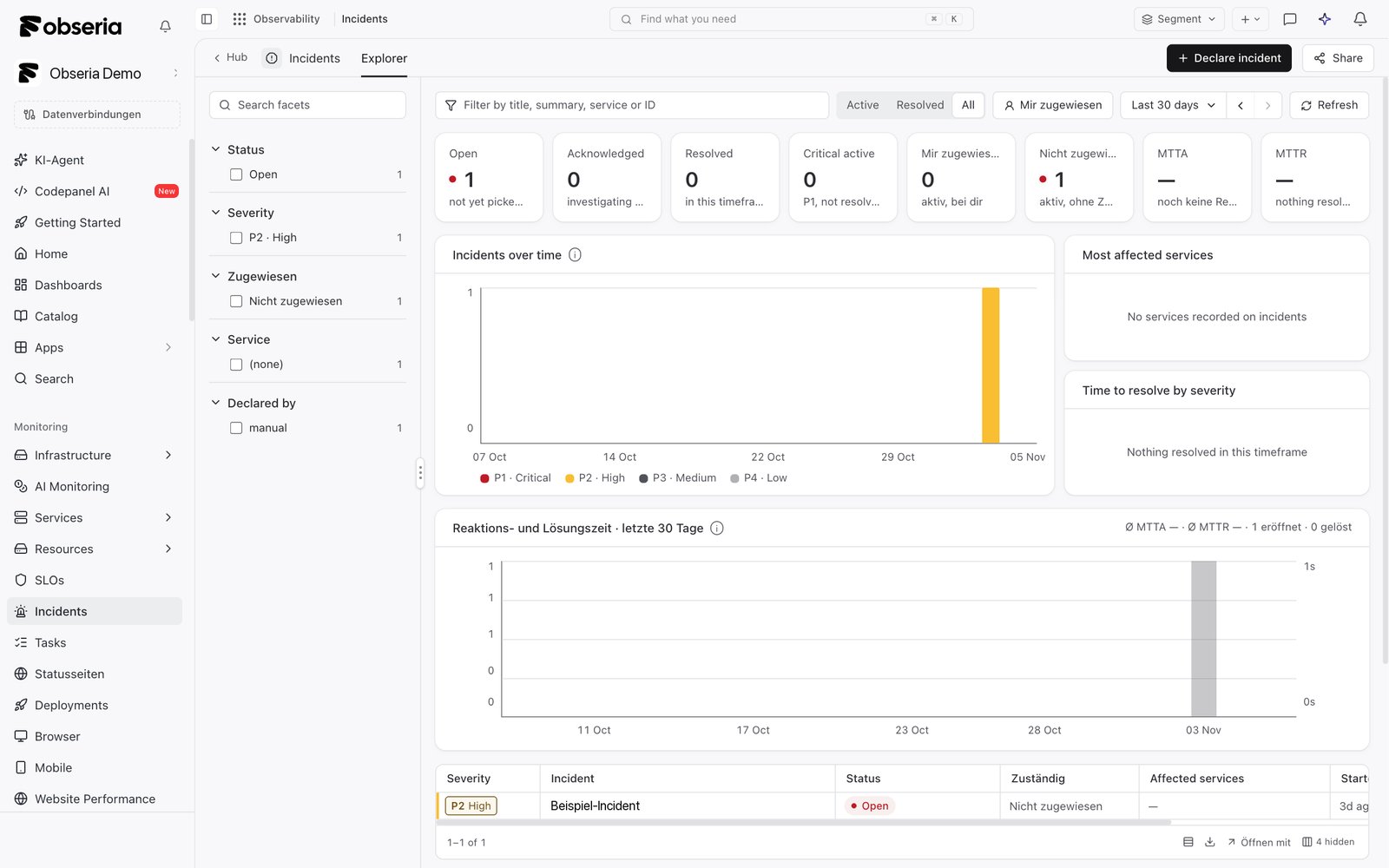
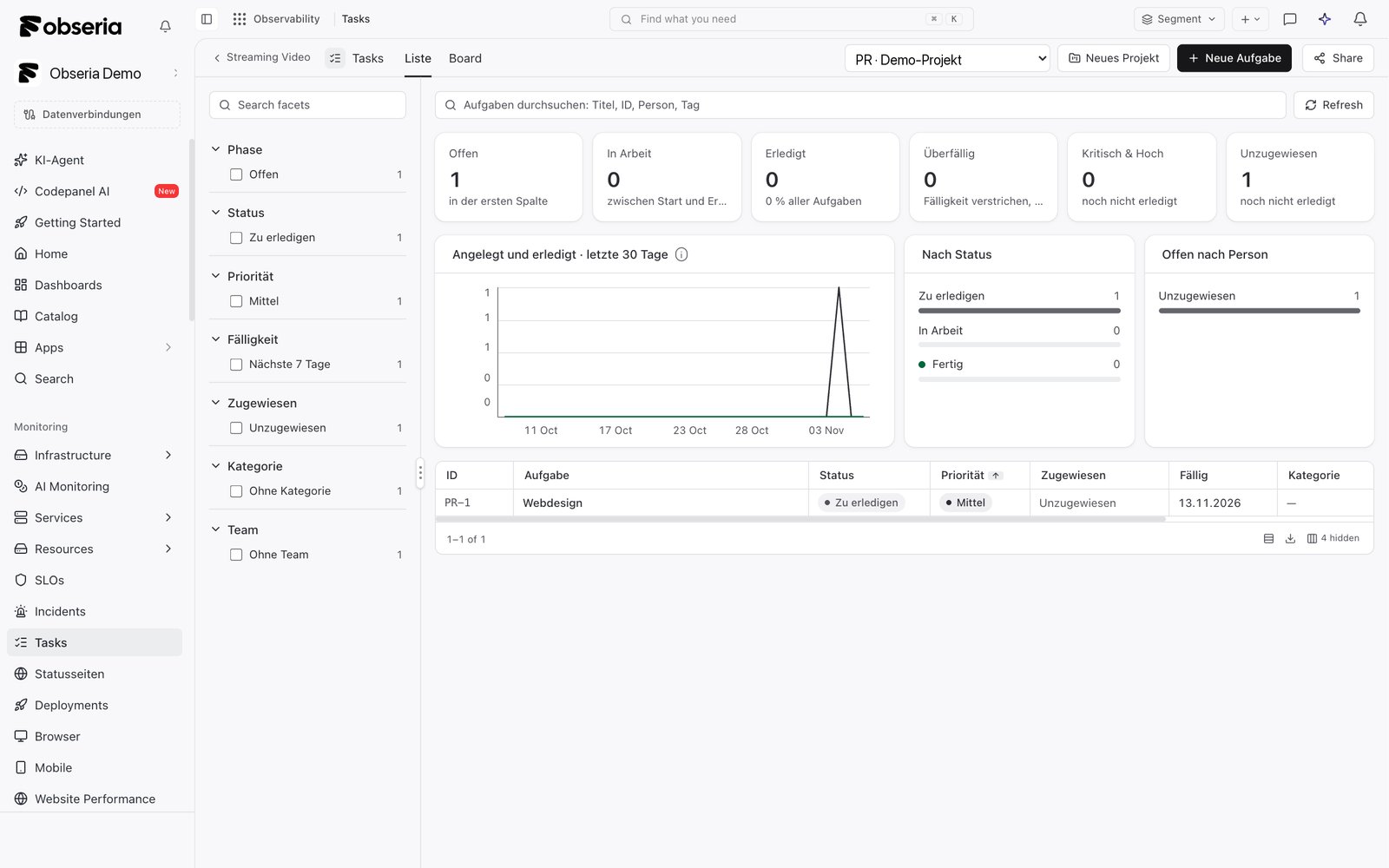
Counters for open, in progress, done, overdue, critical and unassigned tasks, a 30-day chart and tasks by status and person, above a list or board.
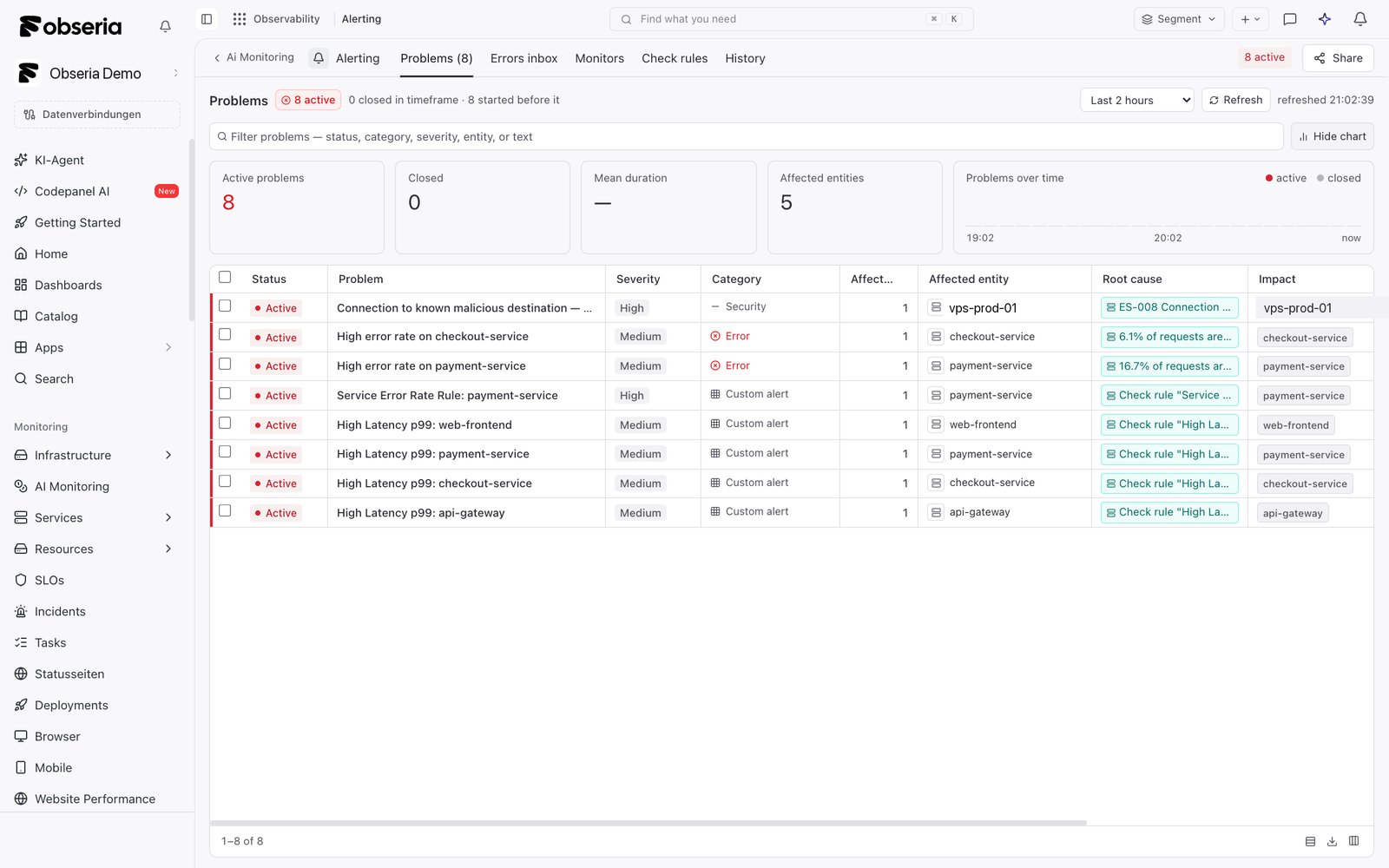
Problems show severity, affected entity and likely cause. What cannot be fixed right away becomes a task linked to the service or host.
Incidents have severity P1 to P4, status and an owner. Actions from the review become tasks linked back to the incident.
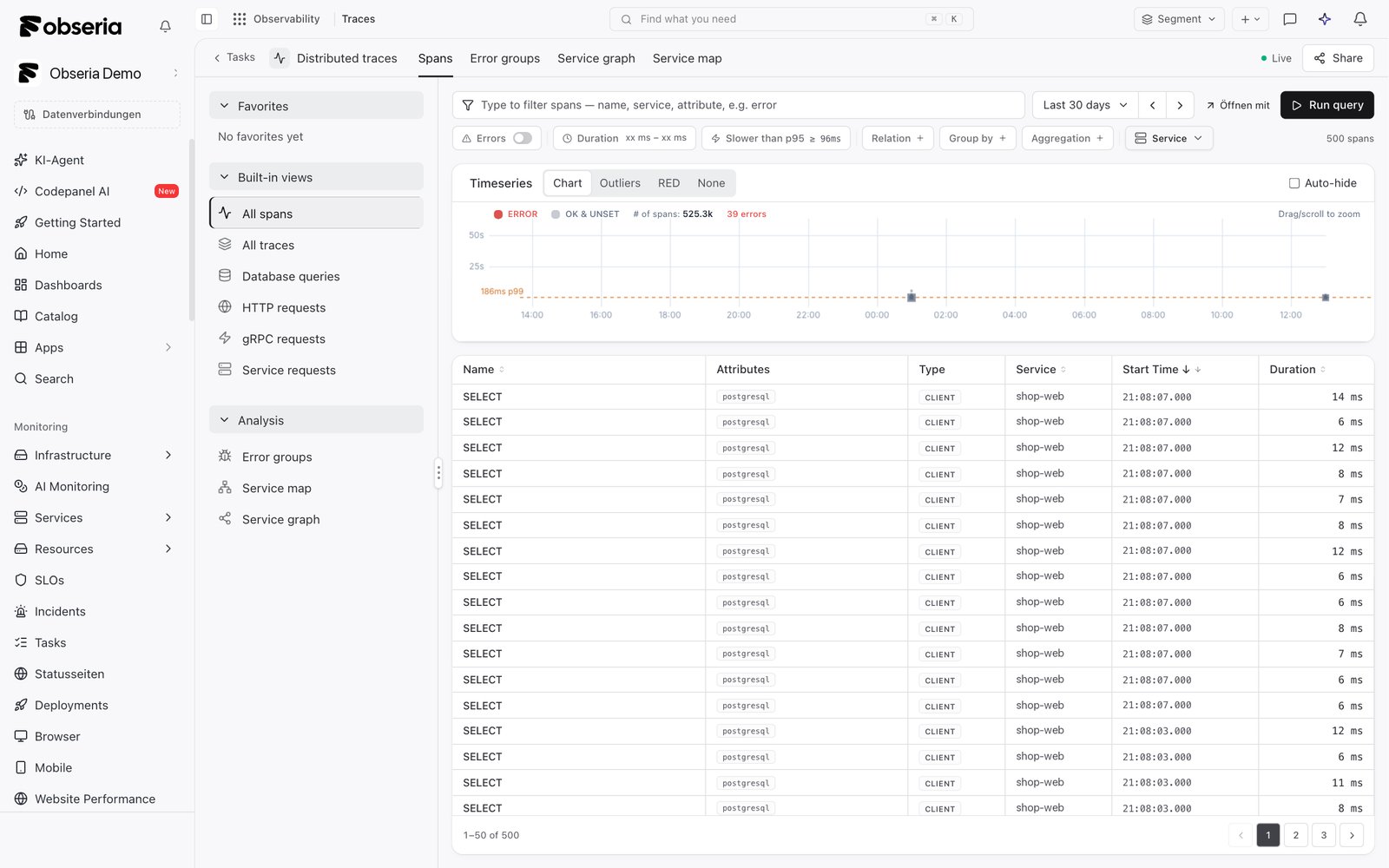
A task linked to a trace leads straight to the slow or failing span, and after the fix you check the same view again.
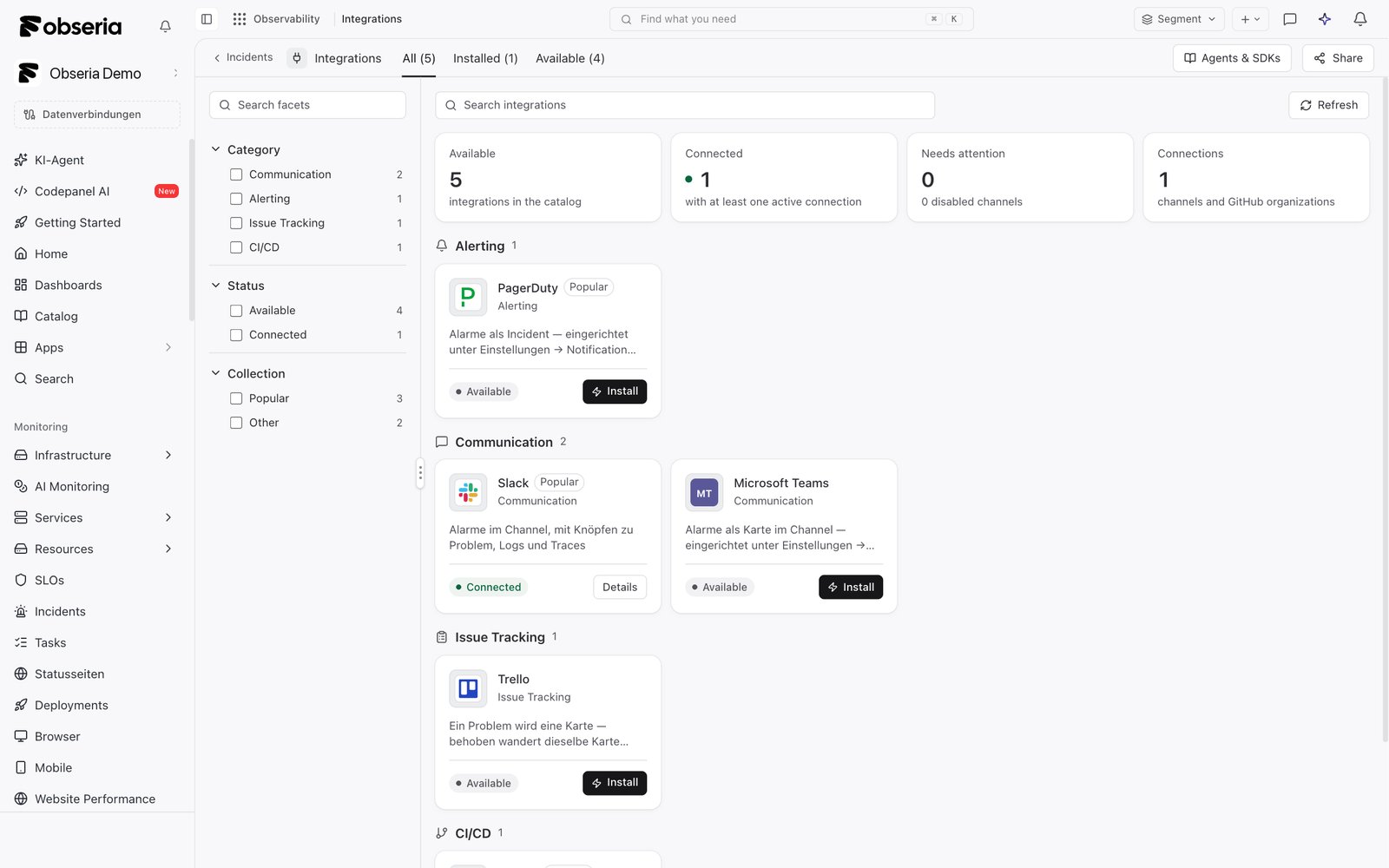
The integrations catalog connects Slack, Microsoft Teams, PagerDuty and Trello for issue tracking; more channels are set up under notification channels.
Manages tasks and cases from alerts and findings through to resolution.
Step-by-step instructions for specific alerts, kept as articles in the knowledge base.
Learn more →Coordinates incident handling: status, owners, timeline and communication.
Learn more →An alert, a problem, an incident review or a security finding shows something that needs to be done.
Record it as a task in a project with a clear title, priority from low to critical, tags and a due date.
Link the task to the incident, service, host or trace it belongs to, so nobody has to search for it later.
Give the task an owner, discuss it in comments and move it through the list or the board.
Mark it done, update the runbook or alert rule it touched, and check overdue and unassigned tasks in the weekly review.
Tasks in Obseria are the unit of operational follow-up. Each one has a title, a status, a priority from low to critical, an assignee, a due date, tags and comments. Tasks are grouped in projects, and each project gives its tasks their own IDs, so a task can be referred to in chat or a review without ambiguity.
Comments keep the discussion next to the work instead of in a separate thread. Tags and categories make it easy to group related work, for example everything that came out of one incident review.
Create a new task from the tasks area at any time, or start a new project when a larger piece of work needs its own space.
Operational work loses value when it loses its context. A task in Obseria can be linked to an incident, a service, a host or a trace, so whoever picks it up can jump straight to the data that explains it.
That also helps after the work is done. Open the linked service or trace and check whether the error rate fell or the slow span disappeared, without copying IDs between tools.
Because tasks live on the same platform as alerting, incidents and telemetry, the path from “we should fix this” to “it is fixed and we can see it” stays short.
Tasks can be viewed as a list or on a board. The list is good for sorting and filtering, for example by priority or due date; the board shows at a glance what is open, in progress and done.
Facets for phase, status, priority, due date, assignee, category and team narrow the view to what one person or team is responsible for. A search finds tasks by title, ID, person or tag.
The list can be adjusted with hidden and visible columns and downloaded, which is handy for a review meeting.
Above the list, counters show open tasks, tasks in progress, done tasks with their share of all tasks, overdue tasks, critical and high tasks that are not done, and unassigned tasks. These are exactly the numbers a weekly review needs.
A chart shows tasks created and completed over the last 30 days, so you can see whether the team keeps up. Breakdowns by status and of open tasks by person show where work piles up.
Unassigned and overdue tasks are the most useful signals: they show work that nobody owns or that has slipped, before it becomes the cause of the next incident.
 Slack
 Microsoft Teams
 Jira Service Management
 PagerDuty
 Opsgenie
 incident.io
 Google Chat
 Discord
In operations, a lot of work starts with a signal: an alert fires, a security finding appears, an incident ends with a list of things to fix. Case management is the discipline of turning those signals into tracked pieces of work, each with an owner, a status and a priority, and following them until they are done.
Without it, follow-up work lives in chat threads, sticky notes and people's heads. The incident is closed, everyone is relieved, and the missing index or the noisy alert rule that caused half the trouble is still there a month later. A case or task makes that work visible and keeps it from getting lost.
Different tools use different words for the same idea. A ticket usually lives in a service desk or issue tracker, a case often refers to an investigation (for example a security case), and a task is a concrete piece of work with a clear end. What they share:
Useful numbers are the count of open and overdue tasks, the share of tasks that are done, the number of critical and high tasks still open, the number of unassigned tasks and how open work is distributed across people. A chart of tasks created and completed over the last weeks shows whether the team is keeping up or falling behind.
Fifteen minutes a week are usually enough to keep operational work under control. Start with overdue tasks and decide for each one: do it now, move the date or close it. Then look at unassigned tasks and give each one an owner. Finally, scan the critical and high tasks and the chart of created versus completed work. If the team creates more tasks than it closes for several weeks, that is a capacity question for planning, not something to solve on the board.
Many teams already use an issue tracker for product work. Operational follow-ups can live there too, but they lose their context: the link to the alert, the trace and the affected service. Keeping them next to the telemetry makes it easier to start the work and to check the effect afterwards. A common compromise is to track operational tasks in the observability platform and send only larger items to the product backlog.
Case management in Obseria is built for operational follow-up, not as a full service desk. There are no SLA timers or automatic escalation; teams that need those connect Jira Service Management as a notification channel.
Case management turns alerts, problems, incidents and findings into tasks with status, priority, assignee, due date, tags and comments, and tracks them until they are done.
A task can be linked to an incident, a service, a host or a trace, so the context of the work stays attached and the effect can be checked later.
Yes. Tasks can be viewed as a list or on a board, and both views use the same facets for phase, status, priority, due date, assignee, category and team.
Priorities range from low to critical. The overview counts critical and high tasks that are not done yet, so urgent work stays visible.
Yes. Tasks are grouped in projects with their own task IDs, and you can filter by team and category.
Tasks live in Obseria. Alerts can be sent to Jira Service Management as a notification channel, and the integrations catalog also lists Trello for issue tracking. A two-way synchronisation of Obseria tasks with Jira is not part of Obseria today.
An incident coordinates the response while something is broken. Tasks capture the work that remains afterwards, such as fixing a cause or tuning an alert, and can be linked back to the incident.
Obseria is not a full service desk. There are no SLA timers, no automatic escalation and no automatic assignment rules for tasks, and no two-way sync of tasks with external ticket systems.
Alerting, incidents, SLOs, status pages and runbooks in one product.
→Incidents with severity, owner and timeline that produce follow-up work.
→Capture what a task taught you as steps for the next response.
→Suggestions worth turning into tasks, rated by impact and effort.
→Send alerts to Jira Service Management and other tools.
→In 30 minutes we show you how Obseria works in your environment and answer your questions on setup, privacy and pricing.