Cron and heartbeat monitoring
Alerts you when a job or device does not check in at the expected time.
We use essential functions to operate this website. With your consent, we would also use services for statistics and marketing. You decide which categories you allow and can change your choice at any time via “Cookie settings” in the footer. More in our privacy notice.
Obseria Consent Management · Your choice is stored for 12 months
Obseria alerts you when a job or device does not check in at the expected time, so a backup that silently stopped is found the same night, not weeks later.
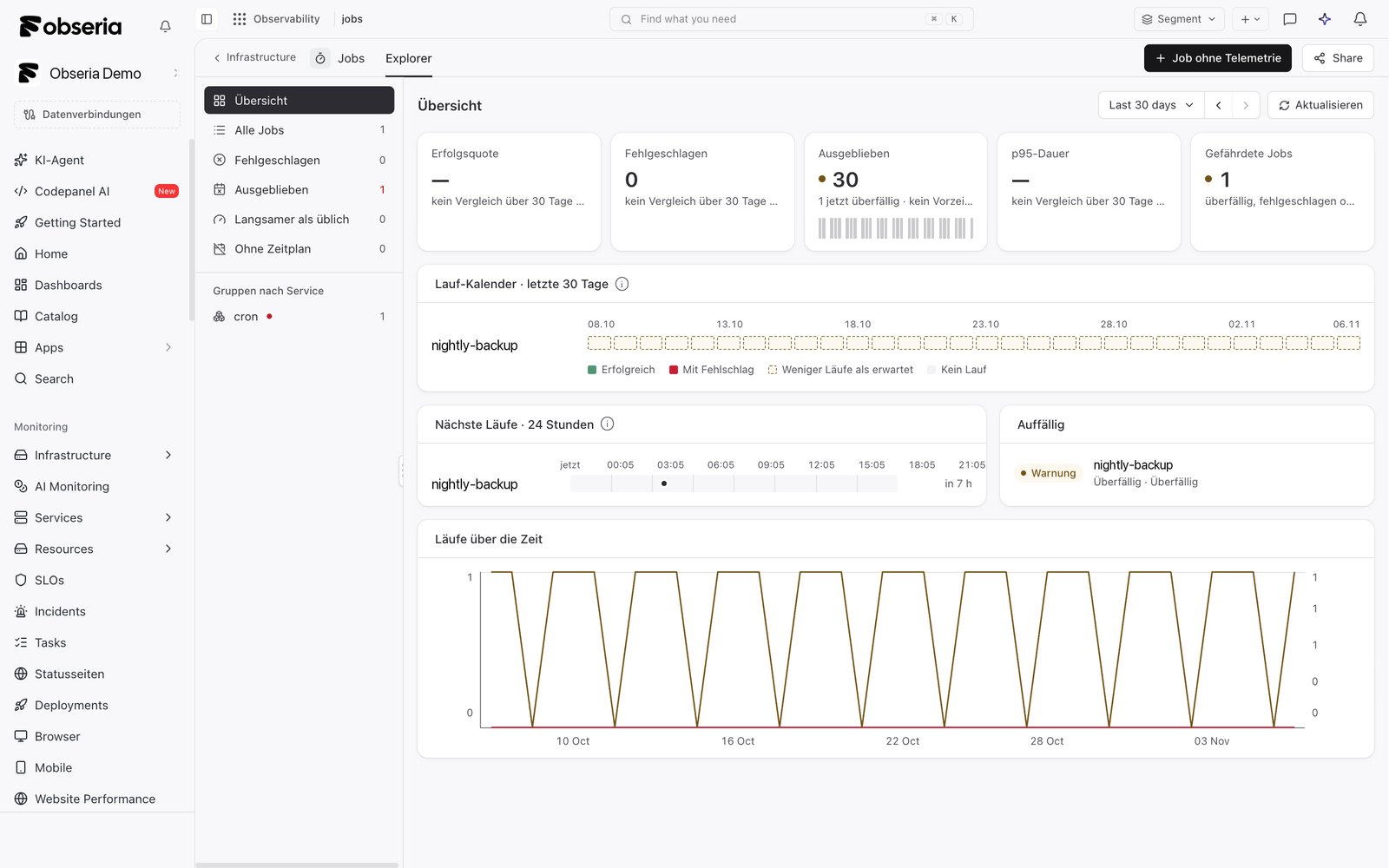
The jobs overview counts missed runs, lists overdue jobs as notable and shows the runs expected in the next 24 hours.
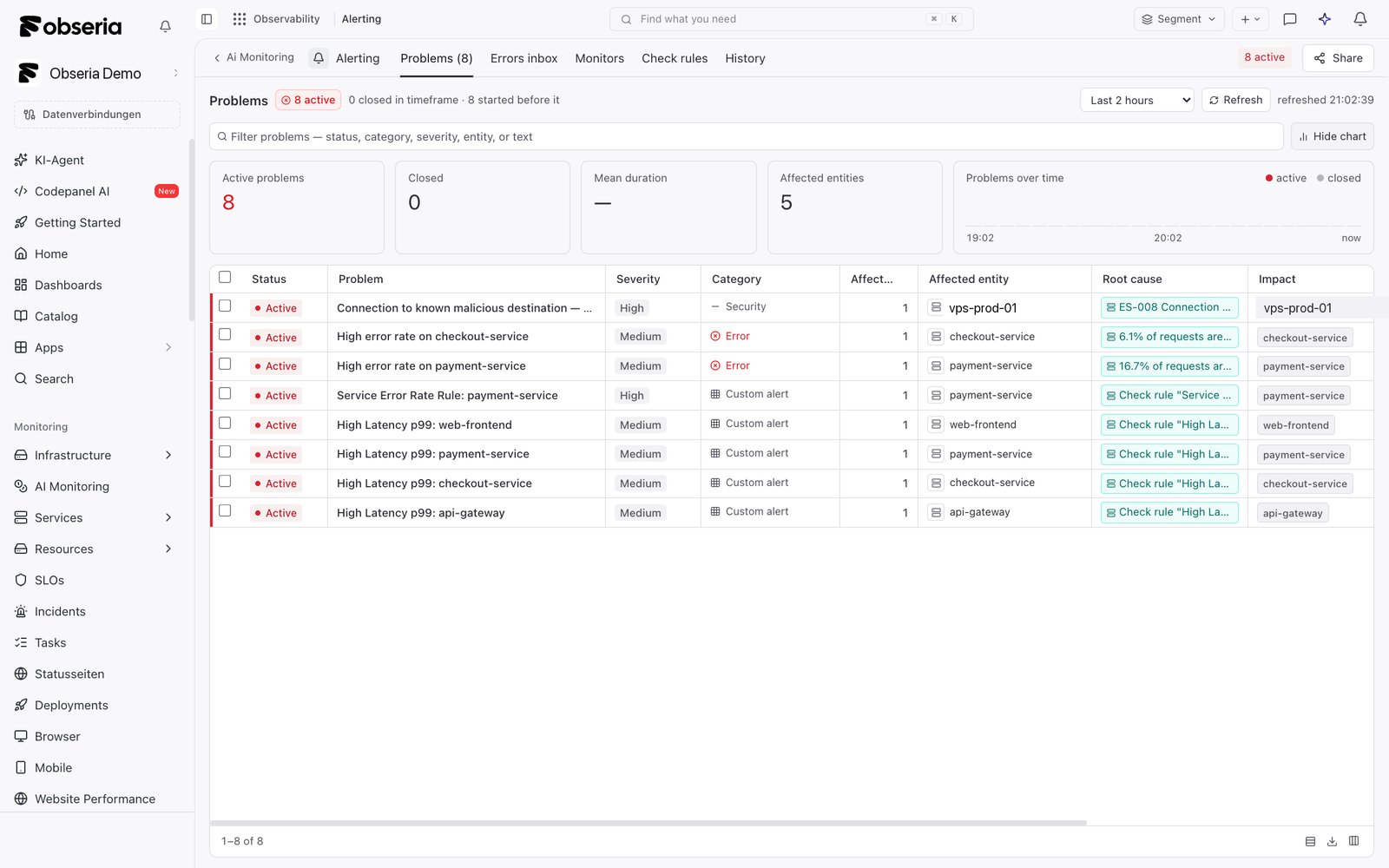
Problems show status, severity, category, affected entity and likely cause, and can be filtered by any of them.
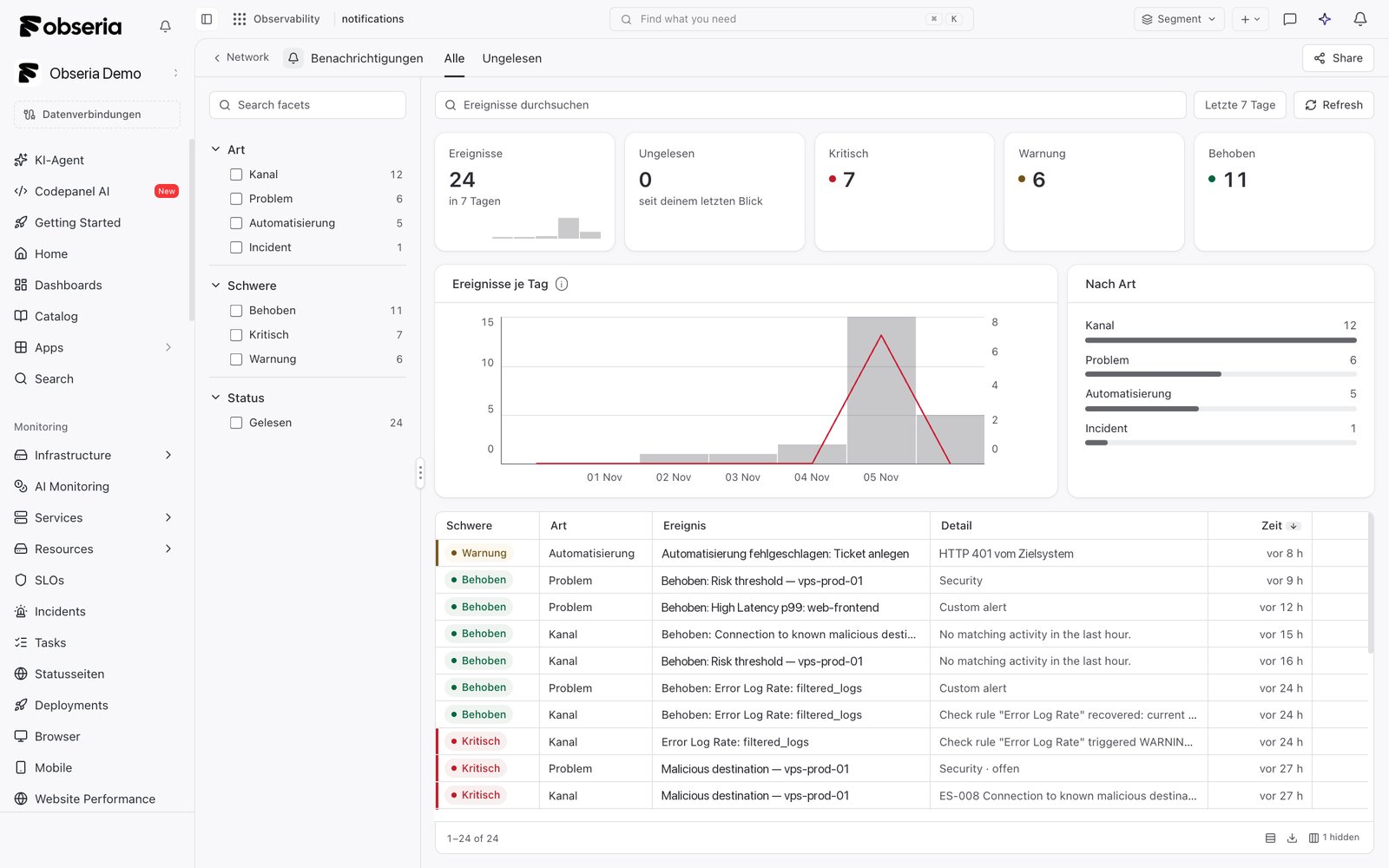
Channel deliveries, problems, automation runs and incidents with severity, detail and time, plus a chart of events per day.
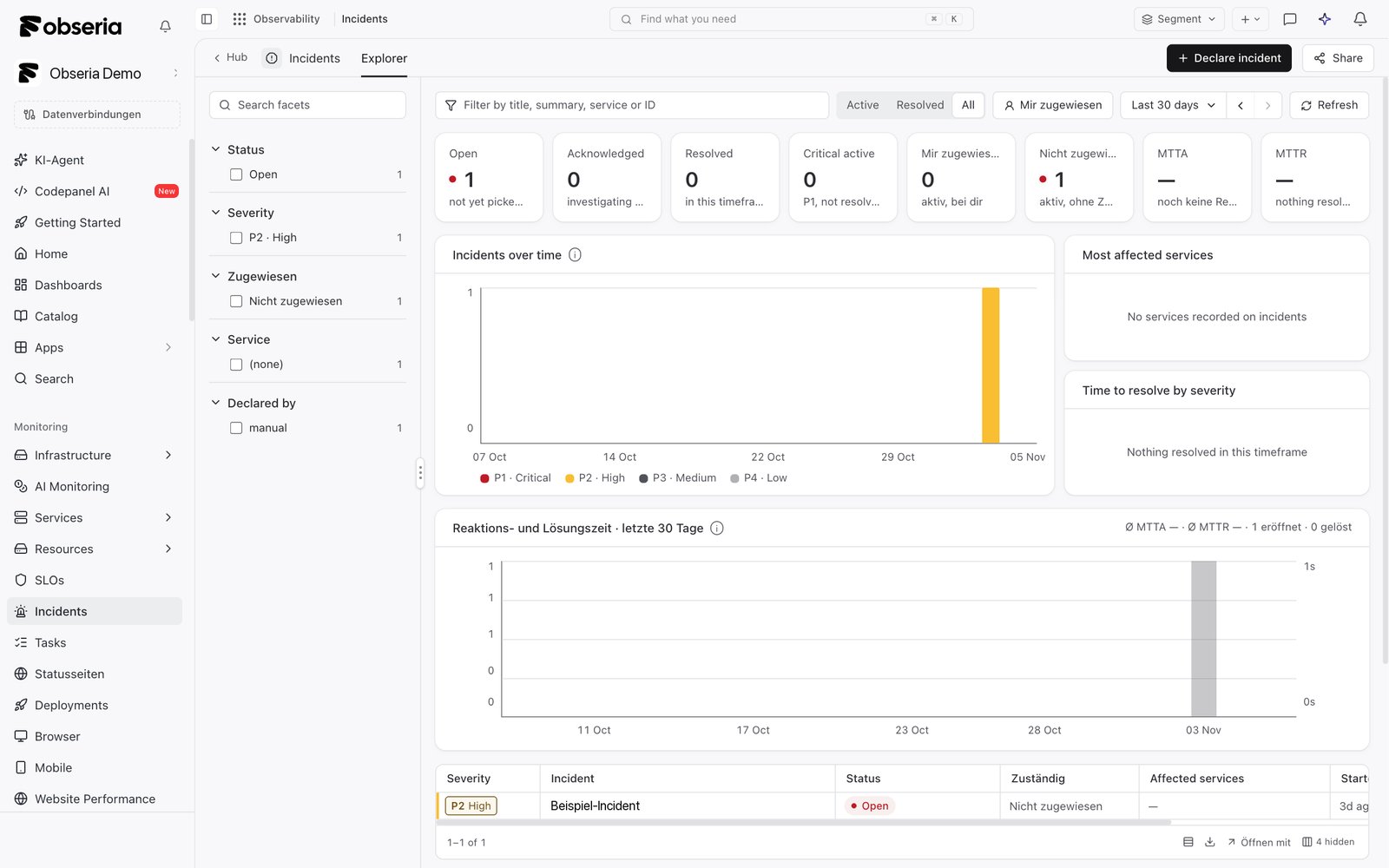
When a missing run needs coordinated work, declare an incident with severity P1 to P4 and an owner.
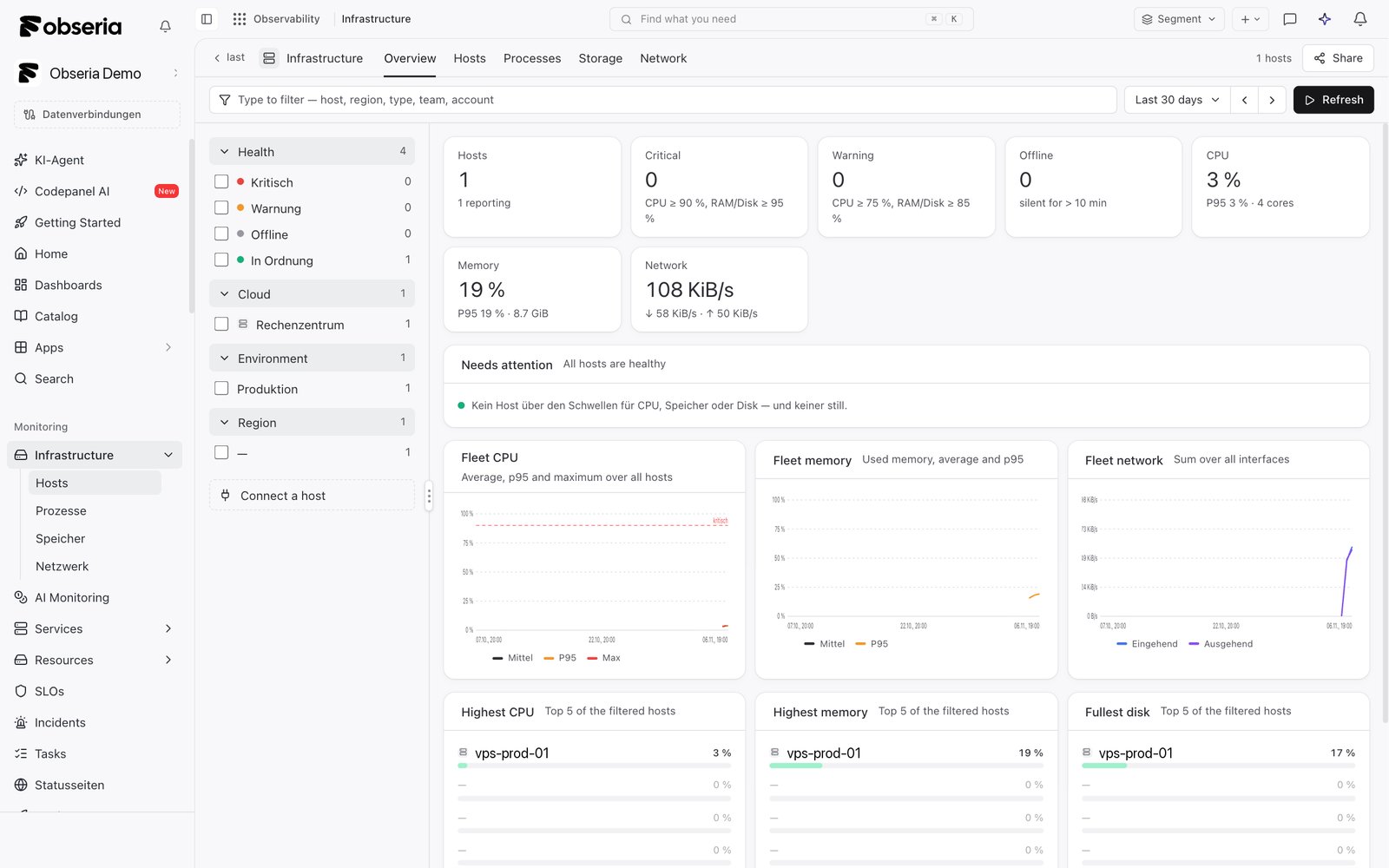
With the Obseria agent or OpenTelemetry, the hosts behind your jobs report CPU, memory, disks and status, so a stopped server is visible too.
Alerts you when a job or device does not check in at the expected time.
Destinations for alerts such as email, Slack, Teams, PagerDuty or webhooks.
Learn more →Jobs that send telemetry are detected. For a script or cron entry without instrumentation, add a job without telemetry that reports in itself.
Obseria knows when the next check-in is due and lists the runs expected in the next 24 hours.
When a check-in does not arrive on time, the run counts as missed and the job is listed as overdue.





The missed check-in becomes a problem and is delivered to your notification channels, for example a team channel or a paging tool.
Rerun or repair the job, open a task or incident if needed, and confirm in the run calendar that the next days are green again.
Most alerting needs something to go wrong: an error rate, a log line, a slow request. A scheduled task that never starts produces none of that. Cron and heartbeat monitoring in Obseria turns the question around: it expects a check-in at a known time and raises an alert when it does not come.
That covers the classic silent failures: a crontab that was lost in a server move, a scheduler container that was replaced, a lock file that blocks every start, or a machine that was switched off while it still ran an important task.
In the jobs overview, missed runs are counted separately from failed runs, and the number of jobs at risk tells you at a glance whether anything is overdue right now.
Jobs that already send telemetry are detected from it, without extra setup. But the most important scheduled tasks are often the oldest ones: a backup script, a certificate renewal, an export to a partner, running from a crontab on a single server.
For these, add a job without telemetry in Obseria. The job then reports in itself when it runs, and Obseria watches for the check-in like for any other job. The application itself does not need to be instrumented for this.
Both kinds of jobs appear in the same overview, grouped by service, so the old script and the modern worker are monitored side by side.
A timeline lists the runs expected in the next 24 hours. It shows when the next check-in of each job is due, which is useful before maintenance or when you want to confirm that a repaired job will run tonight.
The run calendar shows the last 30 days per job and marks days with fewer runs than expected and days without any run. A job that skips weekends by accident, or stops at the end of each month, becomes visible as a pattern.
A filter lists jobs that have no schedule yet. Adding one is what makes missed runs detectable for them.
A missed check-in becomes a problem in Obseria's alerting area, with severity and affected entity, and is delivered through the notification channels you configure: email, Slack, Microsoft Teams, Google Chat, Discord, PagerDuty, Opsgenie, Jira Service Management, incident.io or a webhook.
Conditions on severity or environment decide where an alert goes, so a missing backup in production can page someone while a staging job only posts to a channel. Every delivery appears in the notification centre with its status.
For follow-up, a problem can become a task or an incident. Obseria does not rerun the job for you; it makes sure the right person knows that it did not run.
 OpenTelemetry
 Linux
 OTel CollectorSlackMicrosoft Teams
 Google Chat
 DiscordPagerDutyOpsgenieJira Service Management
 incident.io
Cron monitoring checks that scheduled tasks actually run. The name comes from cron, the Unix scheduler that starts commands at fixed times, but the idea applies to every scheduler: Kubernetes CronJobs, systemd timers, Windows Task Scheduler or the scheduler inside an application. Heartbeat monitoring is the general technique behind it. Something that should be alive sends a regular signal, the heartbeat, and a monitor raises an alert when the signal does not arrive on time. In operations this pattern is also known as a dead man's switch.
The key difference to most other monitoring is the direction. A normal check asks "is something wrong?" and needs an error to fire. A heartbeat monitor asks "has the expected signal arrived?" and fires on silence.
Scheduled tasks rarely fail loudly. Typical causes of a missed cron job are:
In each case no error message is produced, because nothing runs that could produce one. Logs and error tracking stay quiet. Only a monitor that knows the expected schedule notices that a run is missing.
A heartbeat check combines three things: an expected schedule (for example every night at 03:00, or every 15 minutes), a signal that the job or device sends when it runs, and an alert when the signal is late or missing. The signal can come from telemetry the job already sends, or from an explicit check-in at the end of a script. For long jobs it helps to report success at the end, not at the start, so a run that starts but never finishes is also caught.
Look for a tool that detects scheduled jobs from existing telemetry, lets you add jobs that have no instrumentation at all, shows overdue and missed runs clearly, keeps a history over weeks and sends alerts through the same channels as the rest of your monitoring. A separate cron monitoring service for a handful of jobs is easy to start with, but it adds another place where alerts are configured and another tool that is forgotten when people change teams.
Start with the tasks whose silent failure would hurt most: database and file backups, certificate renewals, data exports to partners or authorities, billing and invoice runs, and clean-up jobs that keep disks from filling up. Then add the jobs that feed reports or dashboards people rely on. A short inventory, done once with the teams that own the servers, usually finds a few tasks nobody remembered.
In Obseria, cron and heartbeat monitoring is part of Obseria Data and shares the jobs area with job monitoring. Obseria alerts you when a job or device does not check in at the expected time.
From there, a missed run can become a task or an incident, and the notification centre keeps a record of what was sent and when it was resolved.
A job or device sends a signal at a known schedule. If the signal does not arrive on time, the monitor raises an alert. It catches failures that never produce an error message, such as a backup that stopped running.
Cron and heartbeat monitoring answers one question: did the run happen on time? Job monitoring also covers success rate, failed runs, duration and history. In Obseria both live in the same jobs area.
Yes. Add it as a job without telemetry. The job then reports in itself, and Obseria alerts you when the check-in does not arrive at the expected time.
Jobs without telemetry report in themselves, so a script does not need OpenTelemetry instrumentation to be watched. Jobs that already send telemetry are detected from it. The Obseria agent or OpenTelemetry is needed when you also want metrics, logs and traces from the host or service.
To the notification channels you set up in Obseria, for example email, Slack, Microsoft Teams, Google Chat, Discord, PagerDuty, Opsgenie, Jira Service Management, incident.io or a webhook. They also appear as problems in the alerting area and in the notification centre.
Yes. A timeline shows the runs expected in the next 24 hours, and the run calendar shows the last 30 days per job with days that had fewer runs than expected.
Anything that is set up to check in on a schedule can be watched for silence. Note that Obseria does not ship an endpoint agent for laptops today; servers and VMs are covered by the Obseria agent and OpenTelemetry.
Obseria does not schedule, start or rerun jobs, and it does not repair a broken crontab. It does not offer an endpoint agent for laptops. Data-quality checks on what a job produced, such as row counts or table freshness, are not part of this feature.
Databases, queues, data streams and jobs in one product.
→Success rate, failures, runtime and a 30-day run calendar per job.
→Check rules, problems and notification channels for all signals.
→Turn a missed backup into an incident with owner and timeline.
→Another quiet failure: warnings before a TLS certificate expires.
→In 30 minutes we show you how Obseria works in your environment and answer your questions on setup, privacy and pricing.