Workflows and API
Tables connect to Obseria Workflow: steps read and write tables, a question becomes a scheduled email report with CSV, and other systems can deliver rows through a webhook workflow that writes to a table.
We use essential functions to operate this website. With your consent, we would also use services for statistics and marketing. You decide which categories you allow and can change your choice at any time via “Cookie settings” in the footer. More in our privacy notice.
Obseria Consent Management · Your choice is stored for 12 months
Workflow steps run read-only SQL, write rows into tables and read them back. A question becomes a weekday email report with CSV, and your own systems send rows via webhook or API.
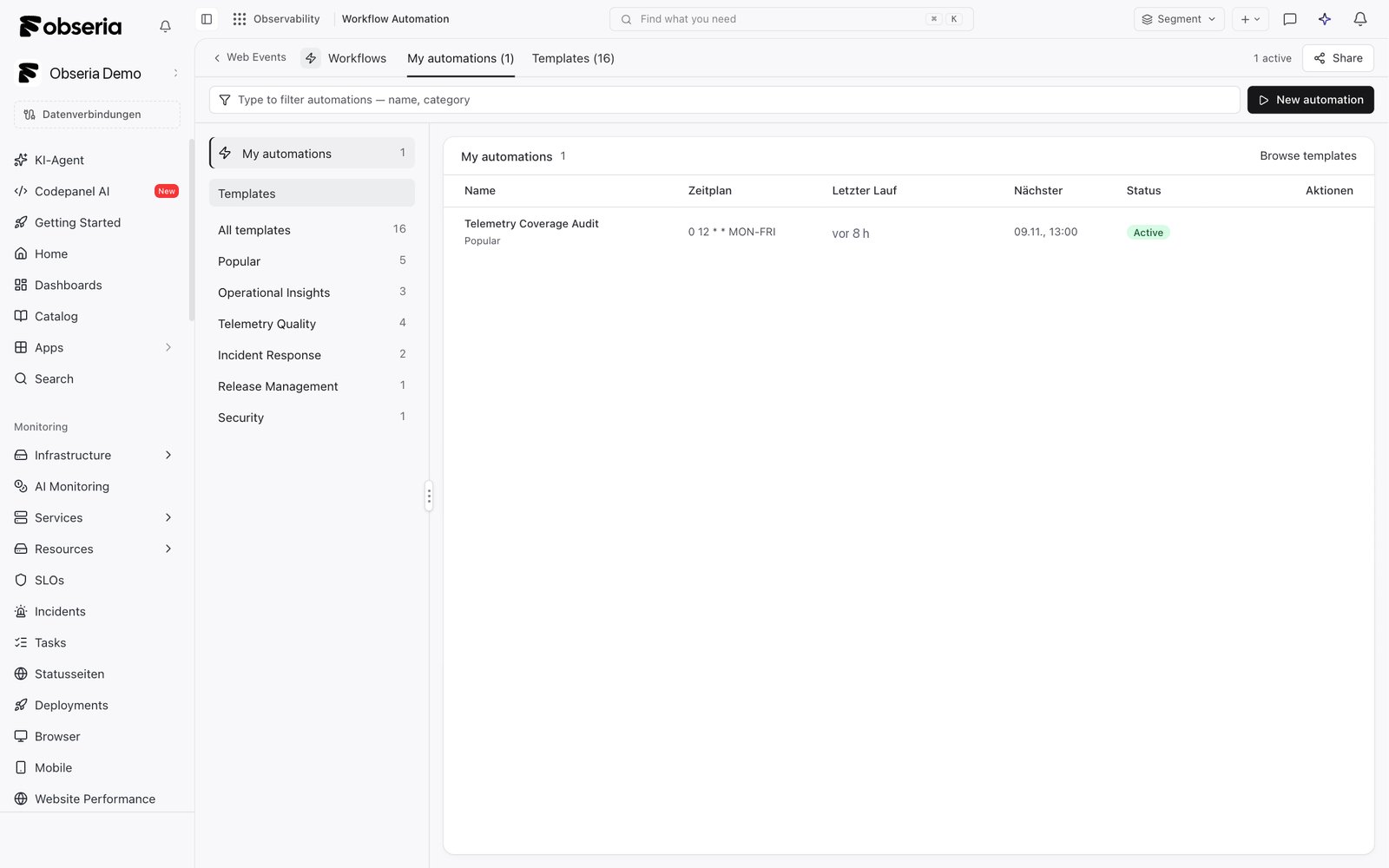
The screenshot shows the automation list in Obseria. Workflows that read and write Data tables, as well as syncs and models, appear in a list like this with their schedule and status.
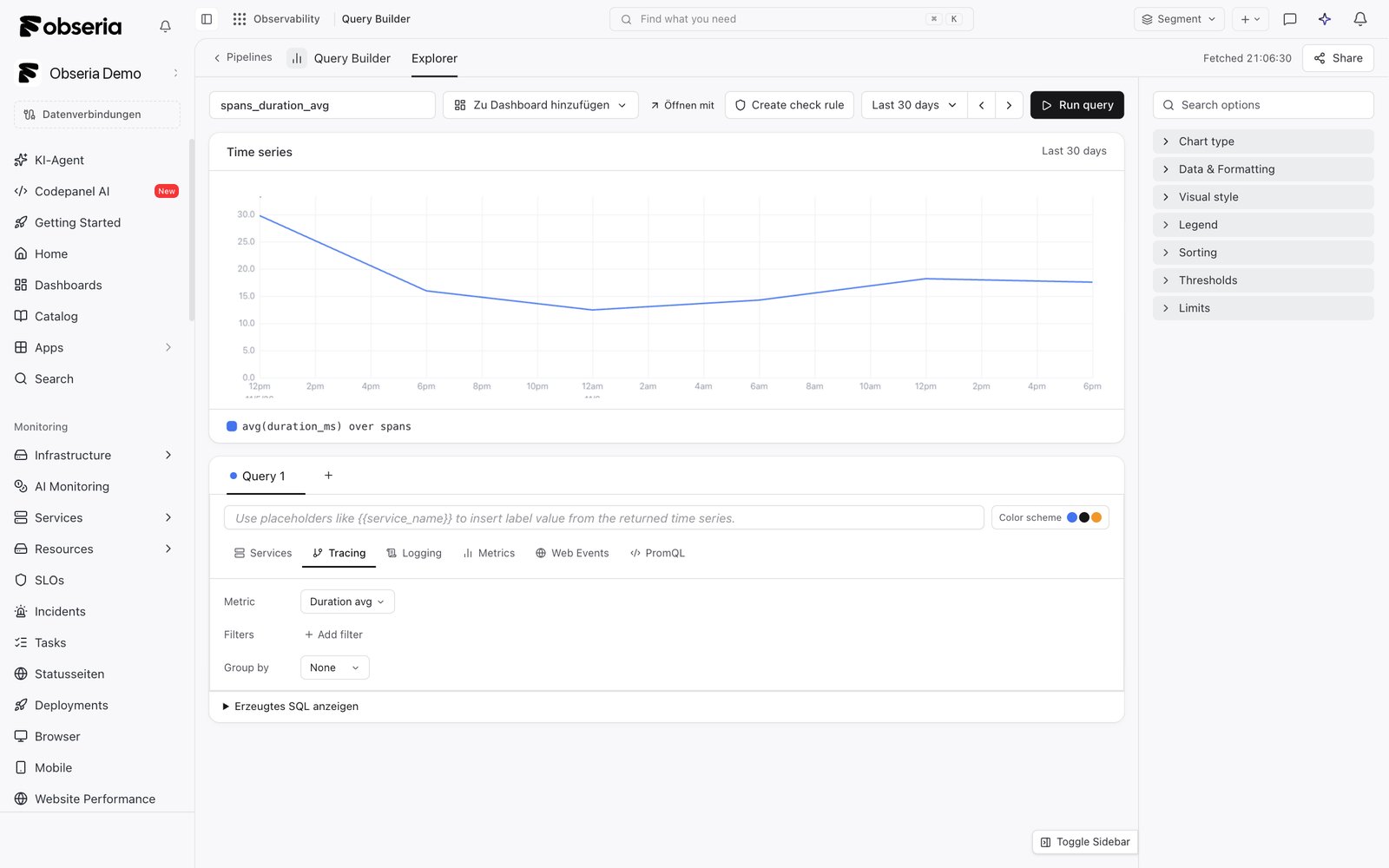
The screenshot shows the query builder in Obseria. For Data workflows, write and test the query in the SQL editor first, then use it in the SQL on Data step.
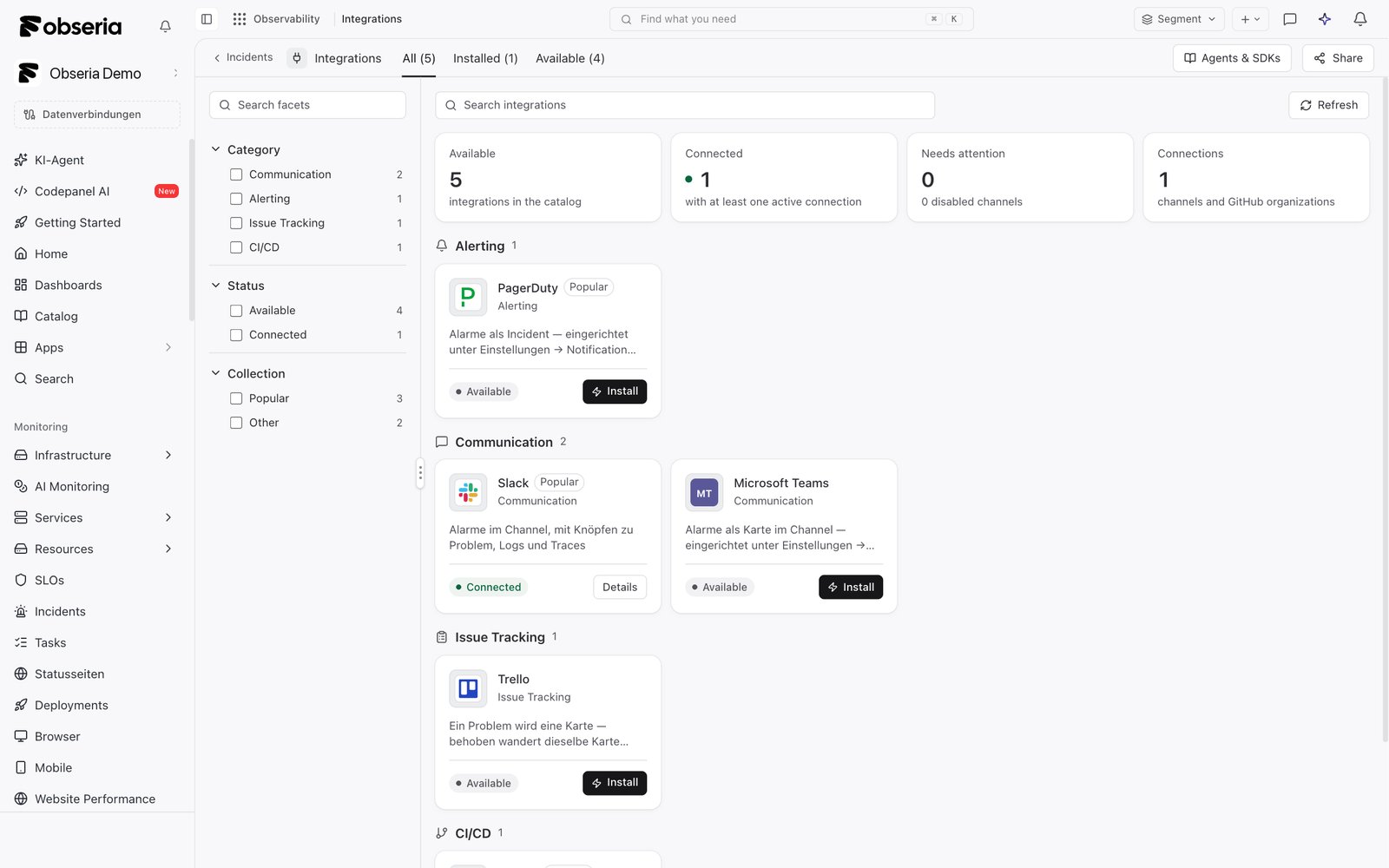
The screenshot shows the integrations page in Obseria. Workflows send their results through connected channels, and reports from Data go out by email with a CSV attachment.
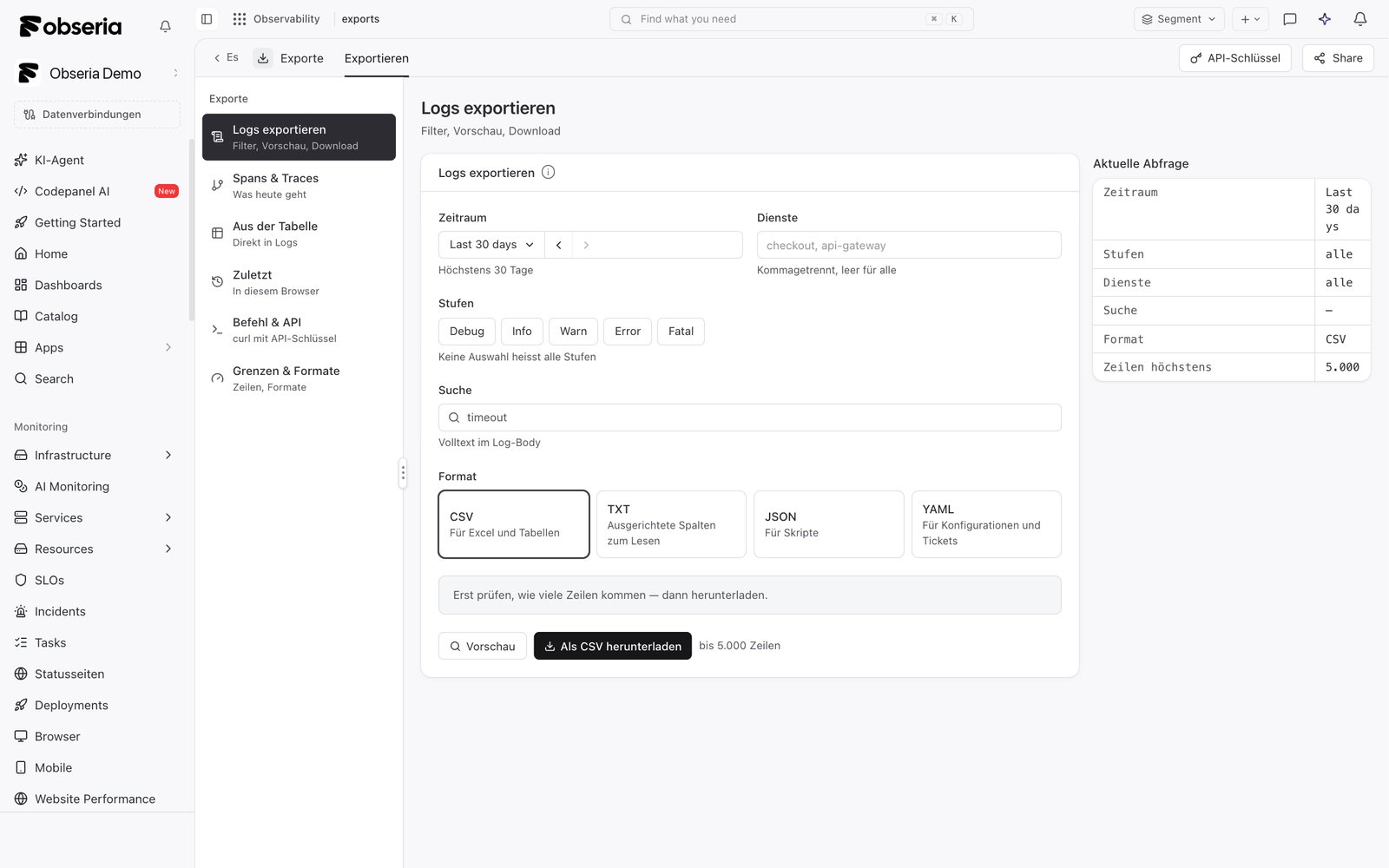
The screenshot shows the log export in Obseria. The Data API offers the same for tables: export as CSV with filters, and in the other direction write up to 50,000 rows per request.
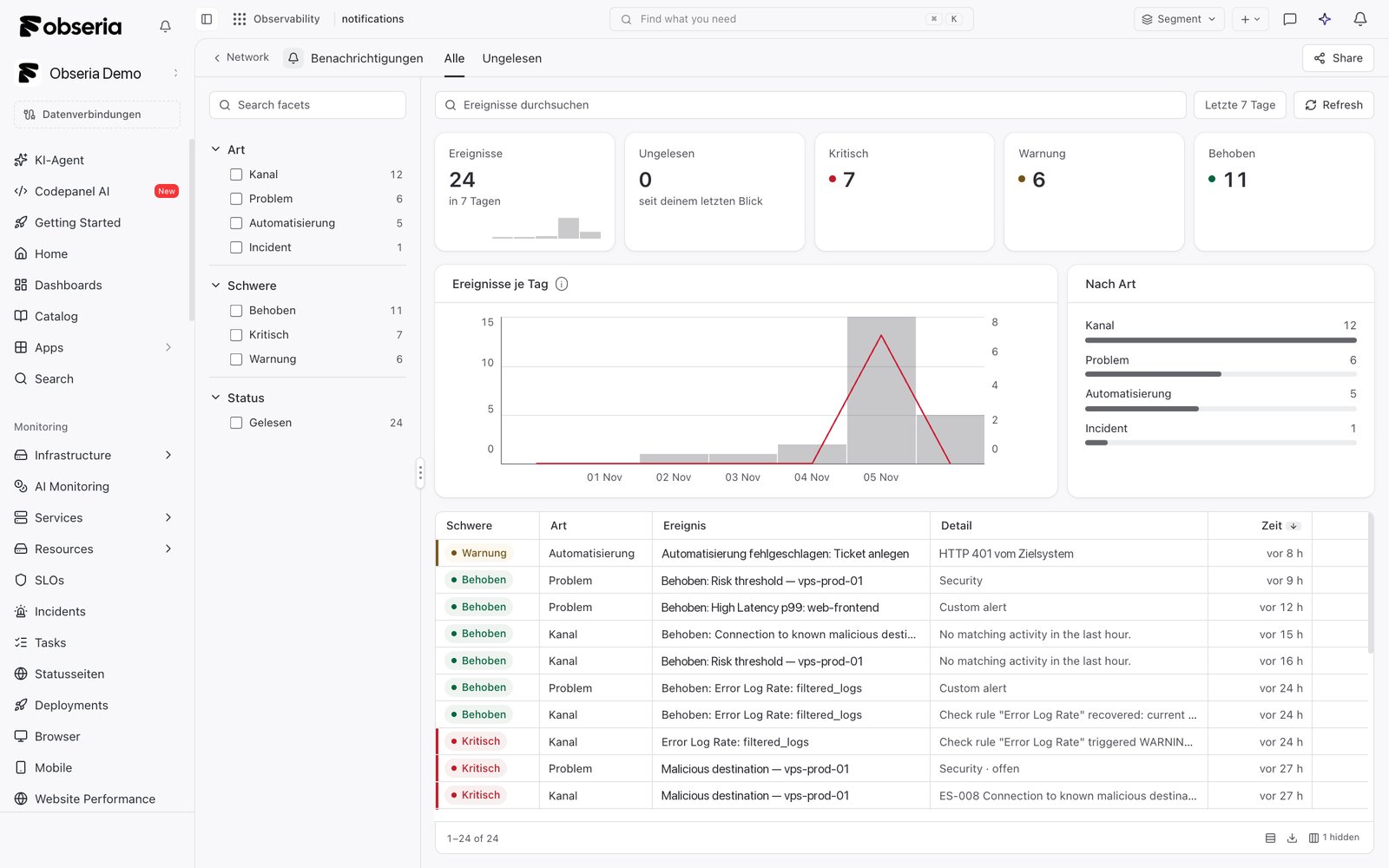
The screenshot shows the notification centre in Obseria, including automation events. Failed workflow, sync and model runs show up with their error, so a broken report does not go unnoticed.
Tables connect to Obseria Workflow: steps read and write tables, a question becomes a scheduled email report with CSV, and other systems can deliver rows through a webhook workflow that writes to a table.
Scheduled loads from connected systems into tables: ready-made packages for systems such as Stripe, Shopify, HubSpot, lexoffice or Jira, any GET endpoint, or SQL on PostgreSQL and MySQL.
Learn more →A webhook, form, mailbox or schedule starts a workflow, or your software sends rows to the API.
The workflow writes the rows with append, upsert by key or replace; the table is created on first write.
A SQL step reads the table read-only and passes rows and count to the next steps.
A condition checks the result, for example only continue when there are rows.
A file step turns the rows into CSV, and an email step sends it to the people who act on it.
SQL on Data runs a read-only query over your tables and hands the rows, their count and the columns to the following steps; the default maximum is 5,000 rows. Placeholders such as today's date are filled in before the query runs.
Write to table stores a list of rows, or a single row, in a table: append, upsert by a key field or replace all rows. Column types are detected, and the table is created on the first write. Read table returns rows of a table, optionally filtered with an expression per row, sorted by a field and limited, by default to 1,000 rows.
Together with steps such as Parse Excel, Create file, Send e-mail and Database query for external PostgreSQL or MySQL, these steps cover most data processes without code.
Any answer in Ask that has SQL can become a workflow with one click. The workflow is built with five parts: a schedule for weekdays at 07:00 UTC, the SQL step with the query, a condition that only continues when there are rows, a step that creates a CSV file, and an email with the file attached and the row count in the subject.
You then choose the email channel and the recipients, adjust the text if you like and switch the workflow on. From then on it runs without anyone opening the dashboard.
Schedules use cron expressions in UTC, so the same pattern works for any other rhythm, such as Monday mornings or the first of each month.
A webhook trigger gives a workflow a unique URL; an HTTP POST starts the run, and an optional shared secret in a request header keeps strangers out. A form trigger collects entries, a mailbox trigger picks up new emails with their attachments, and a schedule trigger runs on a cron expression in UTC. Each of them can end in Write to table.
Syncs and models in Obseria Data run as workflows as well: syncs load data from connected systems on a schedule, models rebuild a table from a query. Their runs and errors show up in the same run history.
Rows written by workflows count as rows written in Obseria Data, and each executed step counts as a workflow step.
The Data API covers the main operations on tables: write rows (up to 50,000 per request, with append, upsert or replace; tables with a key column default to upsert), delete rows by key, export a table as CSV with filters, run a read-only SQL query or a saved query, and import a CSV, Excel or JSON file of up to 25 MB.
Calls are authenticated with the session of a signed-in user and act within that user's organization and permissions. There are no separate long-lived API keys for the Data API yet. For system-to-system integrations, a workflow with a webhook trigger and Write to table is currently the better route.
 PostgreSQL
 MySQL
 Slack
 Microsoft Teams
 GitHub
 Jira
Data in tables is only half the story. The other half is what happens with it: a report that goes out every Monday, a list of overdue invoices that lands in the accounting inbox, an order from the shop that is stored the moment it arrives, a cleaned customer table that is rebuilt every night. Data automation connects tables with the processes around them, so nobody has to export, copy and send by hand.
Two building blocks make this possible. Workflows read from and write to tables as steps of a larger process. An API lets your own software read and write the same tables directly.
The most common automation is the scheduled report: run a query, turn the result into a CSV file and send it by email. Typical examples are open invoices older than 30 days for accounting, yesterday's orders for the warehouse, or new support tickets per category for the team lead.
Three details decide whether such a report is useful or annoying. Send it only when there is something to report, for example only when the query returns rows. Put the most important figure into the subject line, such as the number of rows. And attach the full result as a file instead of pasting hundreds of lines into the email body.
Many processes produce data along the way: an approval with its decision and date, an invoice read from an email attachment, a status fetched from a supplier system. Writing these results into a table turns a process into something you can analyse. How many approvals took longer than two days? Which supplier sends the most corrections?
When writing, choose the mode deliberately. Append adds every row, which suits logs and events. Upsert updates rows with the same key and adds new ones, which suits records that change, such as invoices. Replace swaps the whole content, which suits derived tables that are rebuilt from scratch.
There are two ways to get rows from your own systems into a data platform. A REST API call writes rows directly into a table. A webhook sends the data to a unique URL, where a workflow receives it, can check and reshape it, and then writes it into a table.
The API is the shortest path when the calling system can authenticate like a user of the platform. The webhook route is often better for system-to-system integrations: the sender only needs a URL and a shared secret, and the workflow in between can validate fields, convert formats and notify someone when something looks wrong.
Tables are also useful as reference data for processes. A price list, a mapping of cost centres to approvers or a list of key accounts can live in a table that a workflow reads at run time. When the list changes, the table is updated once, by import or sync, and every workflow uses the new values from the next run on. Filtering the rows per run, for example only the entries of one customer, keeps the step fast and the following steps simple. This replaces the hard-coded lists that otherwise end up scattered across many automations.
A SQL step inside a workflow turns tables into decisions. A workflow can count the open invoices of a customer before it approves a new order, check whether a contract is already in the table before it creates a task, or collect the rows for a report. The result of the step, the rows and their count, is available to every following step, for example in a condition such as “only continue when the count is greater than zero”.
Raw tables from syncs and imports are rarely in the shape a report needs. Customer names have different spellings, invoices and payments sit in separate tables, and the same join is written again in every dashboard. A scheduled transformation runs a query on a schedule and writes the result into a clean table. Dashboards, questions in plain language and workflows then read the clean table instead of repeating the logic.
Workflow steps and rows written are metered; see the pricing.
SQL on Data runs a read-only query and passes the rows on, Write to table stores rows with append, upsert or replace, and Read table returns rows with an optional filter, sort and limit. They combine with all other steps of Obseria Workflow.
Ask a question in Ask and click “Build a workflow from it”. The workflow runs the query every weekday at 07:00 UTC and sends the result as CSV when there are rows. Add the email channel and recipients, then switch it on.
Either through a workflow with a webhook trigger, which accepts an HTTP POST with an optional shared secret and writes the rows into a table, or through the Data API, which writes up to 50,000 rows per request.
Not yet. The Data API authenticates with the session of a signed-in user. For system-to-system integrations, use a workflow with a webhook trigger and Write to table.
Schedules use cron expressions in UTC. 07:00 UTC is 08:00 or 09:00 in Germany depending on daylight saving time.
Workflow steps cost $0.50 per thousand after 10,000 steps per month; triggers, waiting and notes are free. Rows written cost $0.50 per million after 1 million rows per month. See pricing.
Business data in tables: import, syncs, SQL, questions and dashboards.
→Automate business processes with triggers, approvals, data and integrations.
→CSV, Excel, PDF, files and database steps inside workflows.
→Schedule, webhook, form, mailbox and events start a run.
→Write and test the query before a workflow runs it.
→Scheduled loads from business systems and databases into tables.
→In 30 minutes we show you how Obseria works in your environment and answer your questions on setup, privacy and pricing.