Data syncs
Scheduled loads from connected systems into tables: ready-made packages for systems such as Stripe, Shopify, HubSpot, lexoffice or Jira, any GET endpoint, or SQL on PostgreSQL and MySQL.
We use essential functions to operate this website. With your consent, we would also use services for statistics and marketing. You decide which categories you allow and can change your choice at any time via “Cookie settings” in the footer. More in our privacy notice.
Obseria Consent Management · Your choice is stored for 12 months
Load invoices, orders, contacts and tickets from connected systems or SQL databases into tables every 15 minutes, hourly or nightly, with upsert by key and visible errors.
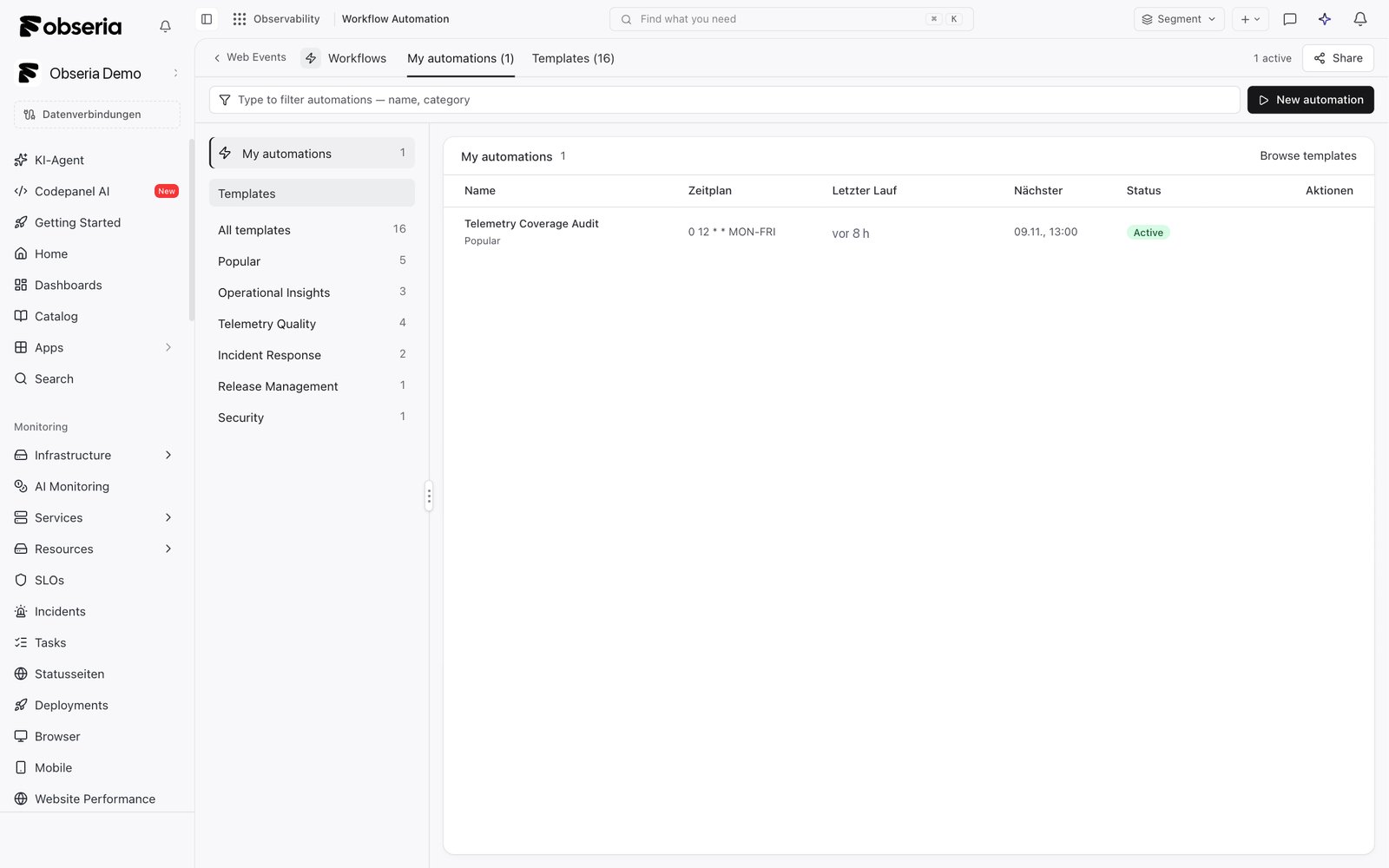
The screenshot shows a workflow list in Obseria. Data syncs work the same way: each sync runs on a schedule, shows its last run and status, and can be run now or paused.
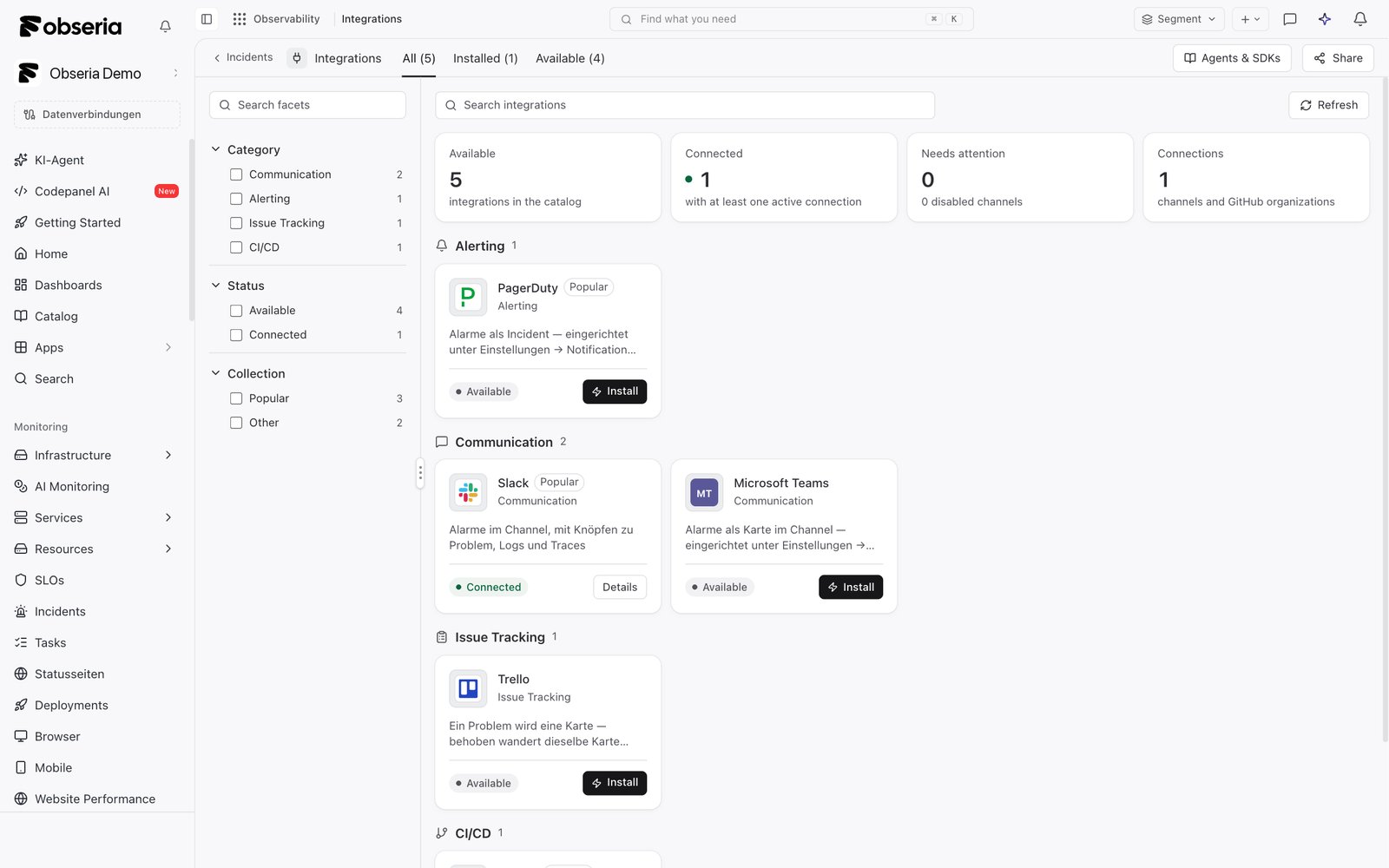
The screenshot shows the integrations page in Obseria. Syncs in Obseria Data read from connections to business systems and databases, created once and shared with workflows.
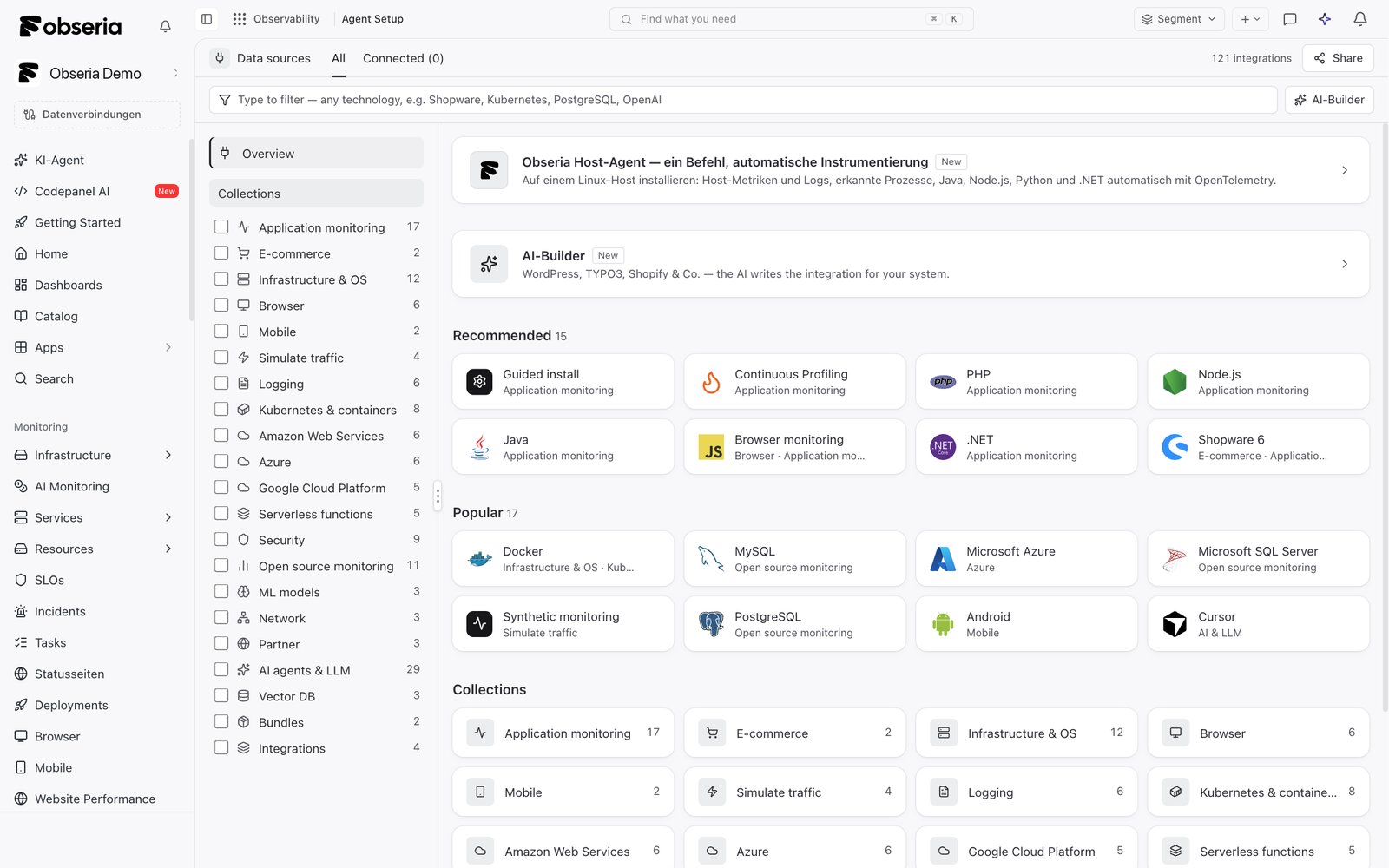
The screenshot shows the data sources catalog of the observability area in Obseria. Syncs follow the same idea for business data: pick a system, choose a package, and the data arrives in a table.
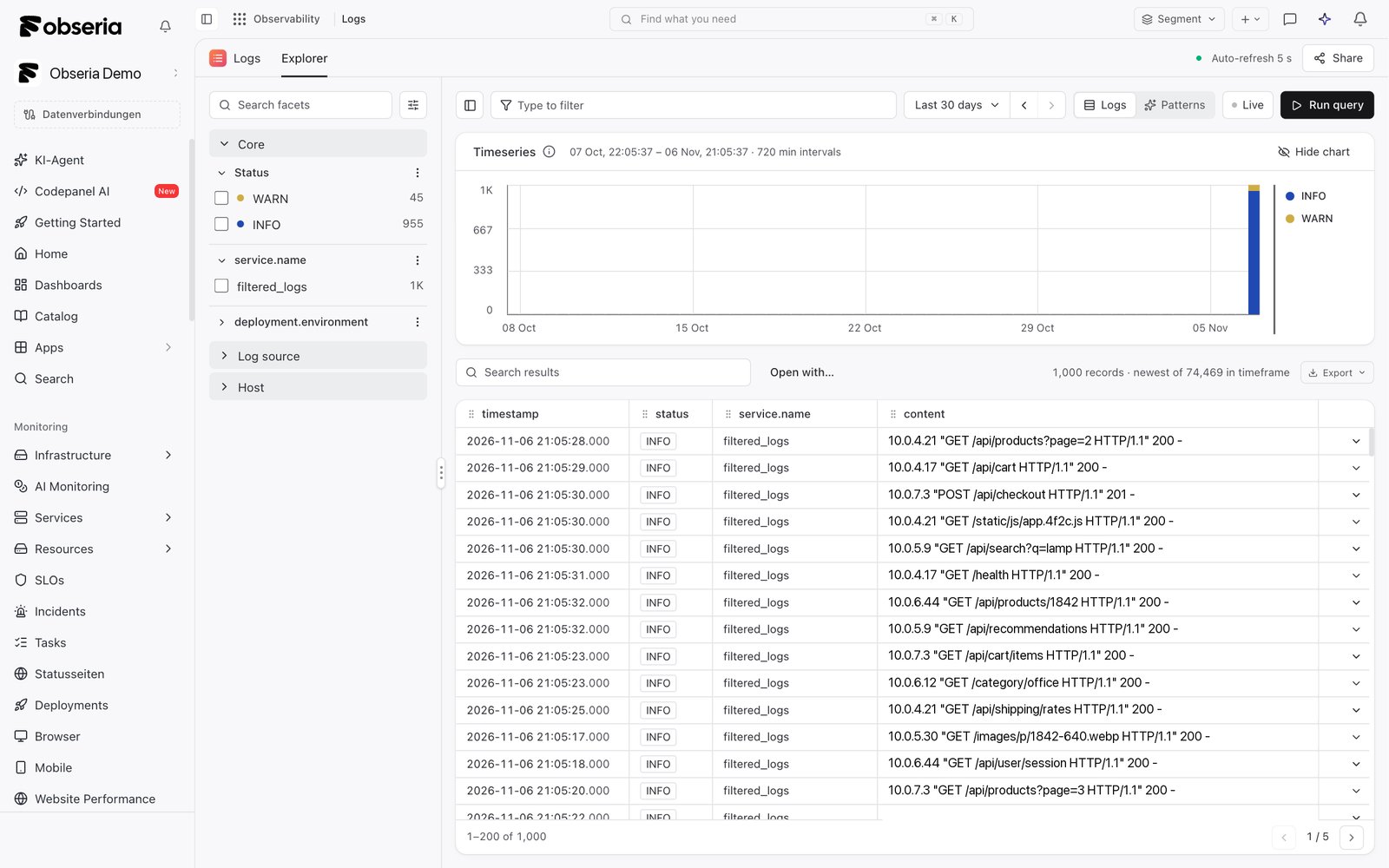
The screenshot shows the log explorer in Obseria. Synced rows are explored in the same style: typed filters per column, facets with counts and column statistics.
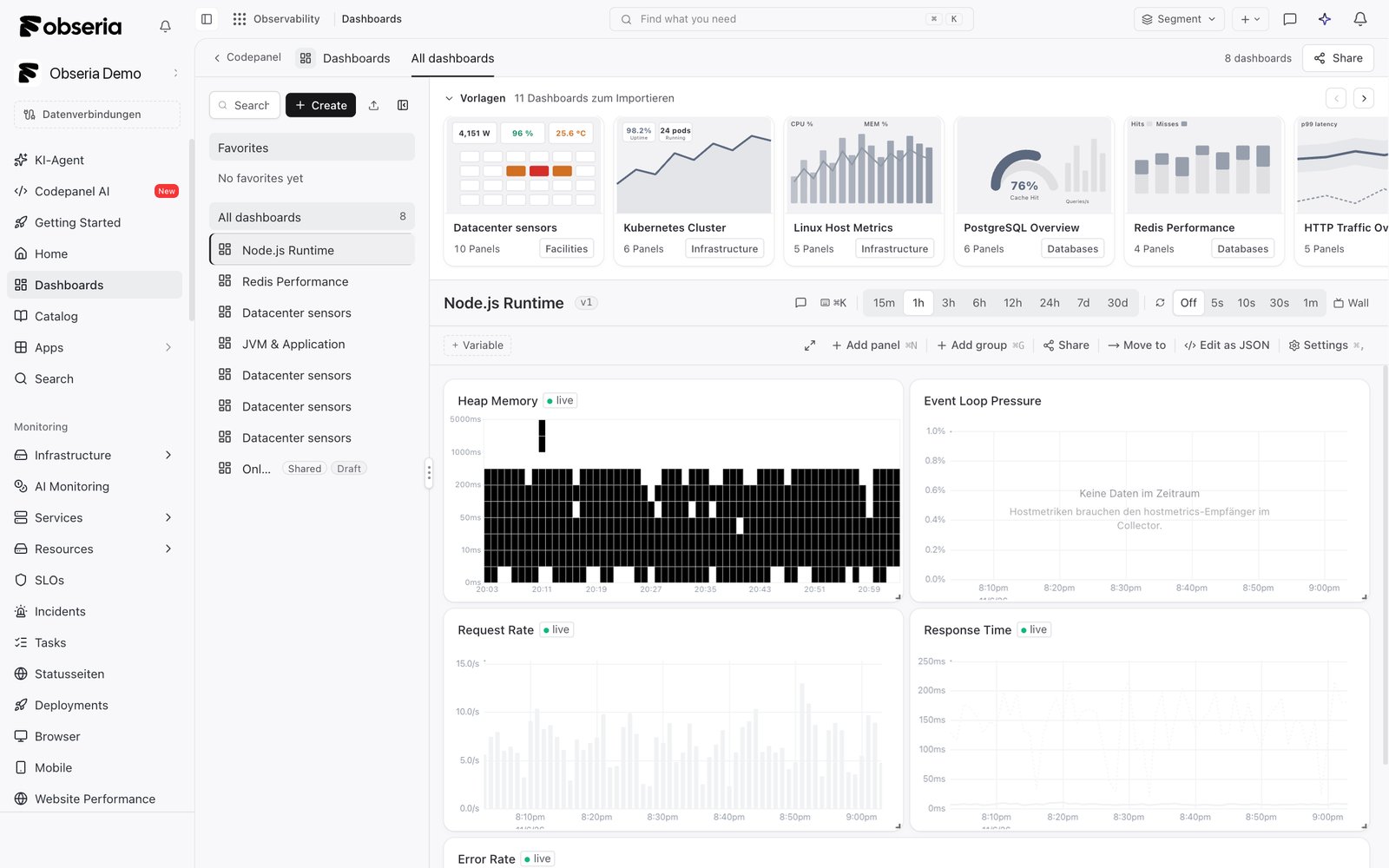
The screenshot shows dashboards in Obseria. In Obseria Data, dashboard tiles read synced tables, so revenue or open invoices stay current without manual exports.
Scheduled loads from connected systems into tables: ready-made packages for systems such as Stripe, Shopify, HubSpot, lexoffice or Jira, any GET endpoint, or SQL on PostgreSQL and MySQL.
Dashboards from tiles: pick table, value, grouping and filters, or write SQL; show it as number, bar chart, line chart or table, with width, height and auto-refresh.
Learn more →



Create a connection to the system or database once under Workflow; syncs and workflows share it.
Pick a ready-made package such as invoices or orders, any GET endpoint, or a SQL query.
Name the target table, which is created if it does not exist, and choose upsert by key.
Every 15 minutes, hourly, every 6 hours, daily, weekly or monthly, in UTC.
The first run starts right away and shows whether it succeeded; then the schedule takes over.
For many systems, a sync is one click. Packages exist for Stripe (customers, invoices, charges, subscriptions, payouts), Shopify and WooCommerce (orders, products, customers), HubSpot (contacts, companies, deals), Pipedrive, lexoffice (contacts, open and paid invoices), sevDesk, weclapp, Zendesk, Mollie, Personio, BambooHR, GitHub, Jira, Billbee and JTL-Wawi.
A package sets the endpoint, the path to the list in the response, the key field, sensible query parameters and a suggested table name such as stripe_invoices. You can still change everything before saving.
Where the source supports it, a package loads incrementally: after the first full load, each run asks only for records changed since the last run. You can switch this off to reload everything every time.
When there is no package for what you need, pick any GET operation of the connection. Set the path to the list in the response, for example data, results or _embedded.payments, and add query parameters.
Pagination follows the connector automatically: HubSpot cursors, Stripe's starting_after, Shopify's Link header, page numbers or offsets. If needed, you choose the paging style yourself: cursor in the body, next URL in the body, Link header, page or offset. All pages are loaded, up to 200,000 rows per run.
Nested objects in the response become separate columns, and new fields become new columns when the source starts sending them.
For a database connection, the sync runs a SQL query of your choice on the connected PostgreSQL or MySQL database and writes the result rows into the table, up to 20,000 rows per run.
The database must be reachable over a public hostname or address. Obseria runs exactly the query you write; use a database user with read-only rights, so a sync can never change data in the source.
Together with upsert by key, this keeps a copy of selected tables from an in-house application next to data from your cloud tools, ready to be joined in one SQL query.
Schedules are fixed choices in UTC: every 15 minutes, hourly, every 6 hours, daily at 6:00, Mondays at 6:00 or monthly on the 1st. The first run starts as soon as you save, so you see the result immediately.
The sync list shows each sync with its table, schedule, active or paused status and the last run: succeeded, failed or not yet run, with the error message of a failed run. Run now starts an extra run; pause and resume stop and restart the schedule.
Every sync is a small workflow of schedule, fetch and write. You can open it in Obseria Workflow to see its run history in detail, and other workflows can react when the sync updates its table.
PostgreSQLMySQLGitHubJiraA data sync copies records from a source system into a table on a schedule: invoices from the payment provider, orders from the shop, contacts from the CRM, open items from the accounting tool. Instead of somebody exporting a file every Monday, the sync runs by itself and the table is always as current as the last run.
In data teams, this is called ELT or data integration: extract the data from the source, load it into a central store, and transform or analyse it there. For a small or mid-sized company, the point is simpler: the numbers from different systems end up in one place, in the same shape, without manual work.
A full load fetches all records on every run. It is simple and always complete, but it gets slow and expensive as the data grows. An incremental sync fetches only the records that changed since the last run, using a parameter such as "updated since" or "created after" that the source API offers. After a first full load, each run only moves the changes.
Incremental syncs only work when the source supports such a filter, and they need a key so that changed records update the existing rows. A small overlap between runs is common practice: loading a record twice is harmless with an upsert, while missing one is not.
Almost every sync should use upsert by key. The key is the field that identifies a record in the source, usually id. When the same invoice arrives again with a new status, the upsert replaces the old row instead of adding a second one. Append is right only for data that never changes after it is created. Replace, which deletes the table before each load, is right when the source always returns the complete set and records that disappear in the source should disappear in the table too.
APIs rarely return everything at once. They return pages of 100 or 250 records and a hint where the next page starts: a cursor, a "starting after" ID, a link in the response header, a page number or an offset. Each provider does it differently. A sync tool has to follow these hints until the last page, otherwise the table silently contains only the first few hundred records.
After the first run, always check whether the row count in the table matches the number of records in the source system. If it differs a lot, the path to the list in the response is usually wrong, or a filter parameter narrows the request more than intended. This check takes a minute and prevents wrong reports later.
Not every system has a convenient API. Many business applications keep their data in a PostgreSQL or MySQL database. A sync can run a SQL query against that database on a schedule and write the result into a table. Two rules keep this safe: use a database user that can only read, and limit the query to the columns and rows you actually need. A view on the source side is often the cleanest way to define exactly what leaves the database.
Check whether it has ready-made packages for the systems you use, so you do not need to study every API; whether it can call any endpoint when no package exists; whether it follows pagination automatically; whether it supports incremental loads and upsert by key; whether schedules are clear about their time zone; whether failed runs are visible with their error; and whether the loaded data is directly usable for queries, dashboards and automations without another tool in between.
In Obseria Data, a sync loads data from a connection into a table on a schedule. Connections to business systems and databases are created once under Workflow and reused by syncs and workflows.
The first run starts as soon as the sync is created. The list shows each sync with table, schedule, status and the result of the last run, including the error message if it failed. Syncs are billed by usage, with monthly free allowances; see the pricing page.
Ready-made packages exist for Stripe, Shopify, WooCommerce, HubSpot, Pipedrive, lexoffice, sevDesk, weclapp, Zendesk, Mollie, Personio, BambooHR, GitHub, Jira, Billbee and JTL-Wawi. In addition, any GET endpoint of a connection and SQL queries on PostgreSQL and MySQL databases can be synced.
Every 15 minutes, hourly, every 6 hours, daily at 6:00, Mondays at 6:00 or monthly on the 1st. All times are UTC. A sync can also be started manually at any time.
Packages that support it load incrementally: after the first full load, only records changed since the last run are fetched. Other syncs load the full data set, and upsert by key keeps the table free of duplicates.
Syncs only read from APIs with GET requests and write into your Obseria tables. For database syncs, Obseria runs the SQL query you write, so use a read-only database user.
The sync list shows the run as failed together with its error message. You can fix the cause and start the sync again with Run now; the schedule continues as before.
Rows written to tables and the workflow steps of each run are billed by usage, each with a monthly free allowance. See the pricing page for current prices.
Tables, syncs, SQL, plain-language questions and dashboards for business data.
→Typed tables with key, owner, personal-data flags and retention.
→For systems without an API: bring an export file into the same table.
→The connections that syncs and workflows use to reach your systems.
→Every sync runs as a small workflow you can open and inspect.
→In 30 minutes we show you how Obseria works in your environment and answer your questions on setup, privacy and pricing.