Key transactions
Marks business-critical flows such as login or checkout and monitors them separately.
We use essential functions to operate this website. With your consent, we would also use services for statistics and marketing. You decide which categories you allow and can change your choice at any time via “Cookie settings” in the footer. More in our privacy notice.
Obseria Consent Management · Your choice is stored for 12 months
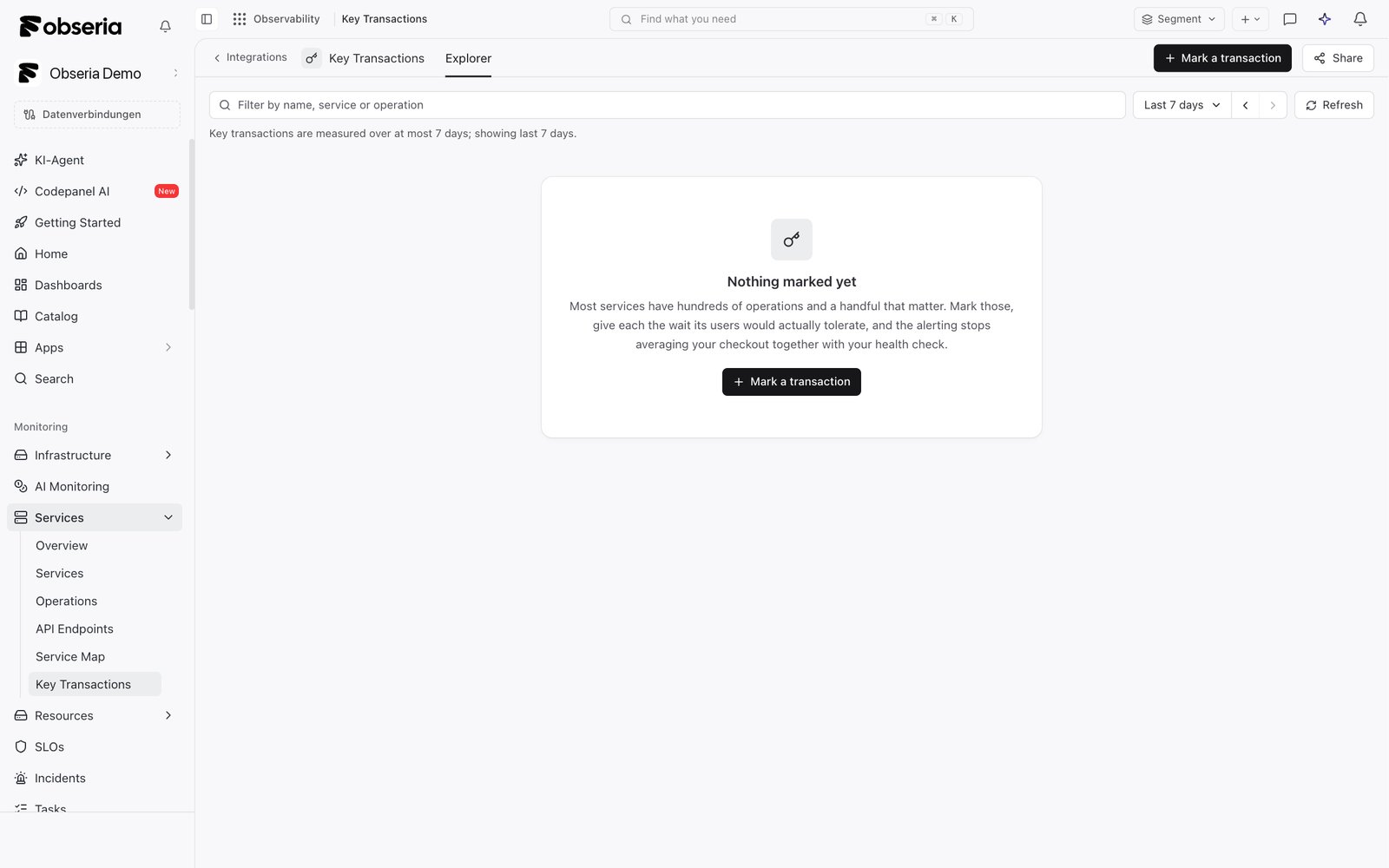
Most services have hundreds of operations and a handful that matter. Mark those, give each the wait its users would tolerate, and stop averaging your checkout with your health check.
Mark a transaction, give it the wait its users would tolerate and filter the list by name, service or operation. Measured over up to seven days.
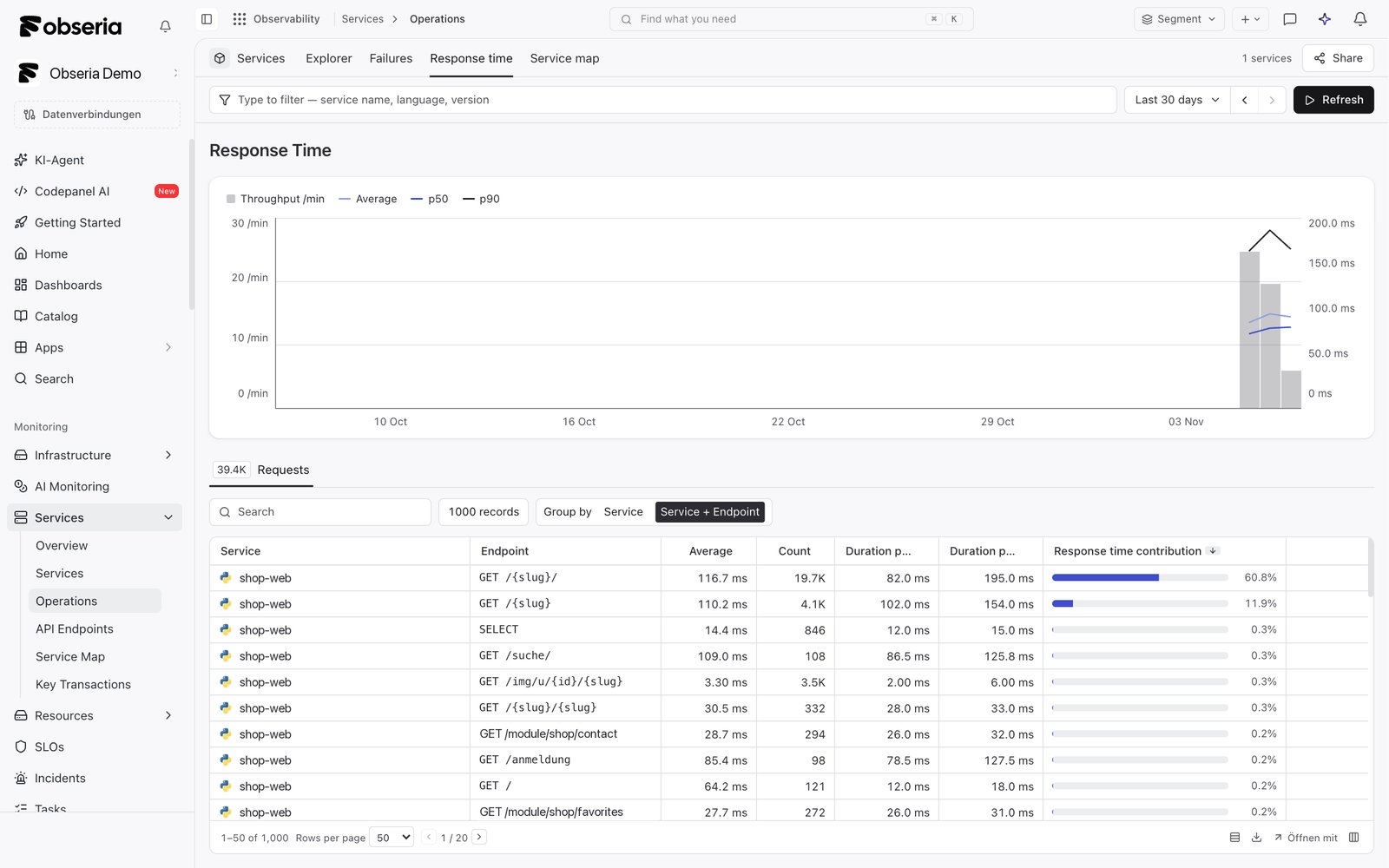
Requests by service and endpoint with average, count, percentiles and the share each one contributes to the total response time.
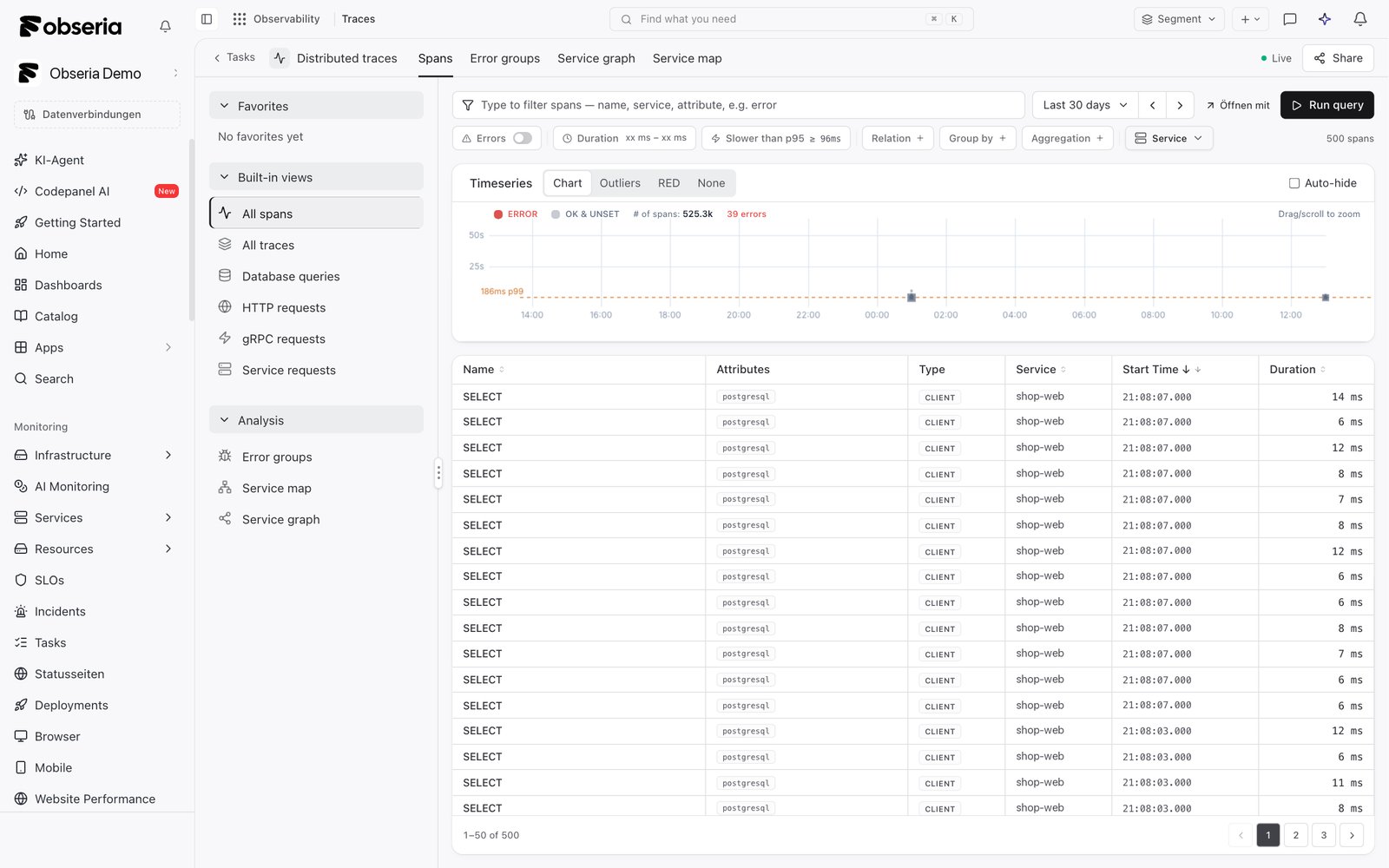
Filter spans by service, errors or duration, or show only those slower than p95, and open the trace to see where the time went.
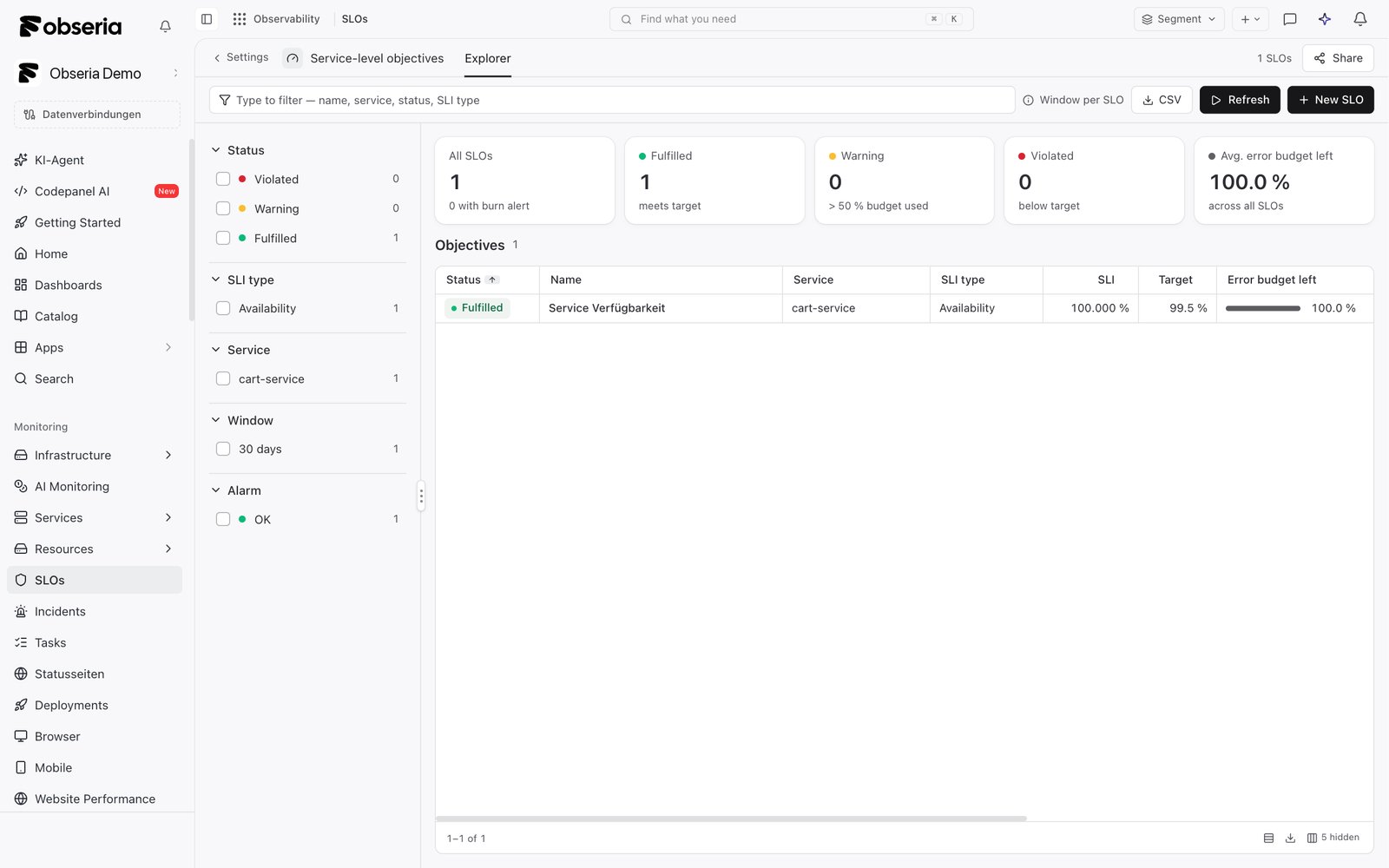
SLOs per service and, if needed, per endpoint, with SLI type, target and the error budget left. A burn alert fires when it shrinks too fast.
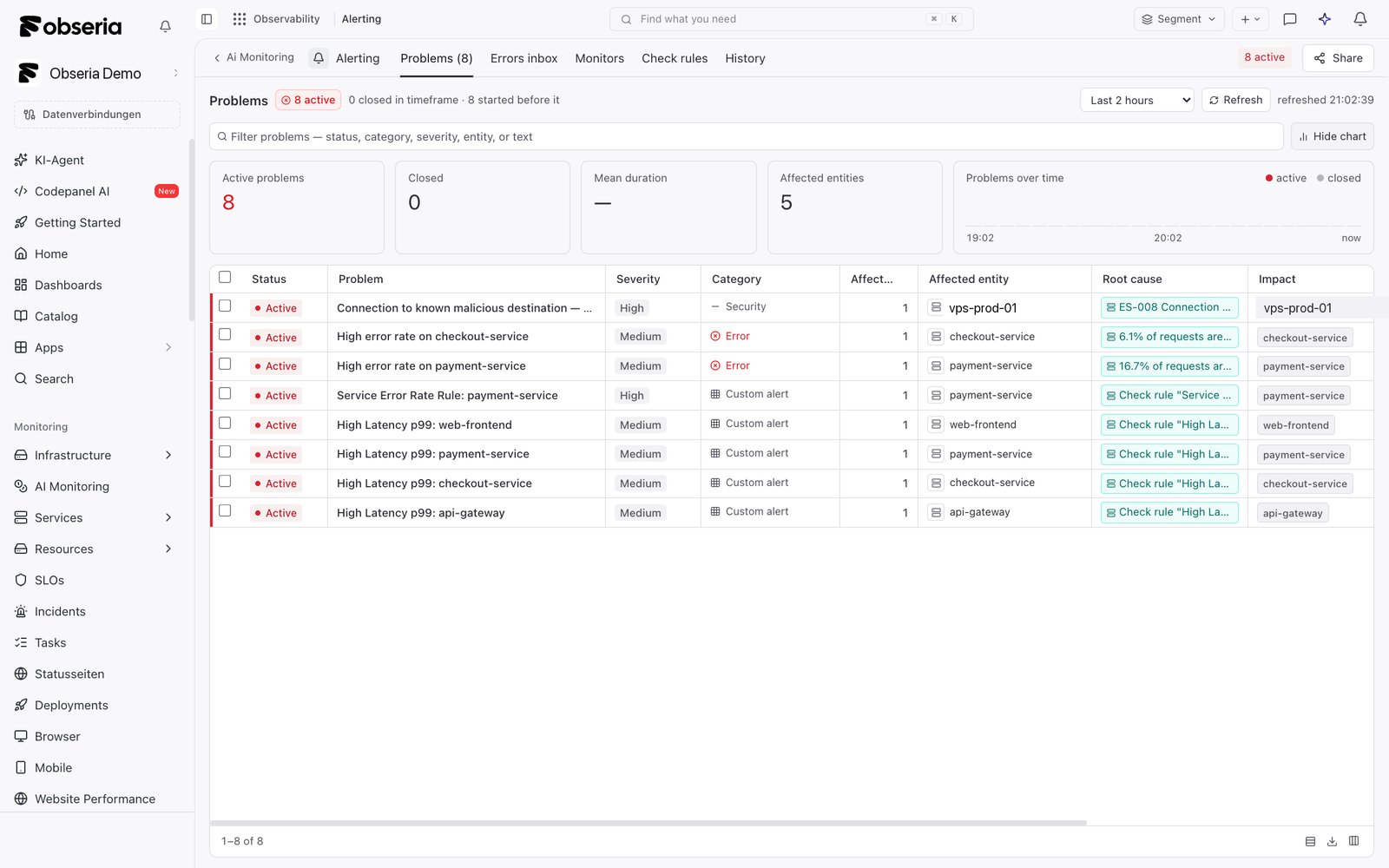
Check rules on metrics and traces, limited to a service, group related signals into a problem with severity, affected entity and likely cause.
Marks business-critical flows such as login or checkout and monitors them separately.
Sets targets such as 99.9% successful requests and tracks the error budget.
Learn more →Measures response times, throughput and error rates per service and endpoint.
The response time view shows every operation by service and endpoint with count, percentiles and its share of total response time.
Mark login, checkout or another critical operation as a key transaction and name it in business terms.
Give each transaction the wait its users would accept, based on its real p90 or p95 over a normal week.
The transaction is measured on its own, over up to seven days, instead of disappearing in the service average.
Add an SLO with an error budget or a check rule, and look at the transaction first after each release.
Most services have hundreds of operations and only a few that decide whether users succeed. In Obseria you mark those as key transactions: choose the operation of a service, for example the login or the checkout, and give it the wait its users would actually tolerate.
From then on the transaction is measured separately. A slow checkout no longer hides behind thousands of fast health checks in the service average, and a search that should answer in a few hundred milliseconds is not judged by the same standard as a payment that may take longer.
Key transactions sit in the service area next to the service list, operations, API endpoints and the service map, so the context is always one click away.
The key transactions explorer lists every transaction you marked. Filter by name, service or operation to find the one you need, choose the time range and share the view with your team, for example in an incident channel.
Key transactions are measured over up to seven days. That window covers the questions that come up most often: has the checkout got slower since yesterday’s release, and how does this week compare with the last few days?
For longer horizons and contractual targets, use SLOs. They track an objective and an error budget over their own period.
The response time view in the service area is the best place to decide what to mark. It groups requests by service and endpoint and shows the average, the number of requests, percentiles and each one’s contribution to the total response time of the service.
Look for operations that users notice directly, such as login, search or checkout, and for those that carry a large share of the total time. Use the current p90 or p95 over a normal week as a starting point for the tolerated wait, then tighten it once improvements are in place.
Keep the list short. Five to fifteen key transactions per product are usually enough; if everything is marked, nothing stands out.
Once the important flows are known, connect them to the rest of your reliability work. SLOs in Obseria can be defined per service and, if needed, per endpoint, on availability, latency, error rate, throughput or a custom indicator, with the remaining error budget and a burn-rate alert.
Check rules evaluate metrics and traces at an interval you choose and can be limited to a service, so the team responsible for checkout hears about it first. Notifications go to email, Slack, Microsoft Teams, PagerDuty, Opsgenie or a webhook.
When a key transaction degrades, the span explorer shows the slow requests behind it, filtered by errors, duration or spans slower than p95.
 OpenTelemetry
 Java
 Node.js
 Python
 .NET
 PHP
 Go
 Slack
 Microsoft Teams
 PagerDuty
 Opsgenie
A key transaction is a request or operation that matters more than the rest because the business depends on it: the login, the search, adding to the cart, the checkout, an API call that partners use to place orders. Most services handle hundreds of different operations. Only a handful of them decide whether users can do what they came for.
Marking these flows as key transactions means monitoring them separately, with their own expectations, instead of letting them disappear in a service-wide average. A checkout that takes four seconds is a problem even if the service’s average response time looks fine because thousands of fast health checks pull it down.
Service metrics mix everything a service does. Consider a typical shop backend: health checks every few seconds, product pages that are mostly cached, image requests, and a few hundred checkouts per hour. The average latency of that service is dominated by the frequent, cheap requests. When the checkout slows down because a payment provider is struggling, the service average barely moves.
The same is true for error rates. One failing checkout in fifty is a serious problem for revenue, but measured against all requests of the service it is a rounding error. Transaction monitoring fixes this by measuring the important operation on its own, against a threshold that fits it.
Good candidates have three things in common: users notice when they fail, the business loses something when they are slow, and they are distinct enough to be identified as a single operation in a service. Typical examples:
Keep the list short. Five to fifteen key transactions per product are usually enough; if everything is key, nothing is. Review the list when the product changes, for example after a new checkout or a new API version.
Each key transaction deserves its own idea of “fast enough”. A search that should answer in 300 milliseconds and a payment that may take two seconds cannot share one threshold. Ask what the user would actually tolerate: for an interactive click, a few hundred milliseconds; for a payment that talks to an external provider, longer.
Start from real data. Look at the current p90 or p95 of the operation over a normal week, set the threshold a little above it, and tighten it once improvements are in place. Some tools turn such thresholds into a satisfaction score such as Apdex; whatever the method, the point is the same: judge each important operation by the standard its users apply.
POST /api/v2/orders.Teams that use key transactions well look at them at fixed moments. In the morning check, the list of key transactions replaces scrolling through every service. After a release, the key transactions of the changed services are the first thing to compare with the day before. In an incident, the question “is checkout affected?” has a direct answer instead of an estimate. And in planning, a transaction that is regularly close to its threshold is a strong argument for performance work, because it ties engineering effort to a flow the business cares about.
Keep the definitions visible to everyone: a short description of what each key transaction covers, which team owns it and which wait was agreed. That turns a monitoring setting into a shared agreement between engineering and the business.
Key transactions live in the service area of Obseria, next to the service list, operations, API endpoints and the service map.
Obseria does not pick key transactions for you. You decide which flows matter; Obseria measures them on their own.
An operation of a service that you mark as business-critical, for example login or checkout. It is measured separately, with the wait its users would tolerate, instead of being averaged together with the rest of the service.
Because frequent, cheap requests such as health checks dominate it. A slow or failing checkout can barely move the average while it already costs revenue. Measuring the checkout on its own makes the problem visible.
As few as possible. Five to fifteen per product are usually enough: login, search, checkout, payment and the API calls partners depend on. Review the list when the product changes.
Start with the current p90 or p95 of the operation over a normal week, set the tolerated wait a little above it and tighten it once improvements are in place. Interactive actions usually need a lower limit than calls to external providers.
Up to seven days. For longer horizons and contractual targets, define an SLO for the service or endpoint; it tracks an objective and error budget over its own period.
Traces from the service, sent with an OpenTelemetry SDK or collected by the Obseria host agent, which instruments Java, Node.js, Python and .NET on Linux automatically.
Use check rules on metrics or traces, limited to the service, or an SLO with a burn-rate alert for the service or endpoint. Notifications go to your notification channels, such as Slack, Microsoft Teams, PagerDuty or a webhook.
Obseria does not choose key transactions automatically and does not attach revenue to a transaction. The measurement window is limited to seven days. Business figures such as orders and revenue are covered by Obseria Business Observability.
Services, endpoints, traces and profiles: the product key transactions belong to.
→Every API route with rate, errors and latency, to find candidates.
→Error budgets and burn-rate alerts for your most important flows.
→Check rules that tell the right people when a limit is crossed.
→Orders, revenue and funnels next to the technical view of checkout.
→In 30 minutes we show you how Obseria works in your environment and answer your questions on setup, privacy and pricing.