Notification channels
Destinations for alerts such as email, Slack, Teams, PagerDuty or webhooks.
We use essential functions to operate this website. With your consent, we would also use services for statistics and marketing. You decide which categories you allow and can change your choice at any time via “Cookie settings” in the footer. More in our privacy notice.
Obseria Consent Management · Your choice is stored for 12 months
Deliver alerts to email, chat, paging tools, Jira Service Management or any system via webhook, route them by severity or environment, and see every delivery in the notification centre.
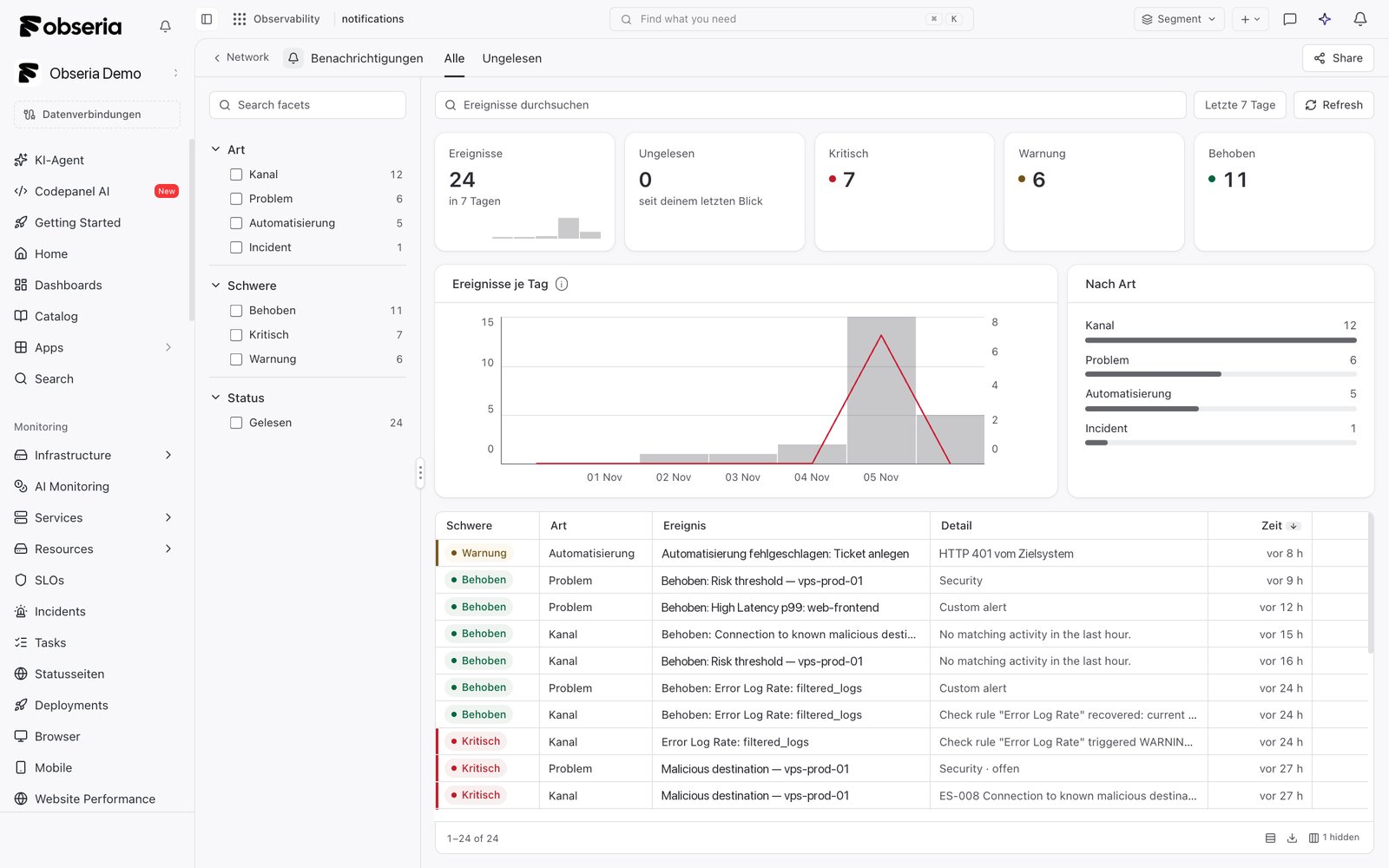
The notification centre lists channel deliveries, problems, automation runs and incidents with severity, detail and time, plus a chart of events per day.
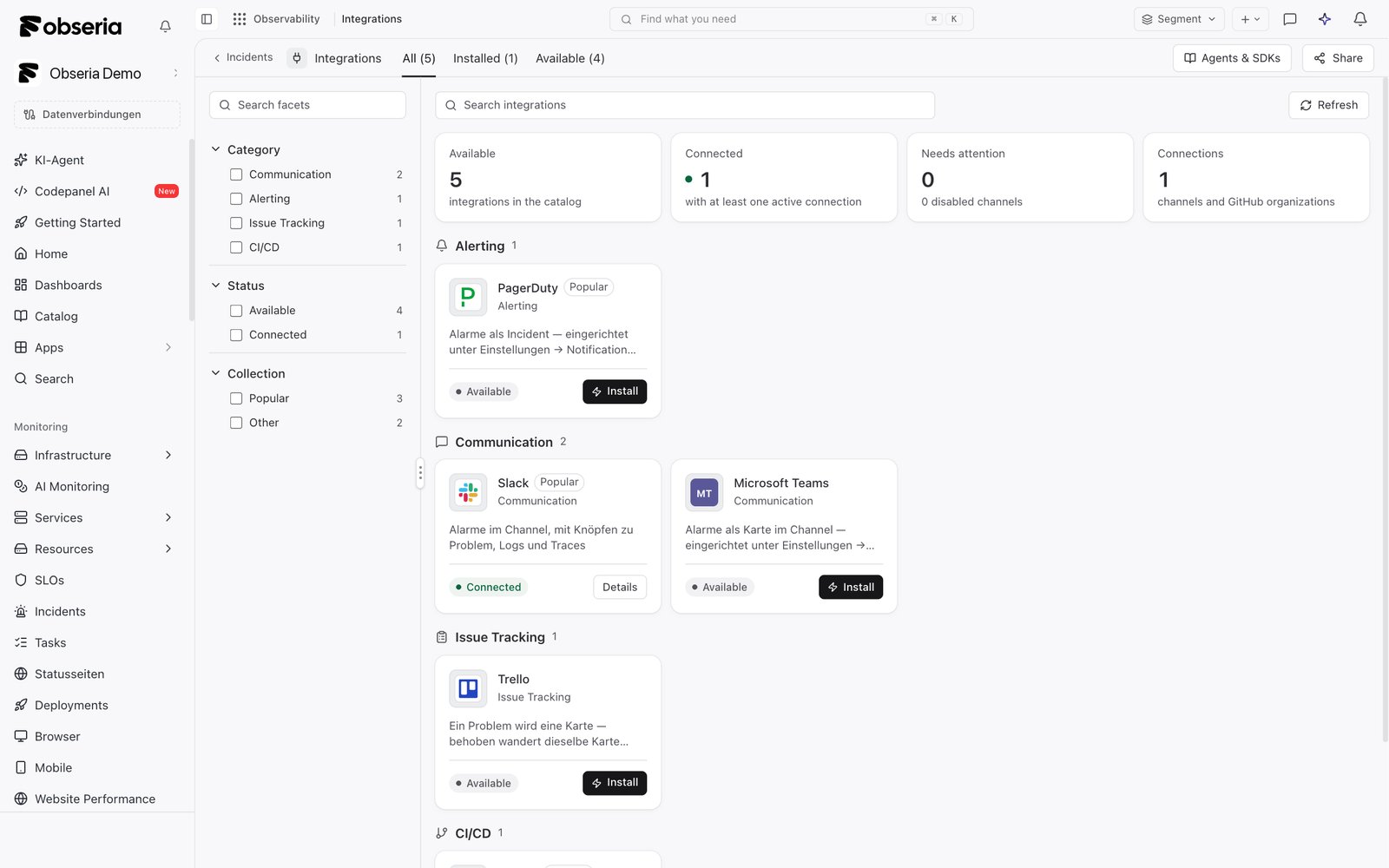
The catalog groups integrations by alerting, communication and issue tracking. Slack alerts come with buttons to problem, logs and traces.
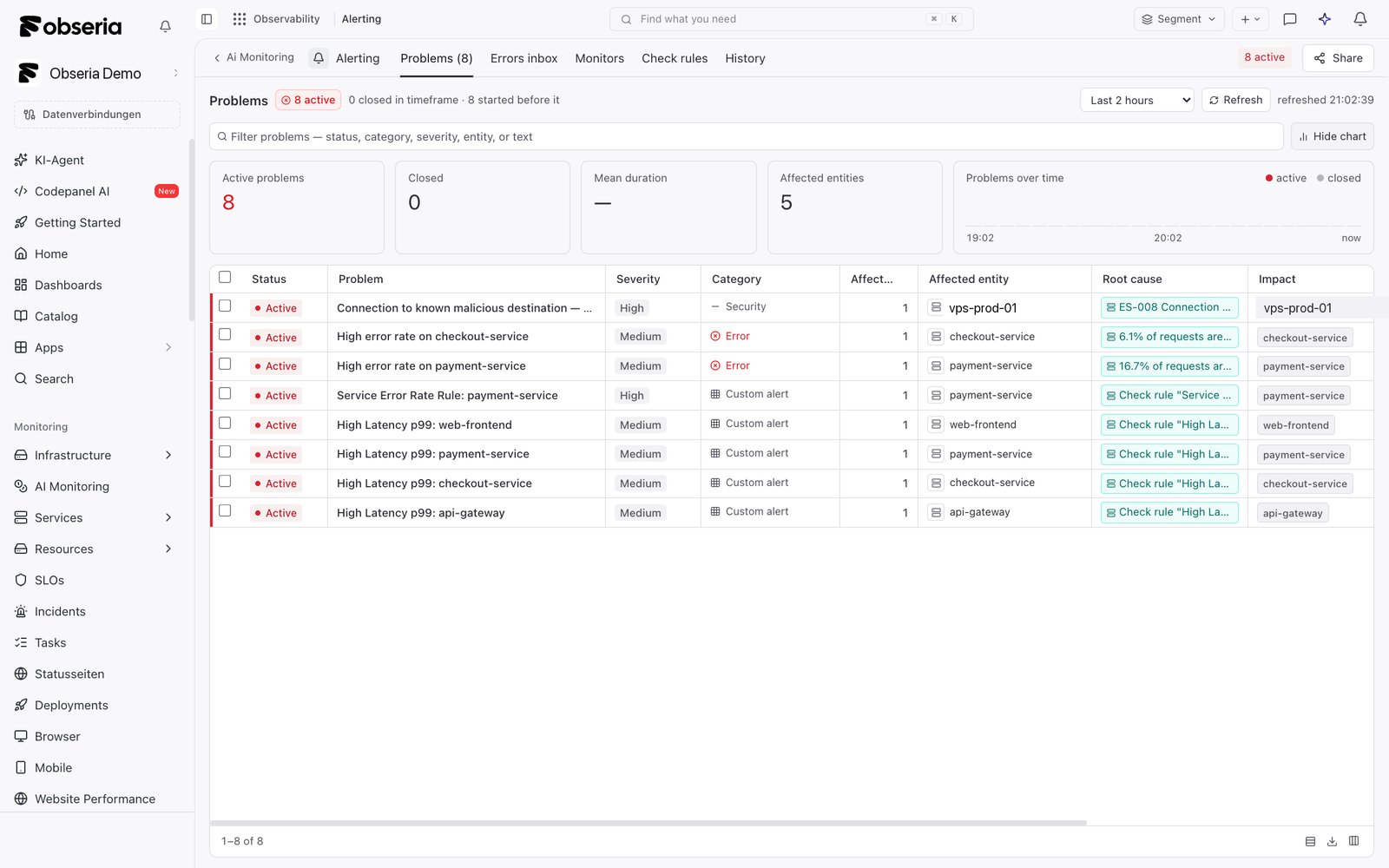
Notifications are triggered by check rules and problems. Each problem carries severity, affected entity and a likely root cause.
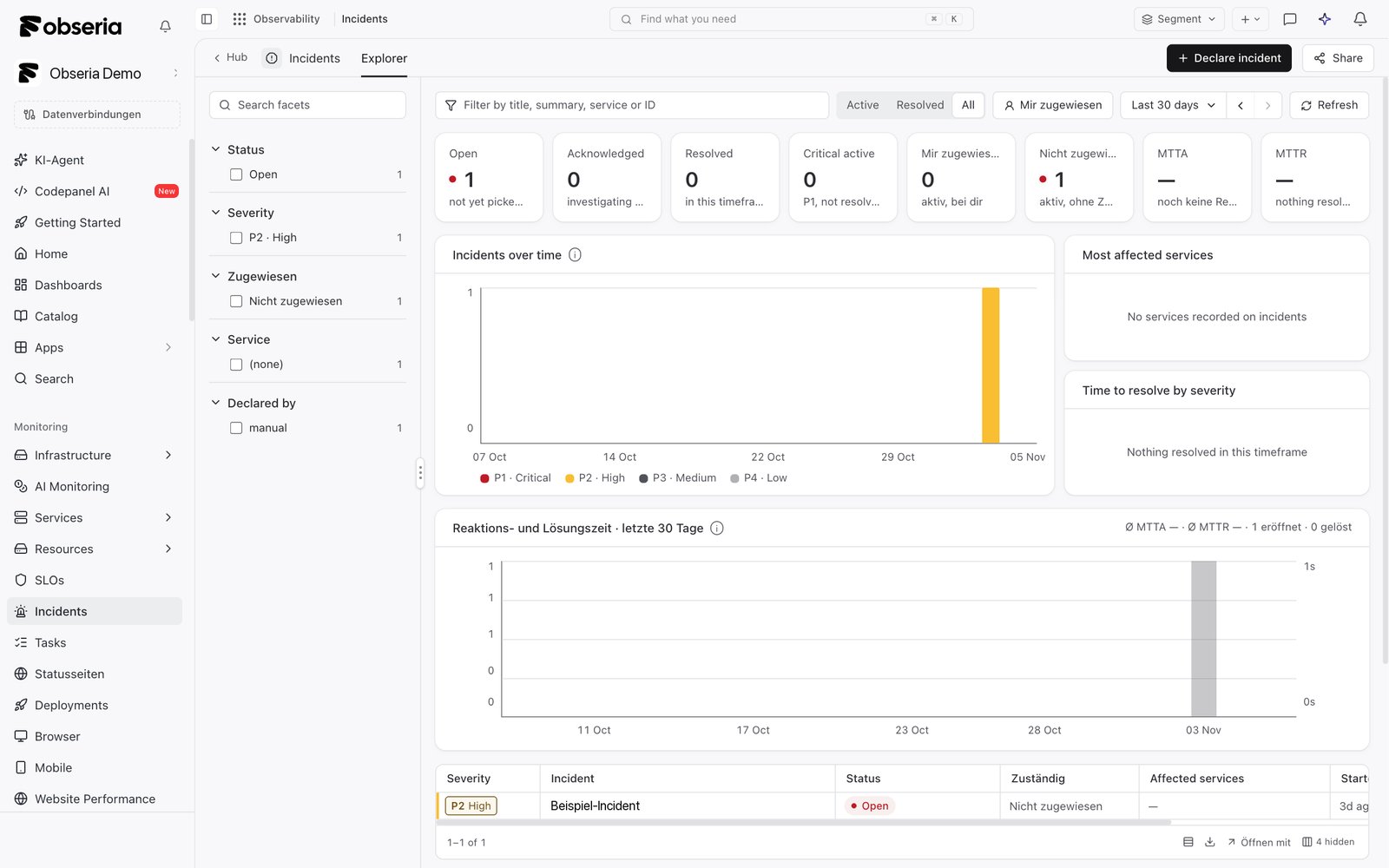
Declare an incident with severity P1 to P4 and an owner. Incident events appear in the notification centre as well.
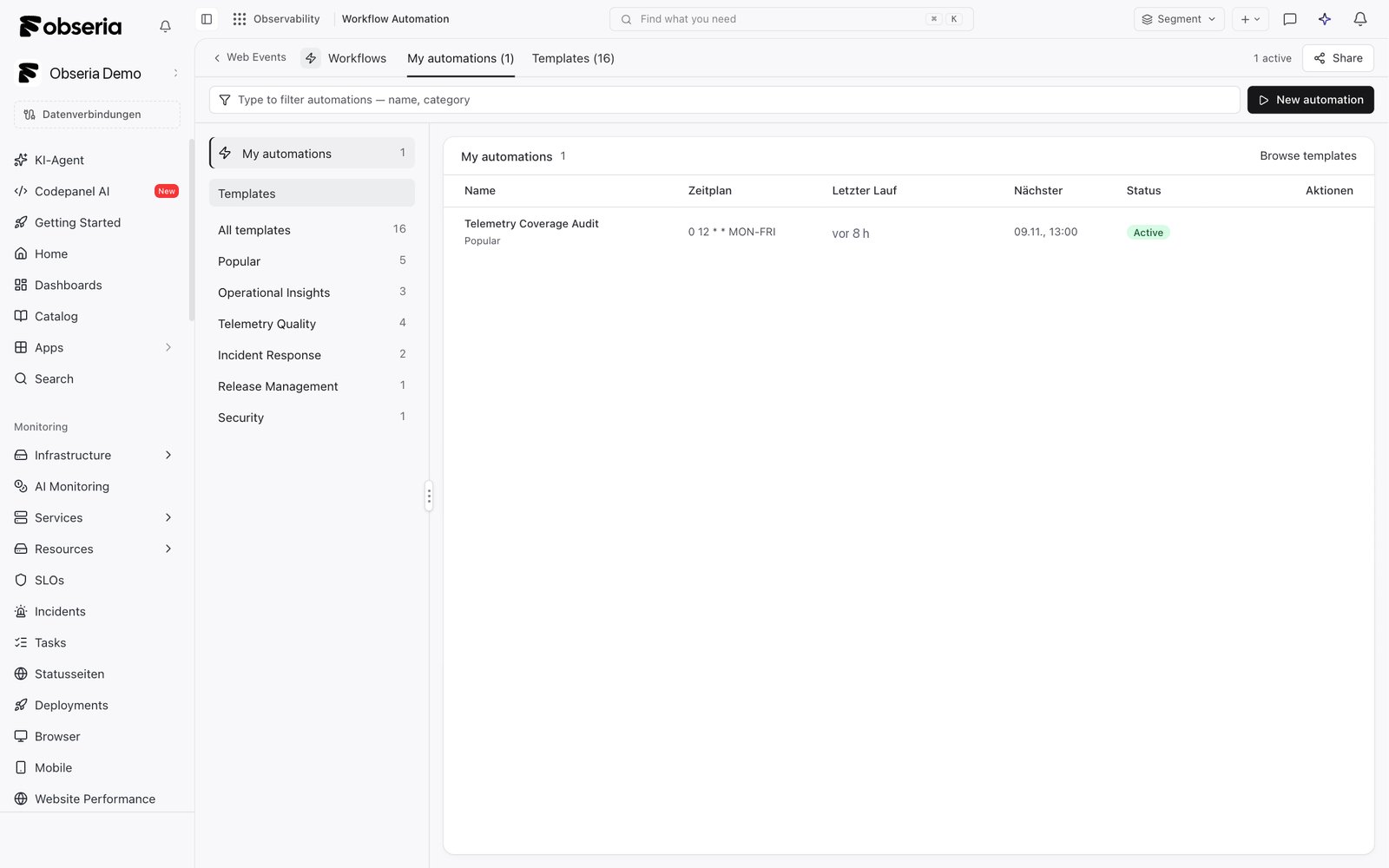
Workflows run on a schedule or on events, for example to create a ticket or send a message. Templates include an incident response category.
Destinations for alerts such as email, Slack, Teams, PagerDuty or webhooks.
Alert rules built into the platform, working the same way for all data types.
Learn more →Coordinates incident handling: status, owners, timeline and communication.
Learn more →Automates processes: trigger actions on an event, e.g. create a ticket, restart or send a message.





Set up email, Slack, Microsoft Teams, Google Chat, Discord, PagerDuty, Opsgenie, Jira Service Management, incident.io or a webhook under notification channels.
Decide which alerts go where, for example critical problems in production to PagerDuty and warnings to a team channel.
When a check rule fires or a problem opens, Obseria sends the notification to the matching channels.
Optional reminders repeat the notification while the problem is still open, so it is not lost in a busy channel.
The notification centre lists every event by type, severity and read status; disabled channels show up as needing attention.
Obseria delivers alerts to the tools your team already uses: email, Slack, Microsoft Teams, Google Chat and Discord for chat, PagerDuty, Opsgenie and incident.io for paging and incident handling, Jira Service Management for tickets, and a webhook for everything else.
In Slack, alerts arrive in the channel with buttons that lead to the problem, the logs and the traces, so the first click already starts the investigation. In Microsoft Teams, alerts arrive as a card. PagerDuty receives alerts as incidents and applies your existing on-call rules.
A webhook sends the alert as an HTTP request, which makes it possible to reach internal tools or trigger your own automation without waiting for a dedicated integration.
Not every alert deserves the same attention. Conditions on severity or environment decide which notifications go to which channel. A typical setup sends critical problems in production to a paging tool and a dedicated channel, while warnings and anything from staging go to a team channel or email.
That keeps paging for what really needs a person now and protects the team from waking up for problems that can wait until morning.
Optional reminders repeat a notification while a problem is still open. They are useful for channels with a lot of traffic, where a single message can scroll out of sight before anyone reacts.
The notification centre lists what happened over the selected period: deliveries to channels, problems, automation runs and incidents. Each entry shows severity (critical, warning or resolved), type, the event, a detail line and the time.
Counters show the number of events, unread events since your last visit and the split into critical, warning and resolved. A chart shows events per day, and a breakdown by type shows whether most traffic comes from channels, problems, automation or incidents.
Facets for type, severity and read status and a full-text search help to find one event quickly, for example a failed automation with the error the target system returned.
Channels are configured in the settings under notification channels. The integrations view shows the catalog grouped by category, such as alerting, communication and issue tracking, which integrations are connected and which are available to install.
A dedicated counter shows channels that need attention because they are disabled. A broken channel is one of the quietest failures in monitoring: alerts fire, but nobody hears about them. Keeping an eye on this number prevents that.
Obseria does not manage on-call schedules or escalation policies. Connect PagerDuty or Opsgenie as a channel and keep your rotations there, so the alert follows the process your team already has.
SlackMicrosoft Teams Google Chat
 DiscordPagerDutyOpsgenieJira Service Management
 incident.io
An alert rule decides when something is wrong. A notification channel decides where people hear about it. Typical channels are email, a Slack or Microsoft Teams channel, a paging tool such as PagerDuty or Opsgenie, a ticket system, or a webhook that passes the alert to any other system.
Channels matter more than they seem. The best alert rule is worthless if the message lands in an inbox nobody reads, and a perfectly tuned rule becomes noise if every warning wakes someone at night. Alert routing, the decision which alert goes to which channel, is where alerting becomes useful or exhausting.
Many teams confuse two things: delivering an alert and managing who is on call. Schedules, rotations and escalation policies are the job of a paging tool. A monitoring platform delivers the alert to that tool, and the paging tool decides who to wake up. This split keeps your on-call process in one place, even if you change or add monitoring tools.
Look at the number of notifications per channel and week, the share of critical versus warning messages, how many notifications led to an action, and whether any channel shows failed deliveries. A channel that receives hundreds of messages a week that nobody reacts to is a sign that rules or routing need tuning.
If you are setting up channels for the first time, a small table on one page is enough. List your severities in rows and your environments in columns, and write the channel into each cell. A common starting point:
Review the plan after the first few weeks. If people mute a channel, it receives too much; if problems are found by customers first, a channel or a rule is missing.
Obseria does not manage on-call schedules or escalation policies. Teams with a rotation in PagerDuty or Opsgenie connect it as a channel, so alerts follow the existing process.
Email, Slack, Microsoft Teams, Google Chat, Discord, PagerDuty, Opsgenie, Jira Service Management, incident.io and webhooks. Every event also appears in the notification centre inside Obseria.
Yes. Conditions on severity or environment decide which alerts go to which channel, for example critical problems in production to PagerDuty and warnings to a team channel.
Alerts arrive in the Slack channel with buttons that lead to the problem, the logs and the traces in Obseria. In Microsoft Teams, alerts arrive as a card in the channel.
Yes. Optional reminders repeat a notification while a problem is still open.
Use a webhook. Obseria sends the alert as an HTTP request to the URL you configure, so internal tools or your own automation can process it.
No. Obseria does not manage rotations or escalation policies. Connect PagerDuty or Opsgenie as a notification channel and keep your on-call process there.
The integrations view counts channels that need attention because they are disabled, and the notification centre lists events with severity and detail, including failed automation runs.
On-call schedules, escalation policies, routing by time of day and delivery by SMS or phone call are not part of Obseria today. For phone or SMS paging, connect a paging tool such as PagerDuty or Opsgenie as a channel.
Alerting, incidents, SLOs, status pages and runbooks in one product.
→Check rules on metrics, PromQL, logs, traces and new errors.
→Incidents with severity, owner and timeline.
→Problems with a likely cause, so notifications carry context.
→Workflows that react to events, for example by sending a message.
→In 30 minutes we show you how Obseria works in your environment and answer your questions on setup, privacy and pricing.