
Software inventory
Every discovered app with a decision (in review, approved, restricted, rejected, retired), owner, department, users, contracts and cost.
We use essential functions to operate this website. With your consent, we would also use services for statistics and marketing. You decide which categories you allow and can change your choice at any time via “Cookie settings” in the footer. More in our privacy notice.
Obseria Consent Management · Your choice is stored for 12 months
One register of every app your company uses, fed by discovery: decide per app, assign an owner and see users, active use, contracts, cost and the next renewal in the same row.
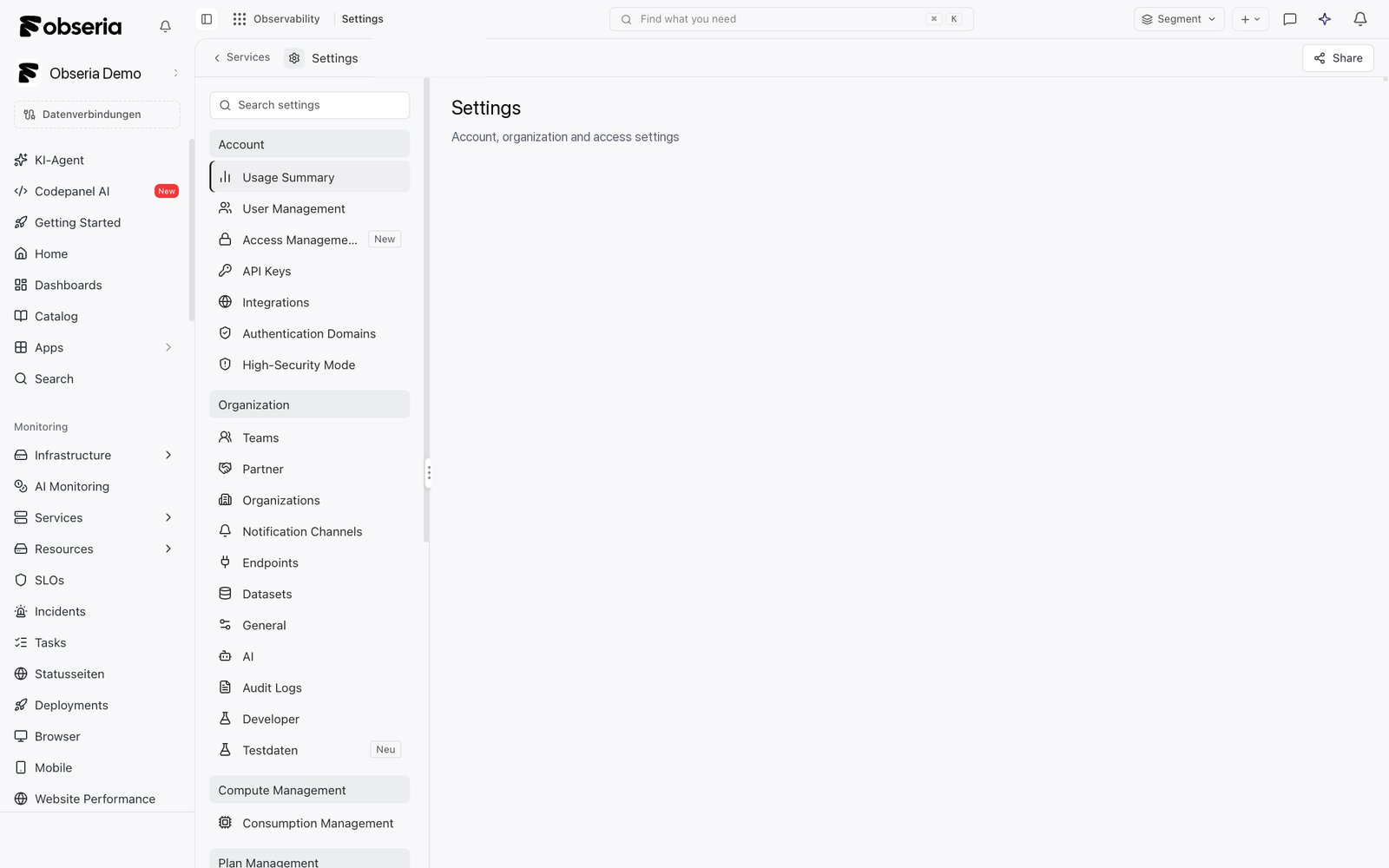
Account and organisation settings in Obseria: user management, access management, integrations, notification channels and audit logs. The inventory runs in the same organisation, so owners are people you already manage here.
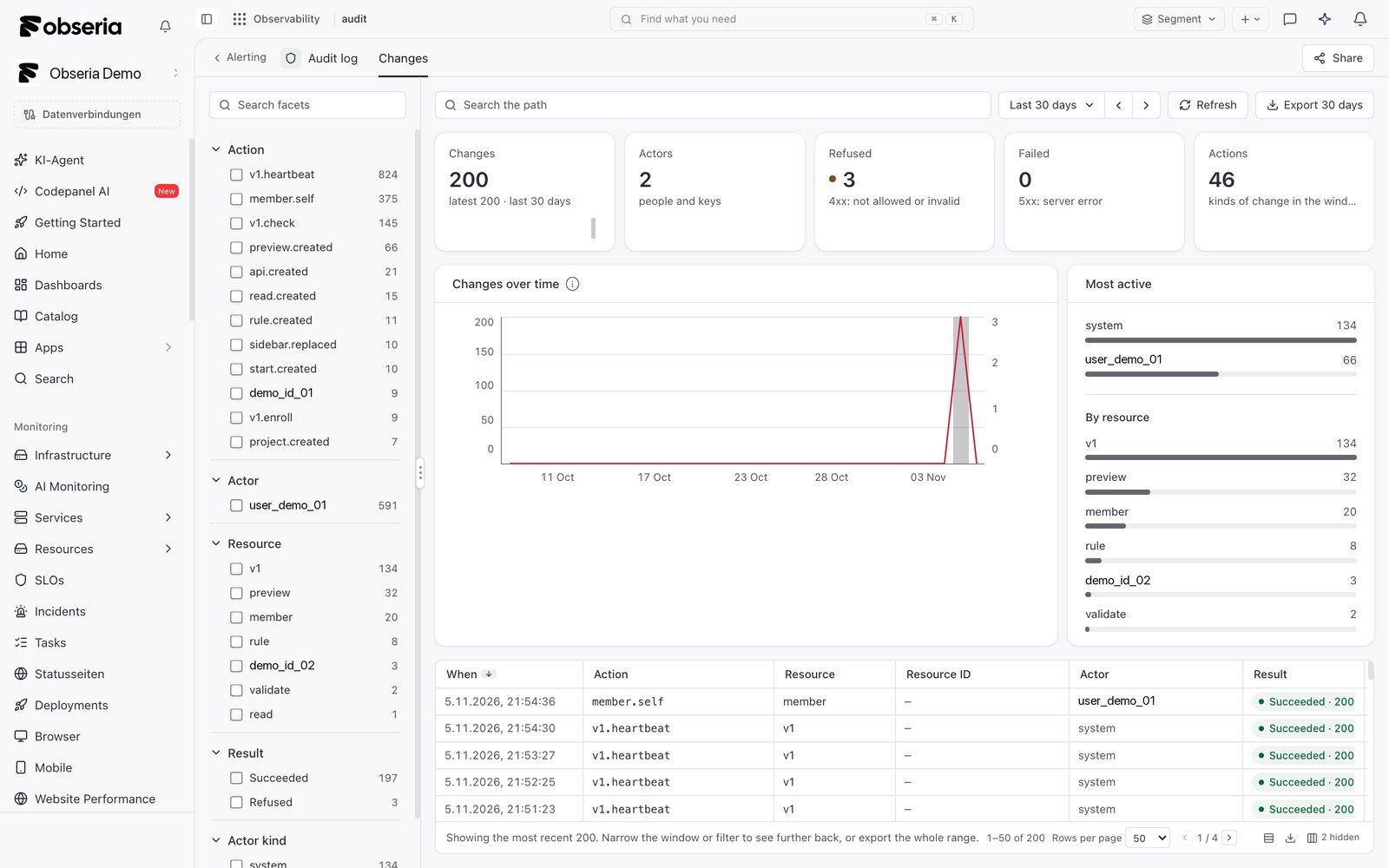
The platform audit log records changes with actor, resource and result and can be exported. Useful when an auditor asks who decided what and when.
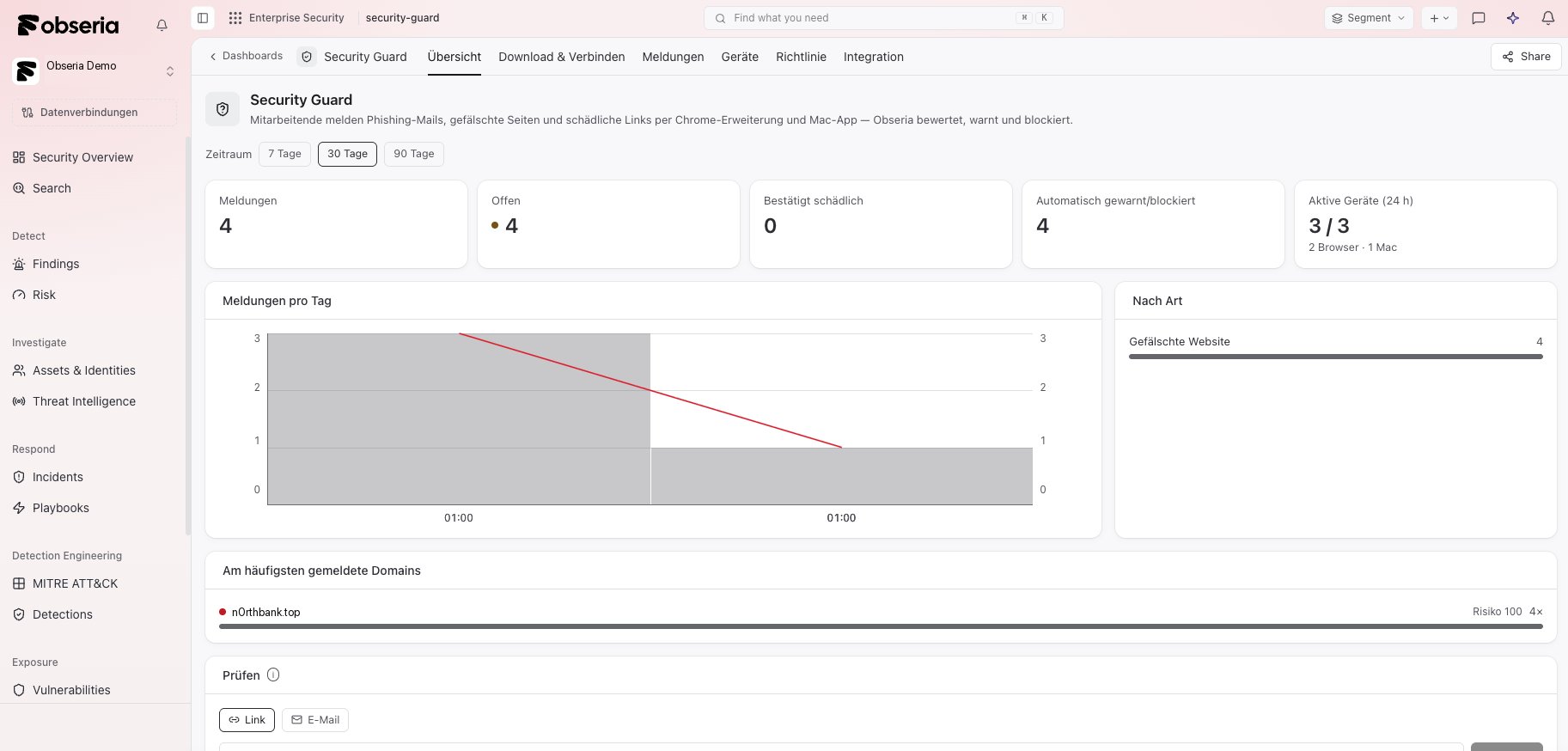
This view sets up Obseria Guard. Its visits to known SaaS apps feed the column for active users in the last 30 days in the inventory.
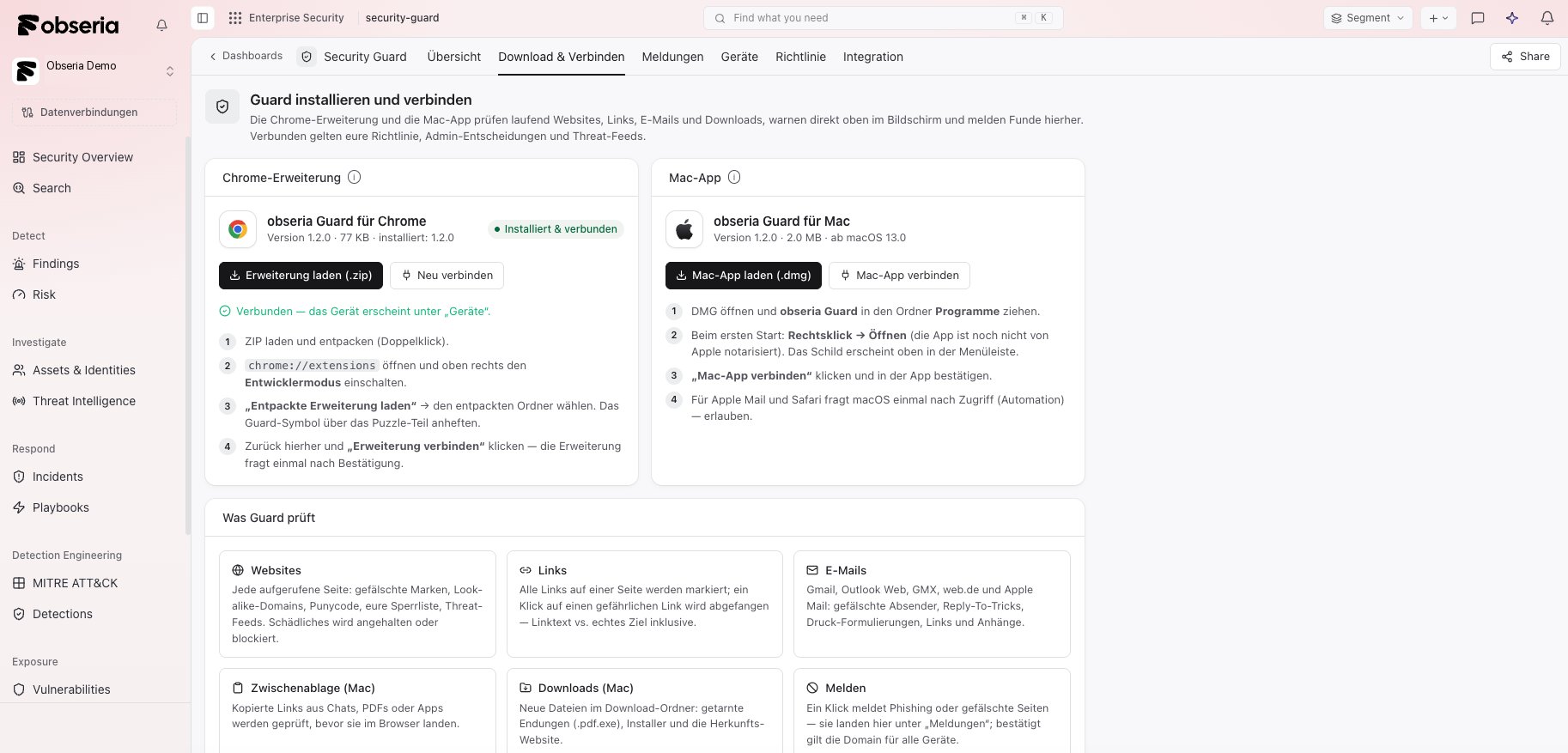
The Guard overview counts reports, confirmed threats and active devices. Phishing reports for an app's domain raise that app's risk score in the inventory.
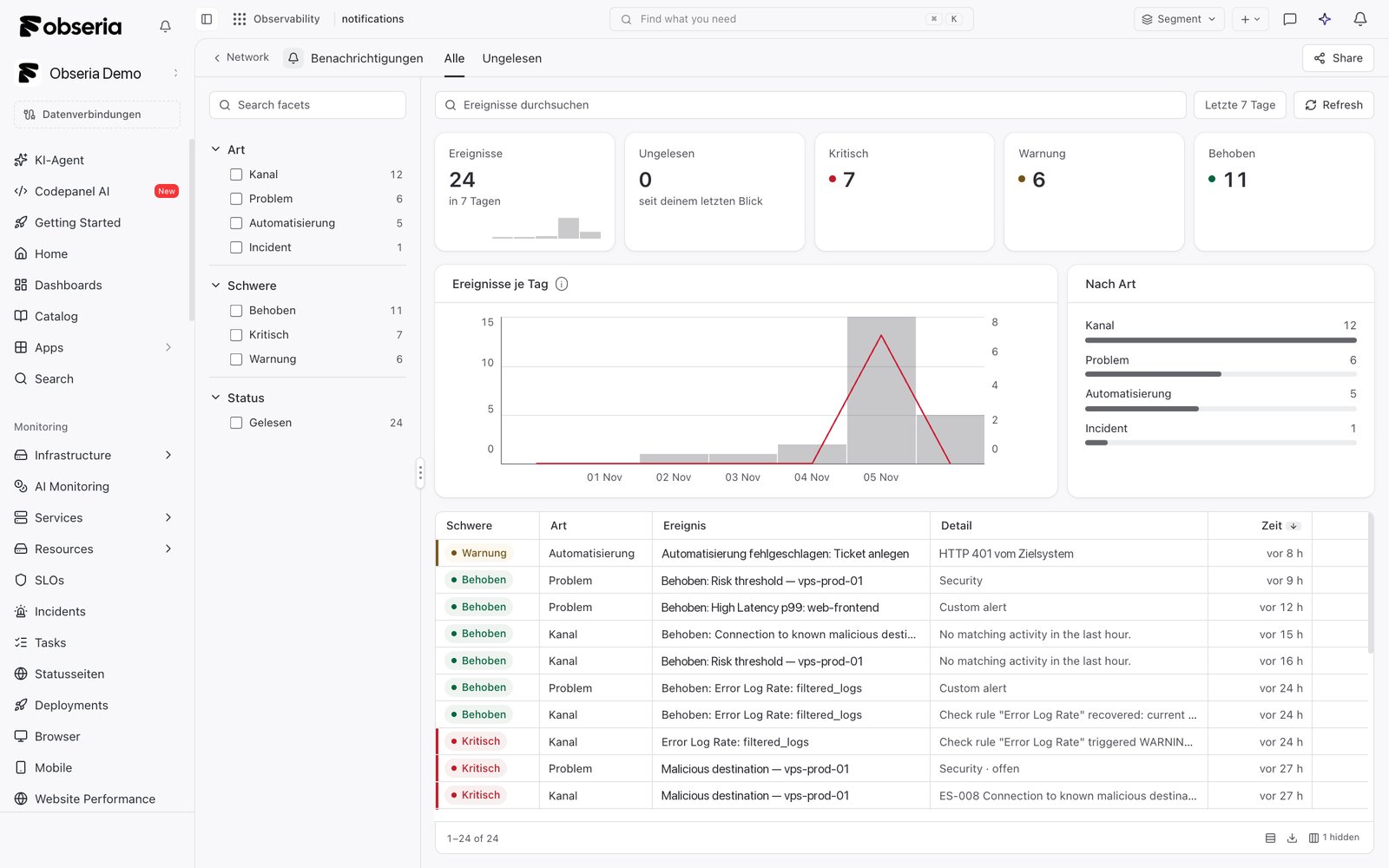
Obseria sends its messages through your notification channels. For apps in the inventory, Shadow IT uses them for notice deadline reminders and due vendor reviews.
Every discovered app with a decision (in review, approved, restricted, rejected, retired), owner, department, users, contracts and cost.
Finds the software in use from Google Workspace and Microsoft 365 sign-ins, the Obseria Guard browser extension, outgoing service calls, spend imports and requests.
Learn more →Contracts with price, billing cycle, seats, term and notice period, read from a PDF with AI and checked by you, plus reminders before every notice deadline.
Learn more →Seats bought compared with people who actually used the app in the last 30 days, licences assigned per person and optional recycling of unused seats with a warning first.
Learn more →A source sees the app: sign-ins, the browser extension, telemetry, a spend import, a request or a manual entry. It lands in the inventory as discovered.
Set it to in review, look at users, sources and risk, and check whether another approved tool already does the job.
Approve, restrict or reject the app. Restricted means allowed for some teams or uses only.
Set owner and department, add notes and attach the contract with cost, seats and notice period.
New apps, apps without owner and rejected apps that are still used stay visible in filters and tiles.
Every app in the inventory has a status that records a decision: discovered (found, nobody has looked at it yet), in review, approved, restricted (allowed for some teams or uses only), rejected (users should move off it) and retired (no longer in use).
Next to the status you set the owner, the department, the vendor, one of the categories such as Communication, Development, AI or Storage & Files, and free notes. A separate manual assessment lets you record your own judgement of the risk; it sits next to the computed risk score and does not change it.
Apps that came from the catalog show their catalog entry; apps added by hand or found only through an OAuth grant are marked as not in the catalog.
The inventory table shows per app the users, the active users in the last 30 days, the number of services that call it, the sources that saw it, the annual contract cost, the spend in the last 12 months, the seats, the next renewal and the notice deadline, plus first and last seen. Columns can be shown, hidden and sorted.
Tiles above the table count the apps that need review, the apps without owner and the annual contract cost of the apps shown. Clicking a tile sets the matching filter.
Facets on the left filter by status, category, source, risk level, manual assessment, contract and owner. A free filter searches name, vendor, domain, owner and department. The filtered list can be exported as CSV, for example as evidence in an audit.
Clicking an app opens its detail view, beside the list or as a full page. Tabs bring together what other tools keep in separate places: Overview with an at-a-glance summary, who saw it and the next renewal; Risk & access with the score, its reasons and the OAuth permissions granted; Compliance with DPA, data location and certificates; Users with every person and source; Contracts, Spend and Requests.
Licence recycling can be set per app in the overview: after a chosen number of idle days people get a warning, and if they stay inactive the licence assignment ends in Obseria and the app owner gets a task to remove the seat at the vendor. Without a usage source such as the browser extension or an identity provider, nothing is recycled.
 Slack
 Microsoft Teams
 Salesforce
 GitHub
 GitLab
 ChatGPT / OpenAI
 Claude
 Stripe
 Shopify
 Vercel
 Cloudflare
 Datadog
A software inventory is the register of all software a company uses, with the facts needed to manage it: what the app is, who is responsible for it, who uses it, whether it is approved, which contract applies and what it costs. In the past this was a list of installed programs. Today most business software is SaaS, so a SaaS inventory has to include every cloud app, including those nobody registered.
The inventory is the backbone of software asset management. Licence management, renewals, access reviews, vendor compliance and offboarding all start from the same question: which apps do we have?
Many companies start with a spreadsheet. It works until the first audit or the first leaver with twenty SaaS accounts. A manual list has three typical problems:
A living inventory is fed by discovery, so new apps appear on their own, and it holds decisions, so everyone can see what is allowed.
Employees often ask: “Am I allowed to use this?” An approved software list answers that question, and it falls straight out of a well-kept inventory: everything with the status approved, plus restricted apps with a note on who may use them. Publish that list internally and pair it with a request form for anything that is missing. People choose the approved path when it is easy to find.
ISO 27001 asks for an inventory of information and associated assets with owners (Annex A control 5.9) and for rules on the acceptable use of these assets (A.5.10). For cloud services, A.5.23 adds requirements on acquiring, using and exiting them. Auditors typically want to see the list, the owner per app, the decision and evidence that the list is current. A software inventory fed by discovery delivers exactly that, and a CSV export of the filtered list is often enough as evidence.
A good inventory is not an IT-only tool. IT uses it to decide on new apps and to plan onboarding and offboarding. Security looks at risky permissions, AI tools and former employees with access. The privacy officer checks which vendors process personal data and whether a data processing agreement exists. Procurement and finance see contracts, renewals and spend. App owners answer for their tools. When everyone works from the same list, questions stop bouncing between departments and spreadsheets.
A CMDB describes technical configuration items and their relationships, mostly for operations. A classic software asset management tool counts installations and licence entitlements on devices. A SaaS-focused software inventory starts from usage in the cloud: sign-ins, browser visits, payments and API calls. Many companies need the last one first, because that is where most new software appears.
In Obseria Shadow IT, every app any source has seen lands in one inventory: from Google Workspace and Microsoft 365 sign-ins, the Obseria Guard browser extension, outgoing service calls in your telemetry, spend imports, approved requests or a manual entry.
The status is a decision inside Obseria. It does not block an app at the vendor or in your identity provider; it tells your people and your processes what is allowed.
A register of all software your company uses, with status, owner, users, contracts and cost per app. In Obseria Shadow IT it is filled by discovery and kept current as new apps appear.
Discovered, in review, approved, restricted (allowed for some teams or uses only), rejected and retired. The status is a decision you record; Obseria does not block or unlock anything at the vendor.
Yes. Add any app by hand, from the catalog or with your own name, for example desktop tools or on-premise licences. Approved software requests are added automatically.
Yes. The filtered list can be exported as CSV, with the columns you have chosen. A PDF audit report on software and vendor compliance is also available.
It provides an inventory of cloud apps with owners and decisions, which supports the asset inventory and acceptable-use controls of ISO 27001. The audit itself and your policies remain your responsibility.
Shadow IT is billed by managed applications per month, with no seat fees. Current prices and included amounts are on the pricing page.
Discovery, risk, compliance, contracts, licences and access reviews.
→Six sources that fill the inventory on their own.
→Price, seats, term and notice deadline per app.
→Seats bought compared with people who used the app.
→An official way to ask for new software.
→How to discover and manage shadow IT, step by step.
→In 30 minutes we show you how Obseria works in your environment and answer your questions on setup, privacy and pricing.

 Slack
 Microsoft Teams
 PagerDuty
 Opsgenie
 Jira Service Management
 Google Chat
 Discord
 incident.io