
Visual workflow builder
Drag steps onto a canvas, connect their outputs and configure each step in a form. Test runs show every step's result, and each save keeps a version you can restore.
We use essential functions to operate this website. With your consent, we would also use services for statistics and marketing. You decide which categories you allow and can change your choice at any time via “Cookie settings” in the footer. More in our privacy notice.
Obseria Consent Management · Your choice is stored for 12 months
Drag steps onto a canvas, connect their outputs and configure each one in a form. Checks while you edit, test runs with sample data and a version for every save keep your processes safe to change.
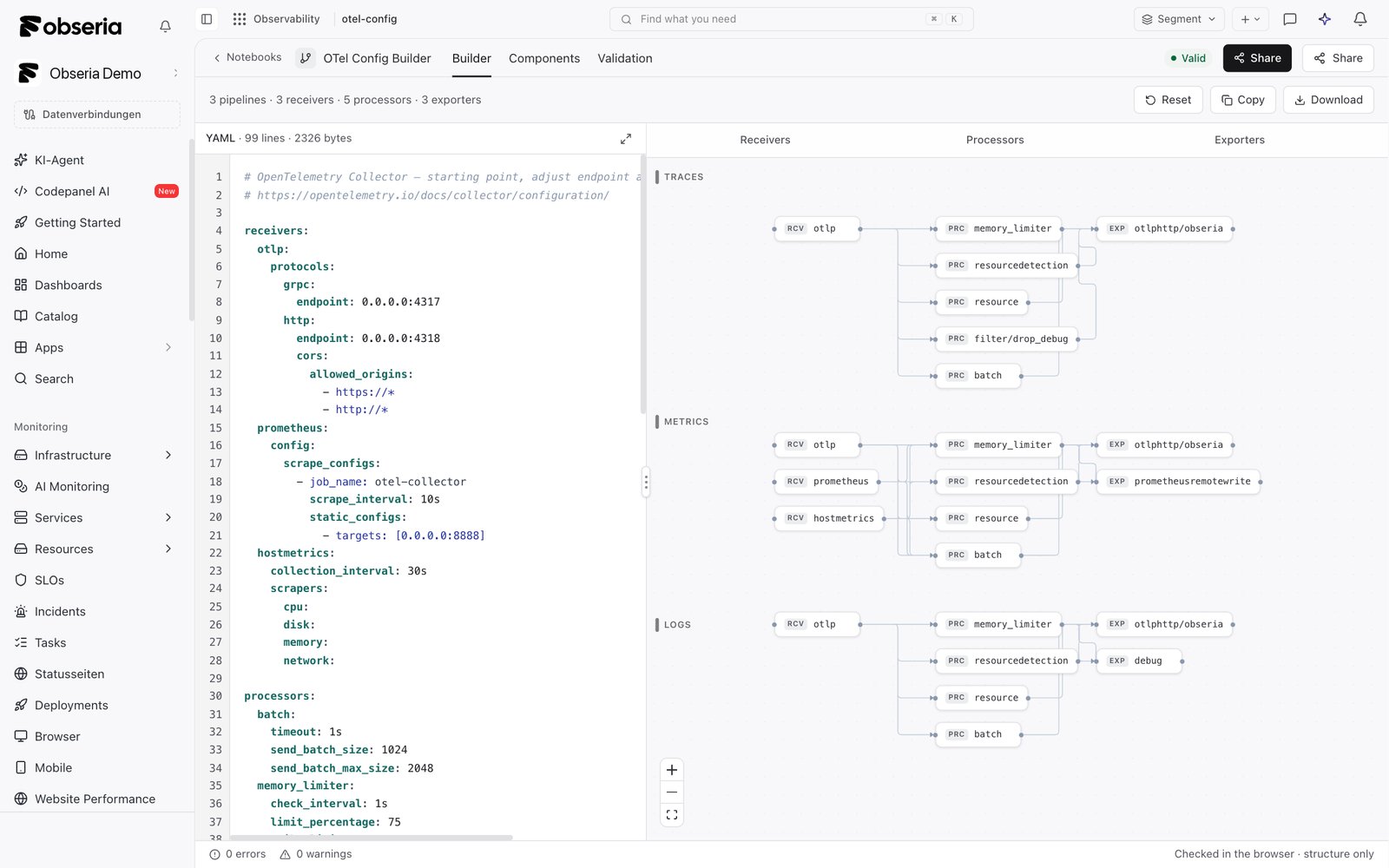
This view is the OTel Config Builder: collector pipelines as connected nodes, a validation status and an error count. The Workflow builder follows the same idea for business processes: steps on a canvas, checked while you edit.
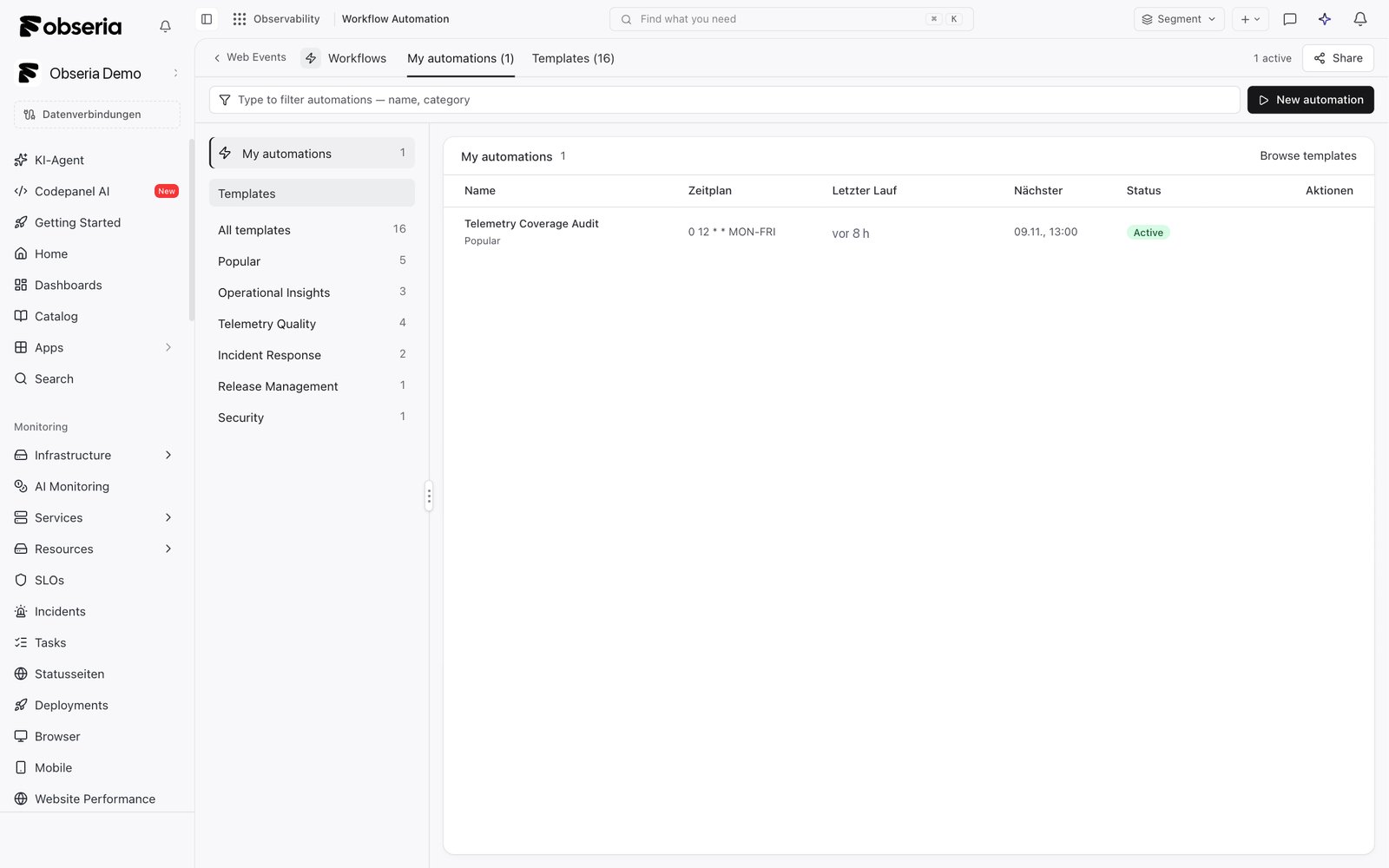
The automation list shows each automation with its cron schedule, last and next run and status, next to template categories.
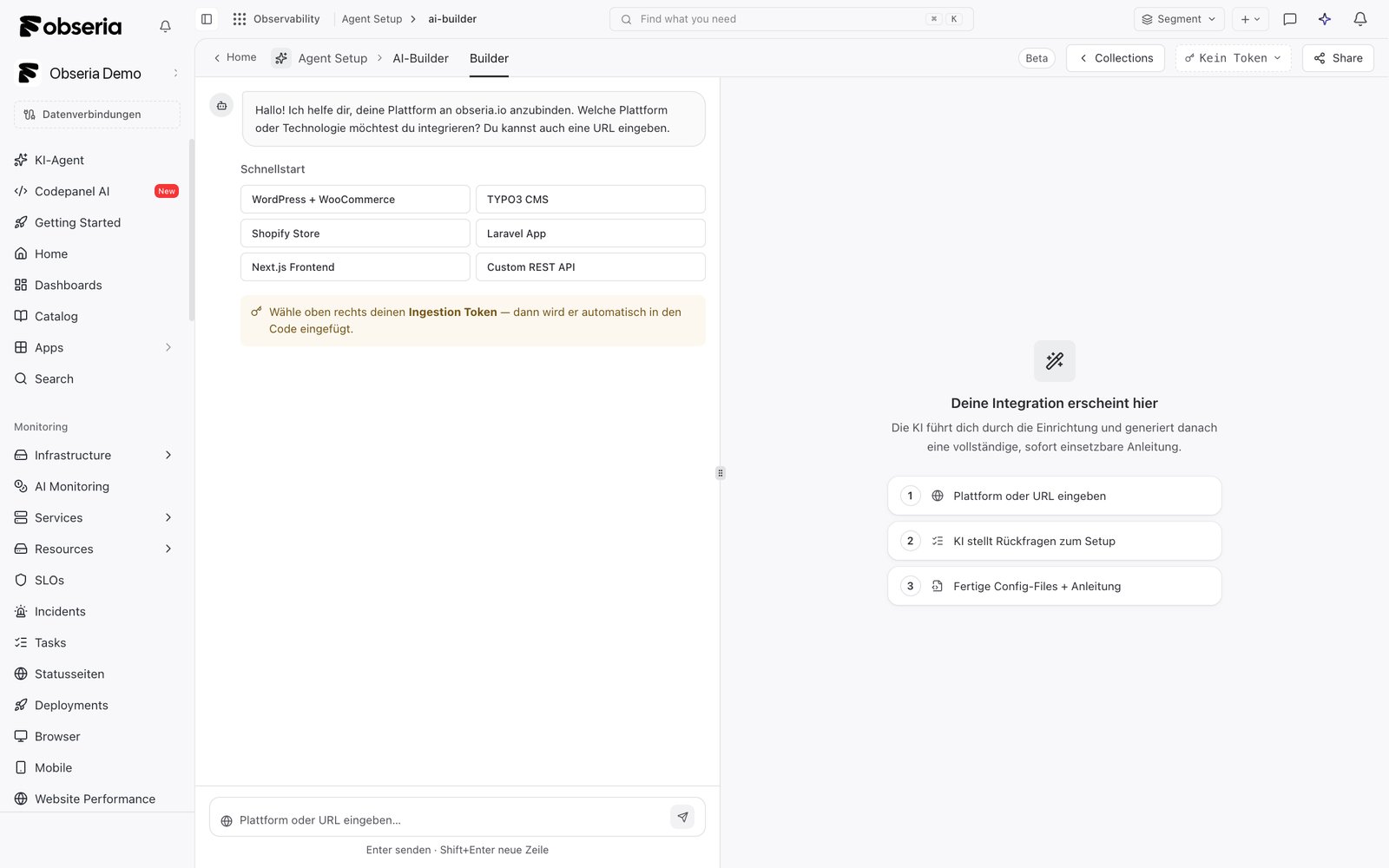
This AI builder from Obseria's agent setup asks follow-up questions and then produces a ready setup. The AI assistant in the Workflow builder works in a similar guided way and places its draft on the canvas.
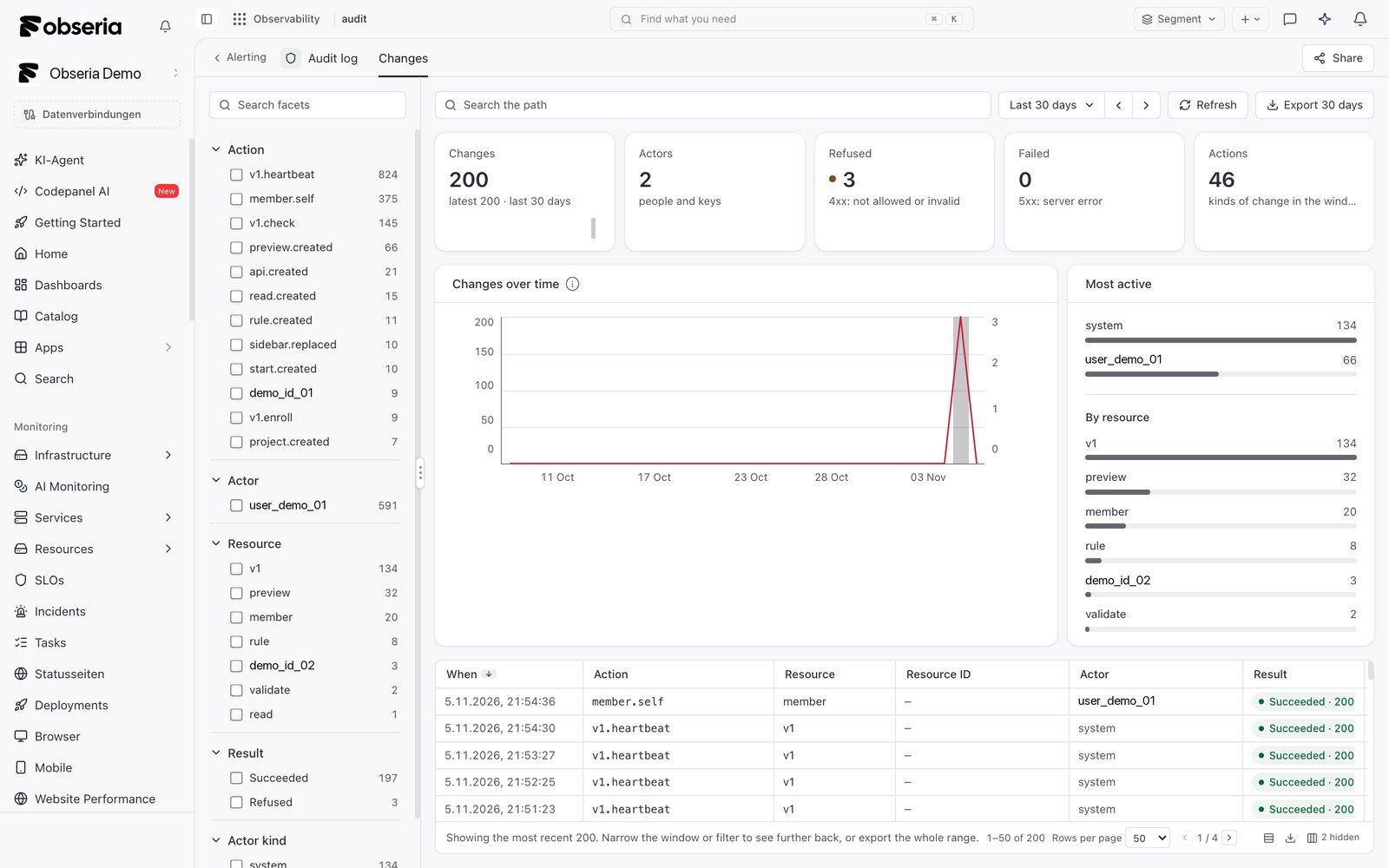
The audit log in Obseria records changes with the person or key that made them, the resource and the result. Within the builder, every saved change also becomes a workflow version.
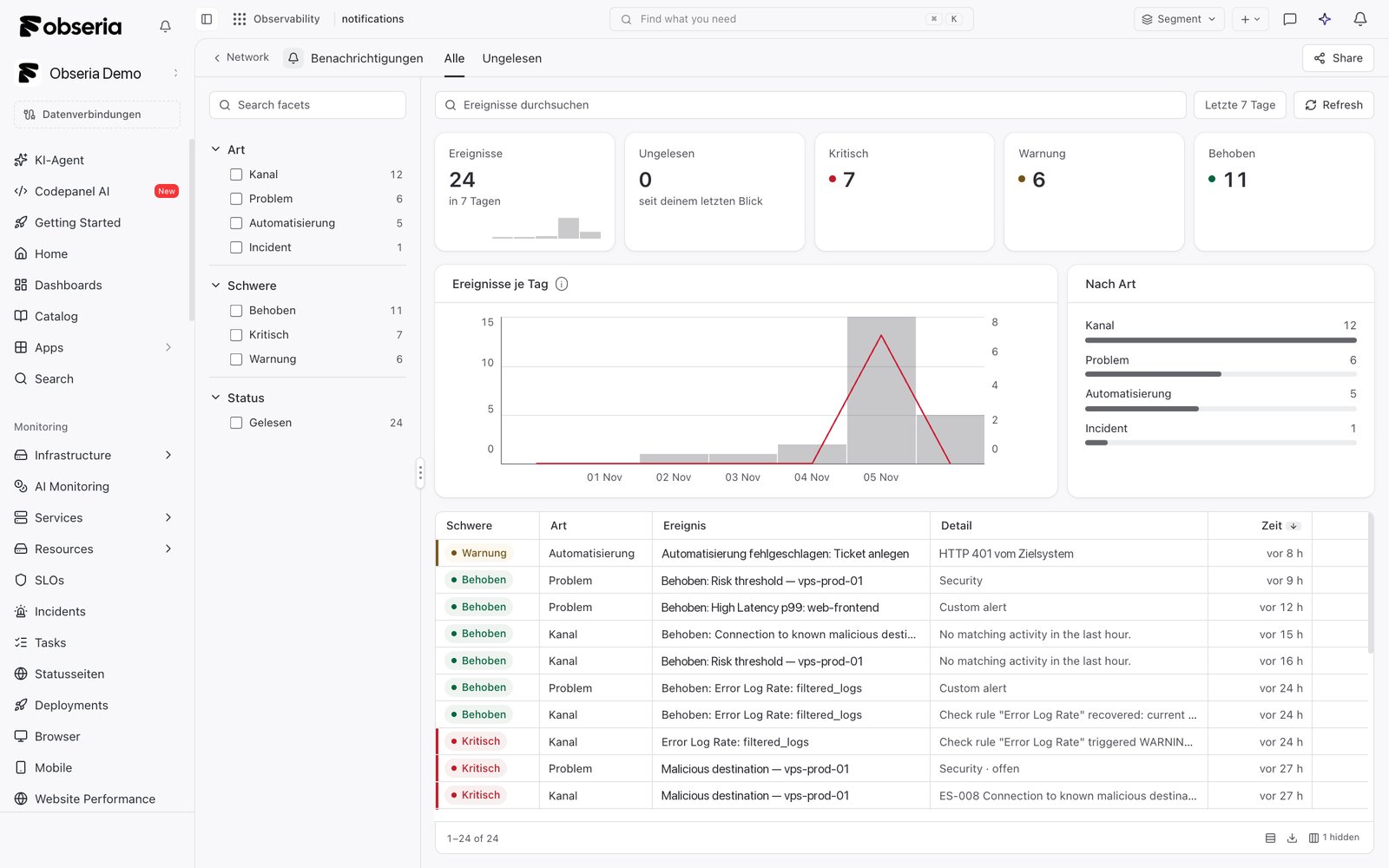
The notification centre lists events by type and severity, including a failed automation step with the error returned by the target system.
Drag steps onto a canvas, connect their outputs and configure each step in a form. Test runs show every step's result, and each save keeps a version you can restore.
A workflow starts by hand, from a webhook, on a cron schedule, on an Obseria event, from a public form or with every new e-mail in an IMAP mailbox.
Learn more →An AI step summarizes, classifies, extracts or drafts, optionally as JSON for later steps. In the builder, an AI assistant drafts or changes a workflow from a description.
Learn more →Every run with trigger payload, step timeline, inputs and outputs. Retry with the same payload, cancel waiting runs, set retries per step and send failures to an error channel.
Learn more →Start with the event that begins the process, for example a public form for purchase requests.
Drag a condition, an approval and an HTTP request from the palette onto the canvas and connect their outputs.
Fill in each step's form. Use the insert menu for form fields and earlier results, and short expressions for thresholds.
Start a test run with sample input. Every step shows its status, input and output.
With no errors left, switch the workflow to active. Each save keeps a version you can go back to.
Workflows are built on a canvas. A searchable palette lists the available steps by category: triggers, logic, actions, data and people. Drag a step onto the canvas and connect it to the previous one.
Branching steps have named outputs, so the path is always visible: a condition has true and false, an approval has approved and rejected, a loop has each item and done, and a switch has one output per case plus a default. A minimap and zoom keep larger workflows manageable.
Notes can be placed on the canvas to explain why a branch exists or who owns a section. They do nothing at run time.
Selecting a step opens its form. The fields come from the step type: a webhook asks for an optional shared secret, an e-mail for recipients, subject and body, a database query for the connection and the SQL. A help panel explains what the step does, typical uses and a tip.
Text fields accept placeholders such as {{ trigger.form.item }}. An insert menu lists trigger data, outputs of earlier steps and organisation variables, so nobody has to remember field names. Conditions use the same expression language, with filters for text, numbers, lists and dates.
Expressions are evaluated in a closed sandbox: they can read the workflow's own data and nothing else.
The builder checks the workflow while you edit. The issue list names errors and warnings and points to the step: a missing or second trigger, an empty required field, an expression that does not parse, an invalid cron expression, a step without an incoming connection or a cycle. Repetition belongs in a loop step, not in a circle on the canvas.
A test run executes the workflow exactly as it is on screen, without saving. You can pass trigger input; for events and mailboxes, sample data is used when you leave it empty. Each step is coloured with its result, and its tabs show the configuration, the test output and the raw JSON. Steps that wait, such as an approval, pause the test run, which you can continue from the run history.
A workflow with errors cannot be activated, and an active workflow cannot be saved with errors.
Every save that changes the workflow creates a new version with time and author. The version list lets you restore an earlier state in one step. Workflows can also be duplicated, for example to try a variant without touching the live one.
The AI assistant in the builder drafts or changes a workflow from a description. In guided mode it asks one question at a time: how the process starts, which system, which data, who approves. The draft is checked before it reaches the canvas, and its last change can be undone in one click.
Use the assistant for a first draft, then review every step in its form and test it like any other workflow.
 Slack
 Microsoft Teams
 Jira
 GitHub
 PostgreSQL
 MySQL / MariaDB
 Shopware
A visual workflow builder lets you design an automated process as a diagram instead of a program. Each box on the canvas is a step: a trigger that starts the process, a condition that decides which way it goes, an action that calls another system or sends a message, a person who has to approve something. Lines between the boxes show the order. What you see on the canvas is what runs.
This is the core idea behind no-code workflow automation: the people who know a process best, in finance, HR, purchasing or support, can describe it themselves and see it work, without waiting for a development project.
Pure no-code tools stop working the moment a process needs a small calculation, a renamed field or a date in a different format. Pure code tools shut out the business teams. A practical low-code workflow builder combines both: forms for every step, plus short expressions exactly where they are needed, for example trigger.body.amount > 1000 in a condition or {{ trigger.form.name | upper }} in an e-mail subject.
The important part is that expressions stay small and readable. If a step needs a page of logic, it usually belongs in its own system, called through an API.
These five answers map almost one to one onto the canvas: a trigger, conditions, actions, a final message and error handling.
The most common mistake in workflow automation is switching a process on without having seen it run. A good builder lets you start a test run with sample input and shows the result of every single step: what went in, what came out and where it stopped. Only when the test run looks right should the workflow be activated.
Validation helps before that point. A builder that checks the workflow while you edit catches missing required fields, broken expressions, invalid schedules, steps that can never be reached and loops that would never end. Fixing those on the canvas is far cheaper than finding them in production.
Processes change: a new approver, a different threshold, an additional system. Every change to a live process carries a risk. Workflow versioning keeps each saved state, so you can see what changed and go back to an earlier version in one step if a change does not work as intended. Combined with a rule that an active workflow cannot be saved with errors, this keeps production processes stable while they evolve.
An AI workflow builder turns a description into a first draft: you write what should happen, and the assistant places the steps on the canvas. That is useful for a first version, but the draft still has to be reviewed. A good assistant only produces steps the engine can actually run, shows the result on the same canvas and lets you undo its change.
The best results come from a pair: someone from the business team who owns the process, and someone from IT who provides the connections to the systems involved. The business side designs the steps, the approvers and the messages on the canvas. IT stores credentials centrally once, so the workflow only refers to a named connection and never contains a password. That split keeps the process in the hands of the people who run it, while access to systems stays under control.
What the builder does not offer today: free code steps in a programming language and real-time co-editing by several people on the same canvas.
A tool that lets you design an automated process as a diagram of steps on a canvas instead of writing code. In Obseria Workflow, every box is a step with its own form, and lines between them define the order and the branches.
No. Steps are configured in forms. For thresholds, renamed fields or dates you can use short expressions and placeholders, and an insert menu offers the available data. Free code steps in a programming language are not part of the builder.
Start a test run from the toolbar. It runs the workflow as it is on screen, without saving, with the input you provide or sample data. Each step shows its status, output and JSON.
Yes. Each save that changes the workflow creates a version, and earlier versions can be restored from the version list. An active workflow cannot be saved with errors.
The AI assistant in the builder drafts or changes a workflow from a description, directly or by asking one question at a time. The draft appears on the canvas, is checked like any other change and can be undone in one click. You should still review and test it.
Building and testing are part of Obseria Workflow. Workflows are billed by executed steps: $0.50 per thousand, with the first 10,000 steps per month included; triggers, waiting for approvals and notes do not count. Details are on the pricing page.
Business process automation with approvals, connections and templates.
→Start a workflow by hand, webhook, schedule, event, form or mailbox.
→Branches, switches, loops, waits and sub-workflows.
→Ready-made processes that open as a draft in the builder.
→Tables and SQL where workflows keep and query their data.
→In 30 minutes we show you how Obseria works in your environment and answer your questions on setup, privacy and pricing.

 monday.com