Branches, loops and waiting
Conditions, switch by value, filters, loops over lists, waits for a time or an event, sub-workflows and variables shape the path a run takes.
We use essential functions to operate this website. With your consent, we would also use services for statistics and marketing. You decide which categories you allow and can change your choice at any time via “Cookie settings” in the footer. More in our privacy notice.
Obseria Consent Management · Your choice is stored for 12 months
Conditions, switches by value, filters, loops over lists, waits for a time or an event, sub-workflows and variables shape the path every run takes, visible as named branches on the canvas.
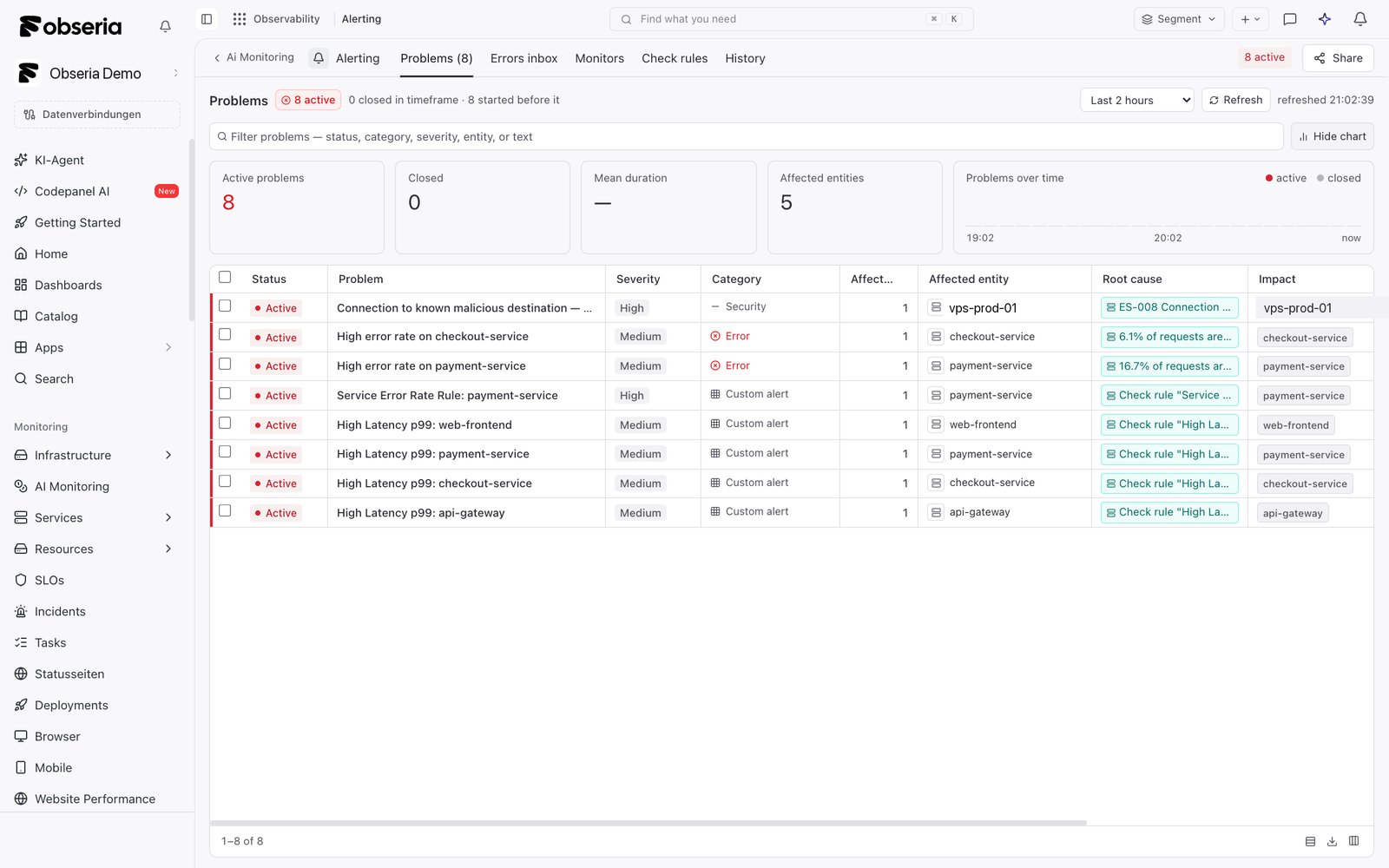
Problems show severity, the affected entity, impact and the likely root cause. A workflow started by such a problem can branch on its severity, for example to escalate only critical ones.
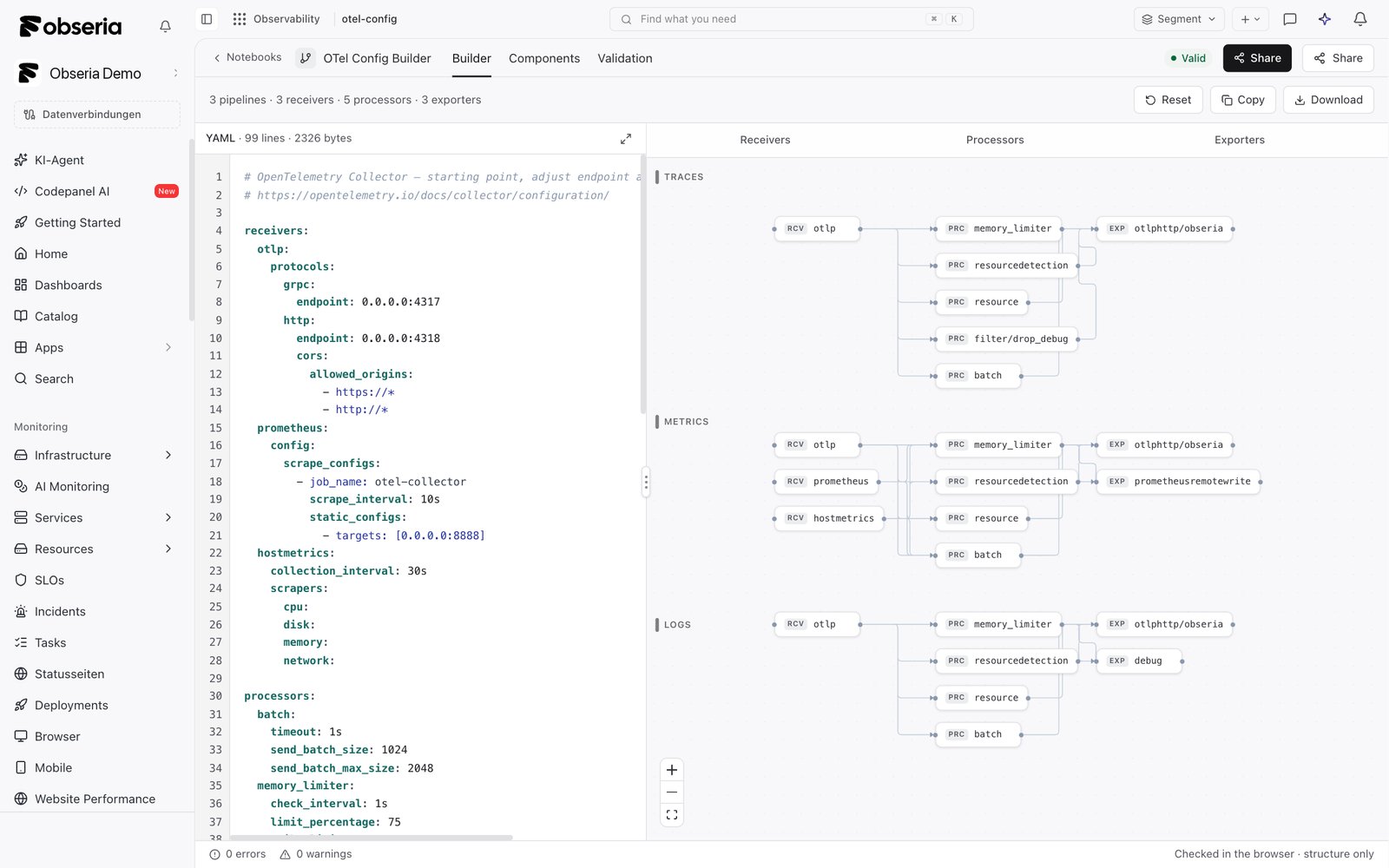
This view is the OTel Config Builder: pipelines as connected nodes with a validation status. In the Workflow builder, branches are drawn the same way, with named outputs per step.
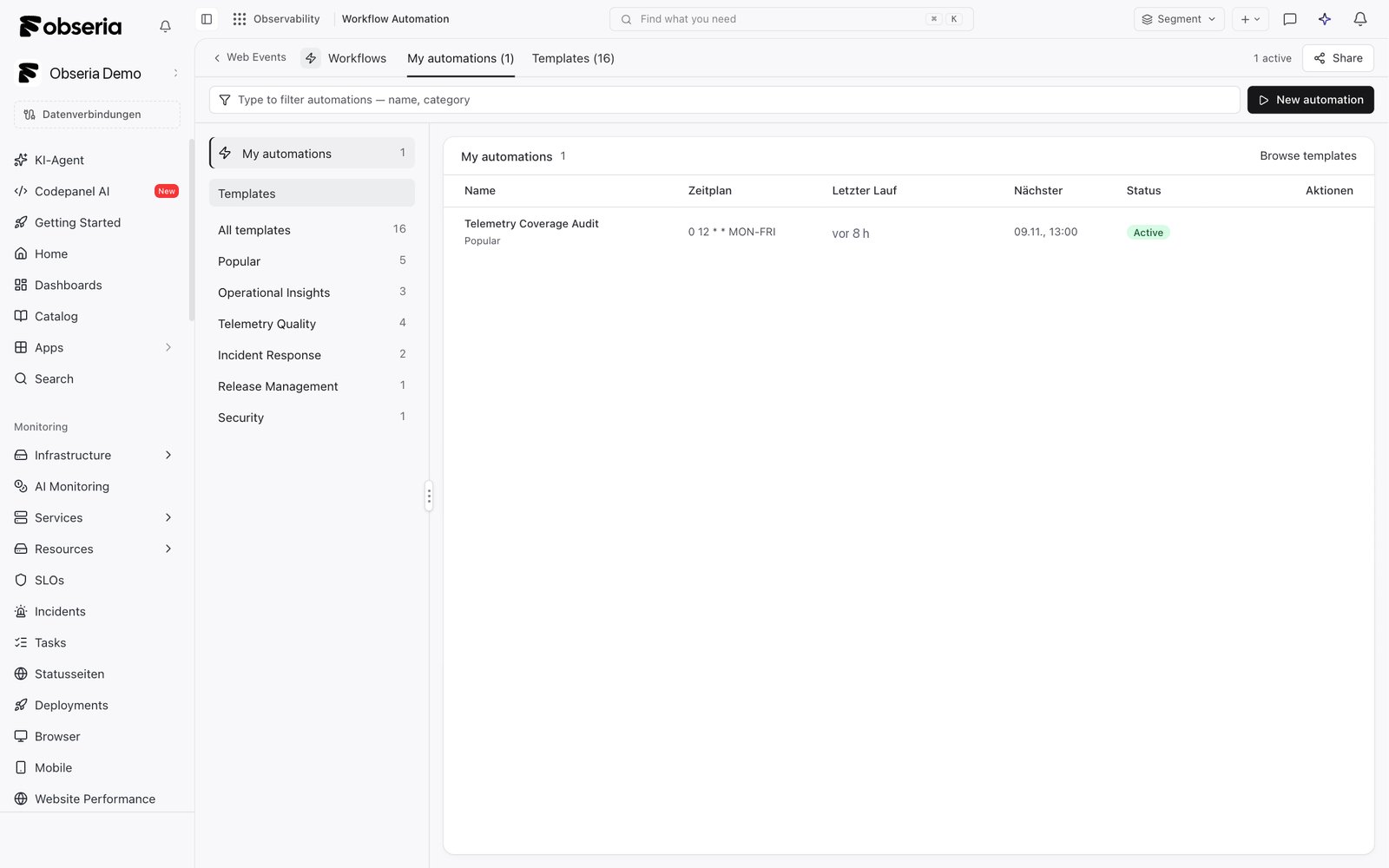
The automation list shows cron schedules, last and next runs and status. A daily scheduled run is the typical start of a loop over open invoices or contracts.
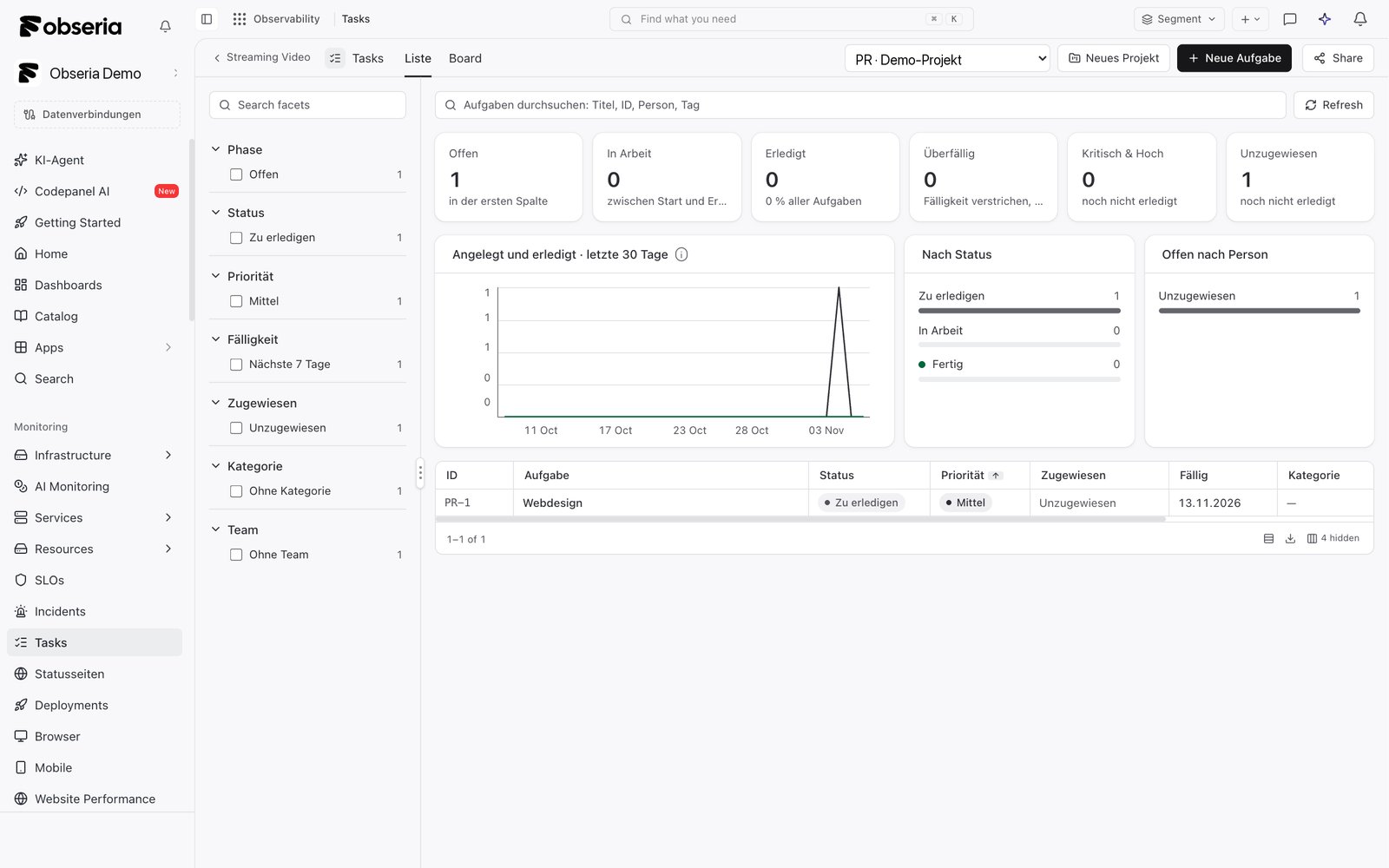
Obseria tracks follow-up work as tasks with status, priority, due date and assignee. When a wait for an event times out, a person usually has to take over.
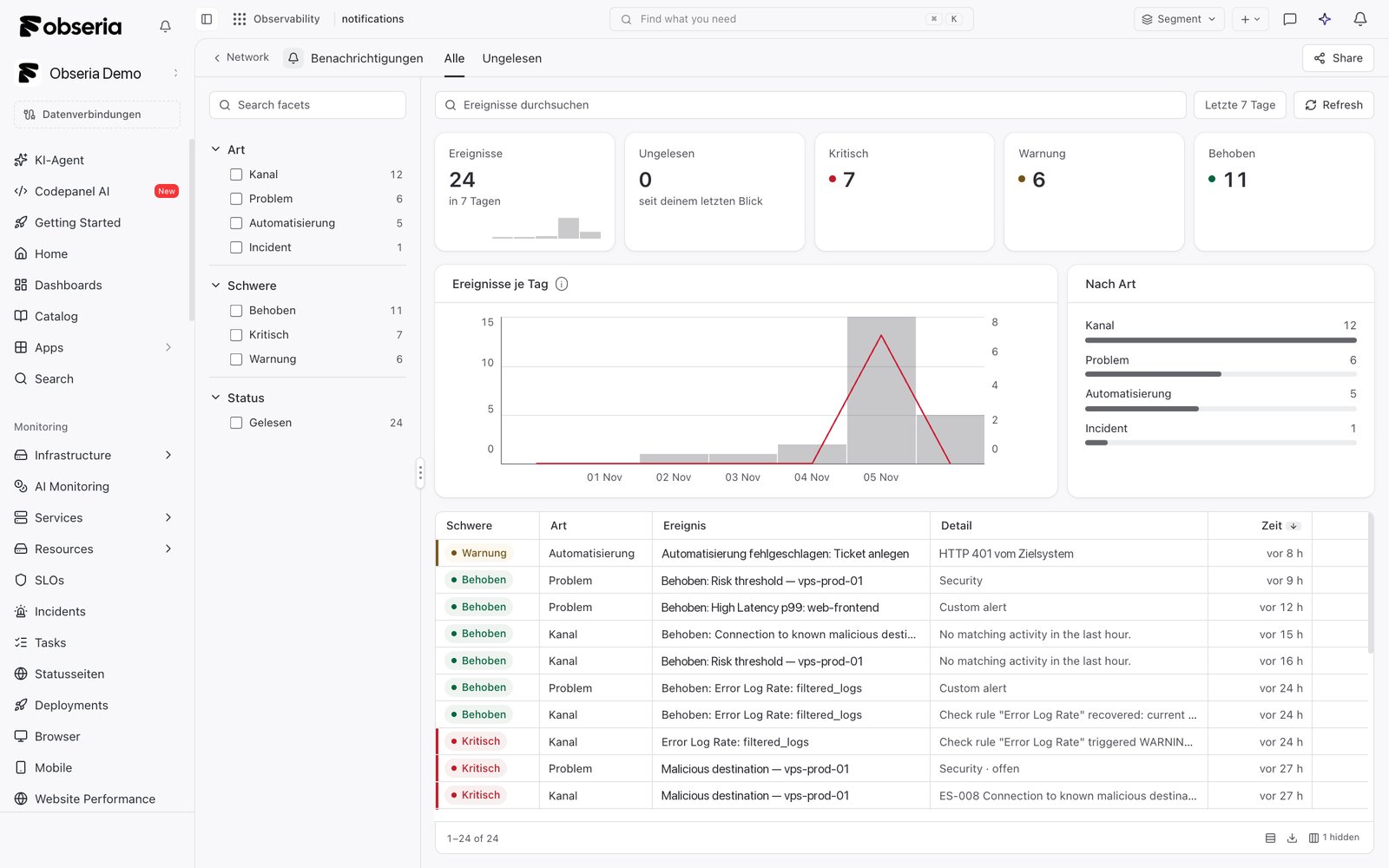
The notification centre lists events by type and severity, including a failed automation step with the error of the target system.
Conditions, switch by value, filters, loops over lists, waits for a time or an event, sub-workflows and variables shape the path a run takes.
A workflow starts by hand, from a webhook, on a cron schedule, on an Obseria event, from a public form or with every new e-mail in an IMAP mailbox.
Learn more →Parse CSV and Excel, read text from PDFs, group and sum rows, remove duplicates, detect changes since the last run, create CSV, Excel or PDF files and keep rows in Data tables.
Learn more →Every run with trigger payload, step timeline, inputs and outputs. Retry with the same payload, cancel waiting runs, set retries per step and send failures to an error channel.
Learn more →A schedule starts the run every morning and a data step loads all open invoices.
For each invoice, the following steps run once, with the invoice available as loop.item.
A switch routes by days overdue: friendly reminder, second reminder or escalation to finance.
A Wait step pauses the reminder branch for seven days before the invoice is checked again.
A condition checks whether the invoice is still open: if so, the next reminder level, otherwise nothing. A variable remembers the last run.
A condition checks an expression such as trigger.body.amount > 1000 and trigger.body.country == 'DE' and continues on its true or false output. A switch takes one value and routes into the branch of the matching case, plus a default branch; a case is either a plain value or an expression starting with =.
Continue only if is the quiet version: when the expression is false, the branch simply ends and the run still counts as succeeded. That is the right tool for ignoring test orders or internal addresses.
All three use the same expression language as the placeholders in every other step, and the builder checks each expression as you type.
The For each step runs its each-item branch once for every element of a list and then continues on the done output. Inside the loop, loop.item is the current element and loop.index its position.
A maximum number of items protects against surprises: 200 by default, up to 5,000. For APIs that accept many records per call, a data step splits the list into batches first, and the loop runs once per batch.
Repetition always goes through this step. Cycles drawn on the canvas are flagged as an error, which rules out endless runs by design.
The Wait step pauses a run for a number of minutes, hours or days, or until a date from the data, for example a due date. Waits are limited to 90 days.
Wait for event pauses until a matching event arrives, and continues on received. The events are those of Obseria itself, for example a Data table update, a decided software request or a failed workflow. A match expression decides which event belongs to this run. If nothing arrives in time, the run continues on timeout: 72 hours by default, up to 90 days, or with no deadline at all.
Waiting runs are listed in the run history with the time they will resume and can be cancelled there.
Run workflow calls another workflow with an input and waits for its result, which is whatever its Respond step returns. Shared routines such as a standard notification are built once and used everywhere; nesting is limited to three levels.
Set data computes and renames values for later steps, for example a total or a normalised e-mail address. Set variable stores a value at organisation level, readable in every run as vars.<key>: an approval limit, a counter or the last processed ID.
Variables can also be maintained centrally in the Workflow area and marked as secret.
 Jira
 GitHub
 PostgreSQL
 MySQL / MariaDB
 Slack
 Microsoft Teams
Very few business processes are a straight line. A purchase request below a limit is ordered directly, above it someone has to approve. A support ticket goes to a different team depending on its category. An invoice reminder is only sent if the invoice is still unpaid a week later. Workflow logic is everything that shapes the path of a process: conditions, switches, loops, waits and reusable sub-workflows.
Getting this logic right is what separates a reliable automated process from one that works for the happy path only.
A condition checks an expression and sends the run down one of two paths, true or false. Typical expressions compare an amount with a limit, check whether a field is filled or test the status code of an API call, for example trigger.body.amount > 1000 or steps.http.status == 200. Several checks can be combined with and and or.
Two rules keep conditions readable. Give the step a clear name, such as above_approval_limit, so the canvas explains itself. And put thresholds that change, such as approval limits, into a variable instead of hard-coding them in every workflow.
When there are more than two paths, a chain of conditions becomes hard to read. A switch looks at one value, such as a department, a region or an event type, and routes the run into the branch whose case matches, with a default branch for everything else. Use it for ticket routing, region-specific processing or different handling per document type.
Not every trigger means work. Test orders, internal e-mail addresses or events outside business hours can simply be ignored. A filter step continues only if its condition is true and otherwise ends the branch without an error. That keeps the run history honest: a filtered run is a success, not a failure.
Many processes work on lists: every overdue invoice, every row of a price list, every user in a directory. A for-each loop runs a set of steps once per item and then continues with the rest of the workflow. Within the loop, the current item and its position are available to every step.
Loops need limits. An API that returns ten thousand records should not trigger ten thousand e-mails by accident. Set a maximum number of items, and for APIs that accept many records at once, split the list into batches and loop over the batches instead.
Some processes need time. A reminder should go out three days after an invoice is sent. A follow-up waits until a contract's notice date. A shipping notice should only be sent once the payment for this order has arrived. Two kinds of waiting cover these cases:
The deadline is essential. A process that waits forever for a payment is invisible work nobody tracks. A timeout path that sends a reminder or opens a task makes the gap visible.
When several processes share the same part, such as a standard notification or an approval sequence, build it once as its own workflow and call it from the others. A sub-workflow receives an input, runs and returns a result. Changes then happen in one place.
Some values belong to the organisation rather than to a single run: an approval limit, a team address, the timestamp of the last successful sync. Storing them as workflow variables means every workflow reads the same value, and a run can update it for the next one, for example to remember the last processed ID.
Every call to another system can fail: a timeout, an expired token, a record that no longer exists. Good workflow logic decides in advance what happens then. For short outages, a step can simply be retried a few times. Where the process can continue without the result, the step can carry on with an empty output, and a following condition checks whether data arrived. Where a failure must not go unnoticed, the run should stop and someone should be told. In Obseria Workflow, retries and the behaviour on error are set per step, and each workflow can name a channel for failure messages. Writing these decisions down per step is part of designing the logic, not an afterthought.
=.Cycles on the canvas are not allowed; the builder flags them and points to the loop step instead. Waiting runs appear in the run history with their resume time and can be cancelled.
Add a Condition step with an expression, for example trigger.body.amount > 1000, and connect its true and false outputs to the steps for each case. For more than two paths, use a Switch.
Yes. The For each step runs its branch once per item, with the current item as loop.item, and then continues on done. It handles 200 items by default and up to 5,000.
A Wait step pauses for a duration or until a date, up to 90 days. Wait for event pauses until a matching event arrives or a timeout passes: 72 hours by default, up to 90 days, or without a deadline.
Yes. Build the shared part as its own workflow and call it with the Run workflow step. It receives an input and returns the output of its Respond step. Nesting is limited to three levels.
A step can have several outgoing connections, but there is no dedicated step that waits for parallel branches and joins them. For sequences that must finish in order, connect the steps one after another.
Executed steps are billed at $0.50 per thousand, with the first 10,000 per month included; waiting for approvals and notes do not count. See the pricing page.
Business process automation with approvals, connections and templates.
→Steps on a canvas, forms per step, test runs and versions.
→Webhook, schedule, event, form, mailbox or a manual start.
→Approved and rejected as two branches of the same run.
→CSV, Excel, PDF, aggregation and change detection.
→In 30 minutes we show you how Obseria works in your environment and answer your questions on setup, privacy and pricing.